

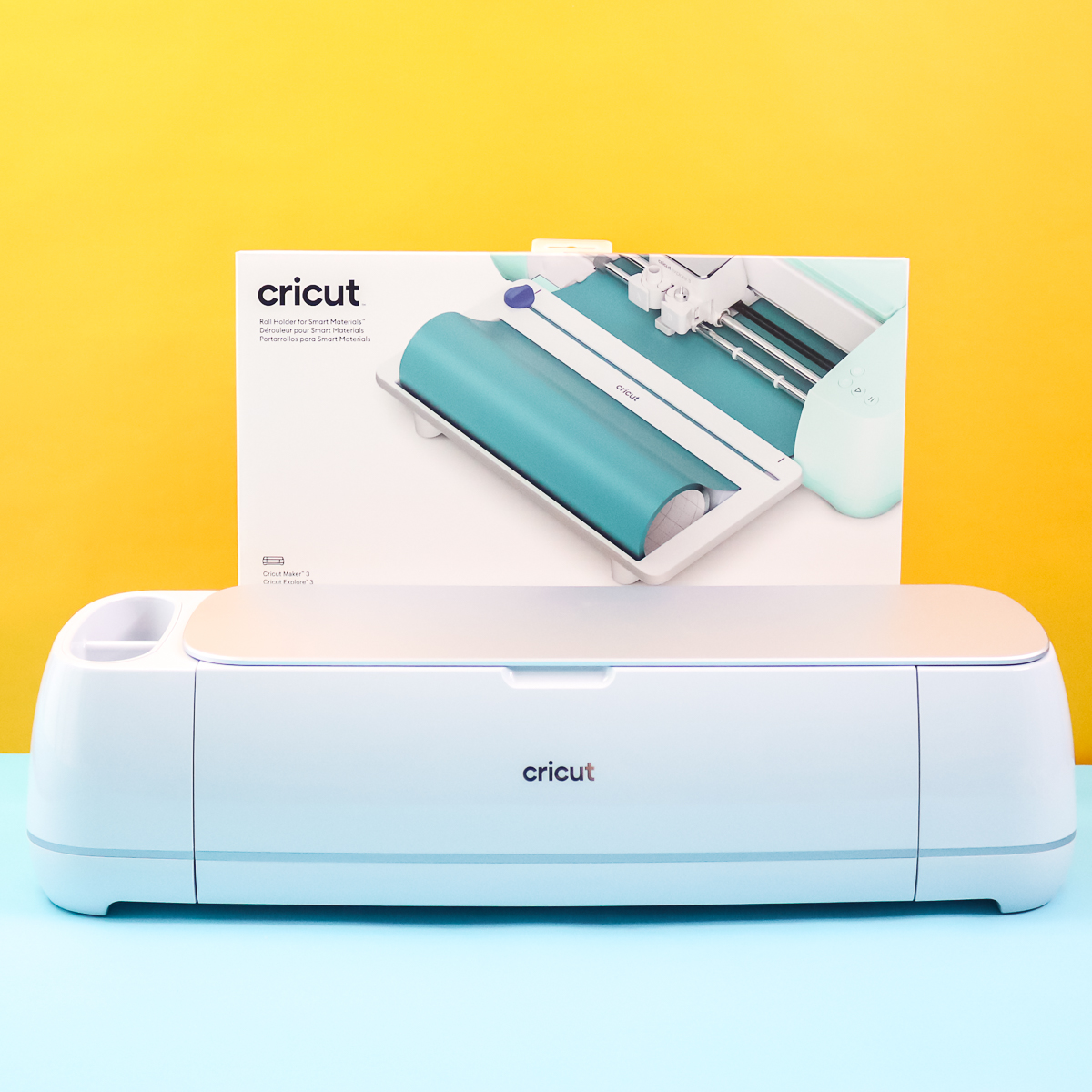
The Cricut Roll Holder is an exclusive attachment for the Cricut Maker 3, Maker 4, Explore 3, and Explore 4. I wanted to dedicate a post to this useful attachment so you can understand how it works and have your questions answered.
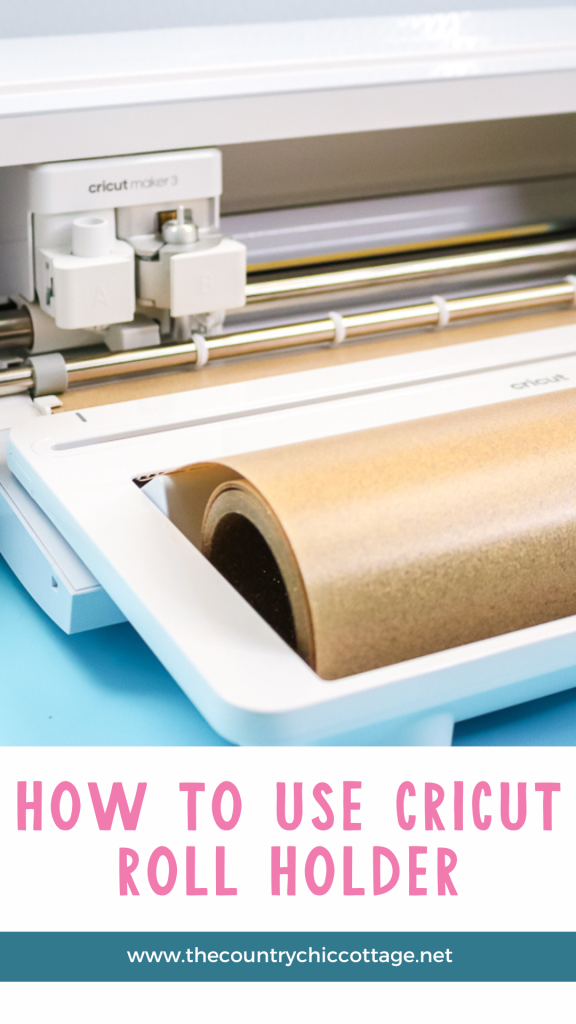
The roll holder lets you hold a large vinyl roll at the front of the machine while the Cricut cuts it. This means you can cut without a mat, which saves time and makes it easier to work on larger projects since the size of a cutting mat does not limit you.
What machines will this fit on? What types of vinyl can you use with it? Let’s jump in and explore everything you need to know about this exciting accessory!
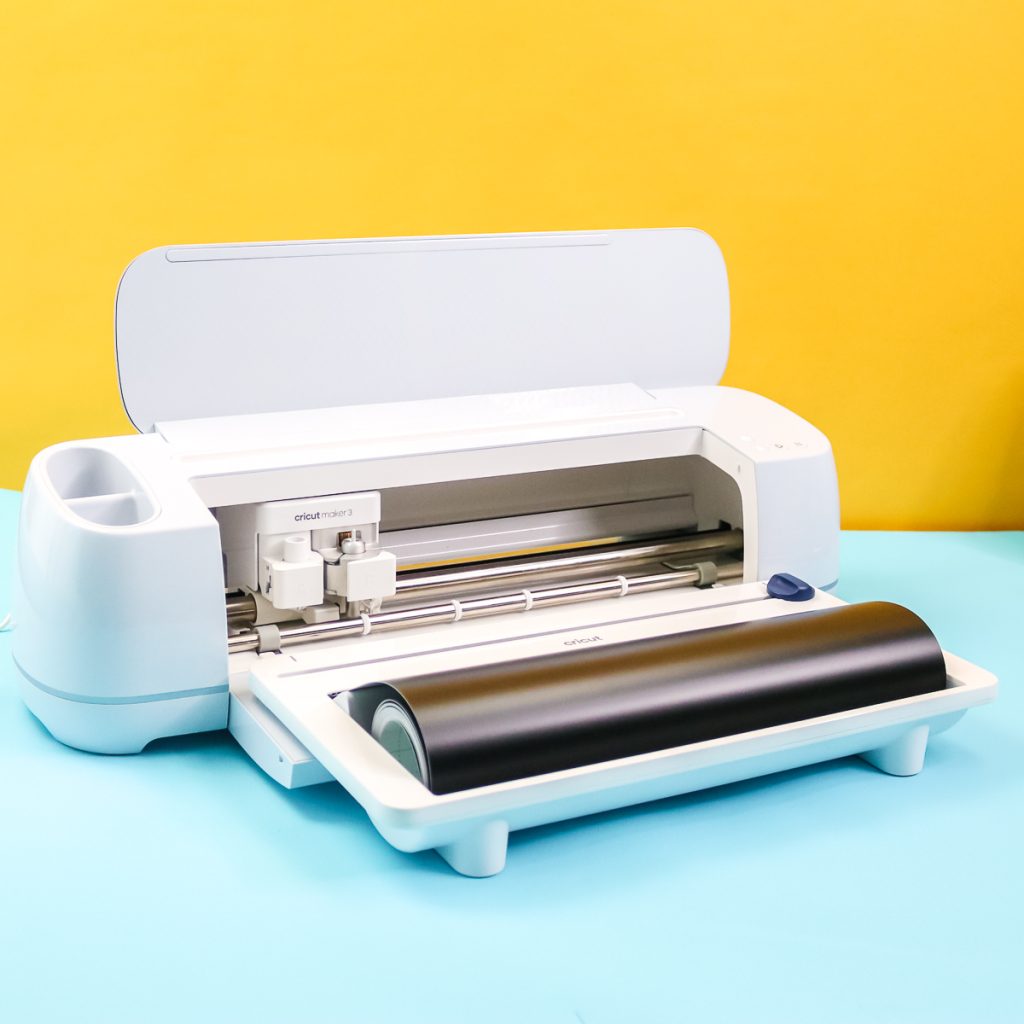
Cricut Roll Holder
To learn more about the roll holder attachment for newer Cricut machines, watch the video below. Click ‘play' to view all the details.
Can't watch the video or missed some of the steps? You can also follow along with the details below.
Which Cricut machines can you use the Roll Holder on?
The roll holder is compatible with the Cricut Maker 3 & 4, as well as the Cricut Explore 3 & 4. As you can see below, it is attached to the guides added to these machines, so it is not compatible with older models.
What materials fit the Cricut Roll Holder?
The roll holder is designed to work with Cricut Smart Materials, which are 13 inches wide. It will not work with a 12-inch-wide vinyl roll, which is the standard roll size. I am not aware of any other 13-inch wide rolls of material at this time, so I have not tested it with any other brands.
The holder will accept rolls up to 75 feet in length, so even those super-long rolls work. The short 3-foot rolls can also be used in this holder.
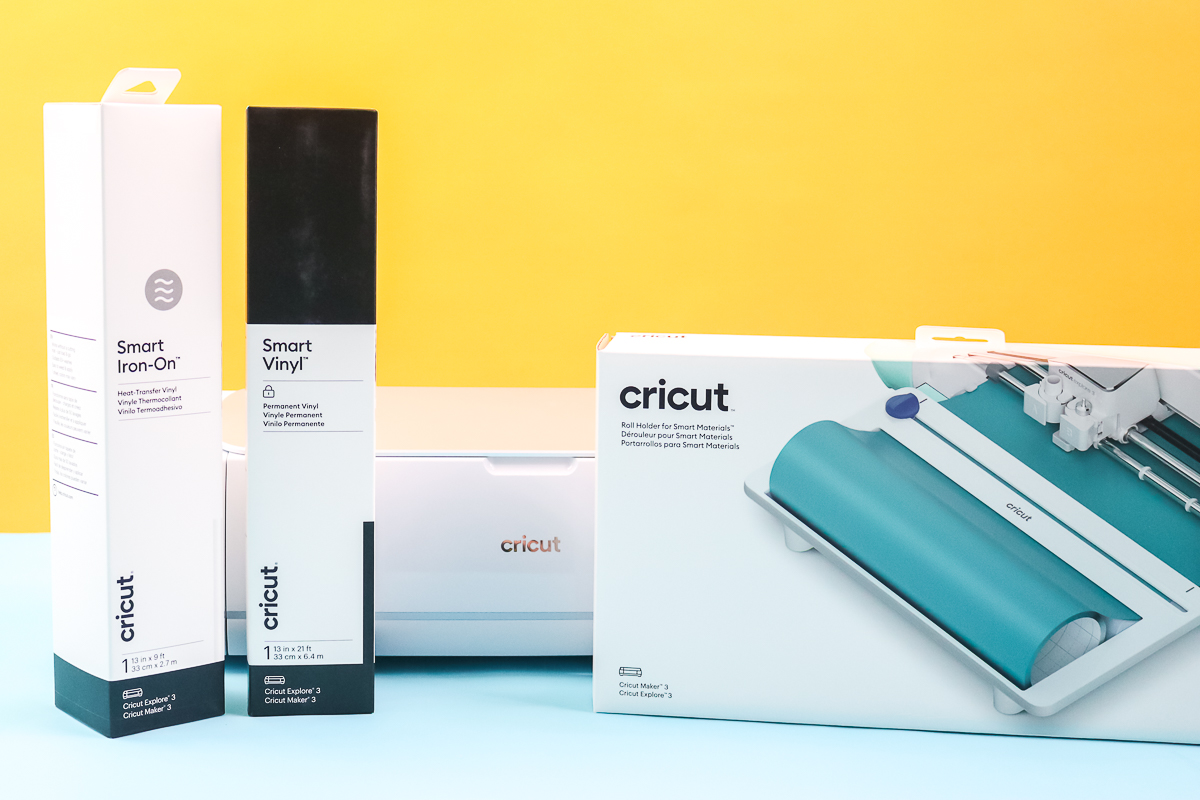
Features of the Cricut Roll Attachment
Here is a close-up view of the Cricut Roll Holder. You will see that it has wheels on the inside, allowing the vinyl roll to glide smoothly as it feeds into the machine easily.
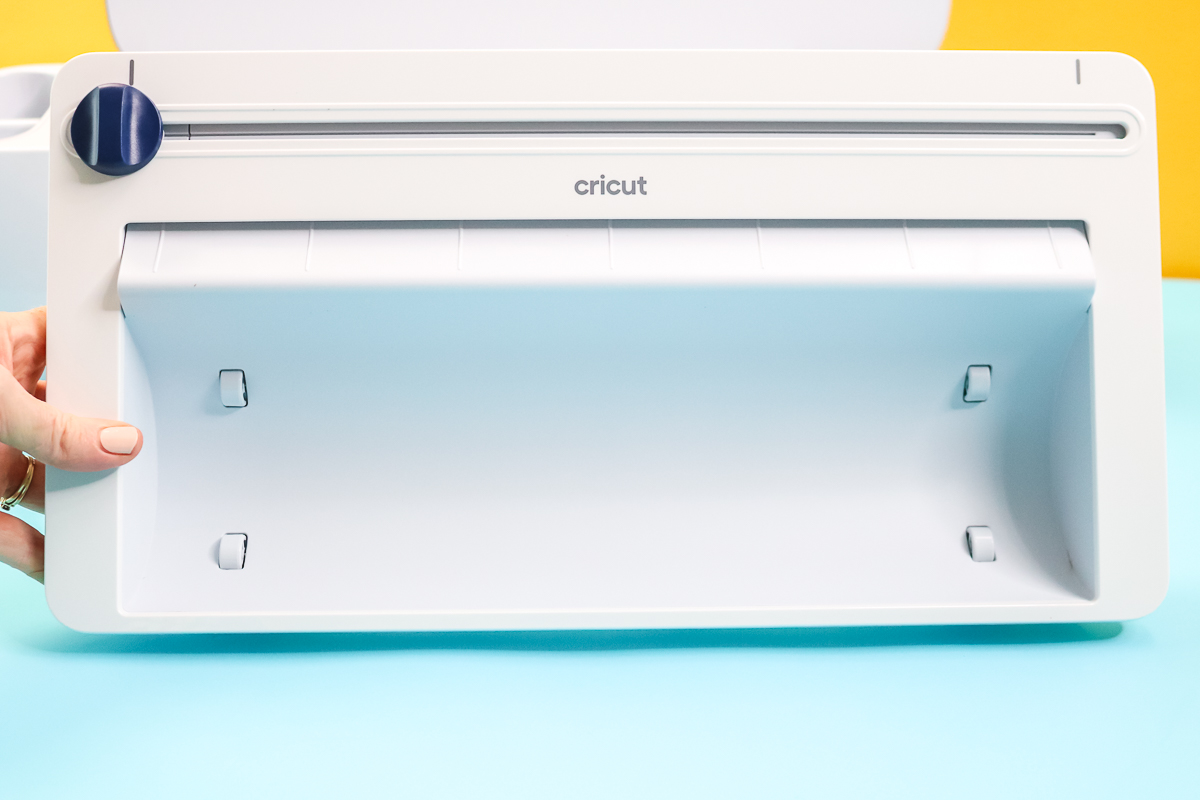
The back features pads for resting on the table, as well as slots that lock it into place on the tray of the compatible models.
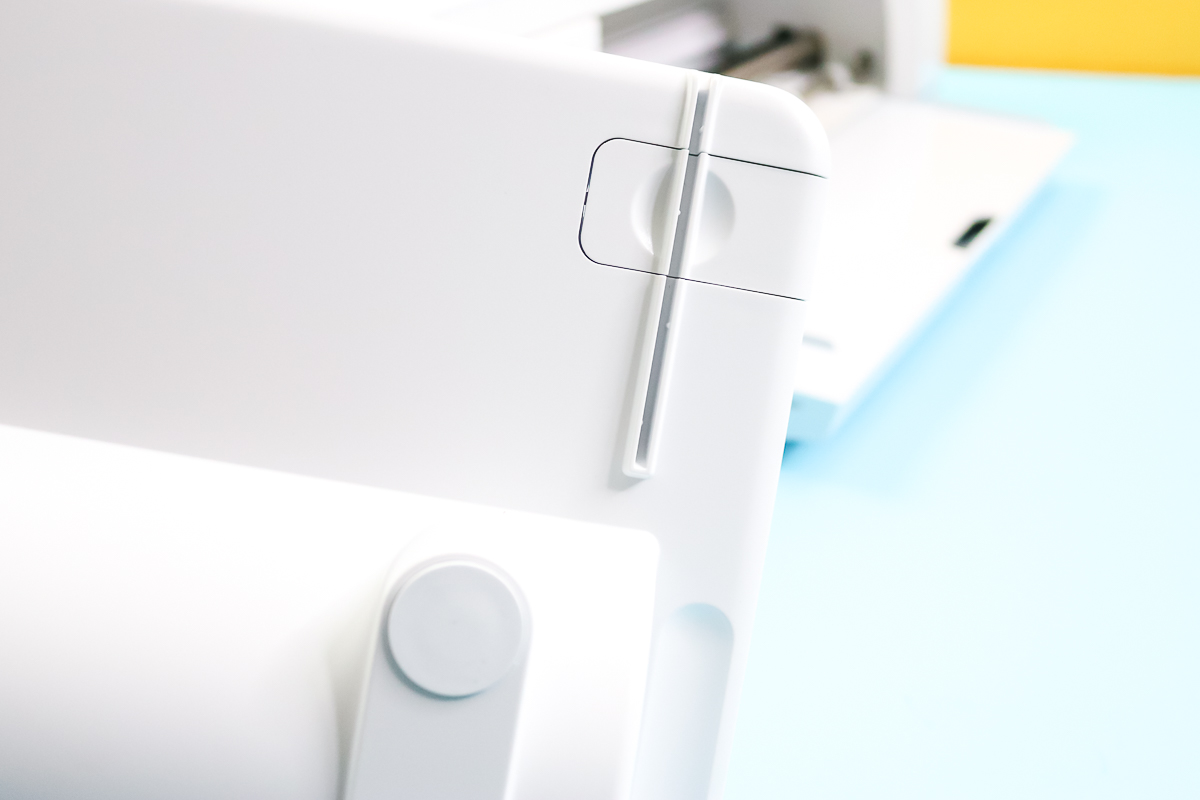
My absolute favorite feature, however, is the trimmer! This allows you to cut your vinyl roll straight on the machine as soon as your cut is finished. The straight cuts on the vinyl rolls are imperative when cutting without a mat, so this is a feature you will love!
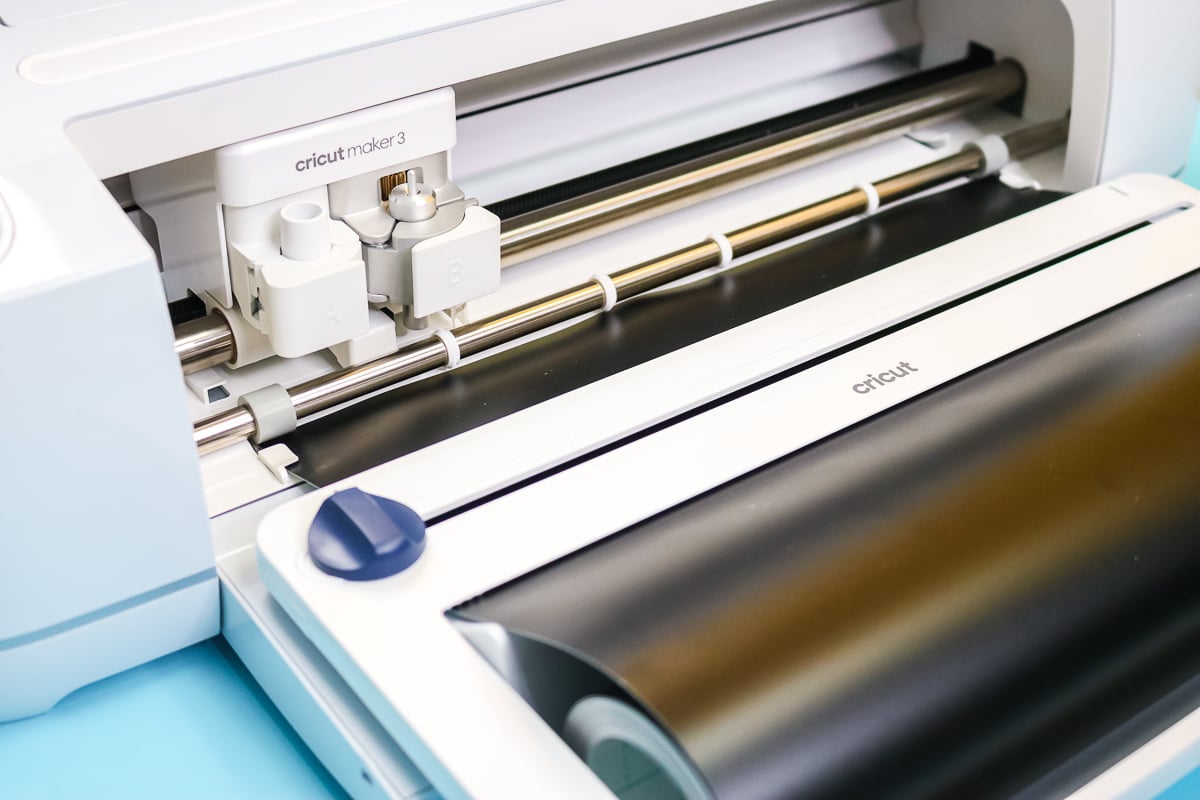
Attaching the Roll Holder from Cricut
Step 1: Line up the slots
Now, you need to attach the roll feeder to your Cricut Maker 3 & 4, as well as the Cricut Explore 3 & 4. Align the slots on the roll holder with the guides on the tray.
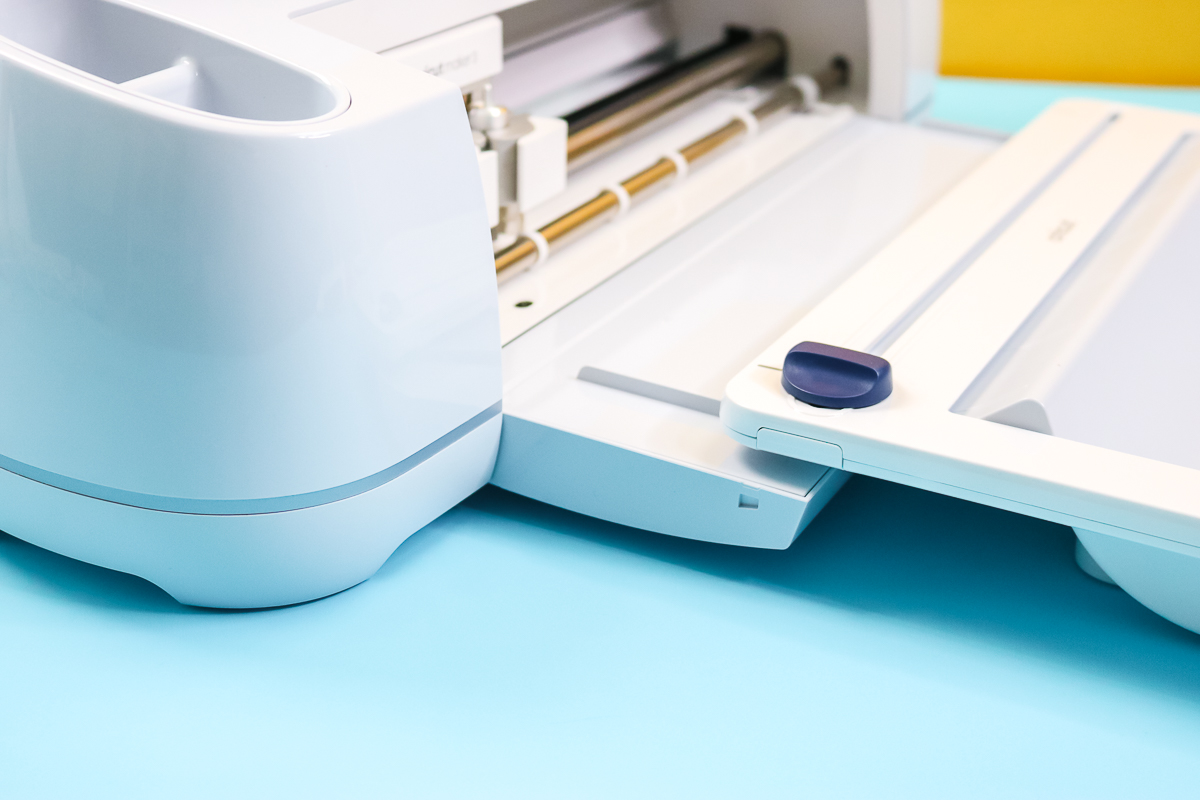
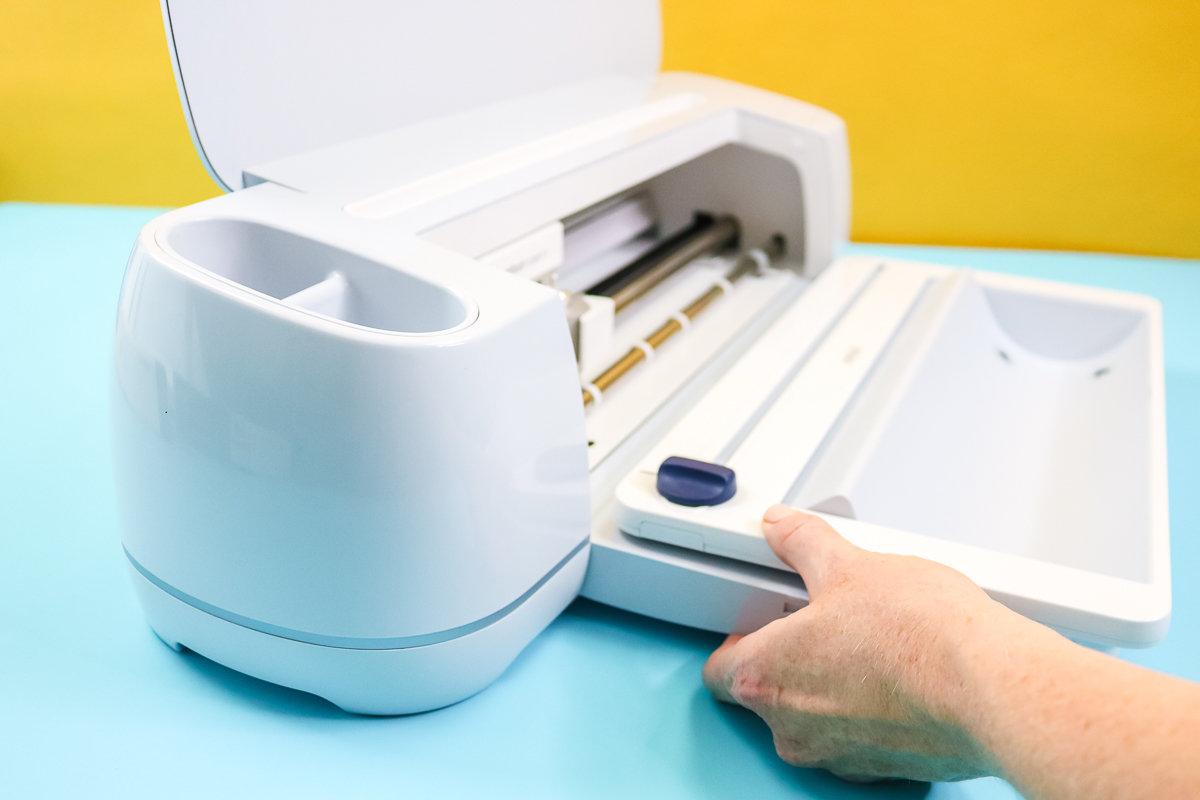
Step 2: Lock into place
Push it all the way up until it stops, then squeeze it slightly on both sides to lock it into place. Please note that I recommend attaching the roll holder where you plan to use the Cricut machine, as it is not easy to move the holder while it is attached to the machine.
How to Load a Roll of Material
Step 1: Add your vinyl
Add your roll of Smart Vinyl or Iron-on to the roll holder where it rests on the wheels.
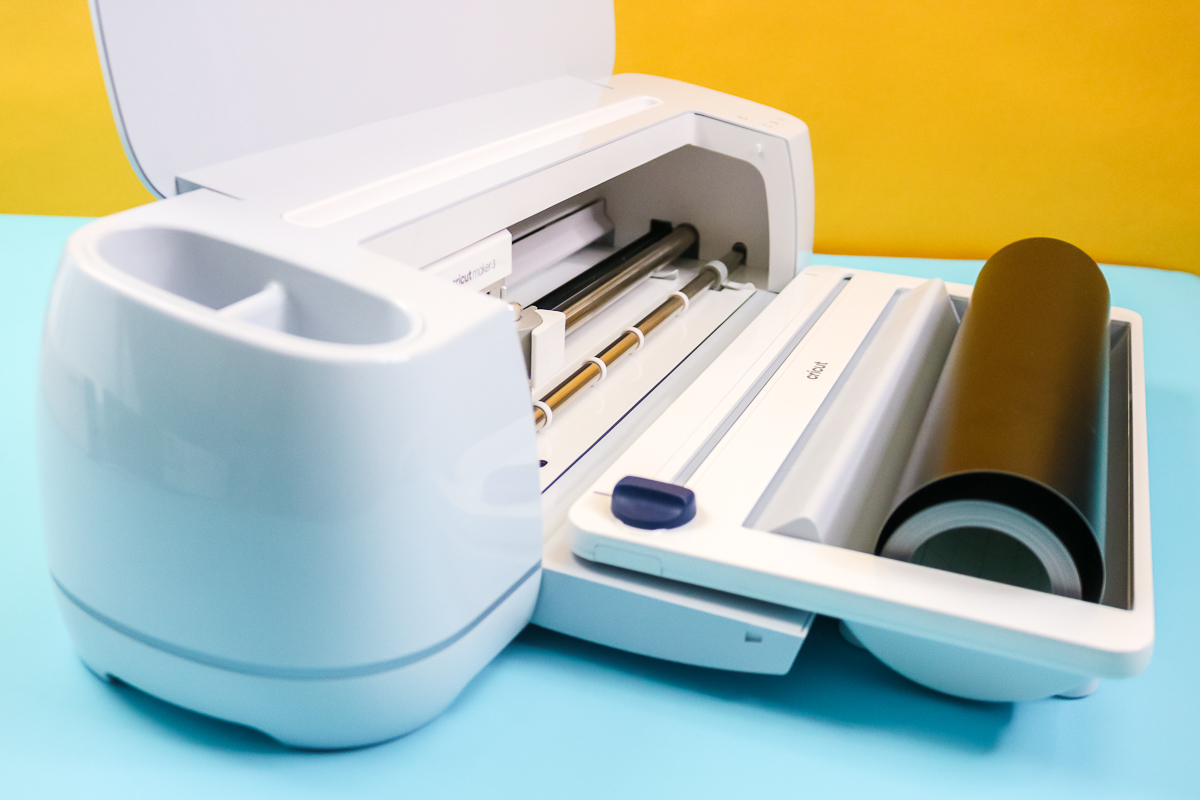
Step 2: Feed the vinyl through the slot
Then feed the end of the roll through the slot in the holder.
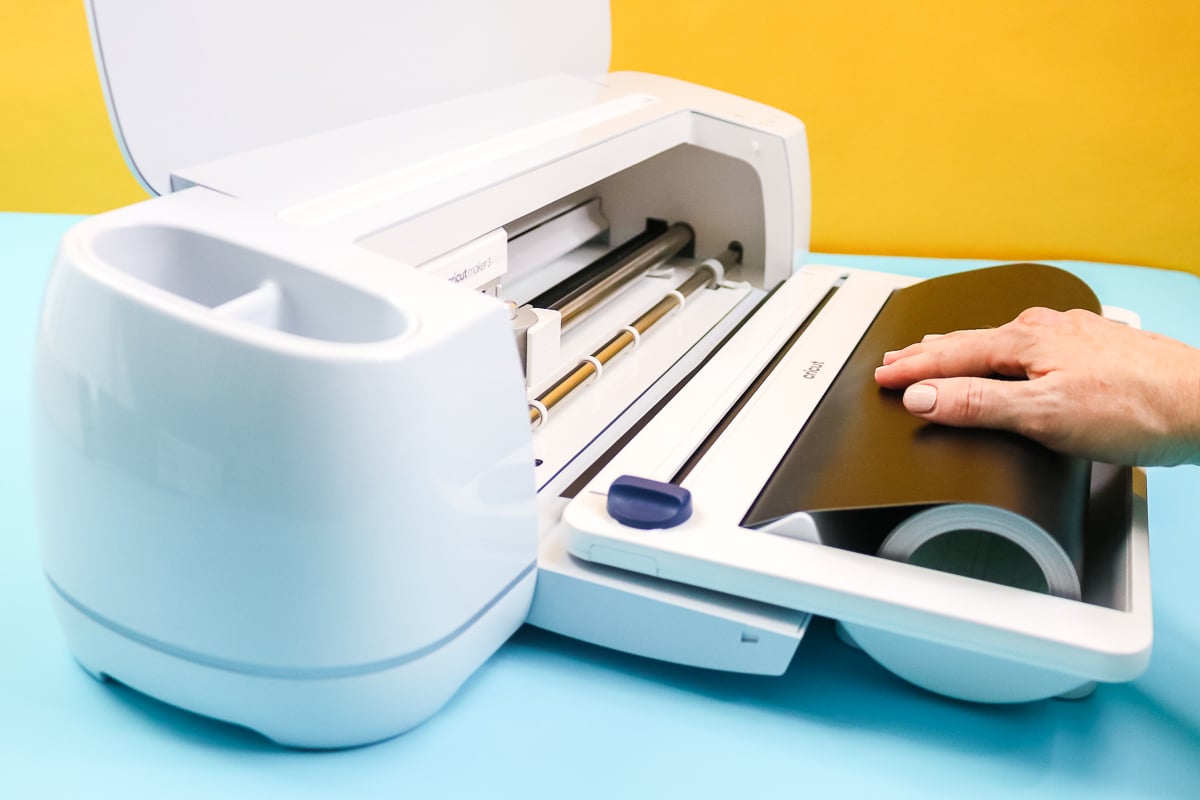
Step 3: Continue feeding the vinyl
Continue feeding until the vinyl comes out of the holder and into the machine. When inserting the vinyl, it should feed smoothly under the guides on both sides. Stop once the vinyl is touching the gray rollers on the feeder bar.
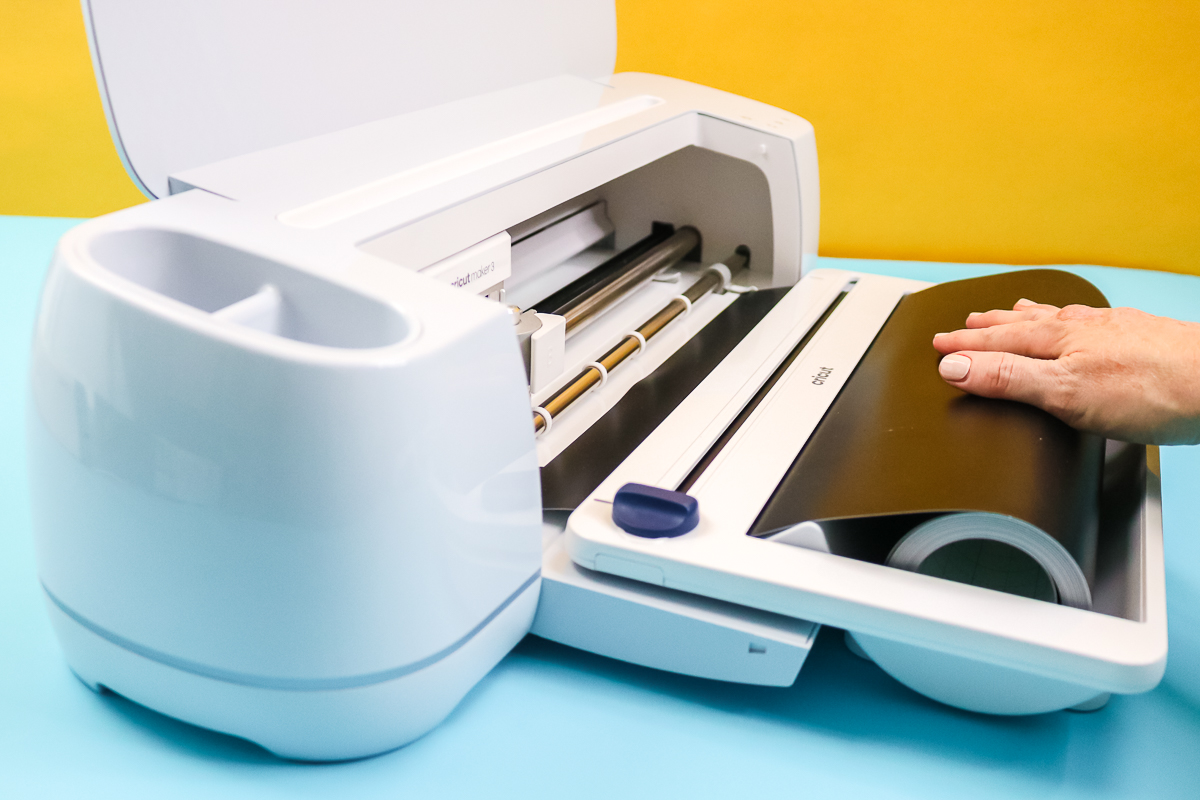
These pictures show the Cricut roll holder on a Maker 3, but the same procedure can be used on other compatible models.
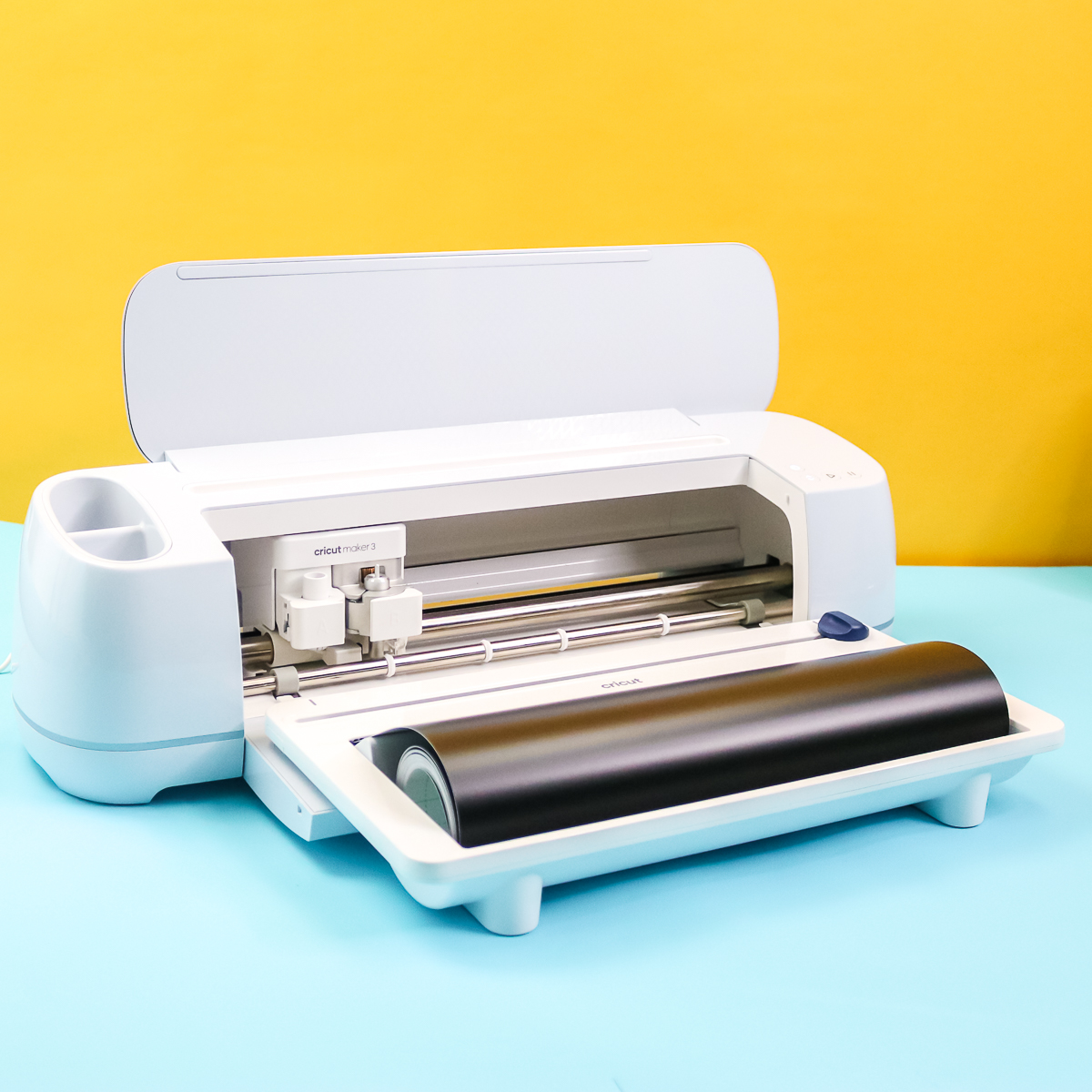
How to Use the Cricut Roll Feeder
Now that your roll feeder is on your machine, you are ready to cut. Just send a cut to your machine, and it will take care of the rest! You will want to make sure to choose “Without A Mat” on the Make screen if prompted. Otherwise, just hit the unload/load button when it starts flashing. I like to hold the end of the roll against the rollers when I press this button, just to ensure it feeds in properly.
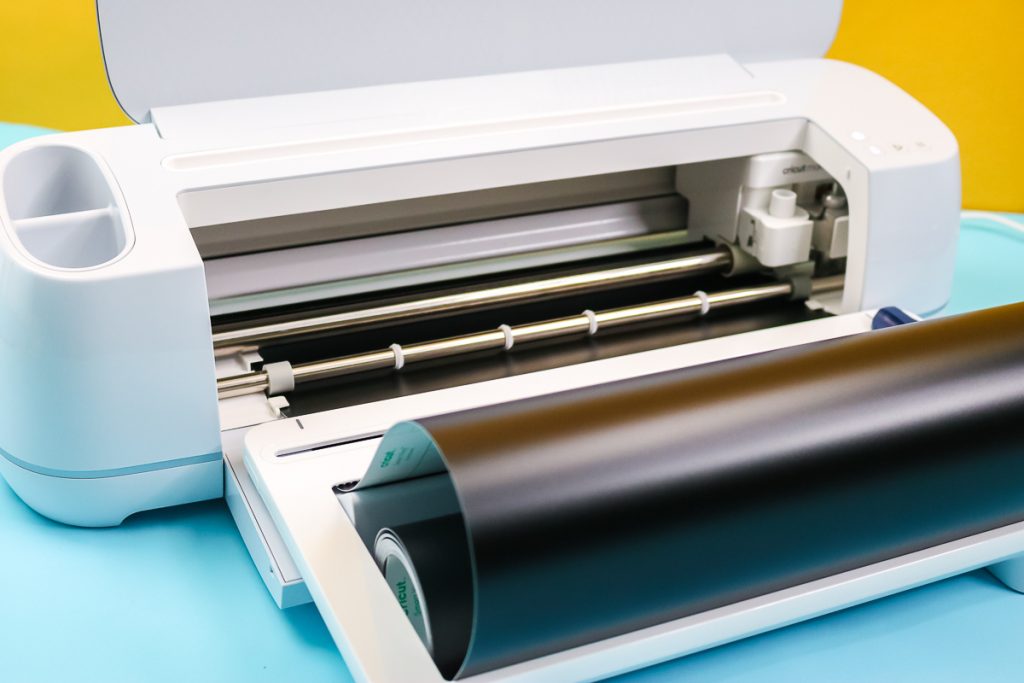
Then your machine will feed the vinyl through and measure the amount of material needed for the cut. It will then eject that material before cutting. When the material comes out of the machine, it will loop around, lay on your table, and NOT go back onto the roll. This is normal.
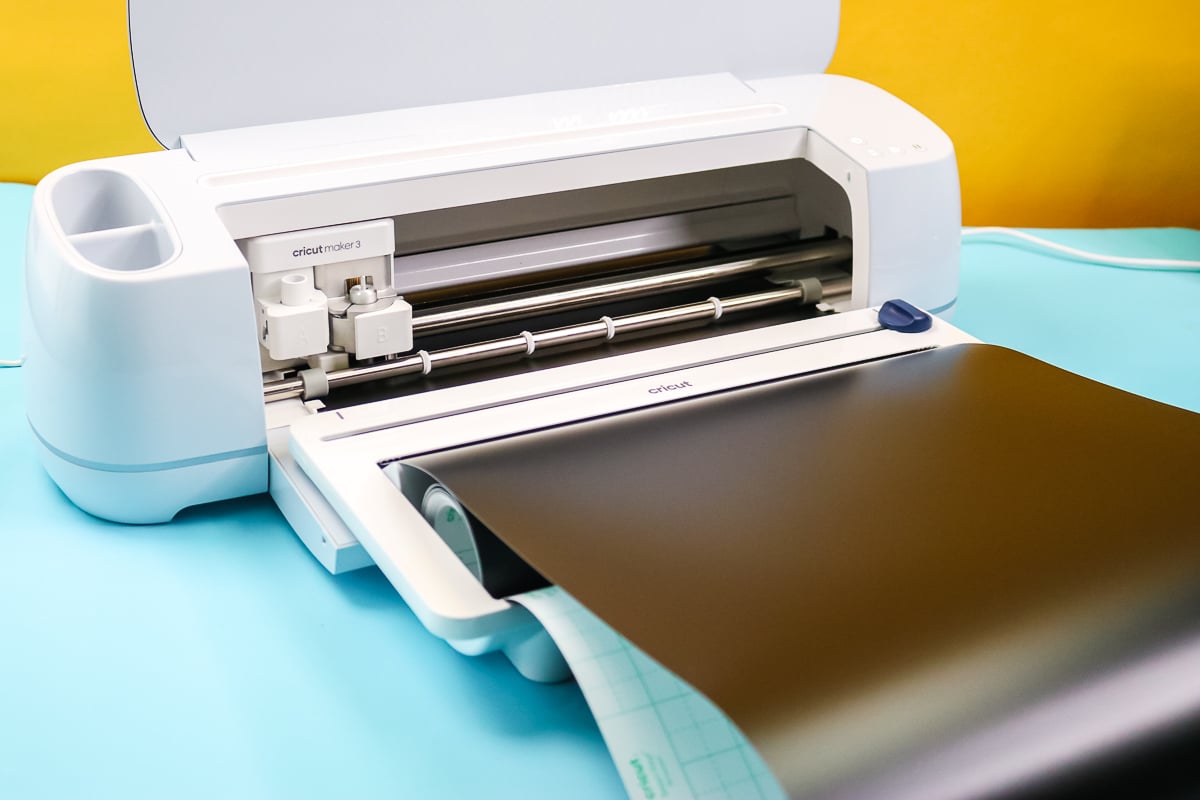
You can then press the play button to start the cut, and the Cricut will feed that material back through as it cuts.
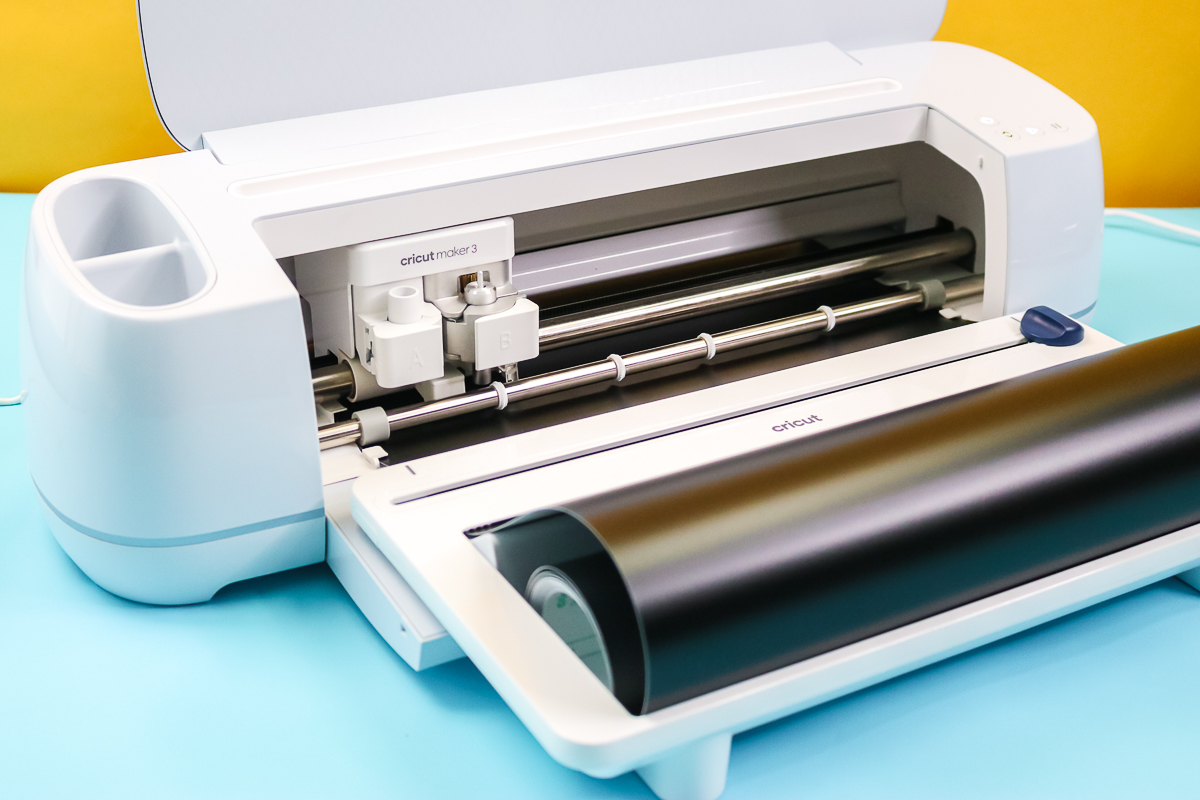
Once the cut is complete, the Load/Unload button will start flashing. Be sure to run your trimmer over your material BEFORE pressing that Unload button.
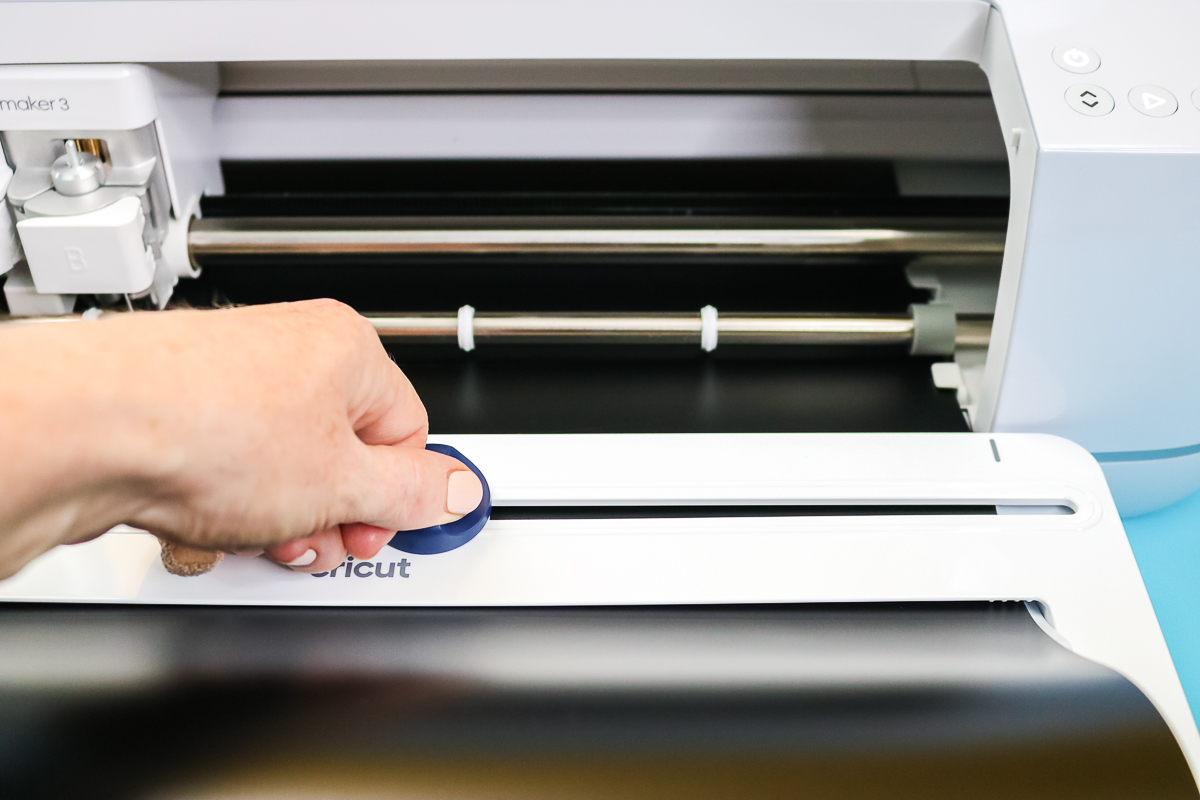
Then, once you press the button, your project will eject from the machine over the top of your roll. Just remove it from the machine, and you are ready to load the vinyl again for your next cut or change rolls to a different color or type.
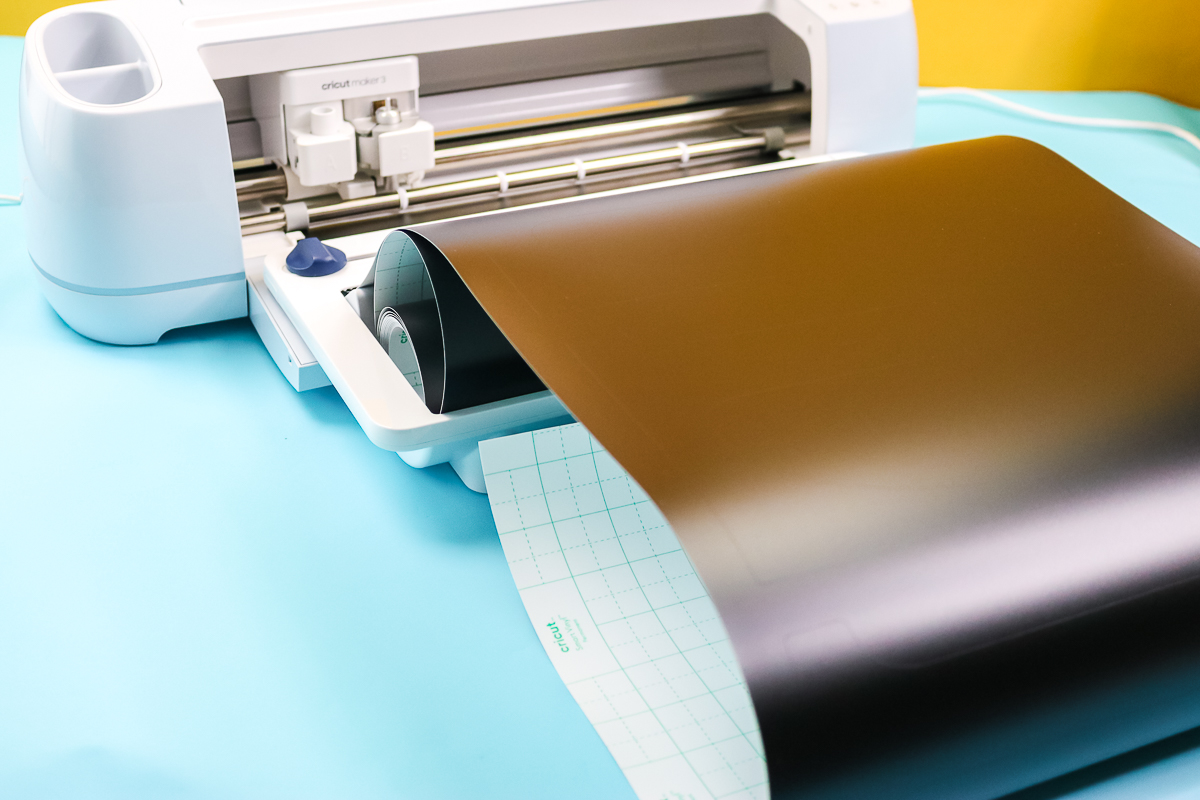
The photos above are using adhesive vinyl, but the same methods work with Smart Iron-On material. This material loads into your machine with the shiny side down, and you will need to mirror before cutting, as always.
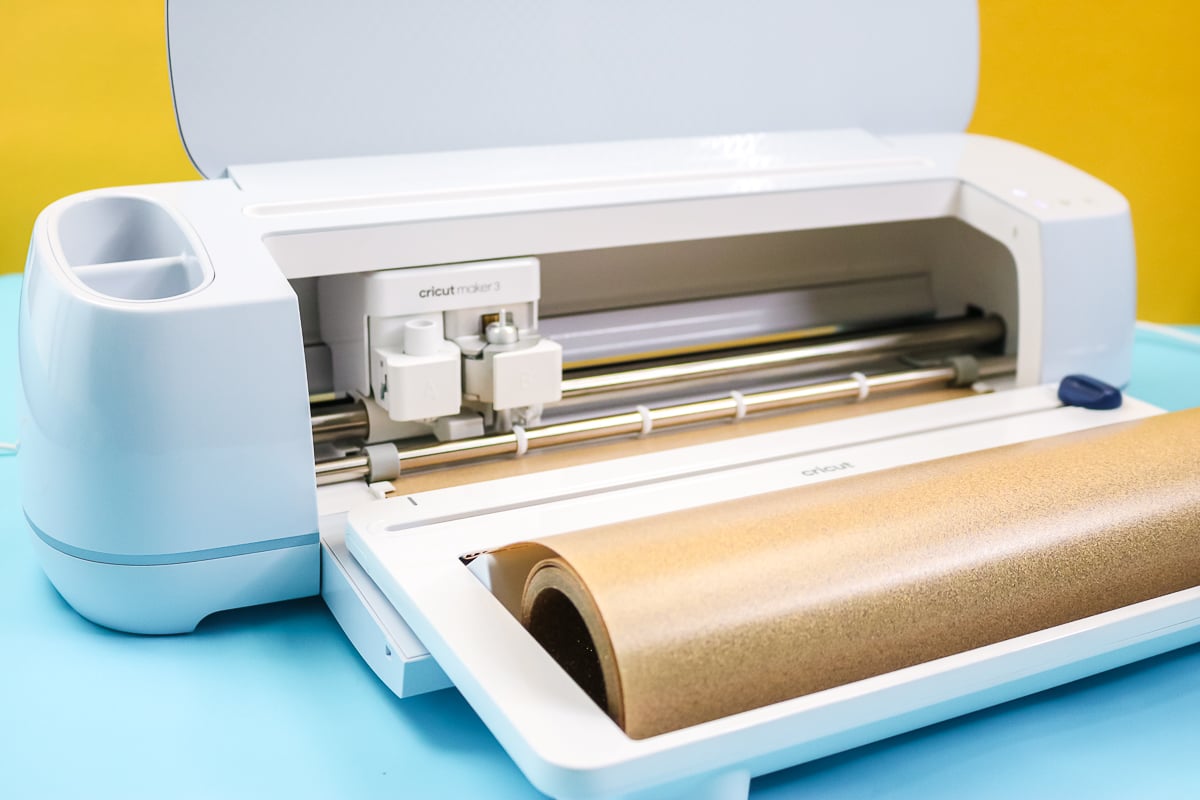
How to Remove the Roll Attachment
Once you have finished all your cuts, simply lift the Cricut Roll Holder to remove it from your machine. It does lock into place, but it lifts easily for removal. You can then store the roll holder with the roll inside, if you prefer.
How to Buy the Roll Feeder from Cricut
Now the big question! How much is it and where can you buy it? The Cricut Roll Holder is available for purchase along with the Cricut Maker 3 & 4, and the Cricut Explore 3 & 4, on the Cricut website. It's also available from many other retailers that carry the Cricut Brand, and prices may vary. Note: as of this writing, the Cricut Roll Holder is $54.99.
FAQ
Here are answers to some of the most frequently asked questions I receive about creating the Cricut Roll Holder. If your question isn’t listed, feel free to drop it in the comments, and I’ll be happy to help!
Why can't I use this with my Explore Air or Cricut Maker machine?
The older Cricut machines do not have guides on the tray for this attachment, so there would be no way to add it and keep it lined up with the rollers.
Why can't I use it with any vinyl roll?
This is designed for use with 13-inch-wide vinyl rolls. Most commercial vinyl comes in rolls that are 12 inches wide.
Is the roll holder included with my Cricut machine?
The Cricut Roll Holder is a separate accessory that must be purchased separately.
Do I need this attachment to cut without a mat?
Definitely not! You can cut without a mat by simply placing the roll on the table. This holder is nice, but it is also completely optional. If you don't get the roll holder, I recommend a 13-inch-wide paper trimmer for the Smart Materials to keep them straight for matless cutting.
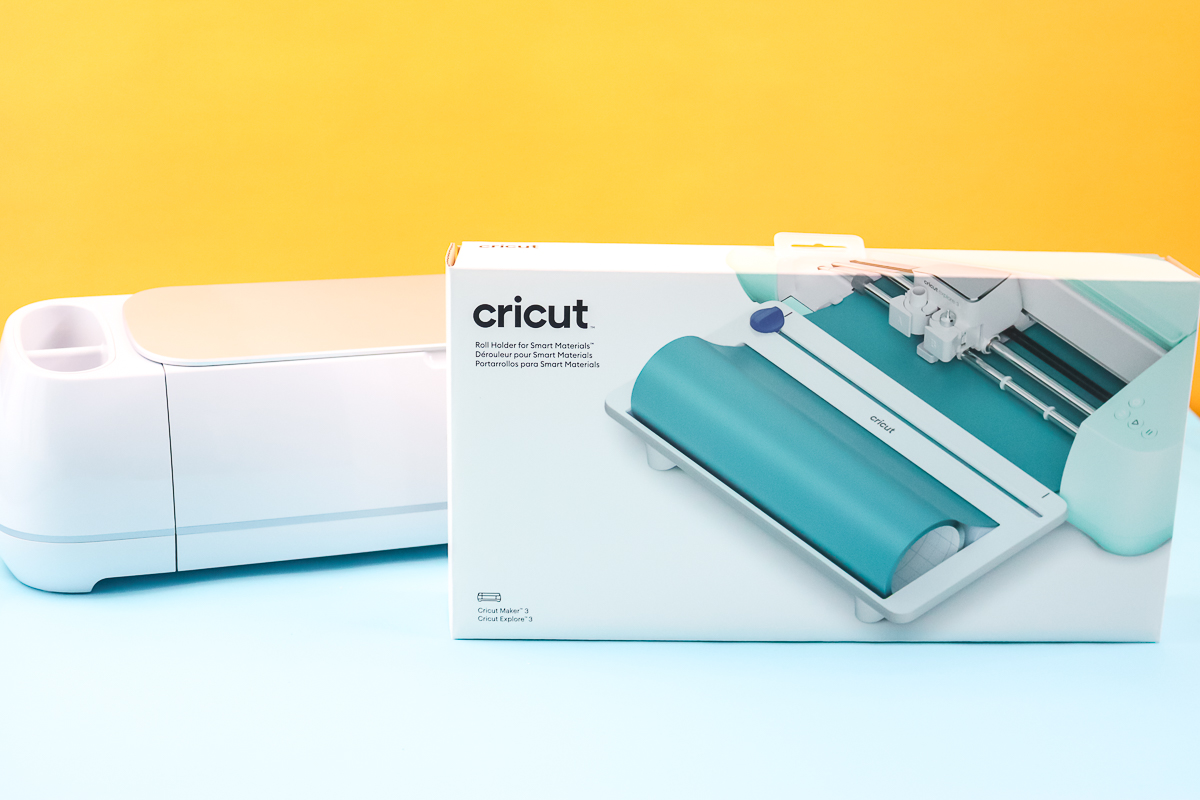
So, will you be adding the Cricut Roll Holder to your Cricut machine? I think that if you plan to cut Smart Materials frequently without a mat, it will definitely be something you enjoy and will be worth the extra investment. You can read more about the Cricut Maker 3, Maker 4, Explore 3, and Explore 4 on my blog, and there is a video as well comparing machines.











Can the trimmer blade be replaced when it gets dull?
I just checked mine and it appears to be the exact same blade as the portable trimmer replacement blade. So yes, you can take it out and replace it 🙂