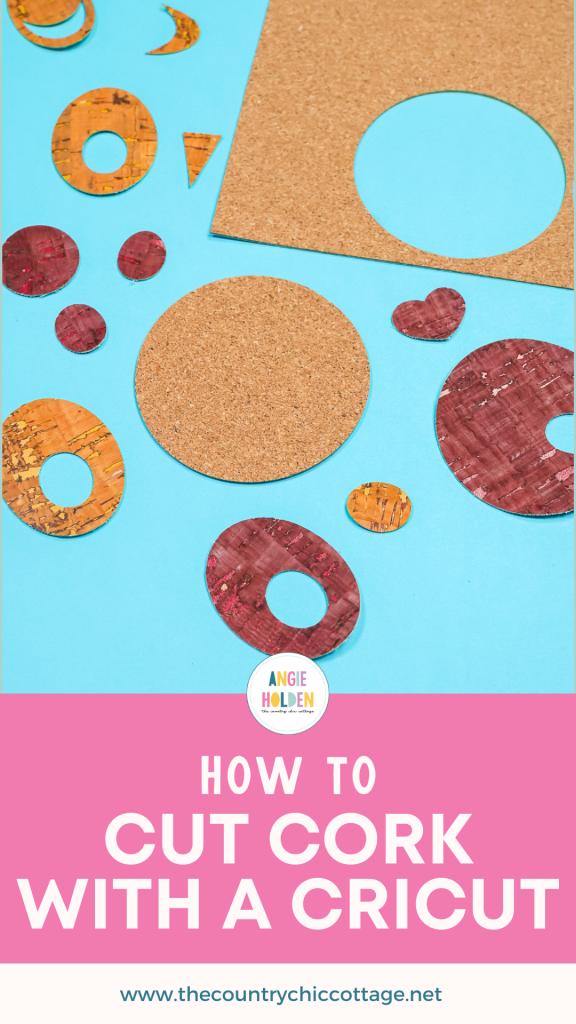
If you’re wondering how to cut cork with a Cricut machine, you’re in the right place! In this post, I’m going to show you how to cut different types of cork using both the Cricut Maker and Explore machines. I’ll walk you through what works best for each material, share tips for getting clean cuts, and help you decide which method is right for the project you’re making. Whether you’re crafting earrings, home décor, or something in between, this guide will help you get great results with cork.
If you're still trying to decide which Cricut machine is best for you, I have a whole post dedicated to comparing the different Cricut machines to help.
How To Cut Cork Video Tutorial
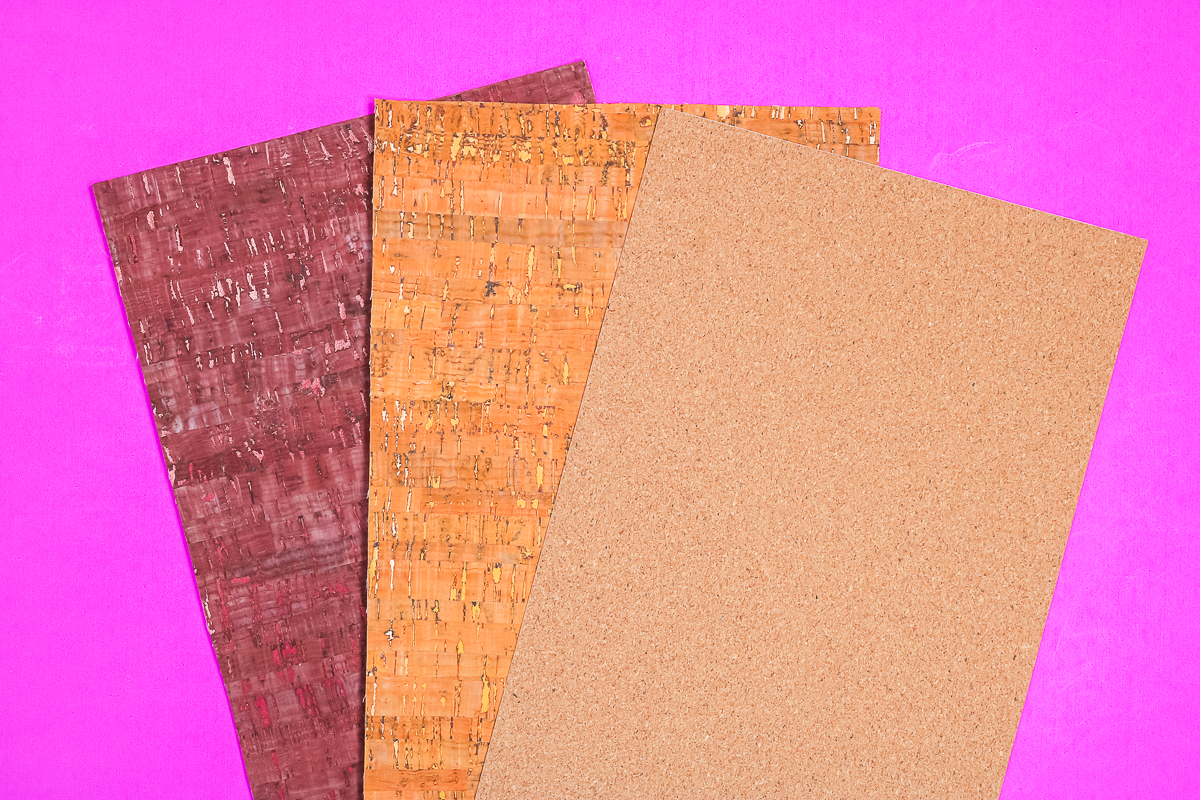
Today, I'm going to show you how to cut adhesive-backed cork sheets and cork faux leather sheets. These are great materials for backing coasters, earrings, etc.
I've tested different cut settings and blades to find which work best for the different materials. You can actually watch me test these different materials and what settings worked best by pressing play on the video below.
Can’t watch the video or missed some of the information? You can also follow along below!
Supplies Used To Cut Cork
- Cricut Maker or Cricut Explore
- Adhesive-Backed Cork Sheet
- Cork Faux Leather
- StrongGrip Mat
- Brayer
- Free Earring Cut File
How To Cut Adhesive-Backed Cork With A Cricut Machine
The first material we're going to cut today is an adhesive-backed cork sheet. This is like regular cork, and it's great for adding to the back of coasters and other projects.
You will need to make sure that whatever cork you're using is thin enough to fit under the roll bar of your Cricut machine. I found that for this material, I needed a very sticky mat. I'm using a StrongGrip mat to keep my material from moving.
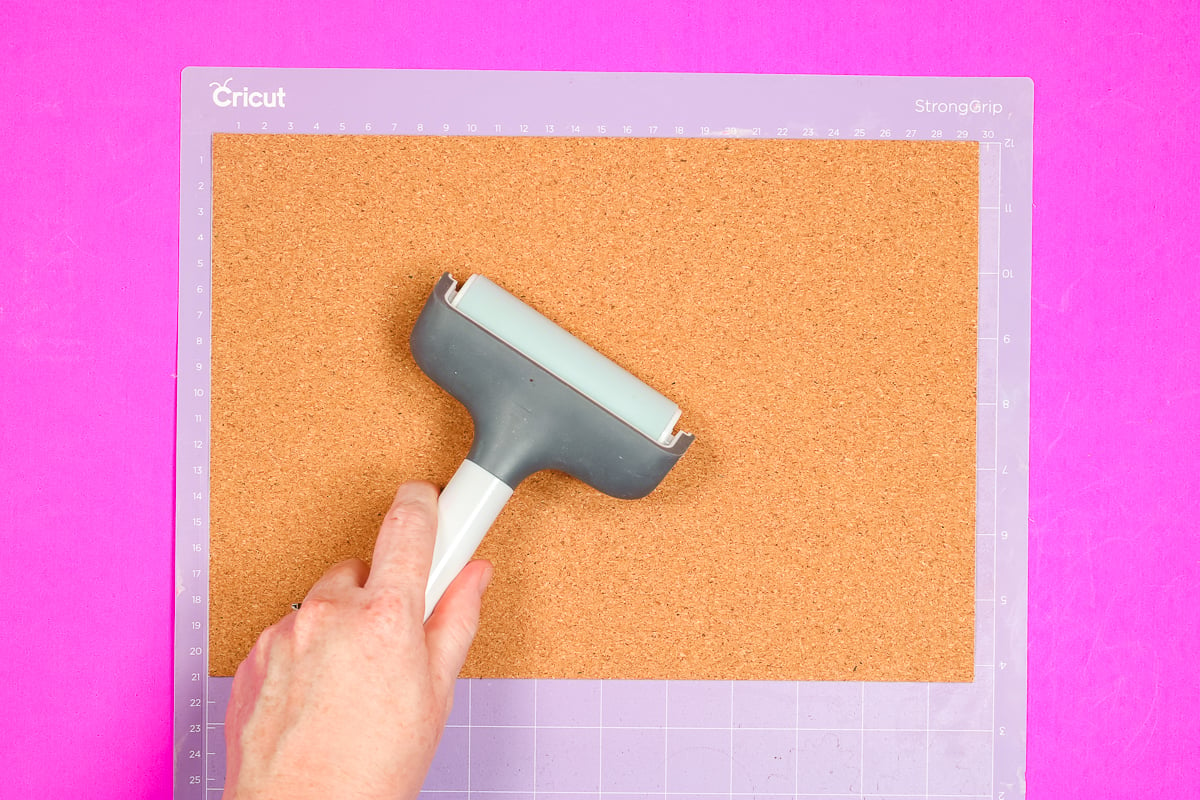
A brayer works well to apply the cork to a StrongGrip mat. Make sure it's stuck down really well. Then move the star wheels all the way to the right. Trim the cork so the star wheels don't roll over it.
Cutting Cork With A Cricut Explore Machine
To cut cork with a Cricut Explore machine, you'll use the fine-point blade. There is no cork setting in Cricut Design Space. My cork sheet is fairly thin, so I am using the Heavy Cardstock setting in Design Space.
If your cork is thicker, you may need to use a different setting and the deep point blade.
I am cutting circles you could add to the back of coasters to test this material. Load the mat into the machine, then press “Go” to cut.
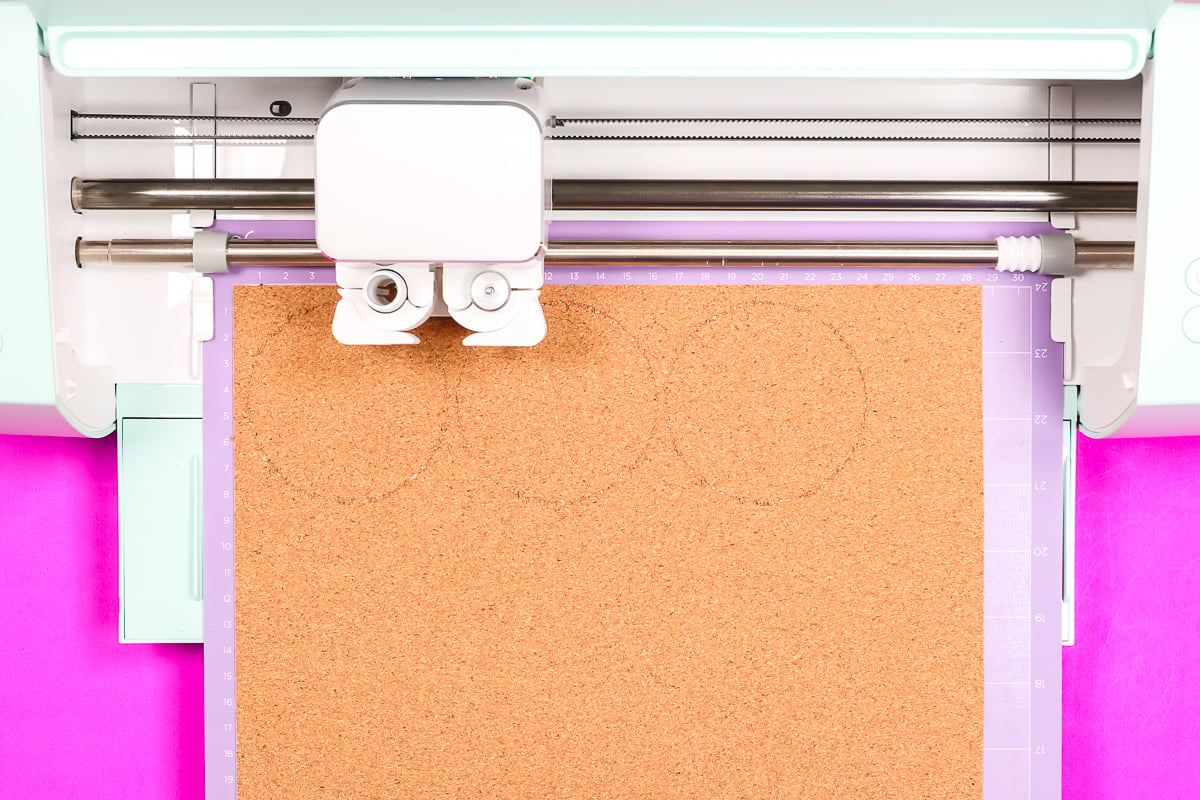
Because you may need to experiment with the cut setting, when it's finished, do not unload the mat. Lift the material to ensure it is cut through completely. If it hasn't, you can press “Go” again to run another pass.
Mine did cut through the first time on the heavy cardstock setting, so I removed the mat from the machine.
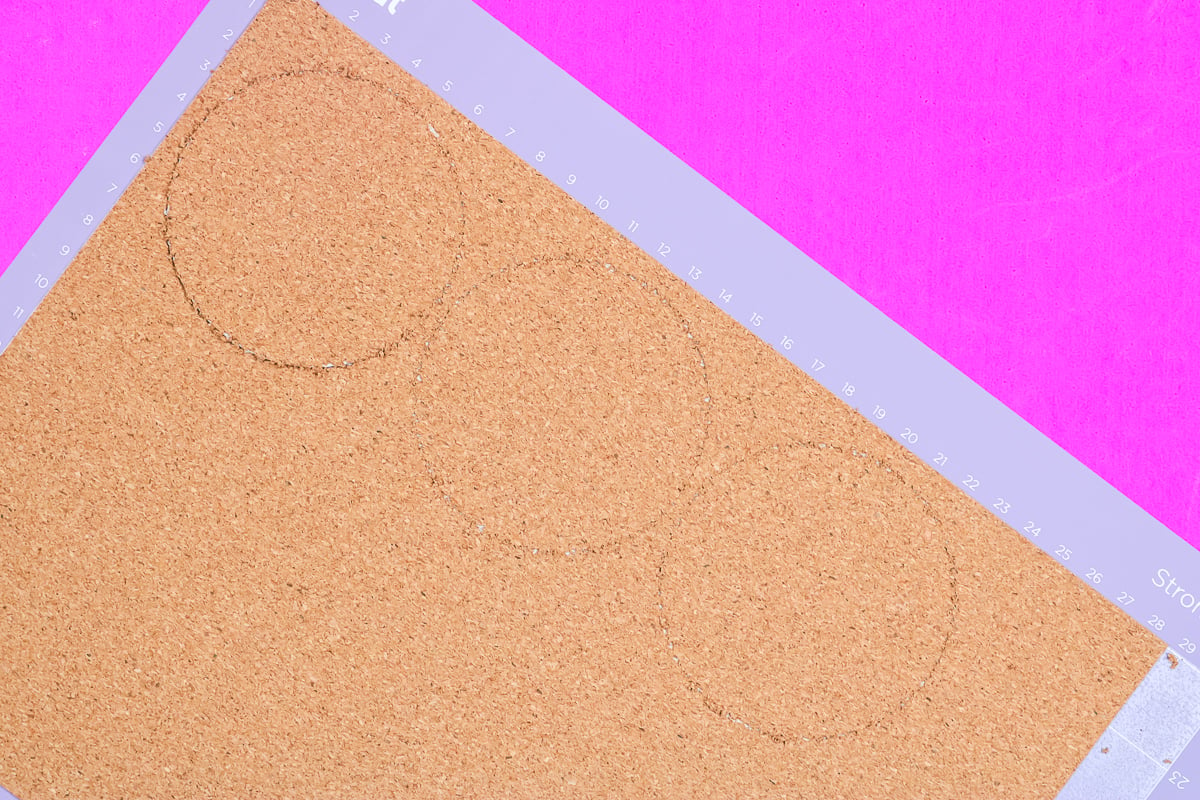
With the fine-point blade in the Explore machine, it is a pretty rough cut. The fine-point blade drags through the material, causing the cork to crumble. It made a mess on the mat, and the edges aren't very smooth.
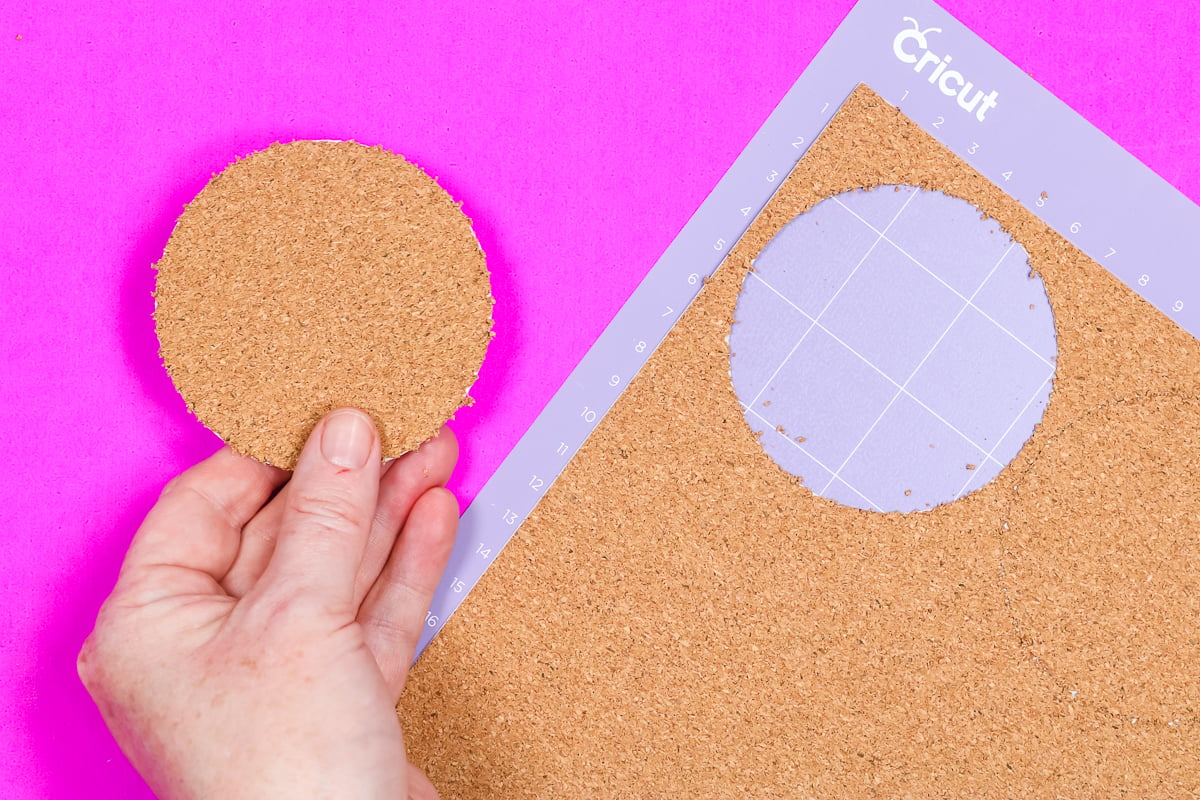
I did find that rubbing my finger along the edge of the circle did clean it up a bit. Definitely usable for something like adding to the bottom of a coaster. I do not think this would be a good material for detailed cuts.
Note: If you cut the cork with the Fine Point blade, I recommend cleaning around your machine really well. I found little pieces of cork stuck to the blade and under the carriage, and you don't want that to mess up future projects.
How To Cut Cork With A Cricut Maker Machine
Now we're going to cut that same cork sheet using the Maker machine and the Rotary Blade.
Again, there is no cork setting in Design Space. To use the Rotary Blade, I am using the Denim Fabric setting. This is a heavier fabric and will ensure the machine will call for the Rotary Blade.
Load your material onto the StrongGrip mat the same way, and make sure your star wheels are all the way over to the side again.
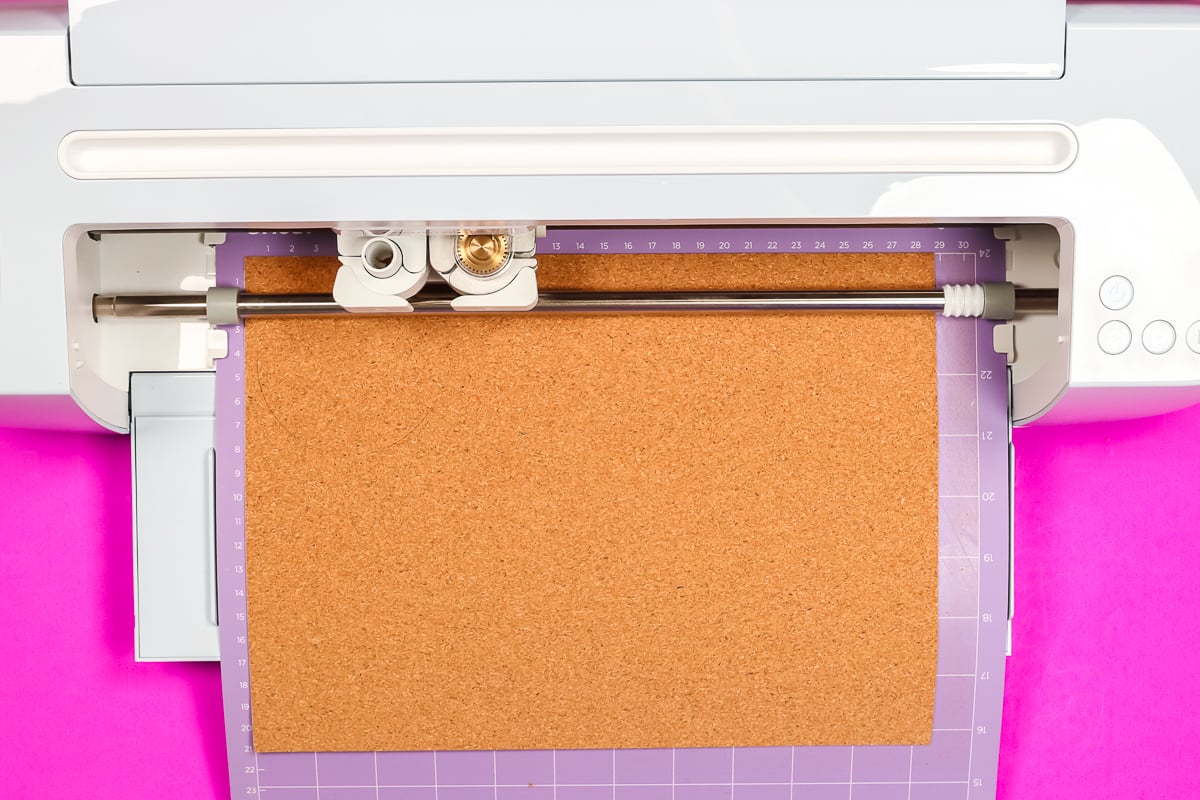
Press “Go” and allow the machine to cut. When the cut is complete, do not unload the mat. Always check that the material is cut all the way through. The Denim Fabric setting worked great for my cork sheets, so I only had to cut them once.
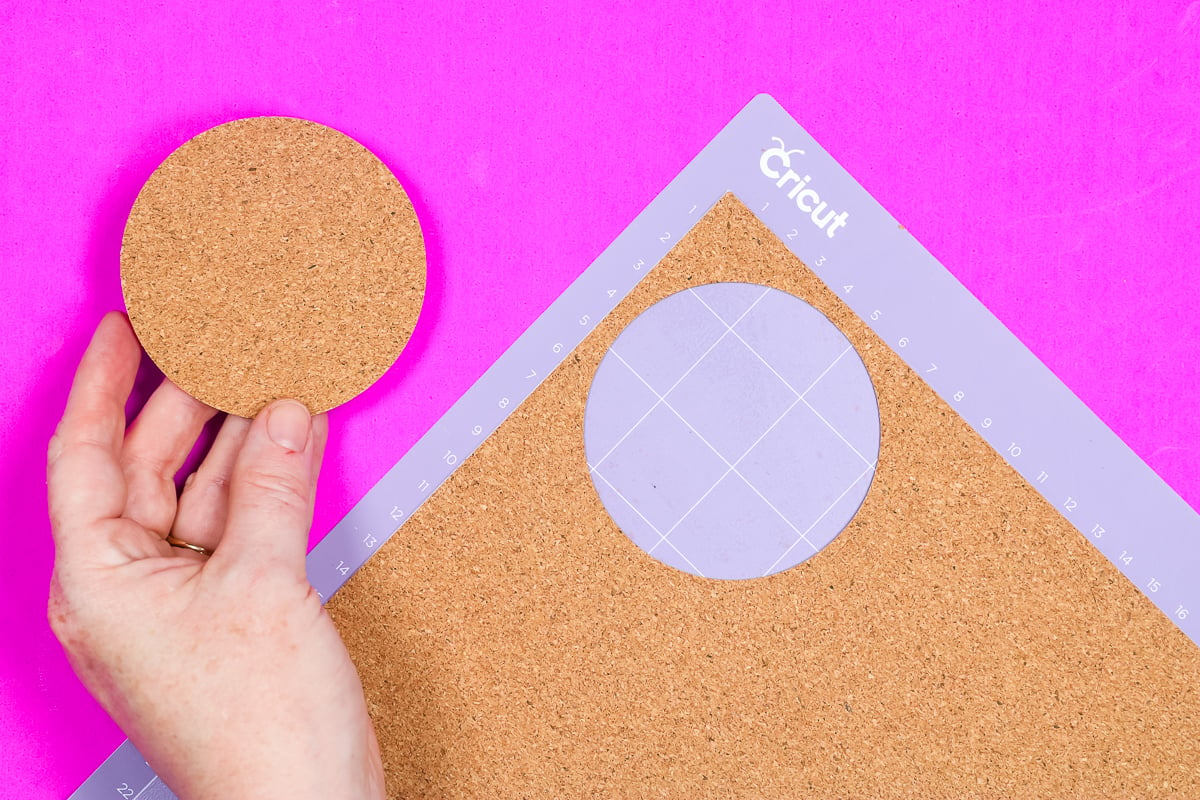
The Rotary Blade cut the cork sheet beautifully. Look at how clean the edges are. Because the Rotary Blade rolls over the cork material instead of dragging through it, you don't get the crumbling edges as you do with the fine point blade.
You can also see in the photo below just how much better the Rotary Blade cuts this cork material.
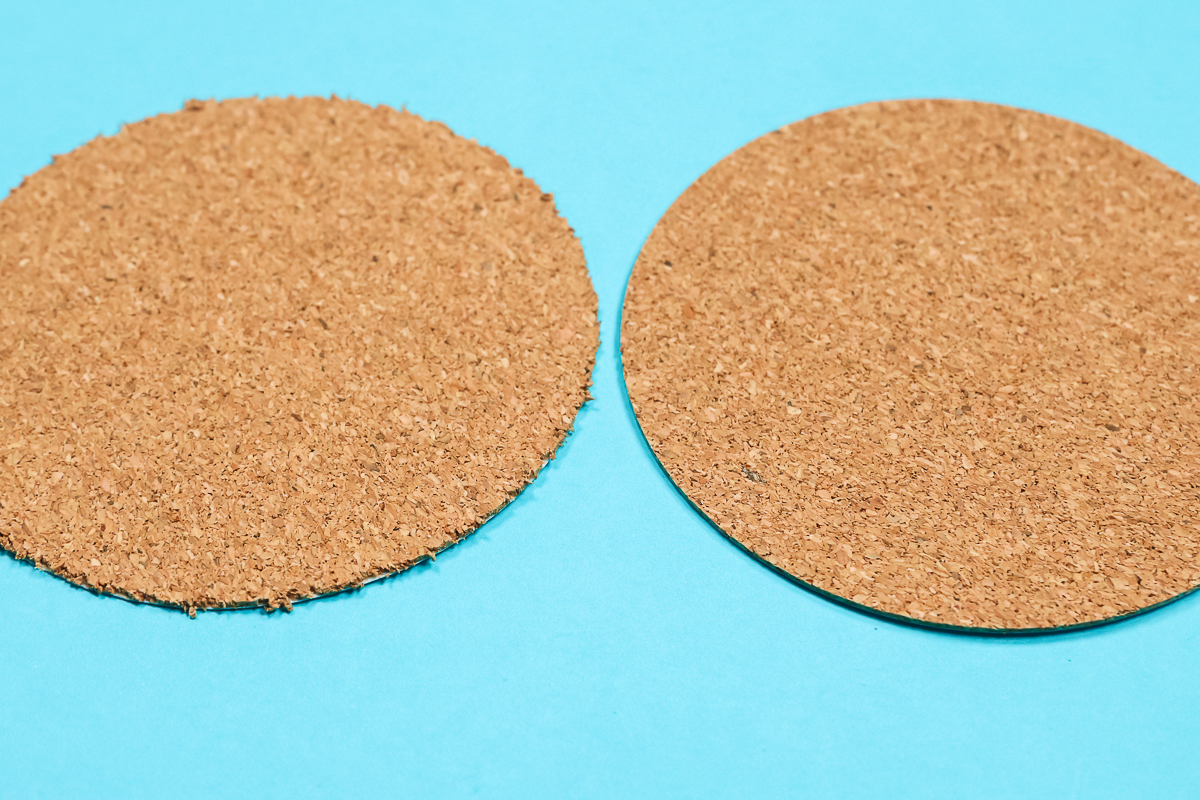
My recommendation, if you're cutting cork like this, would be to use the Cricut Maker and the Rotary Blade. The difference is significant.
How To Cut Cork Faux Leather With A Cricut Machine
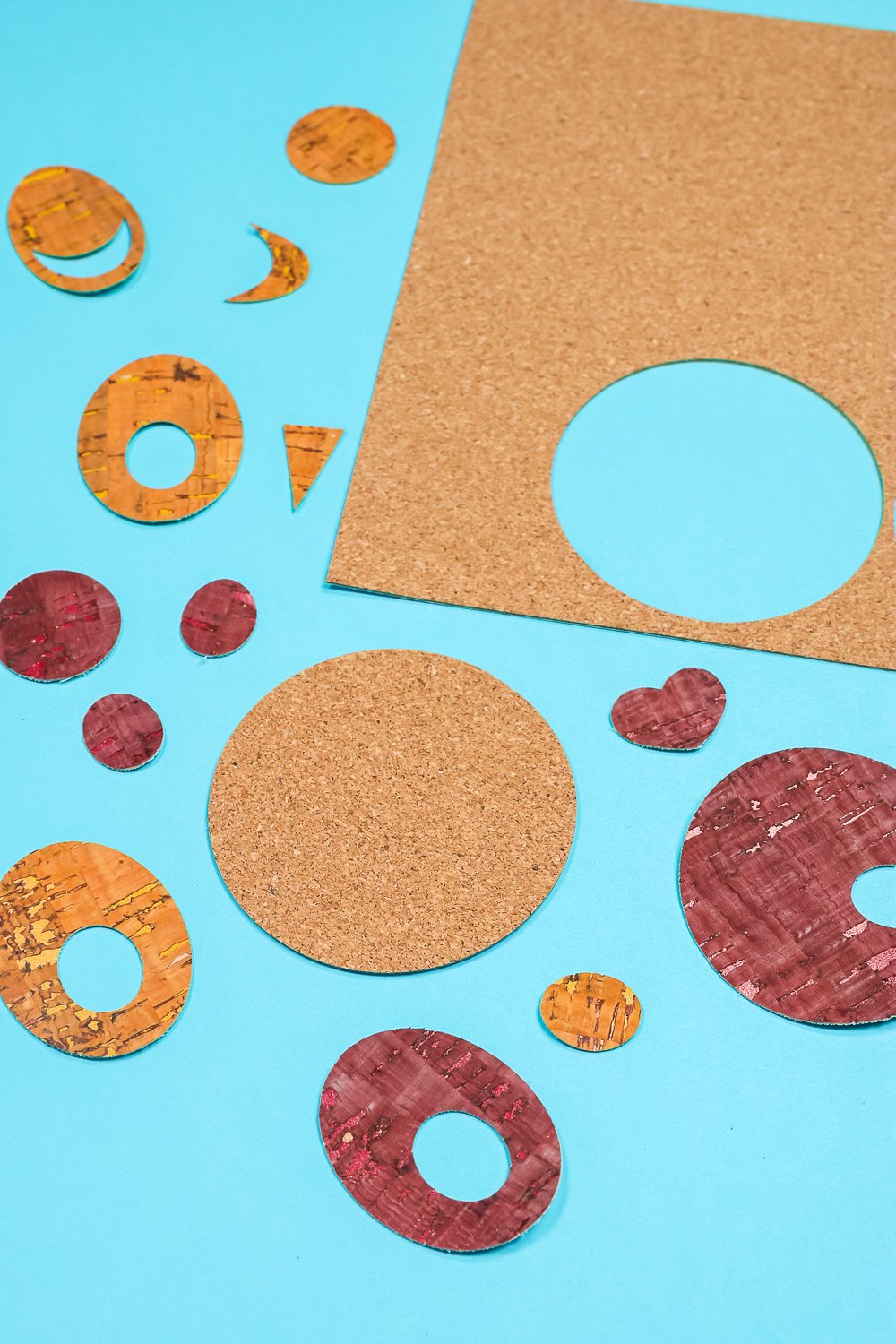
The next material we're going to test is Cork Faux Leather. I believe this is the type of material people are looking for when they want to make cork-looking earrings.
This material cuts with the Fine Point blade in either the Maker or Explore machines. Add the material to a StrongGrip mat, cork side down, and use a brayer to make sure it's firmly adhered to the mat.
Load the mat into the machine and press Go.
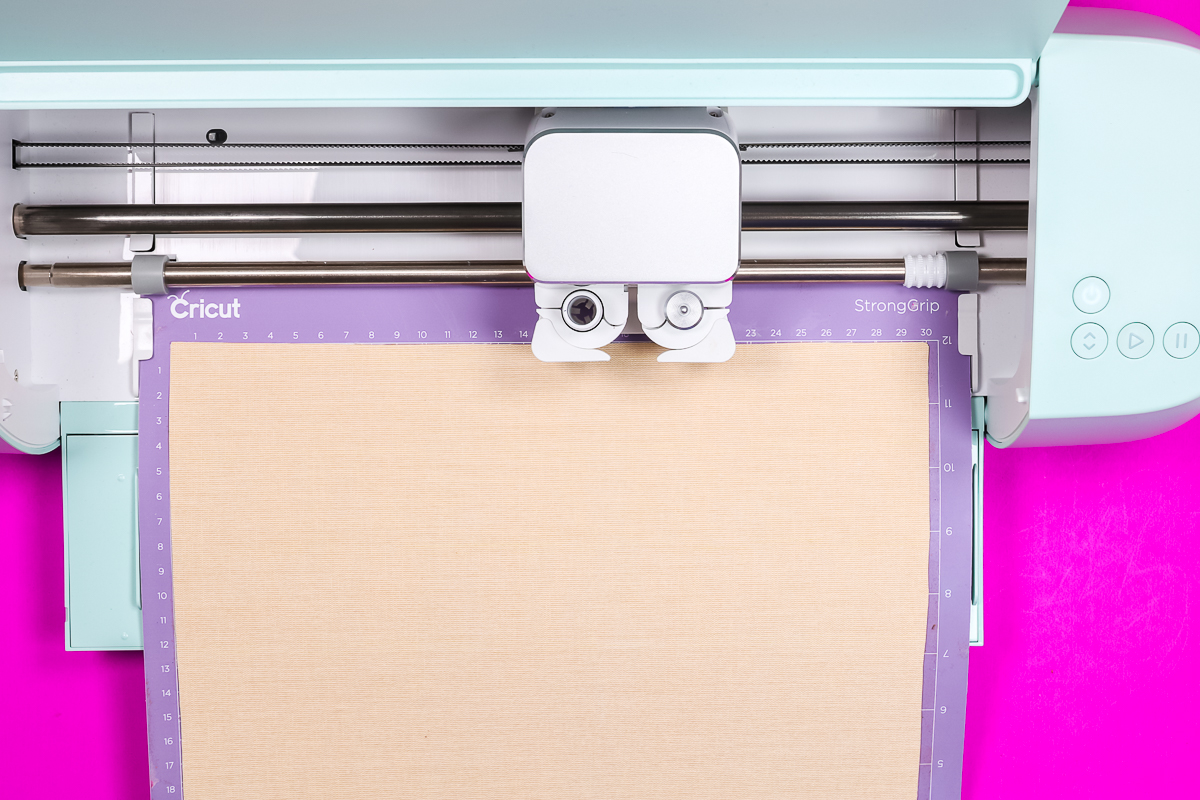
I am using the Faux Leather setting in both the Maker and Explore machines to cut this material.
Now, just like with the cork cuts above, don't unload the mat when it's done. First, check the cut to make sure it cuts through cleanly. The Faux Leather setting cut perfectly on both the Maker and Explore machines.
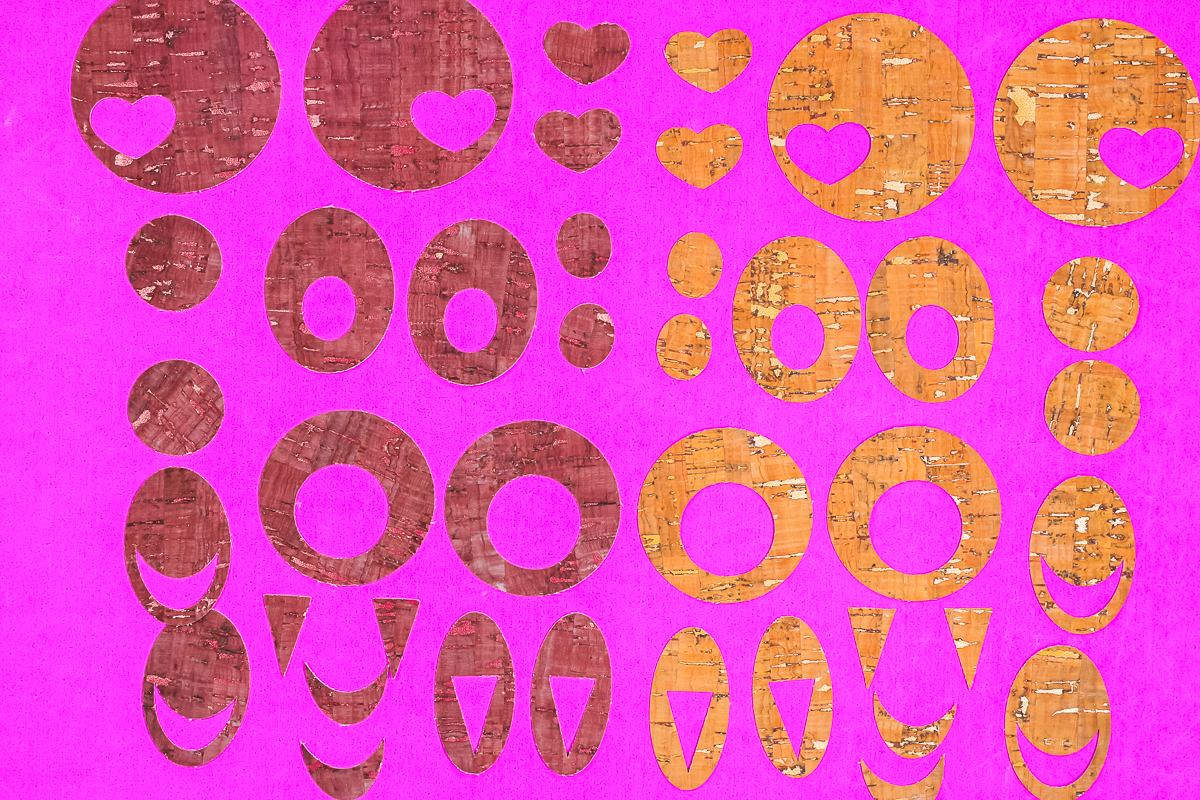
All of these are earring pieces that you can use to create different earring combinations. I have created these earrings before; you can see how to assemble them in my video about making earrings with your Cricut.
How To Protect Your Cricut Mat
I used a brand-new StrongGrip mat to cut these materials. As you can see in the photo below, the material really did a number on my mat.
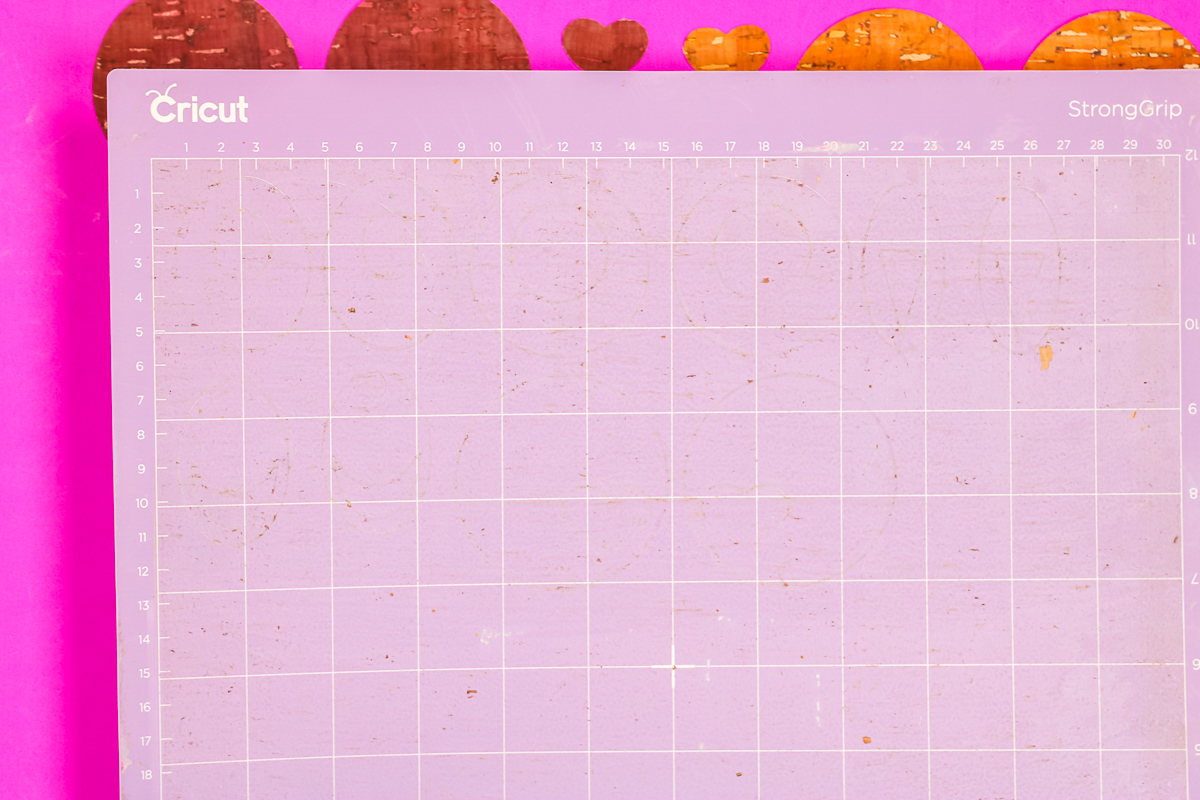
To protect your mat, add some StrongGrip Transfer Tape to the mat, sticky side up, then stick the faux leather cork to that. This method will help keep your mat clean for future use.
See this and more Cricut hacks in my post here!
Final Thoughts On Cutting Cork With A Cricut Machine
I am really happy with the way my Cricut machines cut these different cork materials. I do recommend using the Maker machine and the Rotary Blade with the adhesive-backed cork for really clean cuts and less mess.
You can cut that cork material with the Fine Point Blade, since it cuts all the way through, but the edges are rough. I wouldn't recommend using the Fine Point Blade for anything intricate.
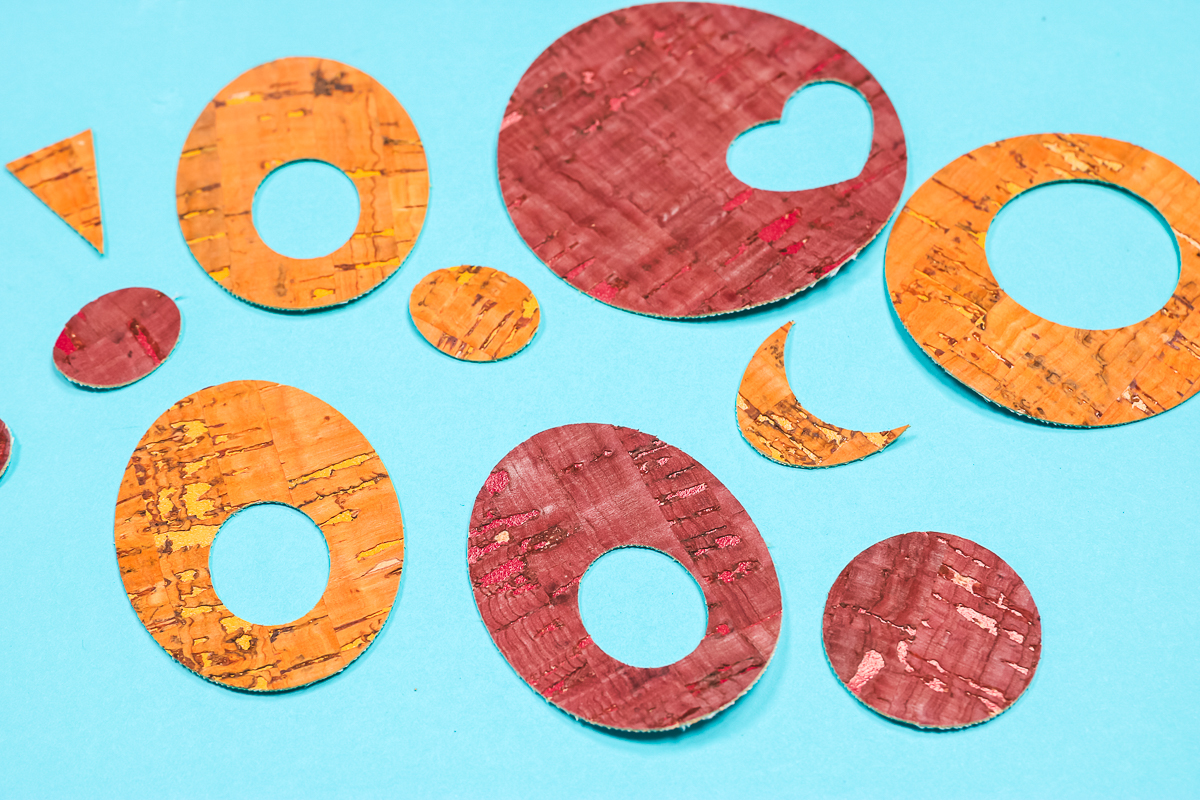
Both machines cut the Cork Faux Leather with the Fine Point blade beautifully. I'm really happy with how they cut the material. The Faux Leather setting worked perfectly, so I would definitely start there if you're trying to decide which cut setting will work for your material.
FAQs About How To Cut Cork
Here are answers to some of the most frequently asked questions I receive about cutting cork with a Cricut machine. If your question isn’t listed, feel free to drop it in the comments and I’ll be happy to help!
Where Do You Get The Leather-Backed Cork?
I got it from Amazon!
I Want To Engrave On The Cork Fabric Sheet. Do You Have Any Suggestions?
A Cricut machine is not going to be able to do this. Usually, people use a laser for this process. You can see if something like a scorch marker would work and burn it in.
Can You Cut Names With Faux Cork On Cricut?
Yes, you can!
What About Doing The Strong Grip Transfer Tape Over The Regular Cork And Trying The Test Cut On The Explorer? Do You Think That Might Help With The Edges Being Cleaner?
I think it would tear it up getting the tape off the front.
Where Can I Get The Earring Cut File?
You can get our FREE earring cut file by clicking here!
5 More How To Cut Resources
Did you love learning about how to cut cork with a Cricut machine, and want more Cricut cutting resources? Then check out the blog posts below!
- How to Cut Cardboard with a Cricut Machine
- How to Cut More than One Color on a Cricut Mat
- How to Cut Bonded Fabric with a Cricut
- How to Make Intricate Cuts on a Cricut: Tip, Tricks, & Secrets!
- How to Cut Wood with the Cricut Maker