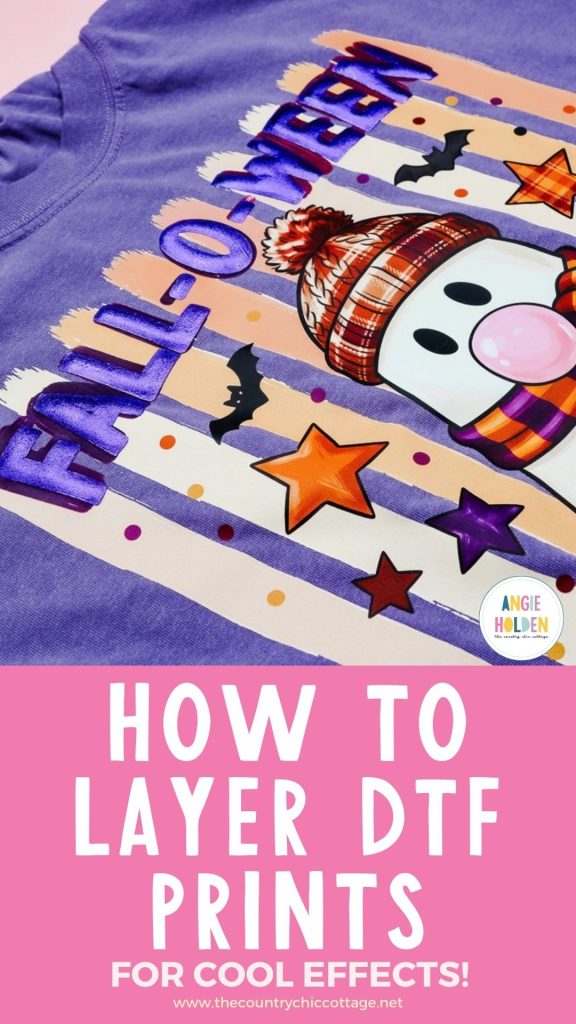
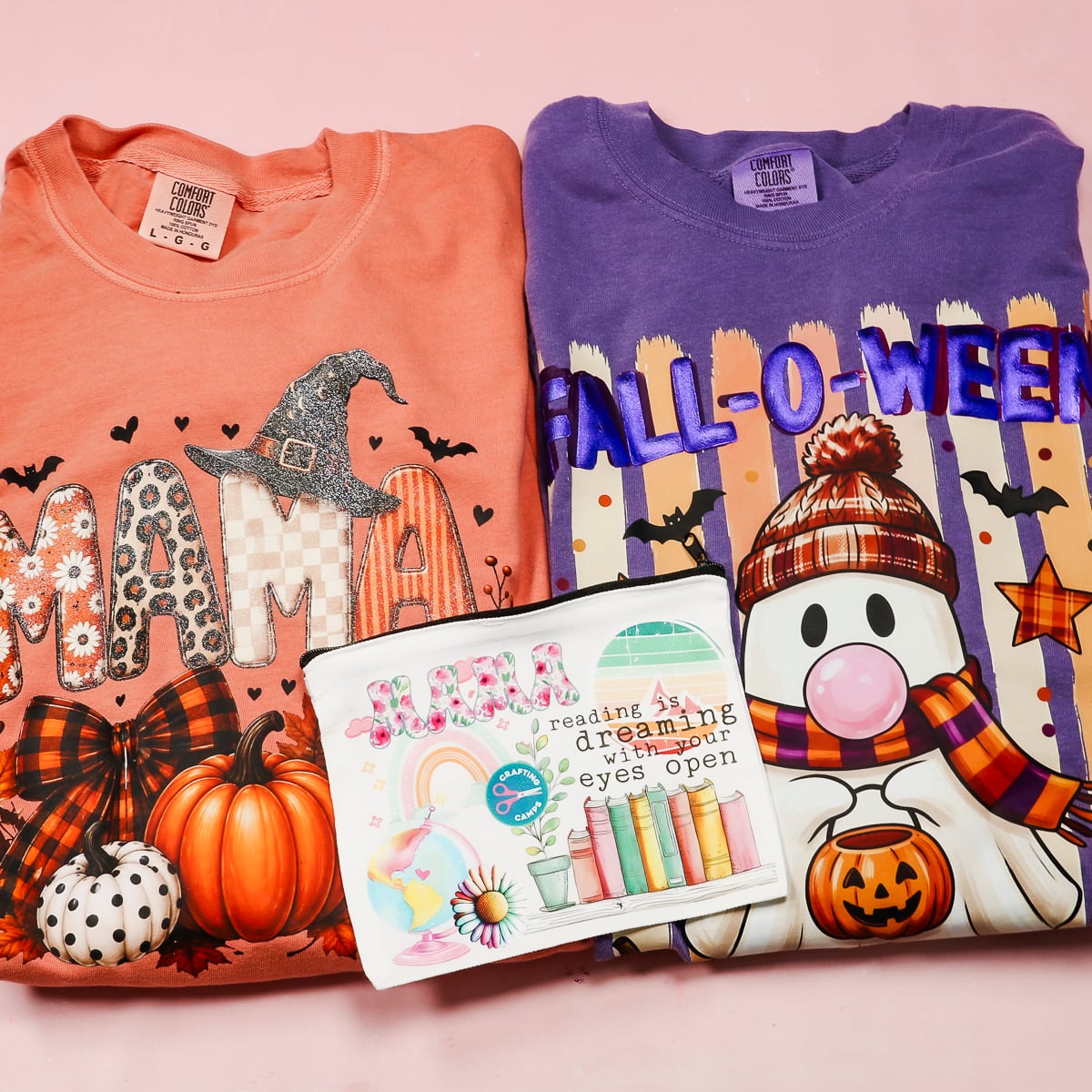
Layering Direct-to-Film (DTF) transfers opens up a whole new world of crafting possibilities. From combining multiple regular DTF prints to trying specialty DTF prints and even testing HTV over DTF, I am trying it all! I'm going to answer the question, “Can you layer DTF prints?” so we can all make the most of our DTF projects.
New to DTF printing? My DTF Guide for Beginners tutorial is the best place to start so you know what it is and what materials it works on.
How to Layer DTF Prints
I've made a wide variety of DTF projects but haven't yet tried layering DTF. I decided to play around with some different materials to see what works and what doesn't.
I'm going to test DTF + HTV, DTF + DTF, and DTF + specialty DTF. I'm excited to show you the results.
Supplies Used
NOTE: You won't need everything on this list unless you want to make all of the different projects I'm making.
- DTF Prints
- Comfort Colors Shirt
- Protective Paper
- Cricut AutoPress 2
- Weeding Tool
- Cricut Machine
- Metallic 3D Puff HTV
- Fall-o-ween Design
- Mama Fall Design
Layering Regular DTF Prints with Regular DTF Prints
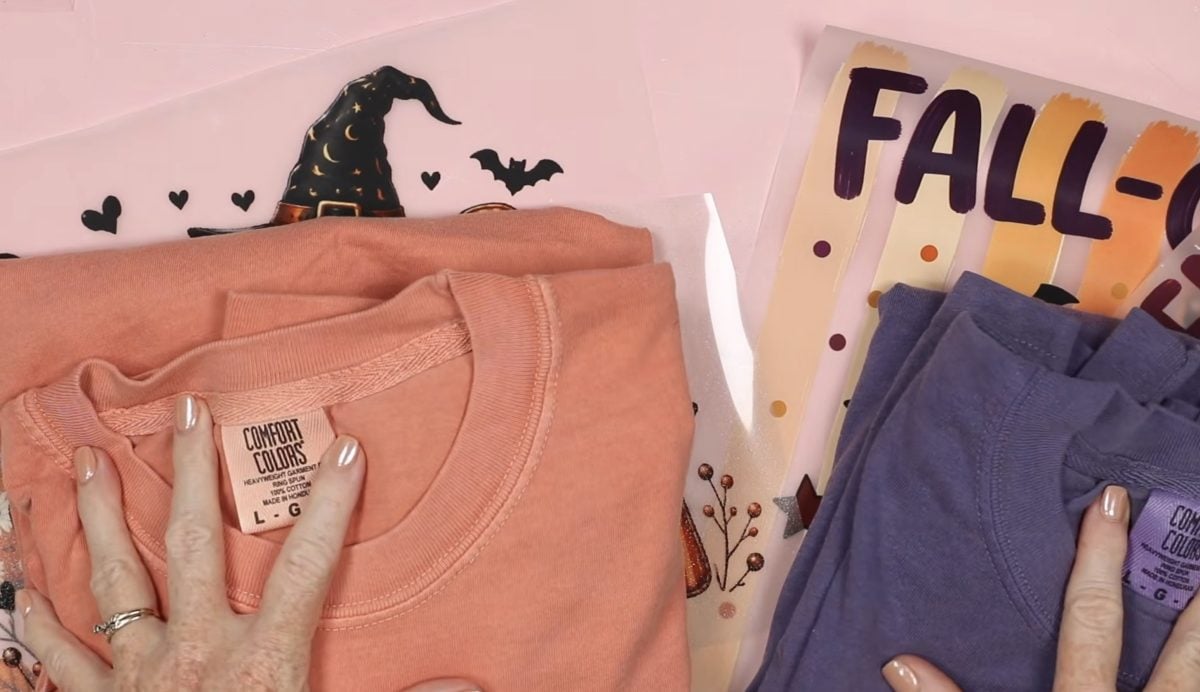
For my first project, I'm going to press a regular DTF print onto a shirt and see how it looks if I add another layer of regular DTF on top.
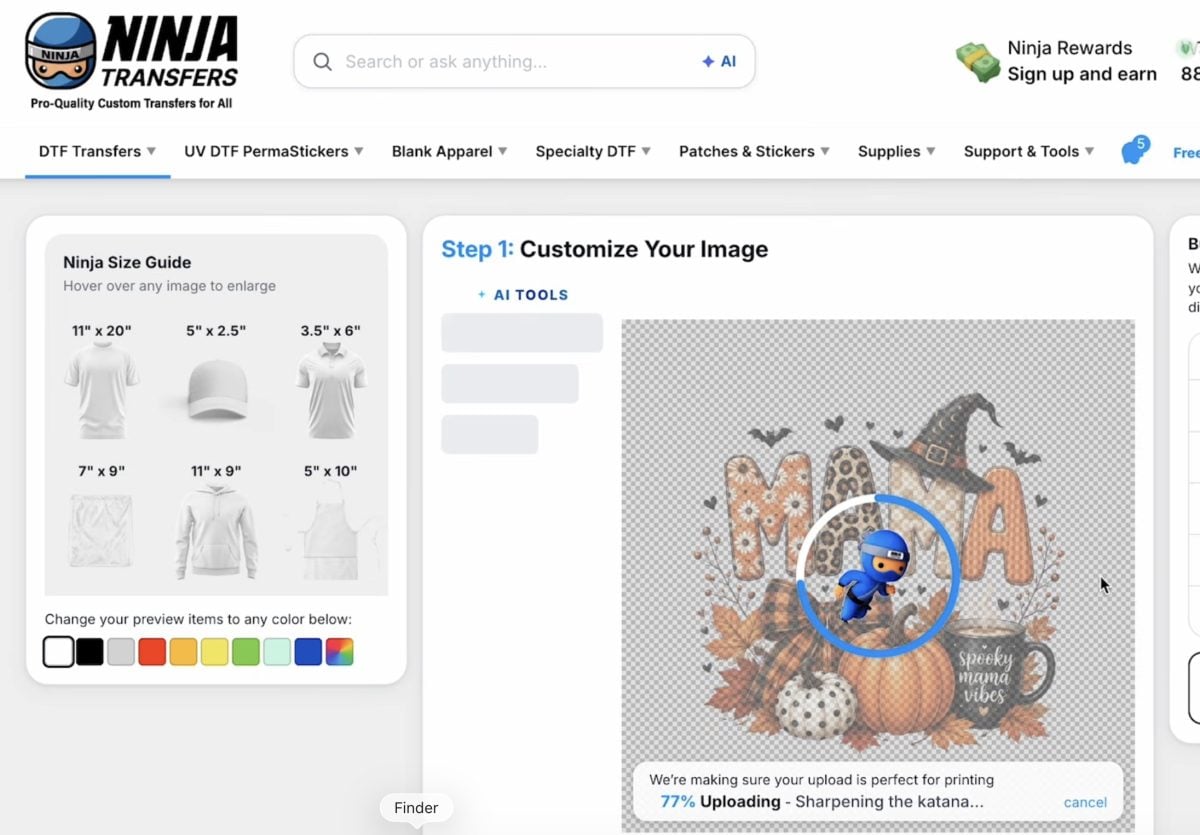
For these projects, I'm ordering my DTF prints from Ninja Transfers, and I'm ordering them by size. Upload the design to Ninja Transfers and just order the size you need.
Adjust the Design in Photoshop
I used Photoshop to create a design that is just the words. I want to add a layer of DTF right on top of the full print. I decided to make the text slightly smaller to get a bit of a shadow effect. You can make the text the exact same size; I'm just not sure if you'll notice much of a difference with just 2 layers of DTF.
Before making any changes to the design in Photoshop, make sure you know the exact size of the DTF print you ordered.
Use the eraser tool to erase the extra portions. You can also use the Smart Erase tool, and it will erase around the text.
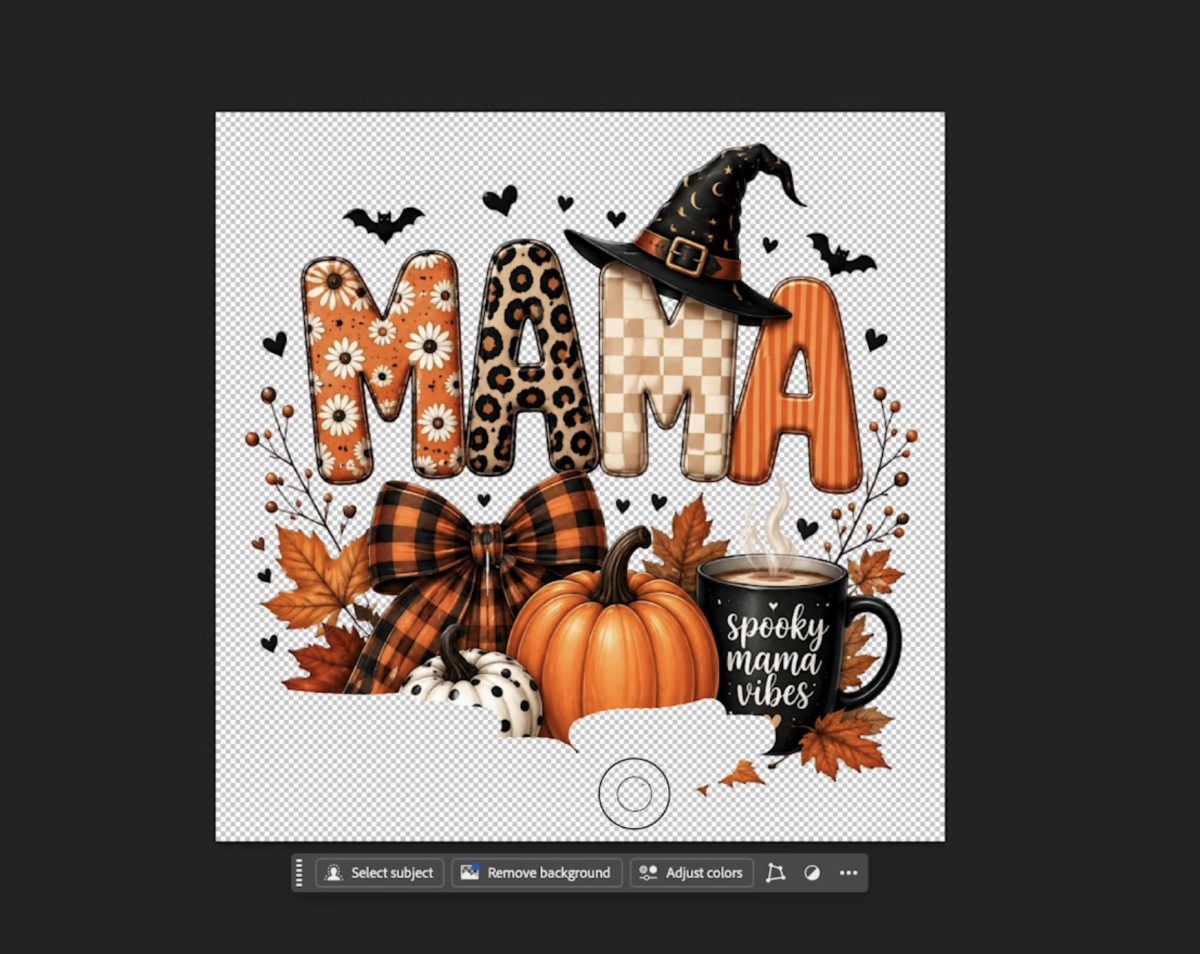
I want the text separated for these designs. You can choose a different section of the image if you want. If you want your layered piece smaller than the DTF design, go ahead and resize it now.
Apply DTF Design to a T-shirt
Preheat the heat press to 310° and set the timer for 12 seconds with medium to high pressure.
I always pre-press my shirts to remove any moisture and wrinkles.
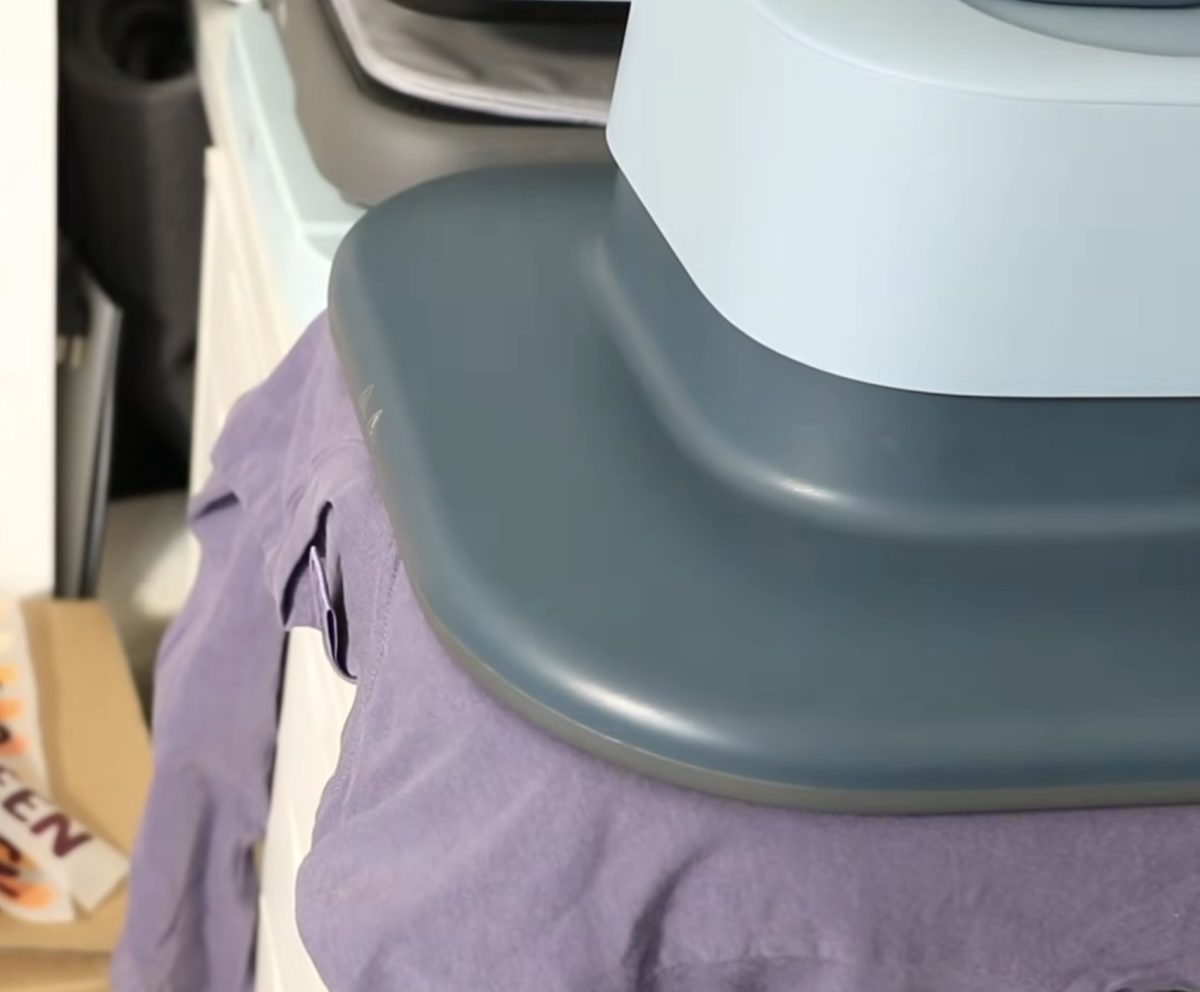
Locate the full DTF print on the shirt, cover it with protective paper, and press it for the full time.
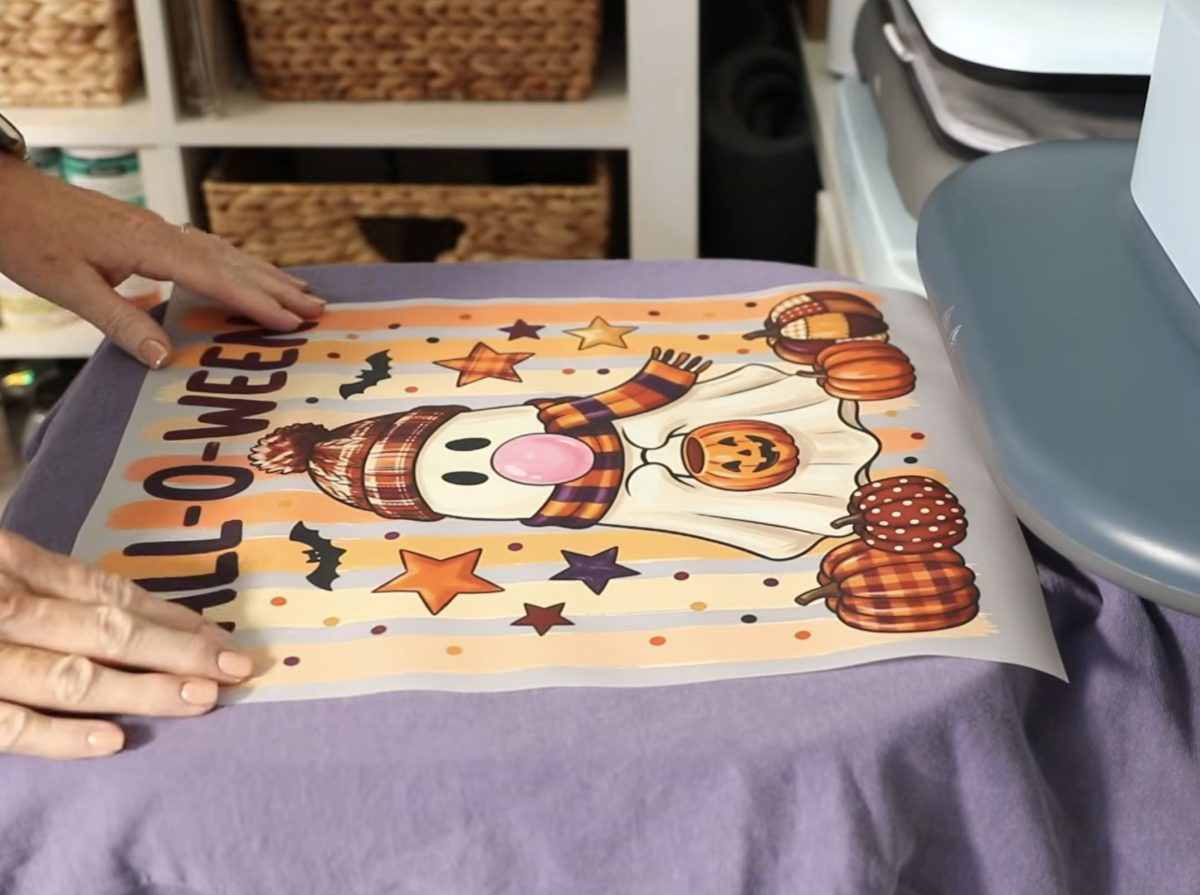
When the time was up, I used my DTF cooling block to cool the print off a little bit and removed the carrier sheet.
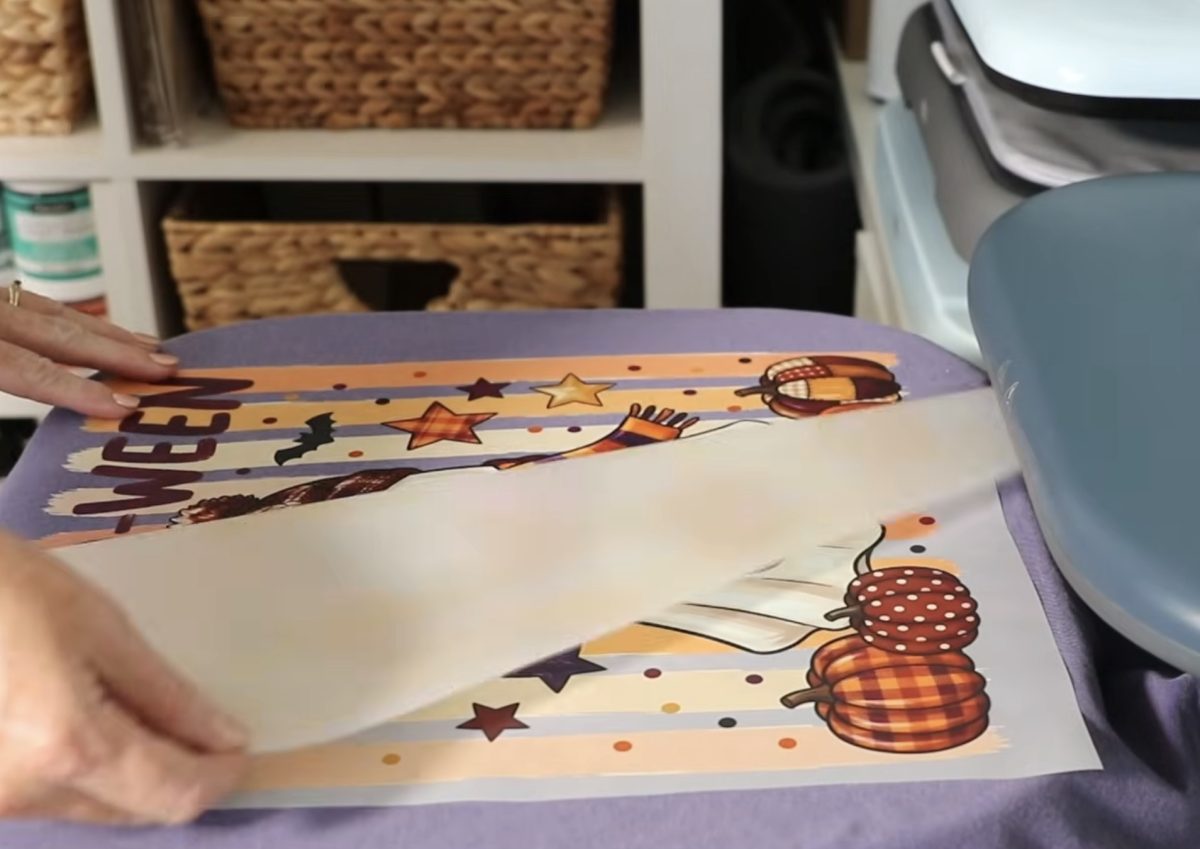
Next, I located the second layer on top of the pressed DTF, covered everything with protective paper, and pressed again for the full time.
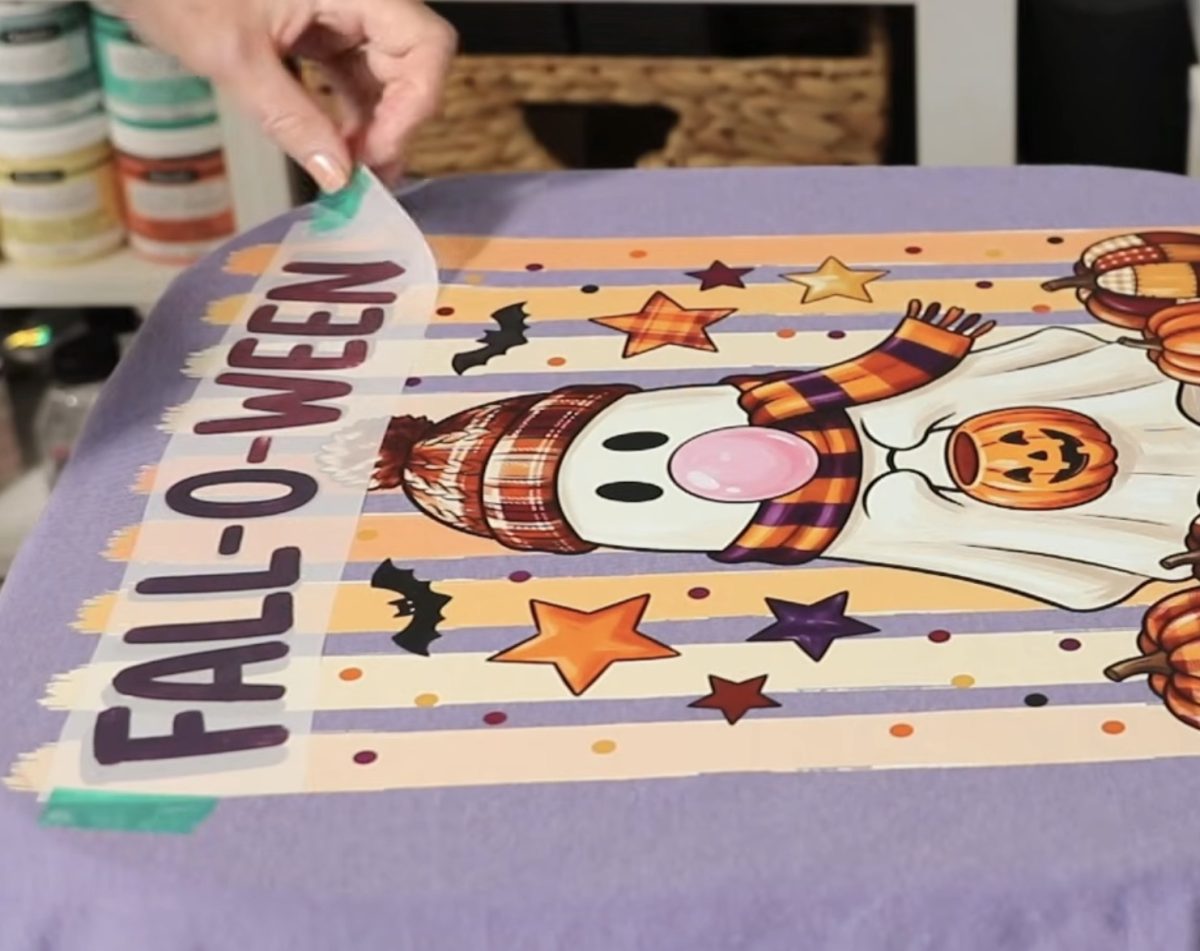
When it was done, I cooled the design with the DTF cooling block and removed the carrier sheet.
Place the protective paper over the top of the entire design and press again.
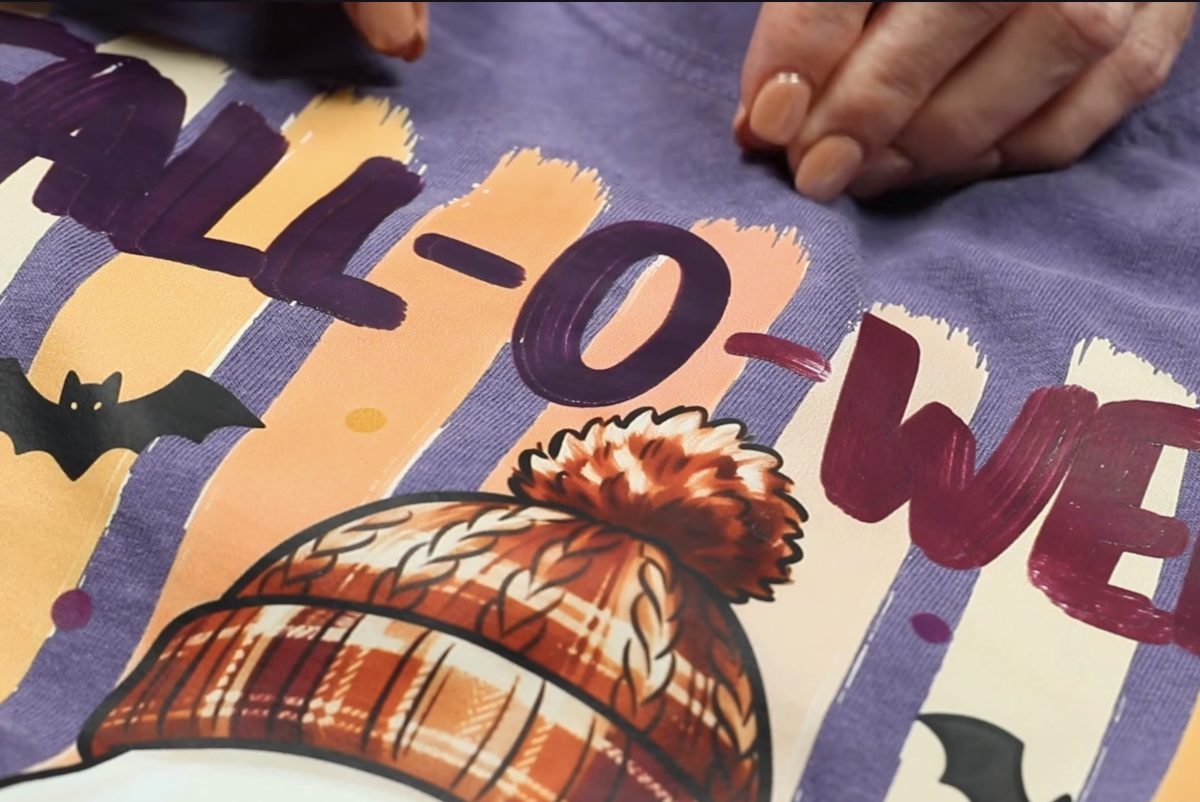
The DTF stuck to the bottom layer of the DTF, but you can't really see it. Unfortunately, it's not raised up at all, and I can't even really feel where the two layers are vs the single layer.
Add 3D Puff Metallic HTV to DTF
While the shirt is cute, I really wanted some dimension on the shirt. Now, I'm going to take the shirt that I just added the second layer of DTF to and try adding 3D Puff Metallic HTV to it.
For this project, I found a similar font in Design Space and adjusted it so it matched the design on the shirt. This included resizing and curving the design a little bit.
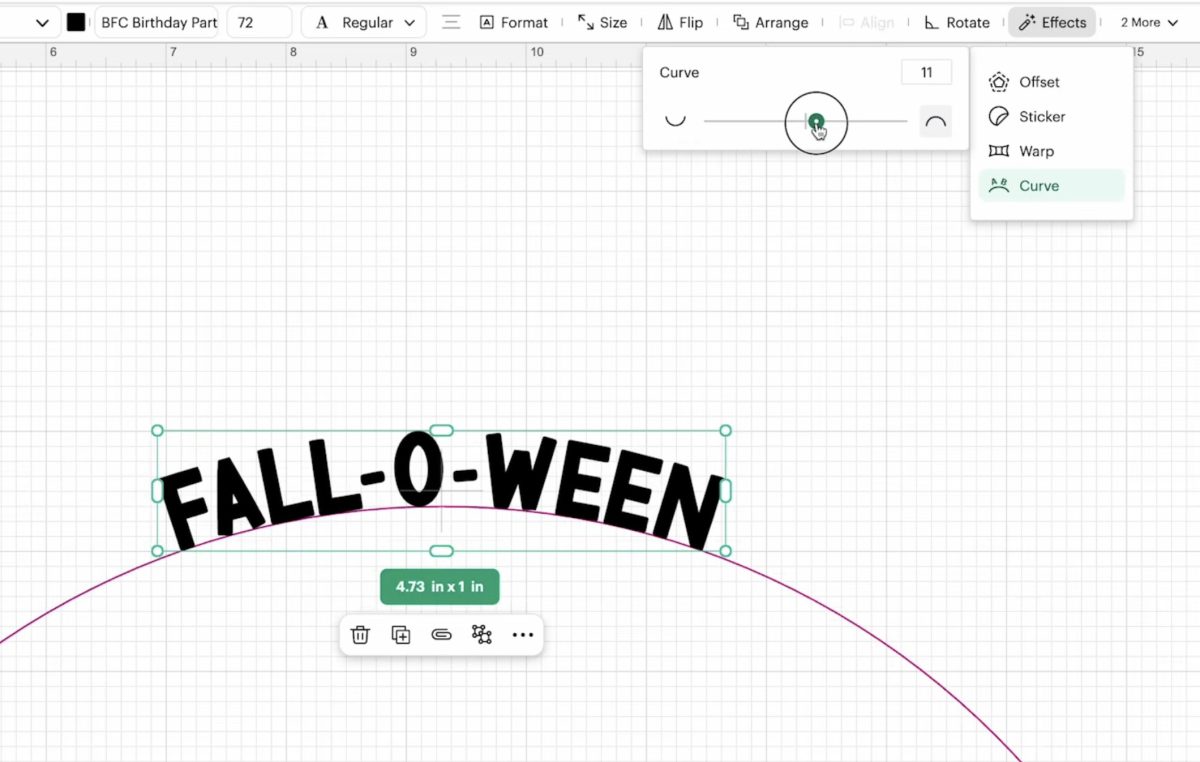
Follow the instructions in Design Space to cut out the material you're using. Cut out the HTV and then weed away all the excess material.
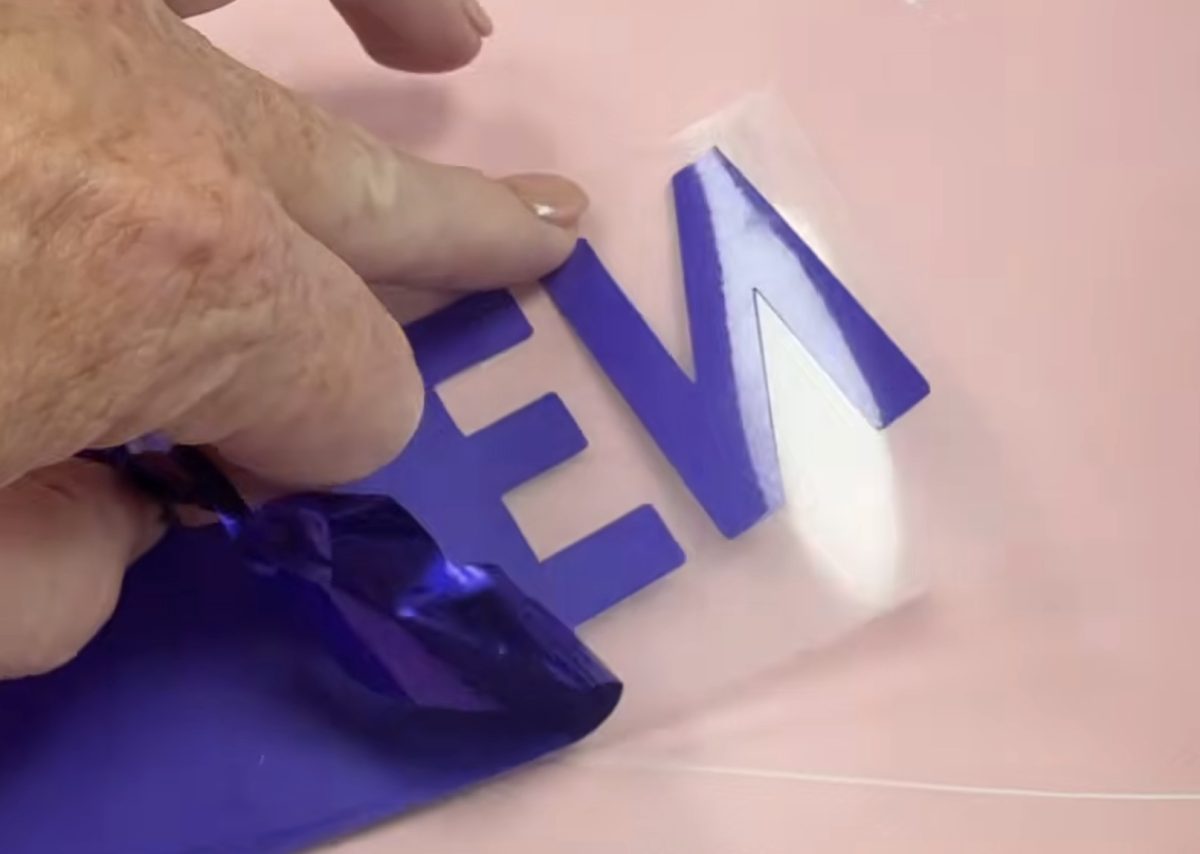
I changed the heat press settings to 270° for 10 seconds with the heaviest pressure possible.
Locate the HTV on the DTF and cover everything with protective paper. Press, then remove the carrier sheet.
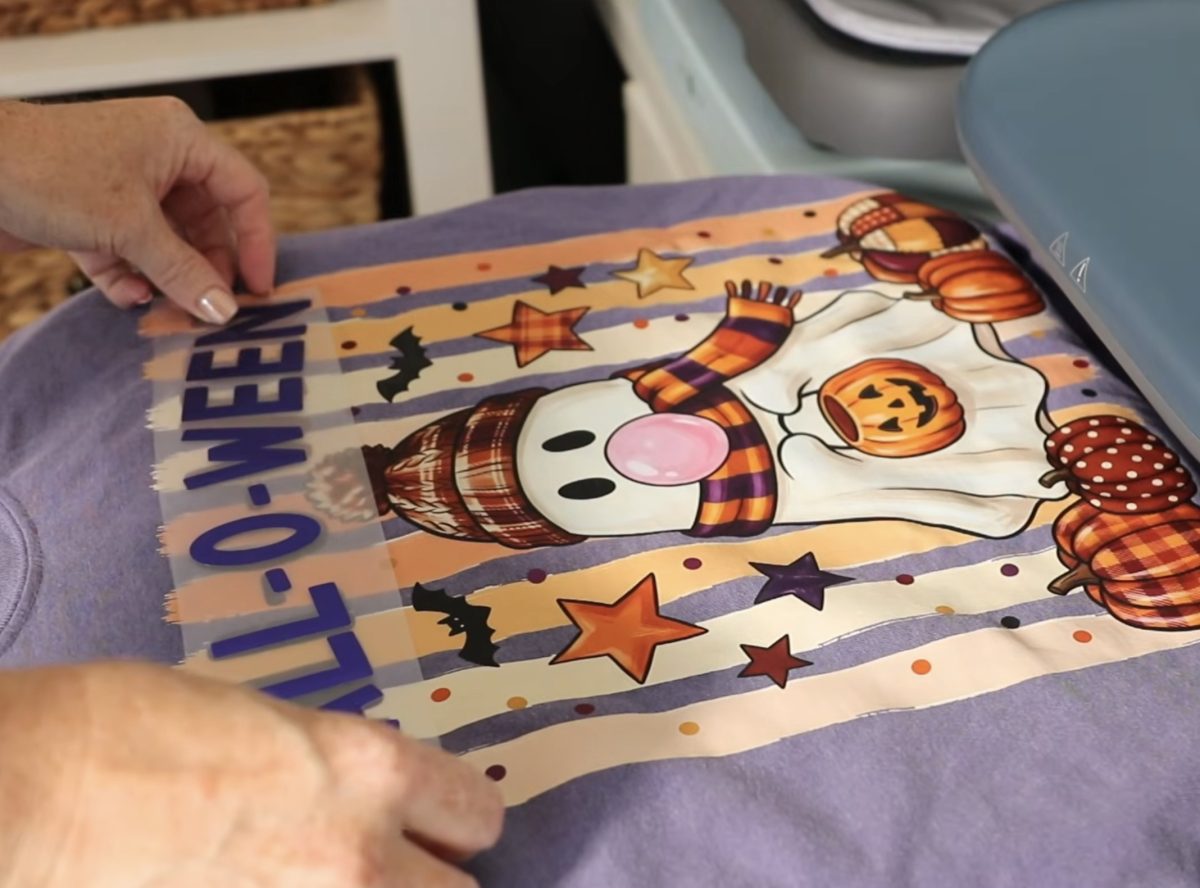
For maximum puff, cover with protective paper and press again for the full time.
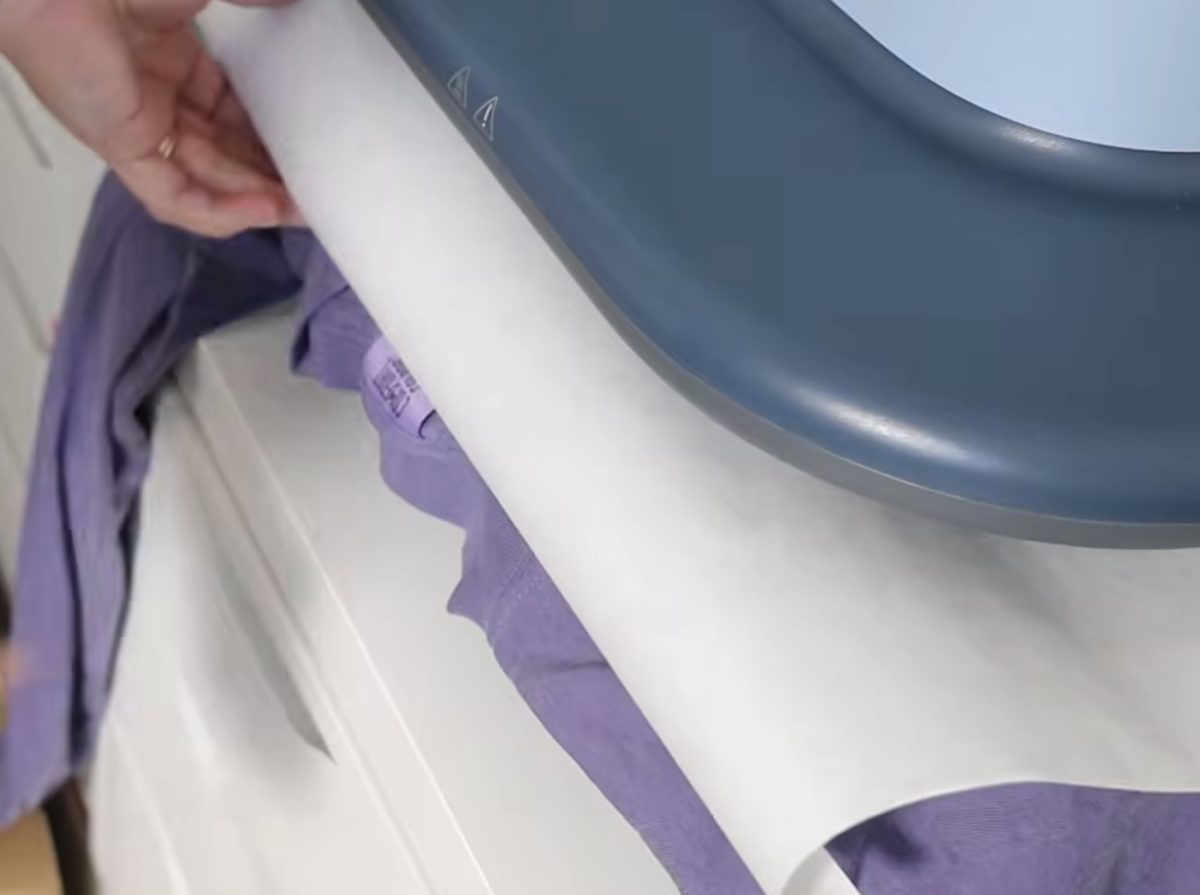
When the time is up, remove the protective paper and look at that amazing puff.
This is exactly what I wanted. I wanted the text to really pop off the DTF, and with the metallic puff HTV, I got the results I was looking for.
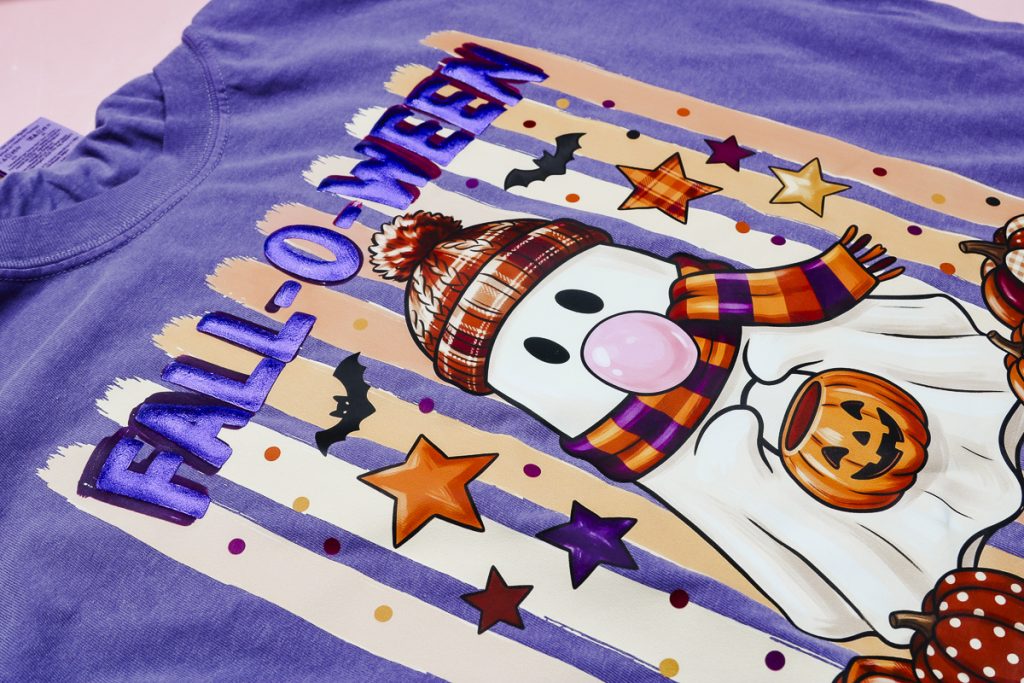
Now we know that, yes, you can add HTV on top of DTF and get these amazing results. If you want to really make an element pop metallic puff HTV is a great option.
Layered DTF Patches on a Zippered Pouch
Thanks to our previous project, we know that, yes, you can layer DTF. But I really wanted to test the process and see if I could make a project that showcases DTF layering.
I had an idea to create a bunch of smaller DTF designs that could be randomly placed on a zippered pencil pouch, kind of like patches. This will allow me to test layering DTF, and even layering up to 3 times in some areas.
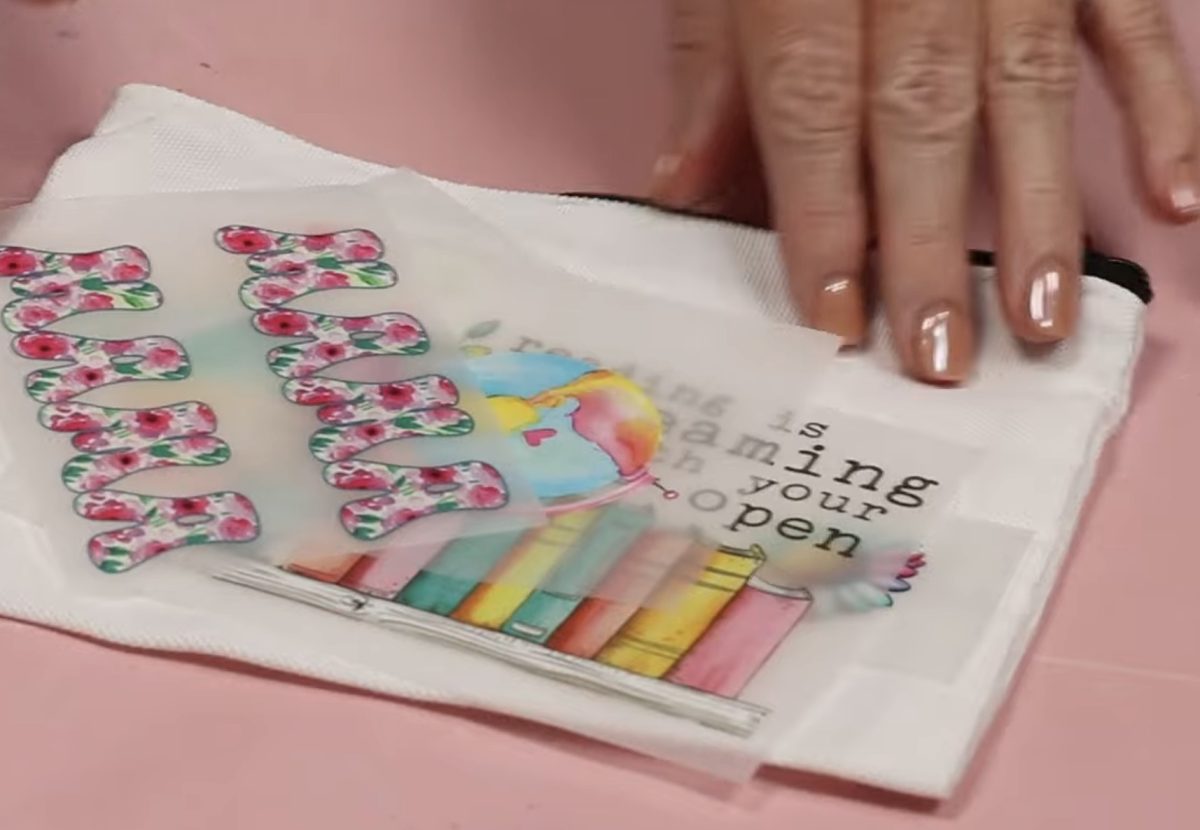
Preheat the Zipper Pouch
First, we want to preheat the zipper pouch to remove any moisture. I have my heat press set to 310° and the timer set for 12 seconds.
I had no rhyme or reason for placement. For the first layer, you can place as many DTF designs as you want, as long as they do not overlap.
Cover with protective paper and press for 12 seconds. When the time is up, cool for a few seconds with a DTF cooling block and remove the carrier sheet.
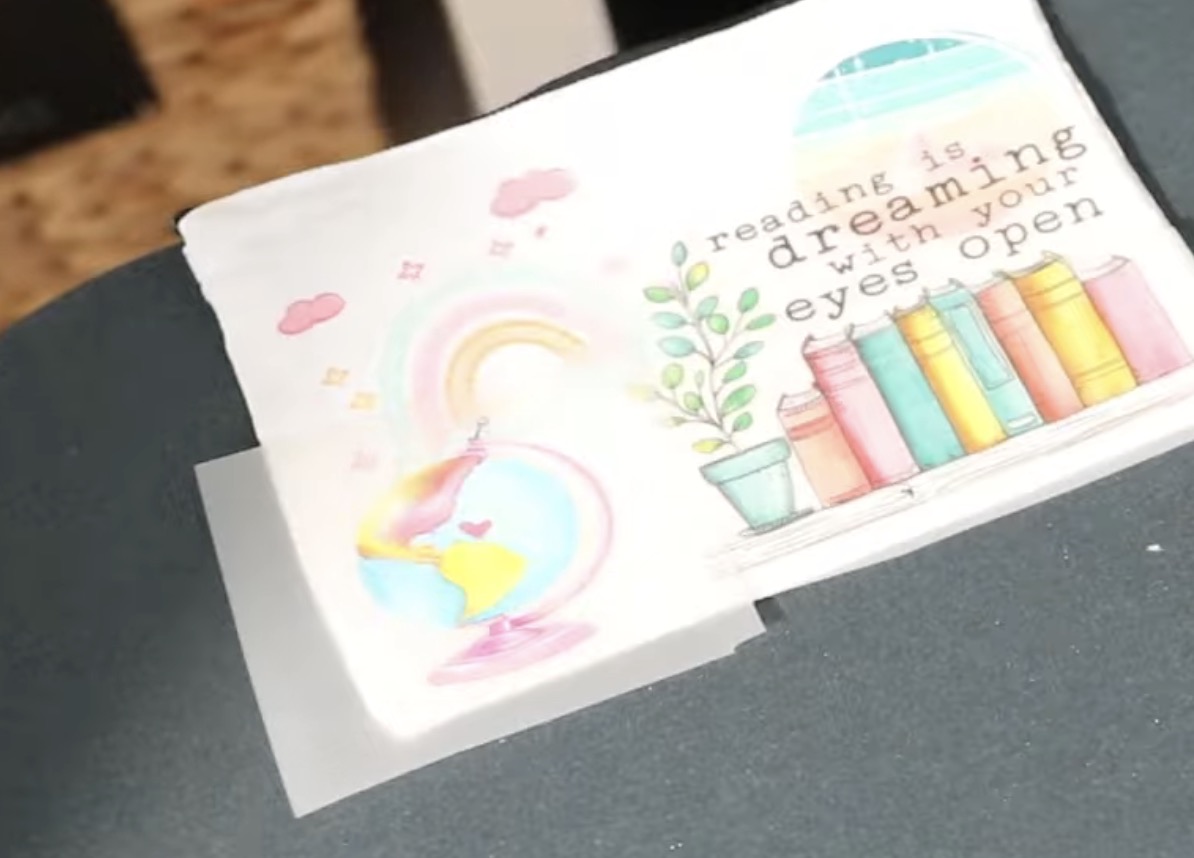
Locate the next set of DTF prints, cover with protective paper, and press again.
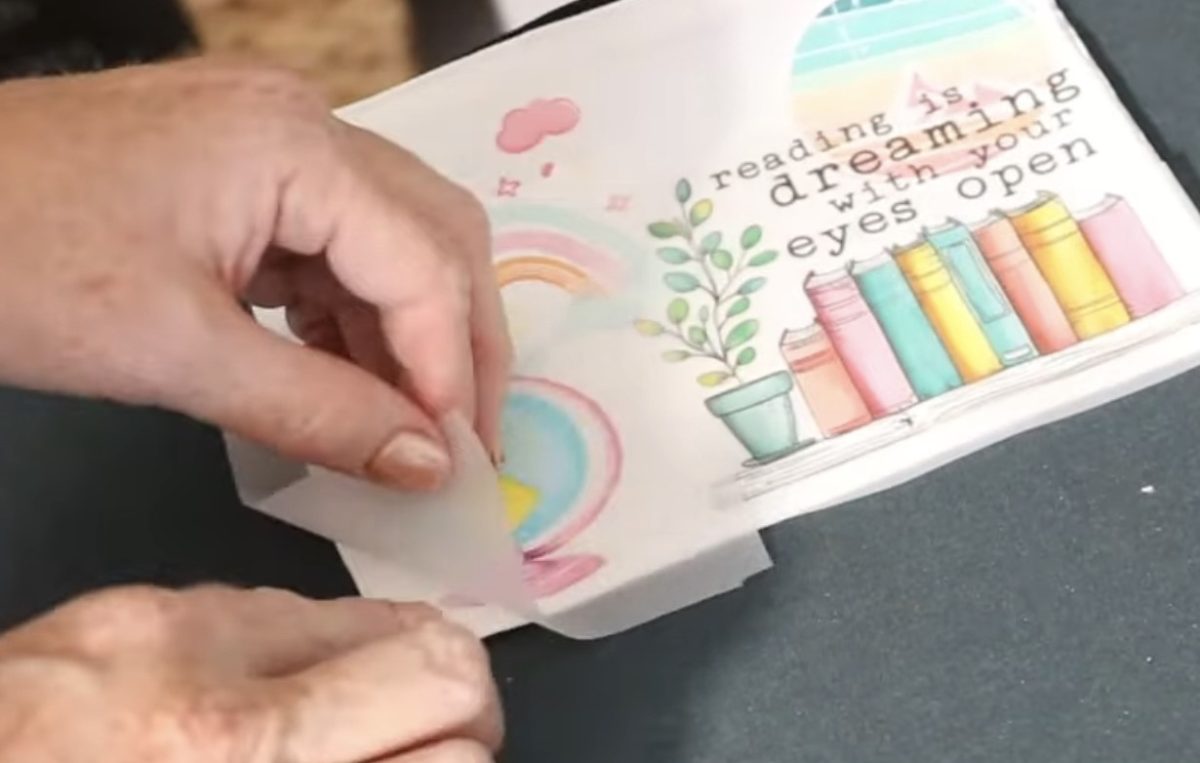
Repeat this process until you have all the DTF prints pressed.
With everything pressed and the carrier sheets removed, cover the entire thing with protective paper and press one more time for the full time.
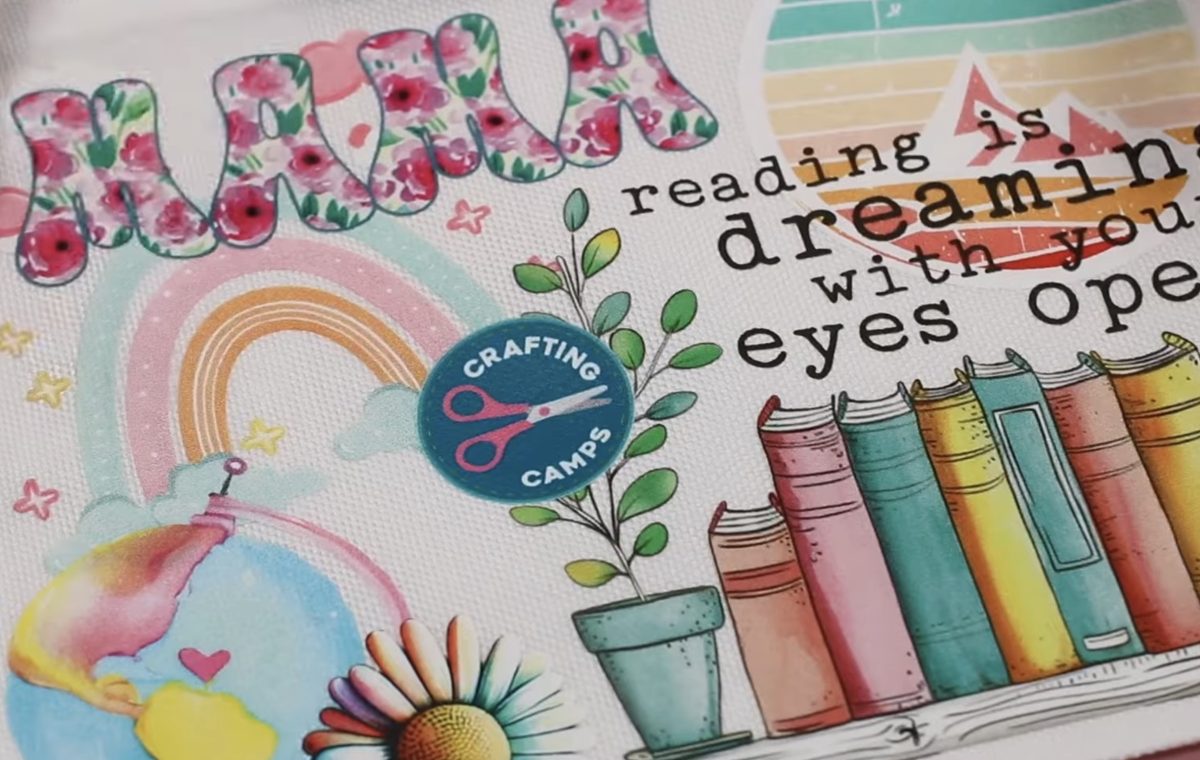
I love how this turned out. It's such a fun collection of DTF designs, and it feels great on the surface, even where I have 3 layers of DTF.
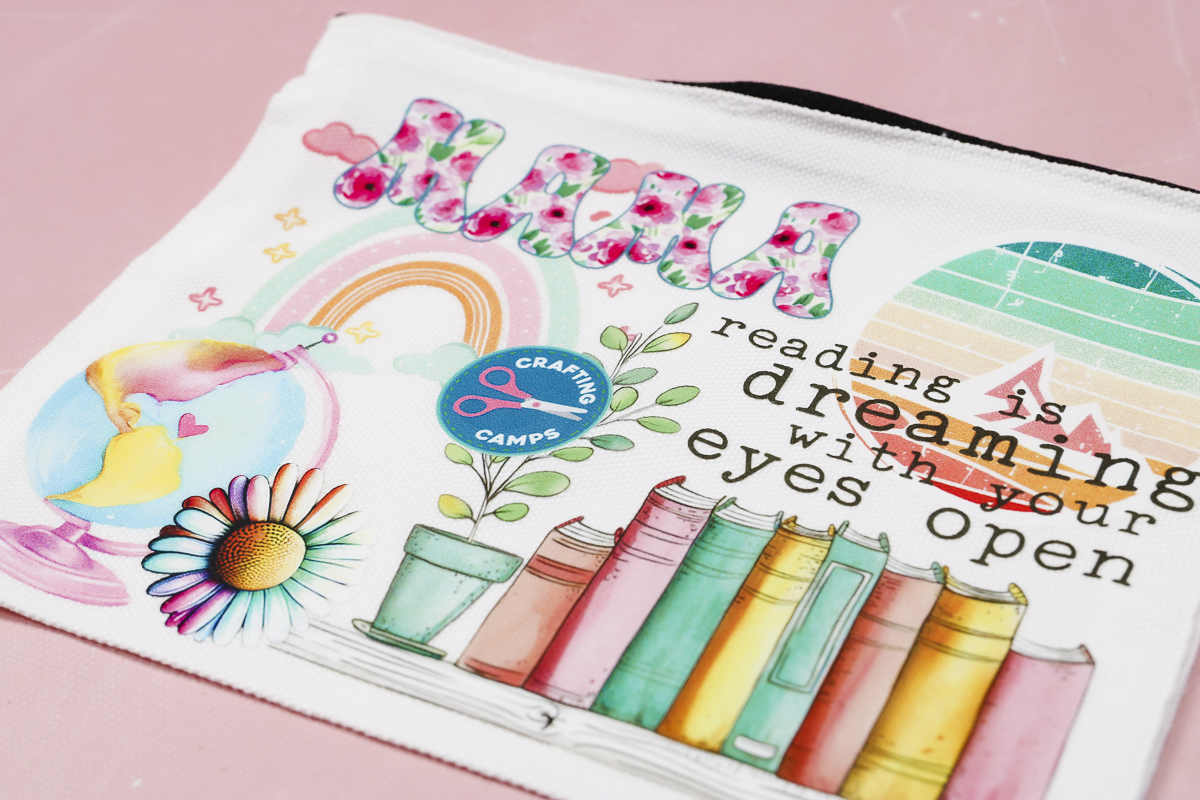
I think this would be a great group-type activity. Order a gang sheet filled with small designs. They could all be one theme or just a random collection. Allow people to choose the designs they want and just press them onto the zipper pouch.
Adding Specialty DTF to Regular DTF
For my last project, I want to repeat what we did for the first shirt, but this time I'm going to use DTF and the specialty glitter DTF.
Creating the design will be the same as I did for the first layered DTF project. I chose the design and then chose the section I wanted to be the specialty DTF. For this project, I am keeping the design the exact same size because I want the glitter covering the entire portion.
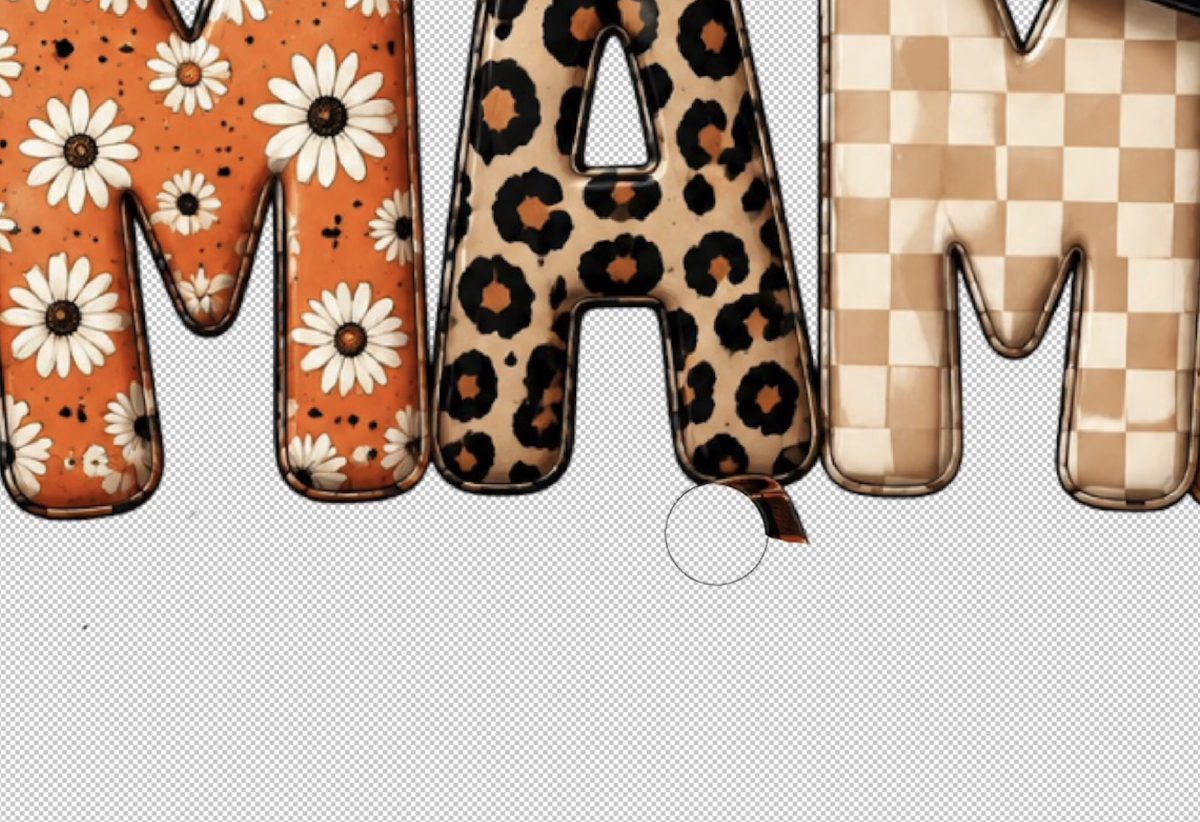
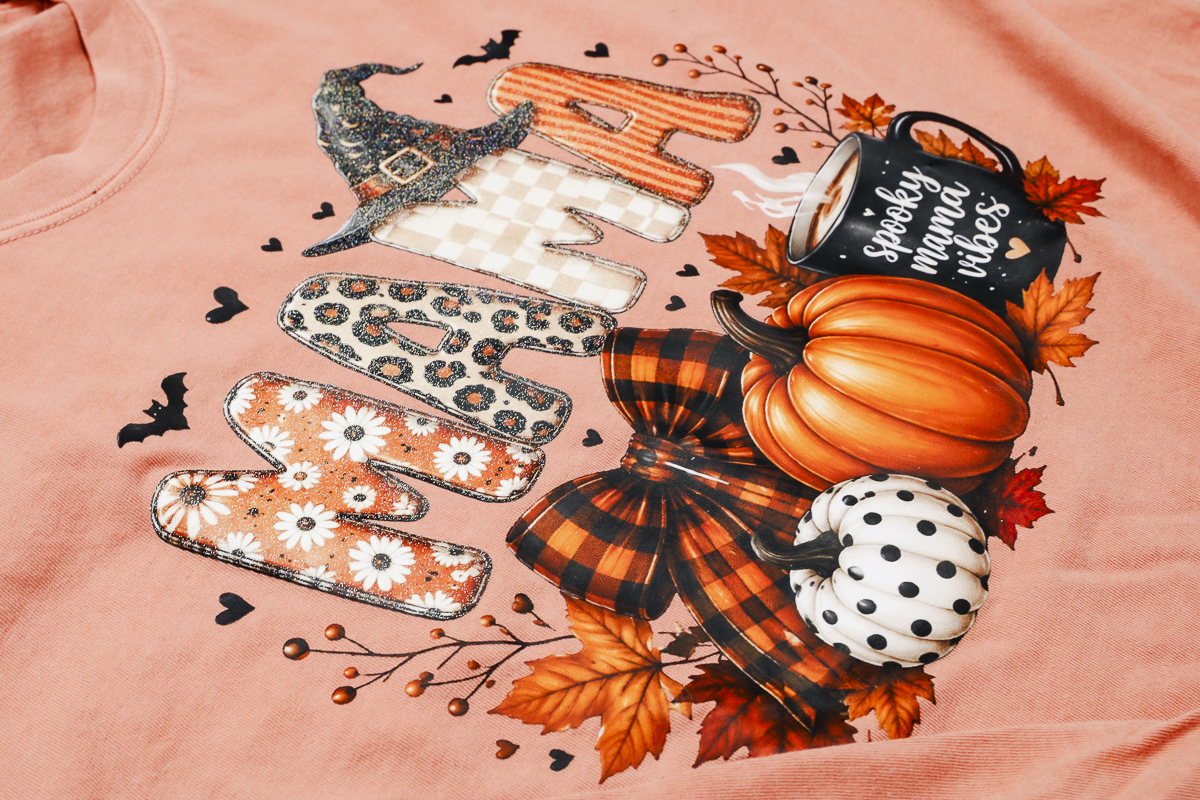
Edit the image by erasing all the portions where you don't want glitter. I just wanted the word Mama with the witch hat to be glitter, so I erased everything else. In the photo above, you can see that part of the bow goes up in the A. The great thing about layering regular DTF and glitter DTF is that whichever way you choose to erase, the image will still look great.
Place the order, and as soon as the designs arrive, we're ready to press.
Note: Specialty DTF like glitter does have a minimum order quantity. I filled a sheet with glitter DTF that I can use on future projects. There are a variety of specialty DTF options on the Ninja Transfers site; most of them do have a minimum quantity. Be aware that some allow you to meet the minimum with different designs, and others require you to meet a minimum of the same design.
Pressing DTF and Glitter DTF on a Shirt
The time and temperature are the same: 310° for 12 seconds.
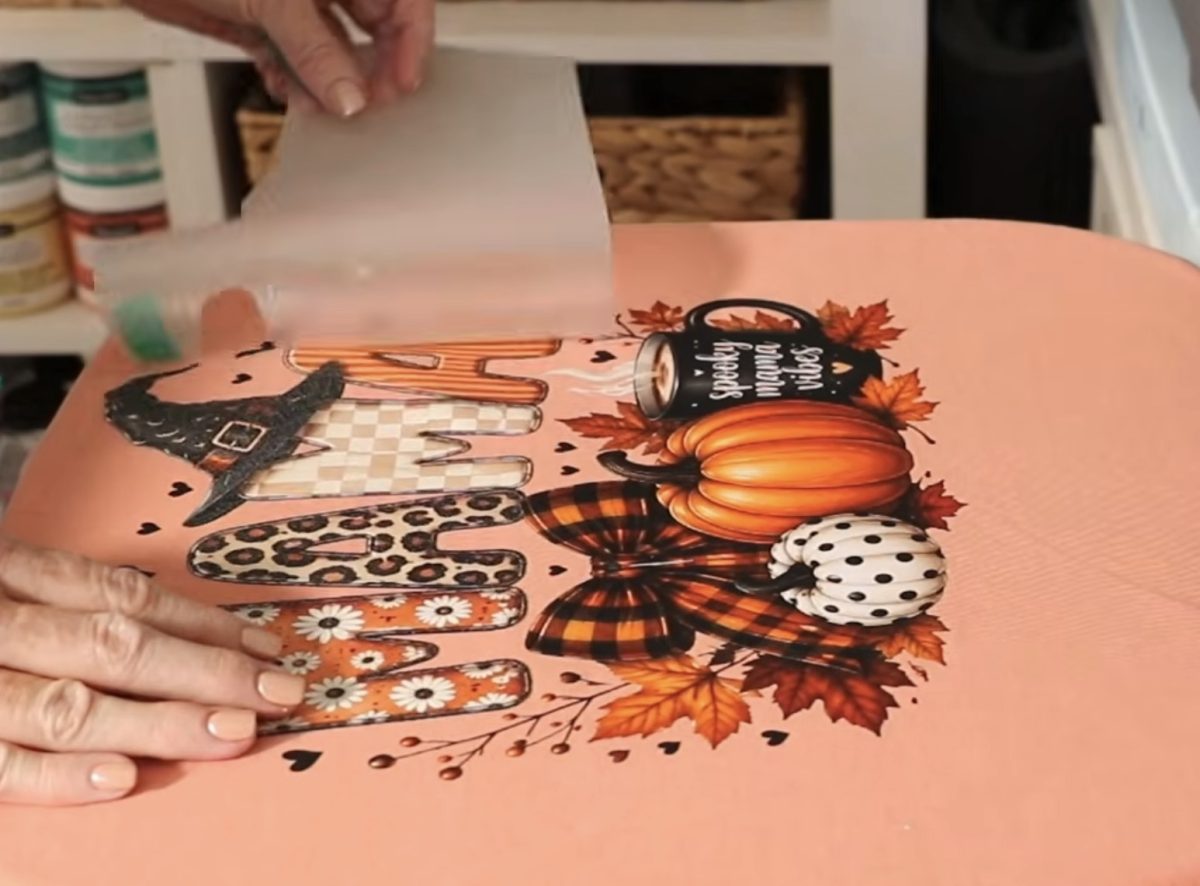
Press the first layer, allow it to cool for a few seconds, and remove the carrier sheet.
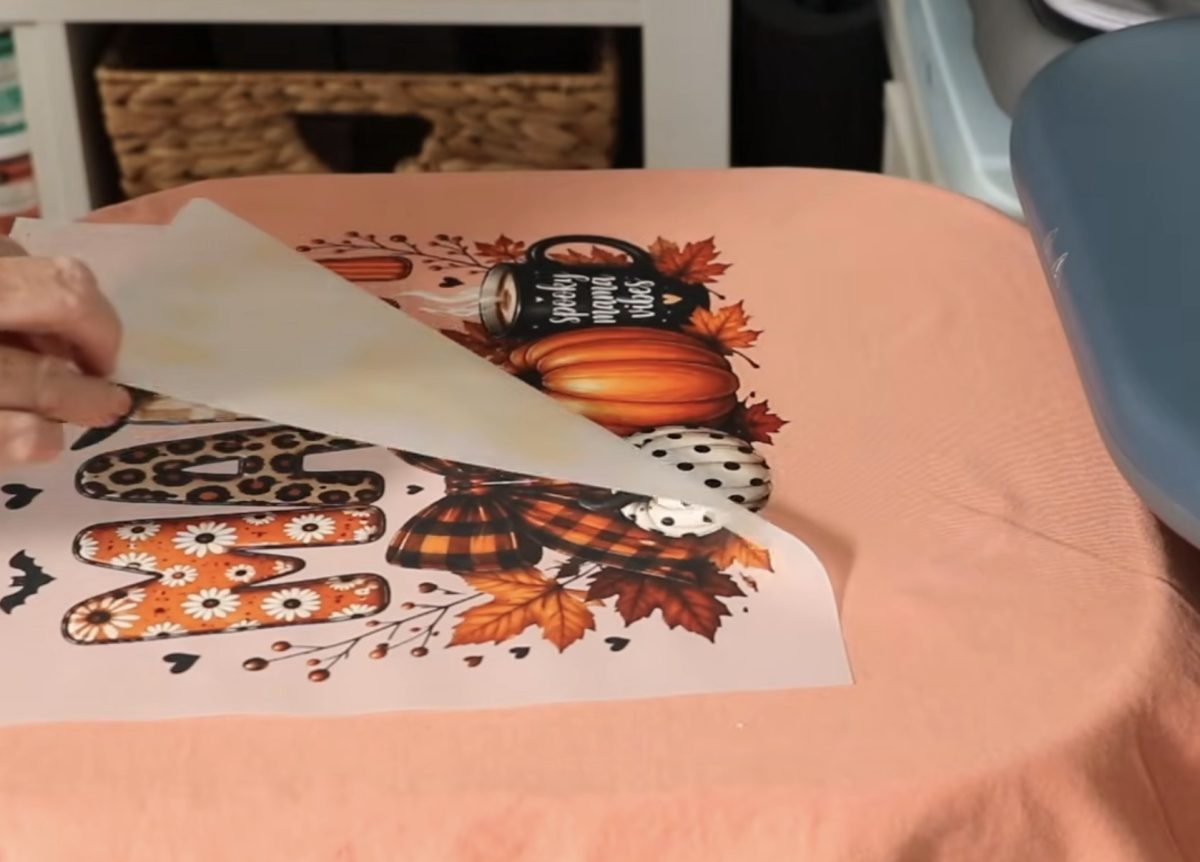
Next, locate the glitter DTF print and place it in place. I made sure that everything was lined up, and for this piece, I secured it in place with heat-resistant tape to make sure it didn't move.
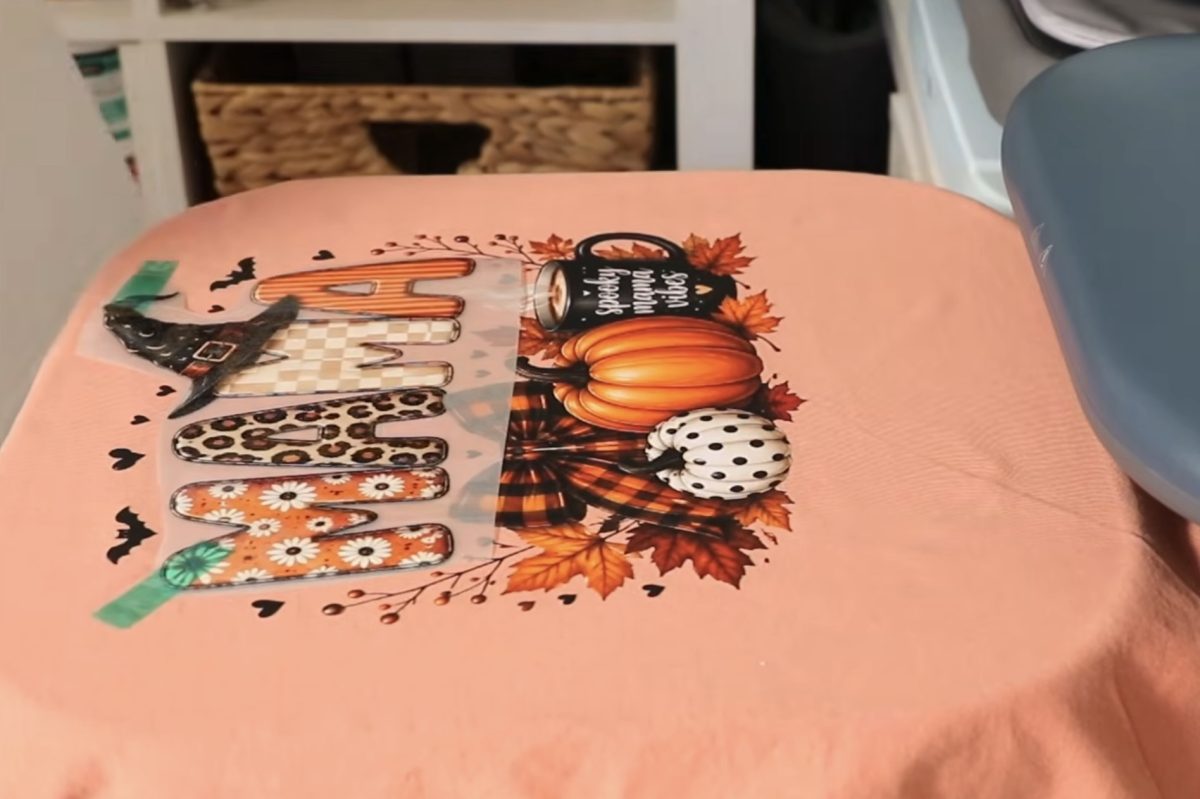
Cover with protective paper and press again for the full time.
When that press is complete, remove the carrier sheet, cover everything with protective paper, and do a post-press for the full time and full temperature.
This shirt turned out amazing. I love being able to add the glitter effect to just one portion of the design. I think it looks really cool, and the glitter looks so good, and it's in all of the colors of the design.
Can You Successfully Layer DTF with Other Heat Transfer Materials?
I tested a variety of ways to layer DTF prints, and I'm happy to report that all of them were successful.
I learned that just layering 2 layers of regular DTF will not give you a raised effect or draw attention to that area, but it's great for creating something like the zipper pouch where you want to create a collage effect and be able to overlap the DTF prints.
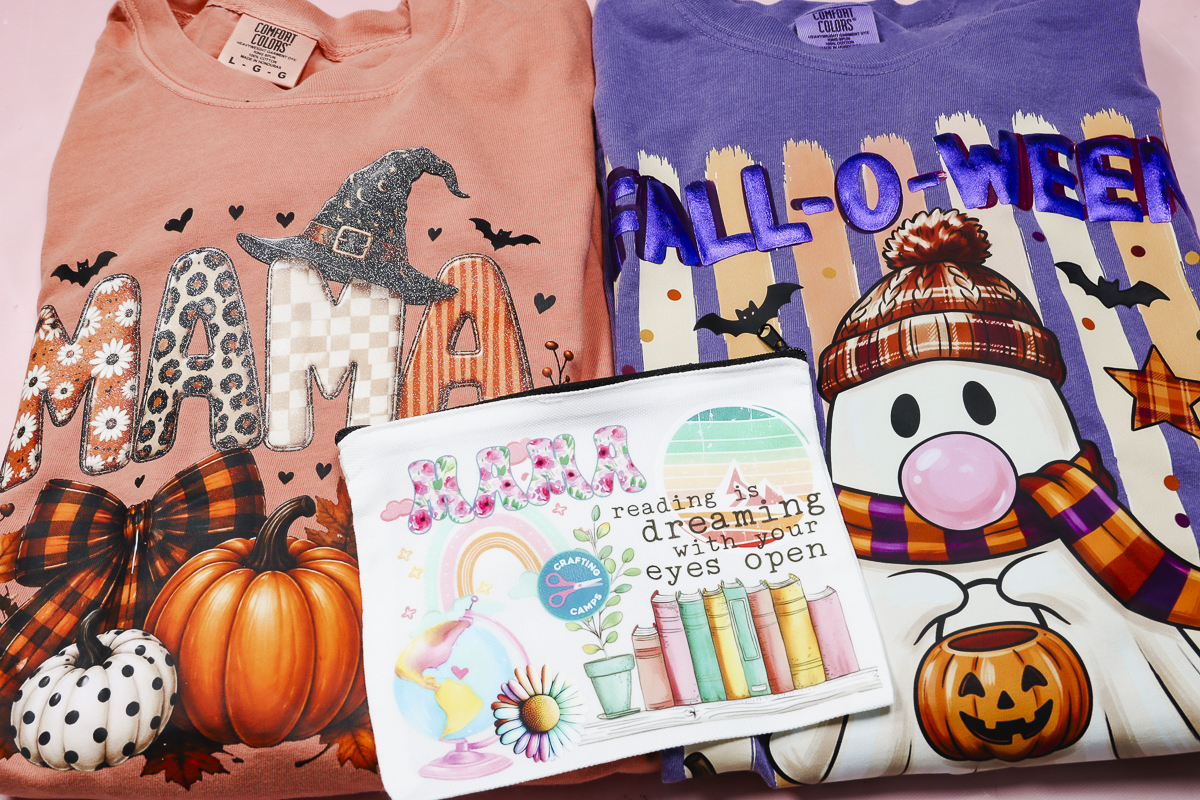
On the zipper pouch, I have 3 layers of DTF in some areas; it adheres really well and is not bulky at all.
Adding puff HTV to DTF also worked really well and created the finished product I wanted. I really wanted to emphasize the Fall-O-Ween portion of that design, and while just adding another layer of DTF didn't do the trick, the metallic puff HTV did. I really love how this one turned out.
Lastly, I added specialty glitter DTF to a portion of a regular DTF print, and it looks so good. I love how this turned out. It's subtle but also really pops. You're going to love it.
I do want to note that Ninja Transfers says you can layer their DTF prints. If you order DTF prints from somewhere else, make sure to review what they say about layering. I layered up to 3 times on the zipper pouch successfully. I do not know if there is a max on how many layers you can do, or what that maximum might be.
I hope I've answered any questions you might have about layering DTF. If you have any additional questions, leave them in the comments, and I'll be happy to answer them for you.
Quick Project Recap: 3 Ways to Layer DTF Prints
- Regular DTF with Metallic 3D Puff HTV
- Best for: Eye-catching effects you can feel and combining DTF with HTV.
- Press Settings: Heavy Pressure, 270° F for 10 seconds. Press twice for maximum puff.
- Application Tips: Not a real option for EasyPress or other handheld/auto presses that can't apply heavy pressure. Find an element you want to draw attention to and add puff HTV to that area. Use a Cricut machine to cut out the design by finding a similar font or editing the design to cut only the focus area.
- Regular DTF + Regular DTF Patchwork Style Application
- Best For: Badge designs, using small prints, creating collages, and other overlapping graphic designs.
- Press Settings: 310° F for 12 seconds per layer with a final press after all previous layers have been pressed.
- Application Tips: You can press multiple prints at one time, as long as they don't overlap. Before pressing, lay the prints out to get an idea of what you want it to look like, and take a photo so you can remember the layering process.
- Regular DTF + Specialty DTF
- Best For: Drawing attention to specific design areas without using a cutting machine.
- Press Settings: 310° D for 12 seconds with medium to high pressure for each layer, with a post-press to finish the project.
- Application Tips: Find the area of the design you want to highlight and order just that section as a specialty DTF (I used Glitter). Be aware that there are minimum order requirements for specialty DTF prints through Ninja Transfers. Be prepared to fill a sheet or order multiples, depending on the specialty material you choose.