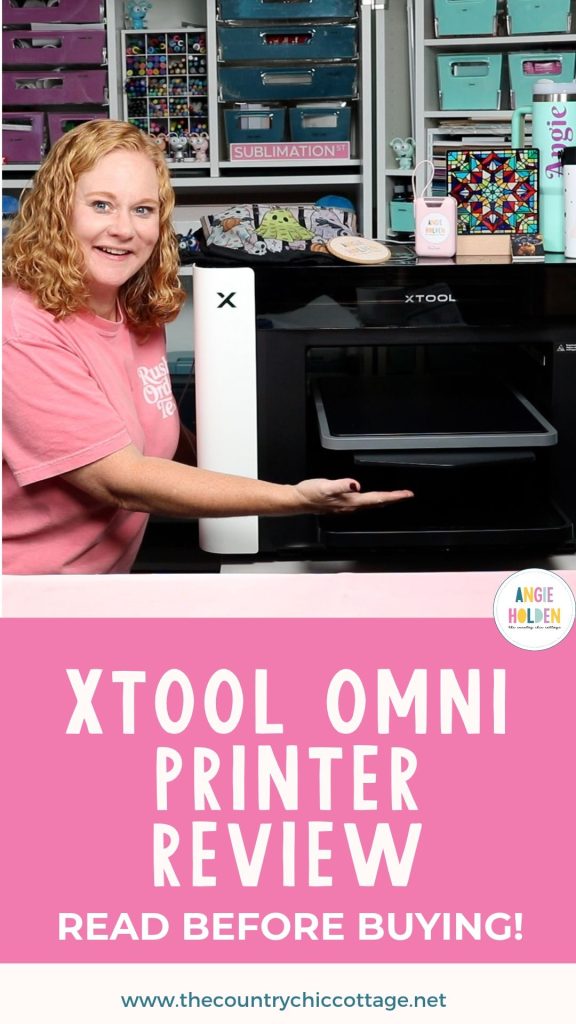
I've been testing the xTool Omni printer for weeks now to really put it to the test. I've tested it with a wide variety of blanks, from hard blanks to fabrics, to see what works and what doesn't.
If you're considering a UV printer or even a DTG printer for your small business or craft room, make sure to read to the end. There are three different models of the Omni available, and you cannot switch elements later without purchasing a new printer.
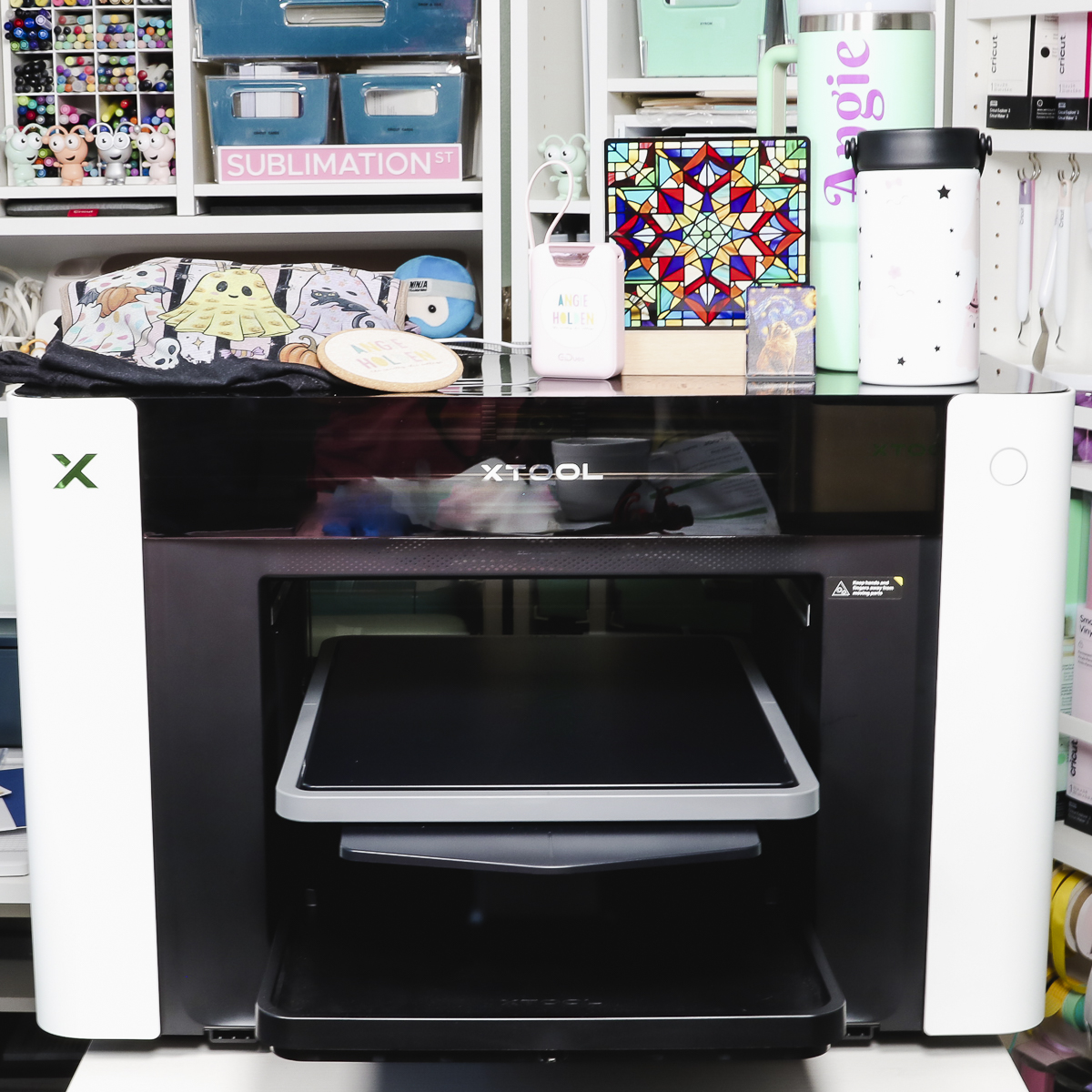
My goal is to help you decide which model is right for you. Click play on the video below to see the xTool Omni in action, including printer setup, full project tutorials, and a look at the software.
What is the xTool Omni Printer?
The xTool Omni is a UV printer that allows you to print directly on hard surface blanks. You don't need a heat press for UV printed projects. You also don't need a UV light, the printer cures the ink right inside the printer before the project is done.
There are three different models of the xTool Omni printer. It's really important that you choose the option that is right for you from the beginning because you cannot change anything in the printer to make it become one of the different models. After using the model I have, I actually wish I had made a different choice.
xTool Omni UV Printer Model Options
Make sure to read all the way to the end to ensure you get the right model for your needs. Let's look at the three different options.
Model 1: Single UV Model (Hard Goods Only)
- Configuration: 1 UV Print Model (CMYK + White + Varnish)
- Capabilities: Prints on hard, flat surfaces (wood, acrylic, metal, glass, phone cases) and creates 3D textured/relief prints up to 7 mm. Can also produce UV DTF stickers.
- Limitations: Cannot print on apparel, lacks fluorescent inks, cannot print on DTF film, and does not support flexible white ink.
Model 2: Dual Head UV Model (Hard Goods Only)
This model can do everything the Single UV model can do and more.
- Configuration: 2 UV Print Heads
- Capabilities: Fastest UV printing speed across all models. Exclusive access to specialty inks:
- Fluorescent Red & Yellow: Glows under UV light.
- Flexible White Ink: Formulated for soft, bendable materials like leather and canvas without cracking.
- Limitations: Cannot print on apparel or fabric.
Model 3: UV + DT Fabric Model (4-in-1 Hybrid) — The Model I am using today
- Configuration: 1 UV Print Head + 1 DT (Direct-to-Fabric) Print Head
- Capabilities:
- UV: Hard goods and UV DTF stickers.
- DTG (Direct-to-Garment): Prints directly onto pretreated 100% cotton apparel.
- DTF (Direct-to-Film): Prints onto film for transfer onto other fabric blends.
- Limitations: Lacks fluorescent inks, flexible white ink, and has slower UV print speeds compared to the Dual Head model.
After using the UV + DT Fabric model, I wish I had chosen the Dual Head UV model instead. I found the direct-to-garment feature pretty slow and would have preferred the ability to use flexible white ink and the faster UV speed for hard goods.
Ready to buy the Omni? Click here!
xTool Omni UV + DT Fabric Model Unboxing and Setup
The first thing I'm going to do is unbox the xTool Omni. This is pretty heavy, so you'll want to place it on a sturdy, flat surface. You'll also want to make sure you have at least 12 inches of clearance on all sides of the printer. I placed mine on a rolling cart, which works well. I can move it where I need it while in use and roll it away while not in use.
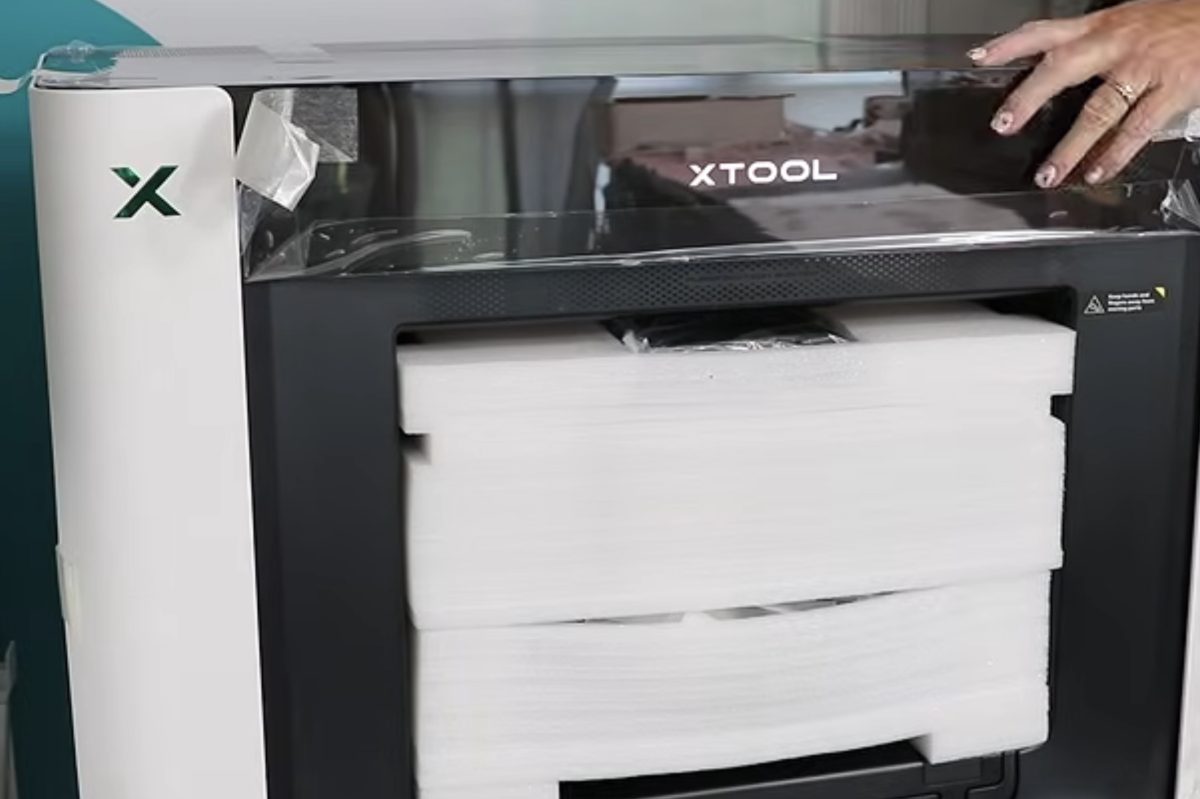
Make sure to remove all packaging materials and film, including anything inside the printer. Move the print head to the side so you can get the materials around it as well. Make sure to remove the film from the print head itself.
There are also some bracket screws that are labeled to be removed that are there to help secure everything in shipping.
What's Included
Depending on the model and bundle you ordered, you may have different items than I have, and the packaging may look different. Some accessories may also come in a separate box.
Included with my printer were the printer itself, power cable, USB cable, filter, base plates and mats, different tools, and cleaning supplies.
Moisturizing liquid cartridges for both UV and DT inks, ink cartridges, waste ink cartridges, and ink extractors are also included.
UV + DT Model Setup
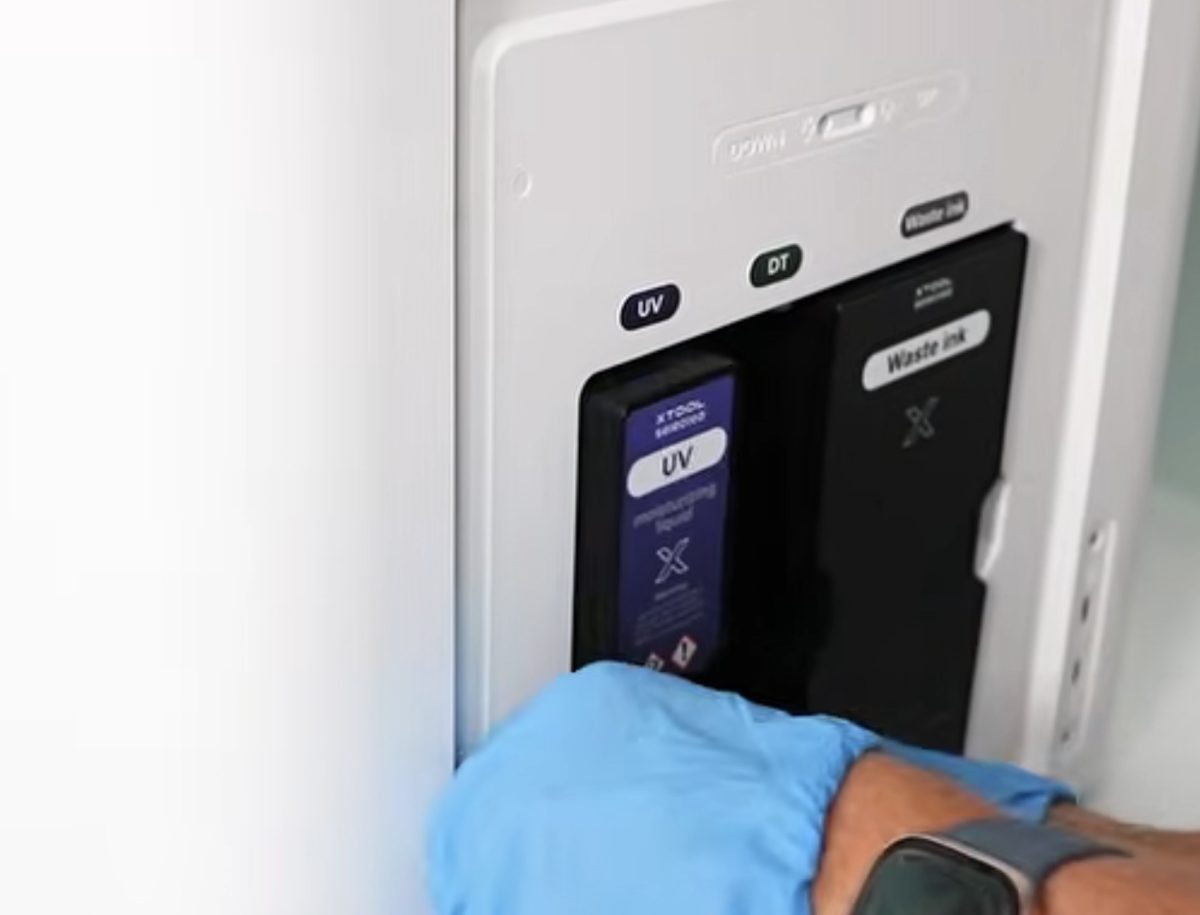
For the installation of the different cartridges and inks, I recommend wearing gloves during the entire process.
First, add the moisturizing liquid cartridges for both the UV and DT inks and the waste ink cartridge to the right side of the printer. Replace the panel when you're done.
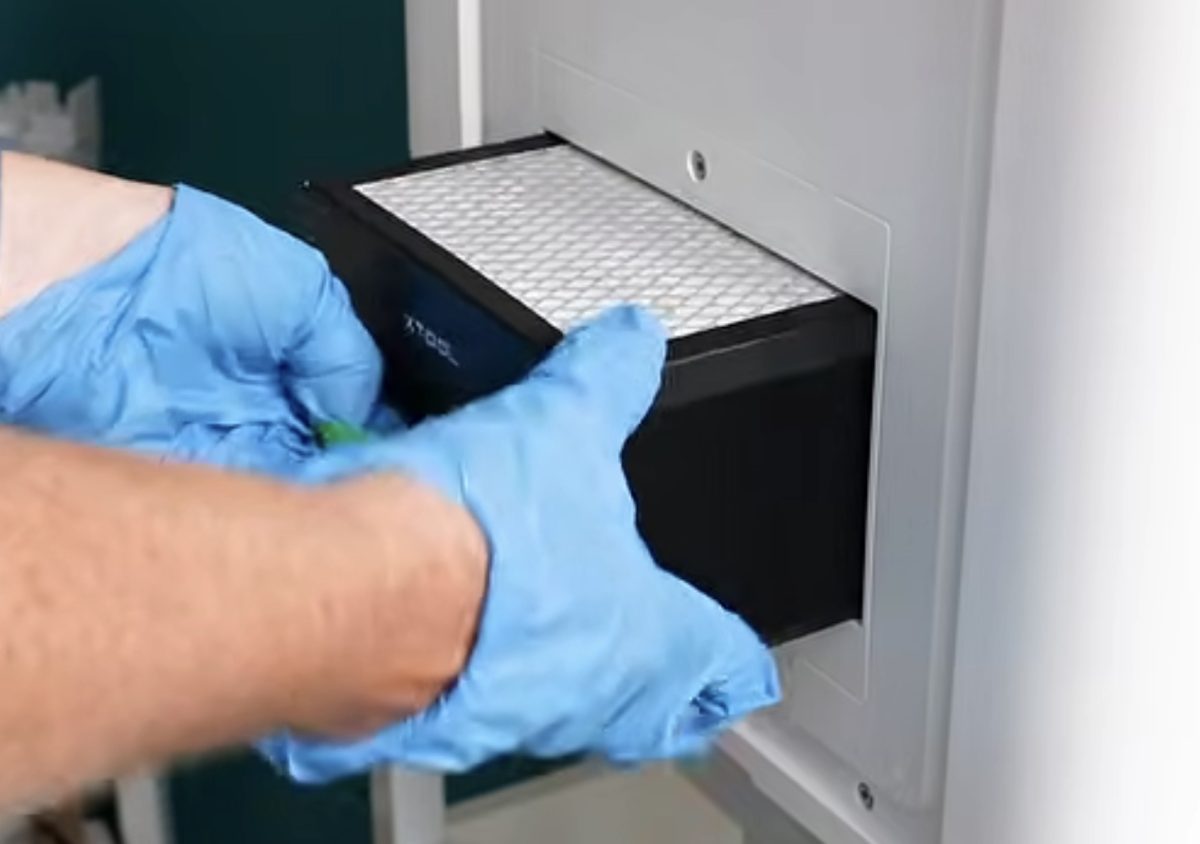
Next, install the filter on the left side of the printer and again, replace the panel when you're done.
Plug the power cord into the machine; do not plug it into the wall yet. Optionally, you can attach the vent hose to the back of the printer and vent it outside a window, or attach it to an indoor air purifier.
Installing Ink Cartridges
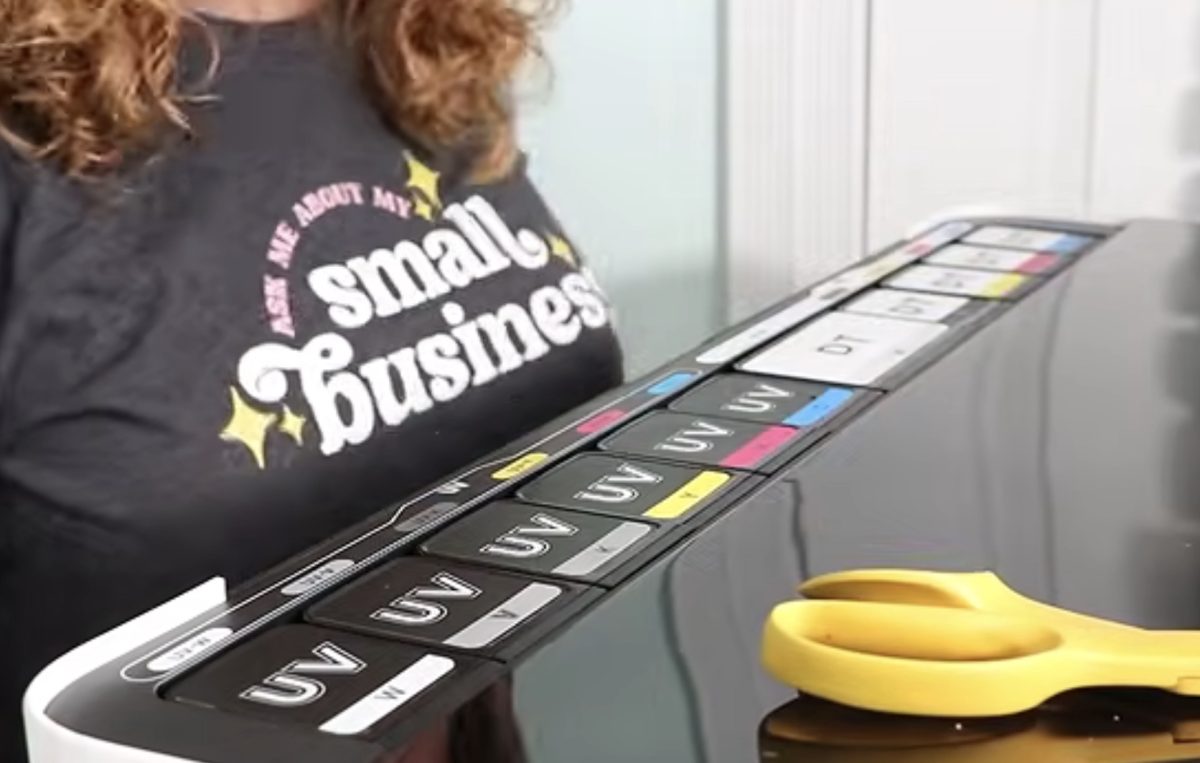
Before installing the ink cartridges, make sure you shake them all really well. Especially the white ink cartridge, as that is a thicker ink.
Remove the top back panel and firmly press the cartridge into place. Make sure you're installing the right cartridge in the correct spot, or your prints will be messed up. You will need to press firmly because you are breaking the seal on the cartridge when you install it.
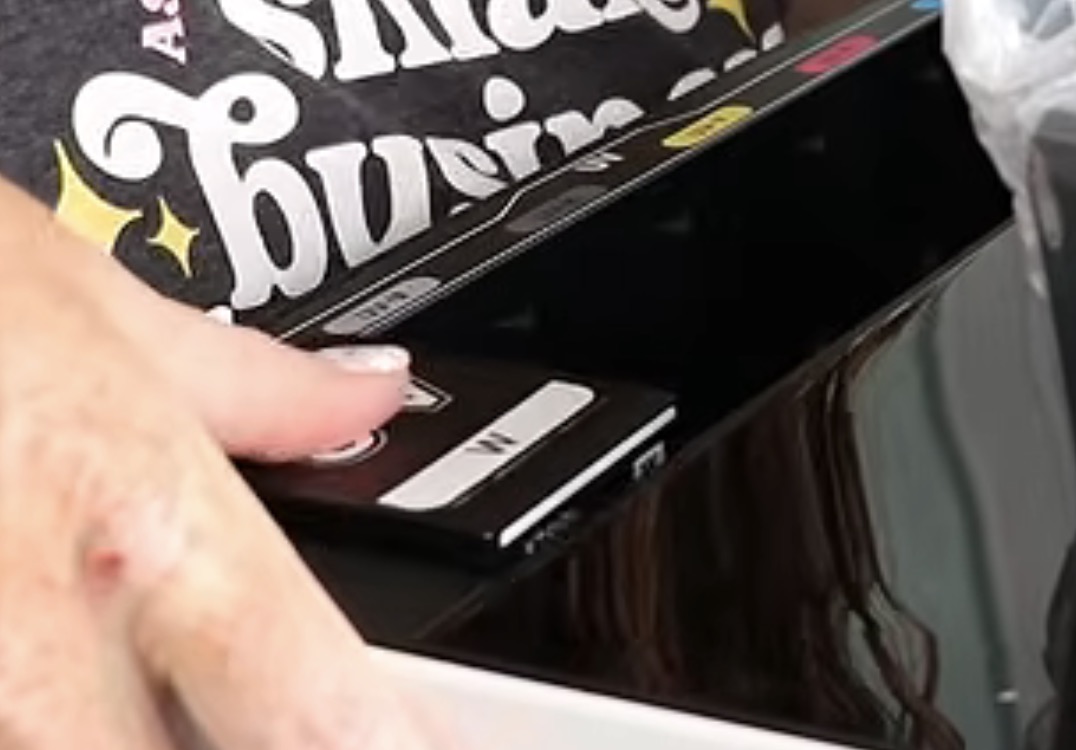
Replace the back panel, and you're ready to plug it into the wall and move on to the next steps.
Setup with xTool Studio
If you don't already have xTool Studio installed, do that now. You'll use xTool Studio to communicate with your printer.
Connect to the printer from xTool Studio, and it will do the startup procedure for you.
Follow all the instructions. This includes the process for getting the ink into the printer. That process involves using the syringes that come with the printer to pull ink through the lines.
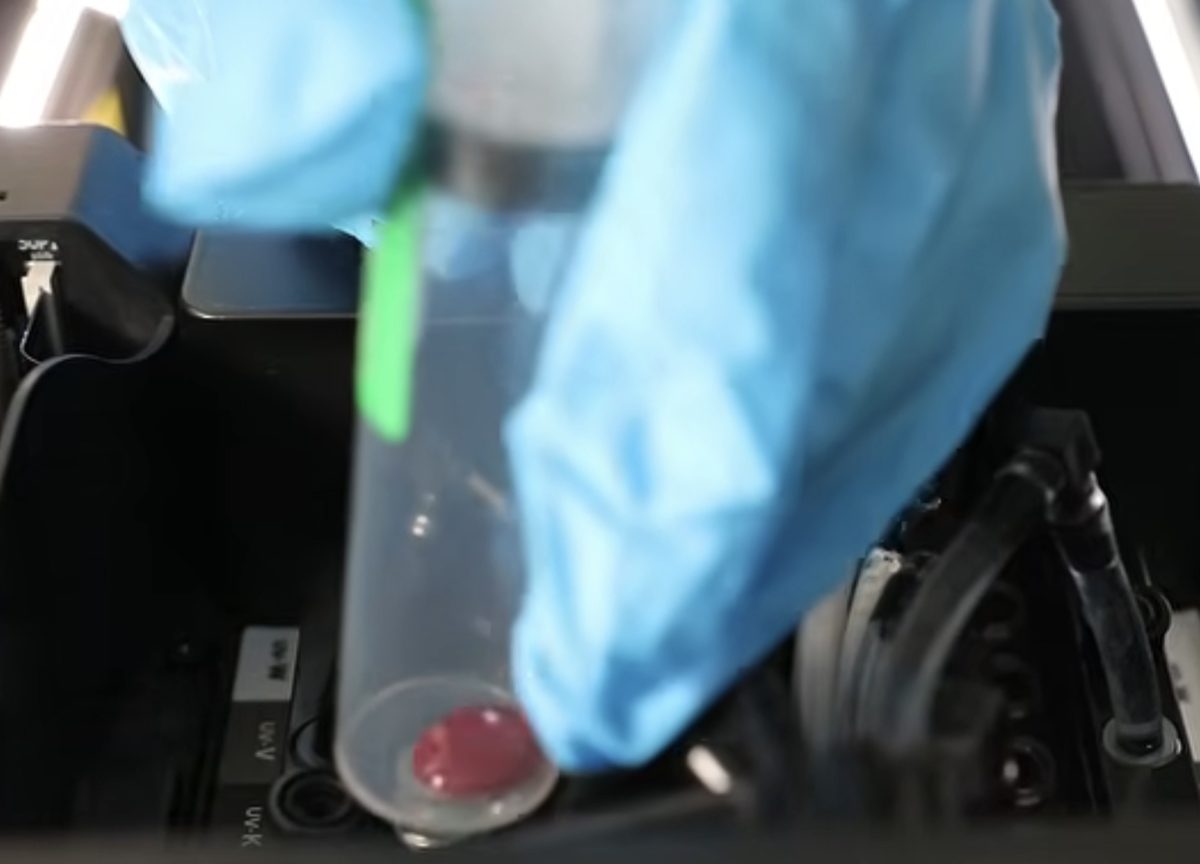
Note: I was a little intimidated by the syringe process before I began but it was actually a pretty simple process, so don't let it scare you.
Nozzle Checks and Printer Calibrations
Your printer will come with both a small base plate and a large base plate. To perform the nozzle checks, you need the large base plate installed.
To install the base plate, line it up, and it will snap into place. If it's installed correctly, it will not come off when you lift it.
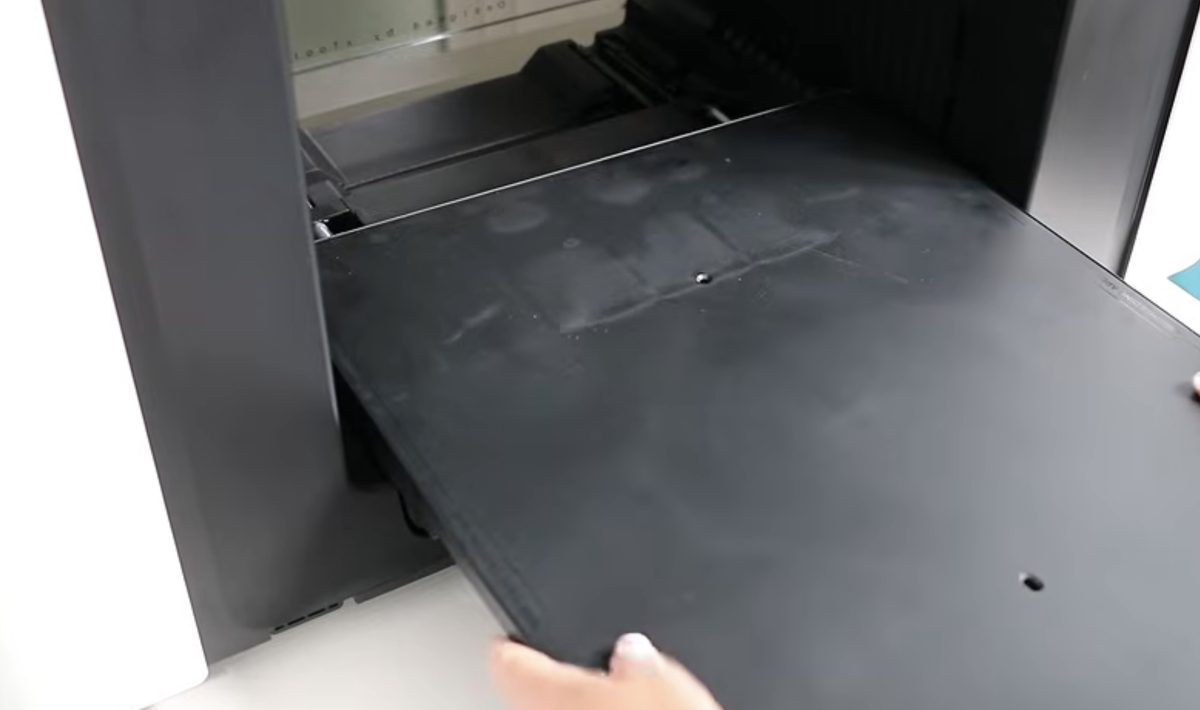
Add the mat to the base plate, and then xTool Studio will perform the nozzle check. If there are any issues with the nozzle check, simply perform it again. You want to make sure all of the ink is flowing well before you try to print onto a blank.
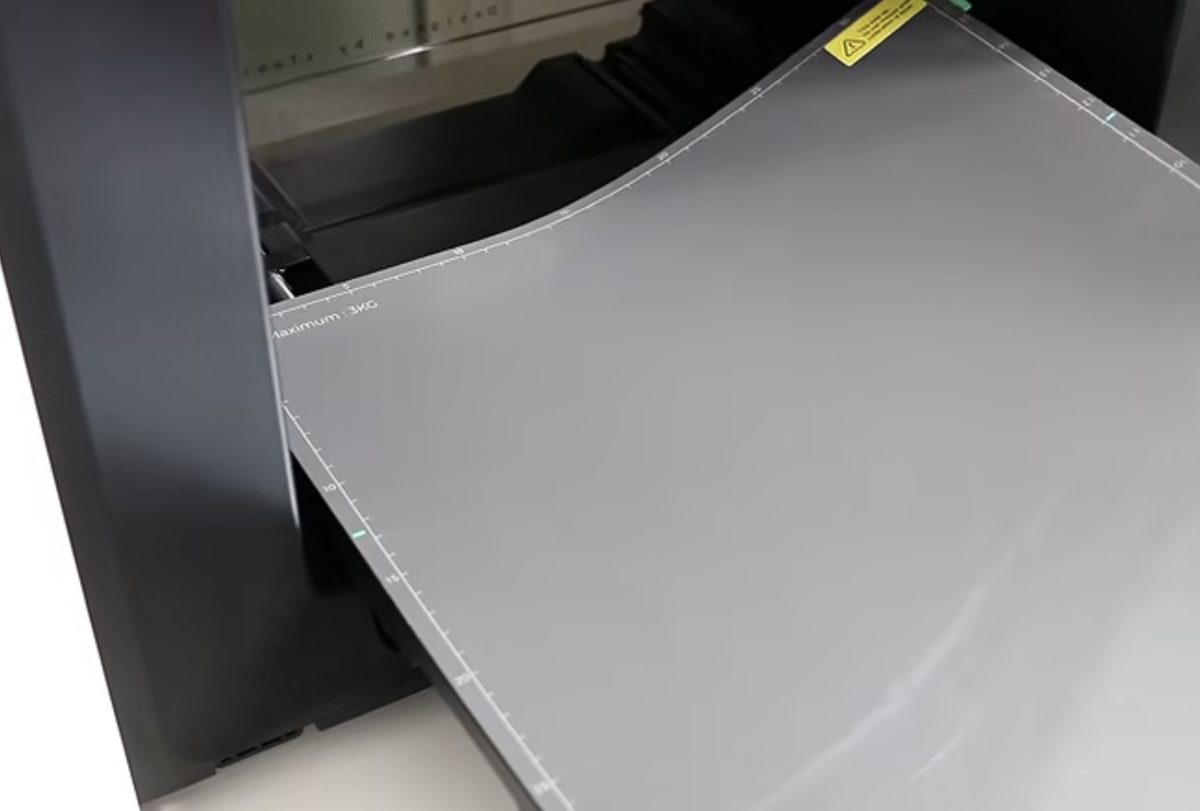
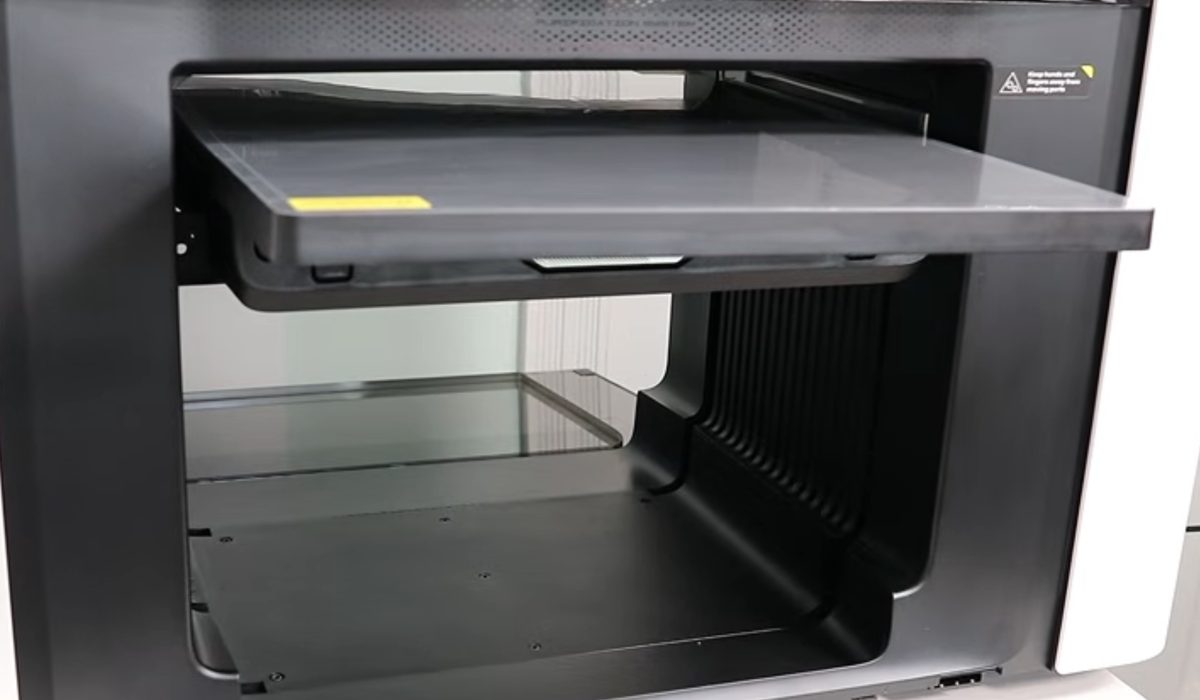
xTool Studio will walk you through some calibrations and other setup processes; just follow all of the on-screen prompts, and you'll have your printer set up in no time.
The on-screen instructions are clear and easy to follow. It does take a little while to go through the entire process, so make sure you have time to do it all.
Ready to buy the Omni? Click here!
1. First Project – Small Ceramic Magnet
Now that my printer is set up, I'm ready to make my first project. My printer came with a ceramic magnet to make as my first project. If you ordered a different model, you may have a different first project.
Because this blank is so small, I wanted to use the small base plate. Let's look at how to change those out.
To remove the large base plate, squeeze the handles on both sides, and the base plate should easily lift off.
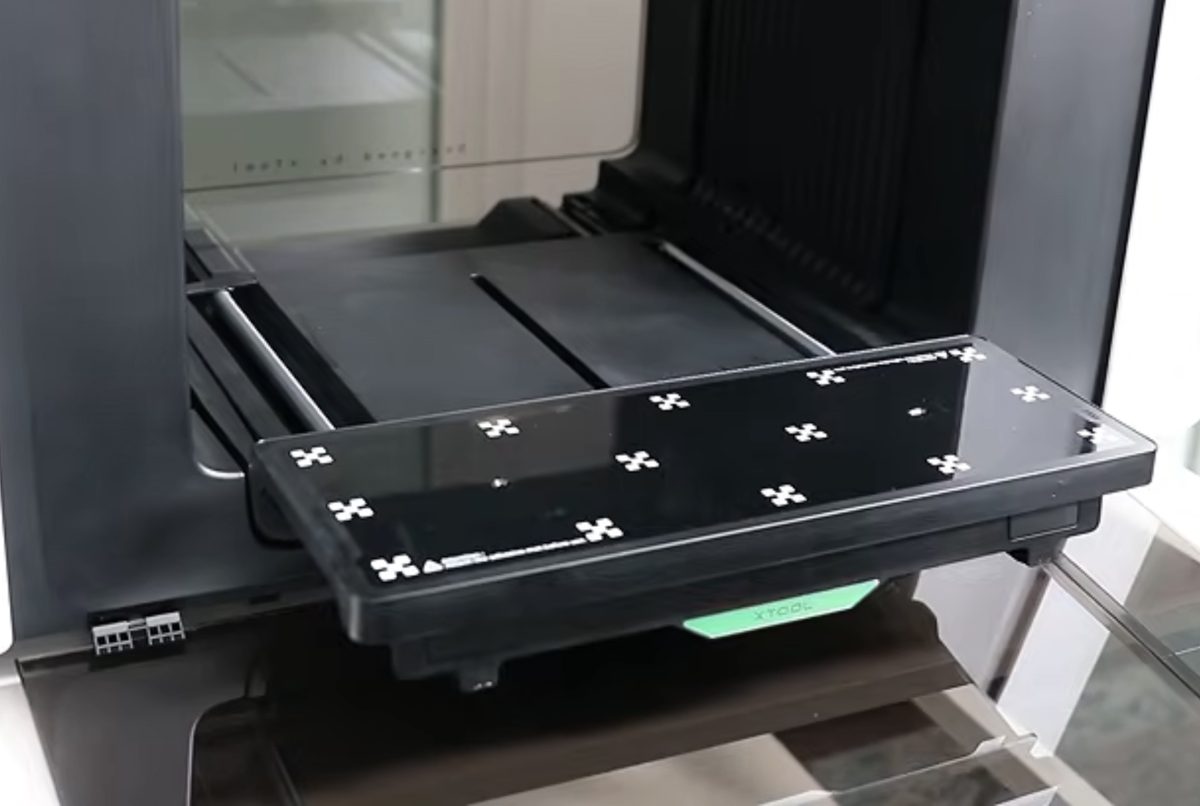
Adding the small base plate is really easy. Simply line it up and snap it into place. You'll know it's locked in place when it doesn't move when you try to lift it.
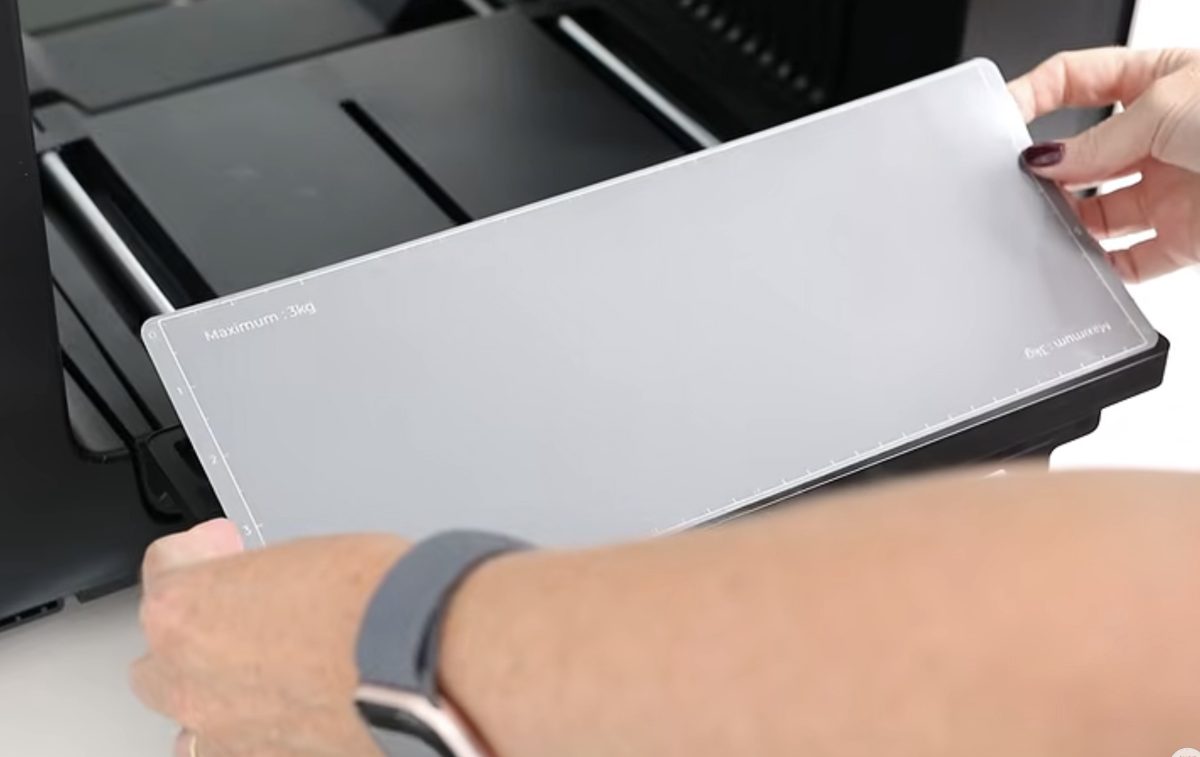
Add a mat to the base plate and remove the protective film. The ceramic magnet will stick right to the surface.
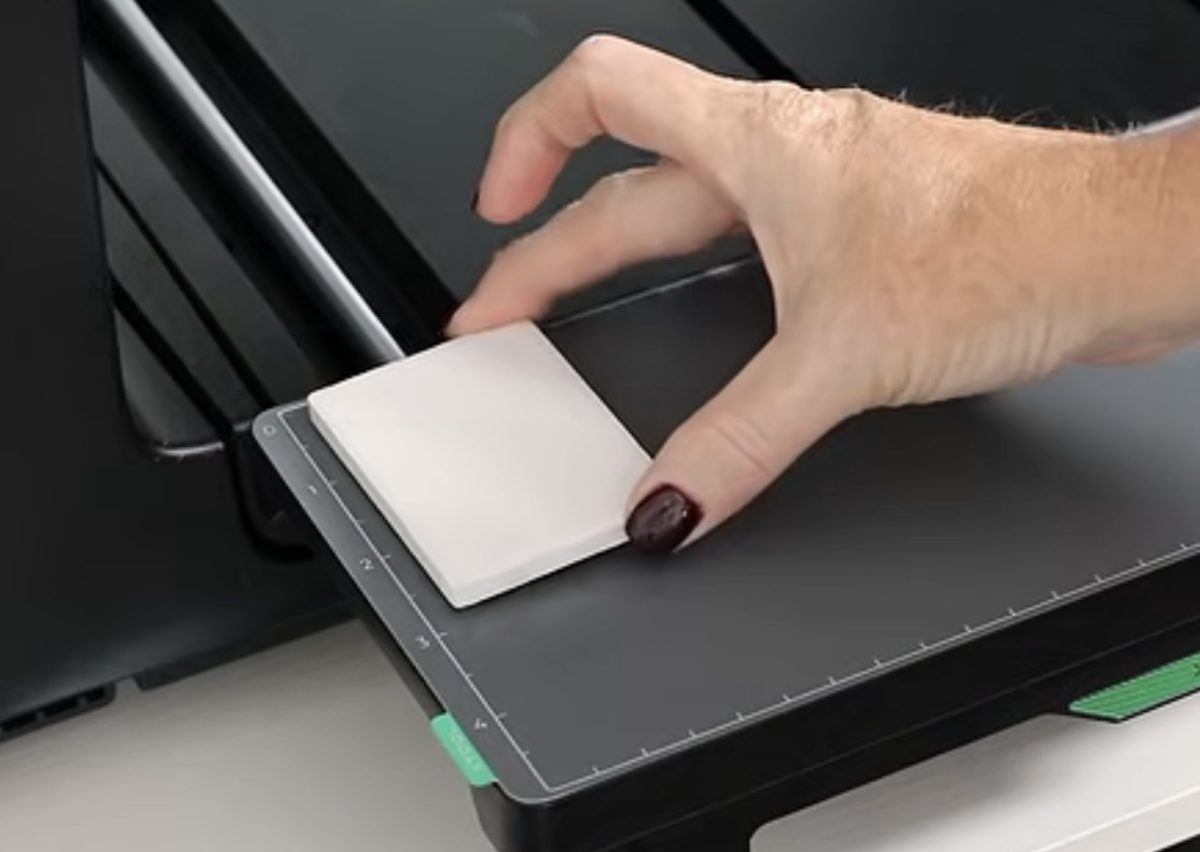
Pressing the button on the front of the Omni will move the tray in and out of the printer.
Printing on a Ceramic Magnet
Because this is a test project, xTool Studio walked me through the process of choosing a preloaded design. I didn't have to upload anything.
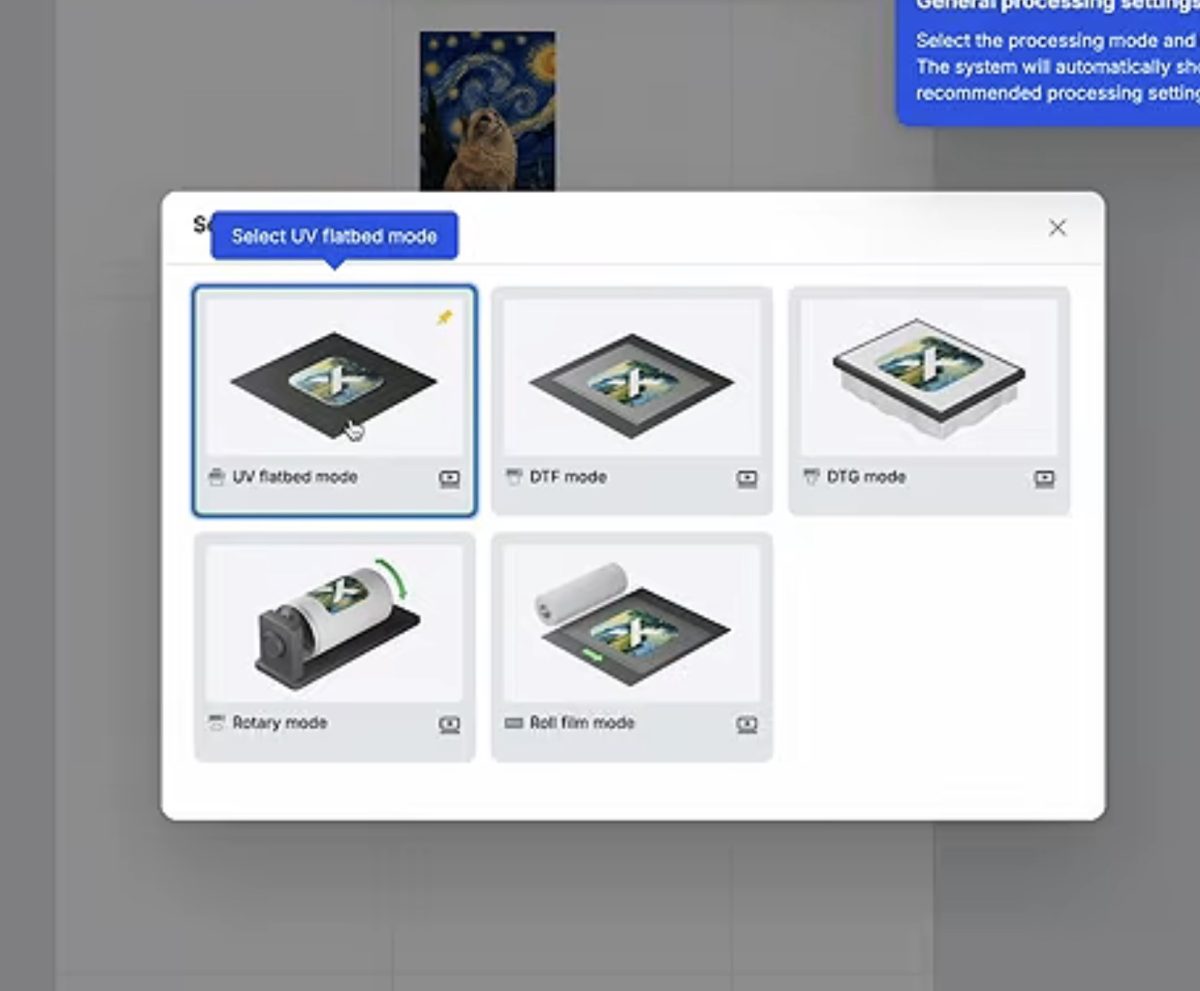
After that, it will continue to walk you through the process. Select the image and scan the bed of the printer. This will allow you to actually see where you placed the magnet on the base plate.
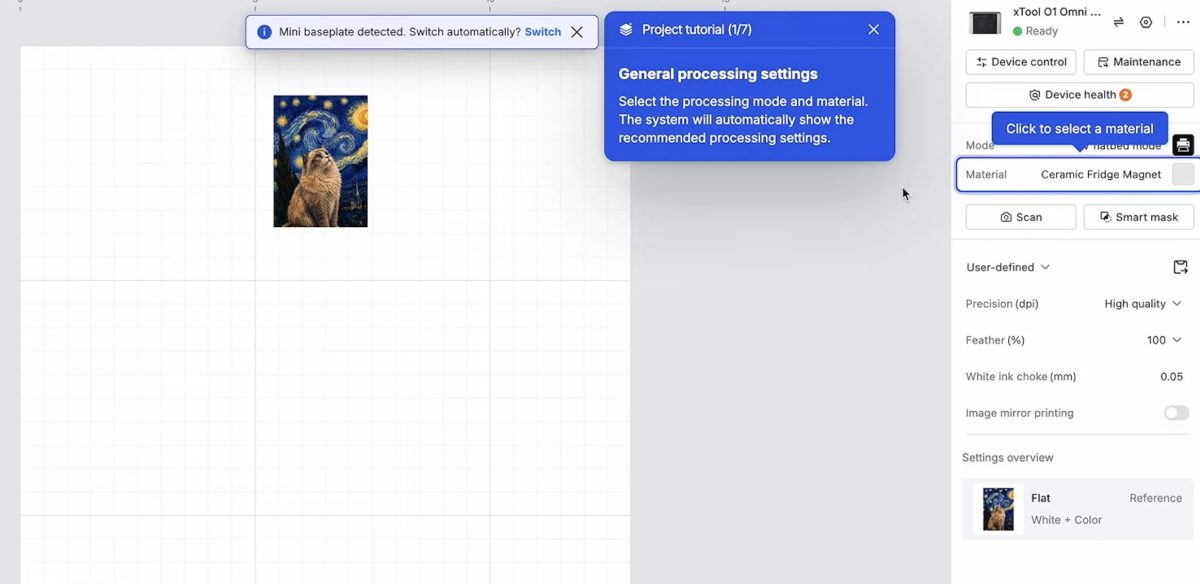
Move the image to the material. xTool Studio does have a snap feature, so when you move it over, it will center the design right on the material.
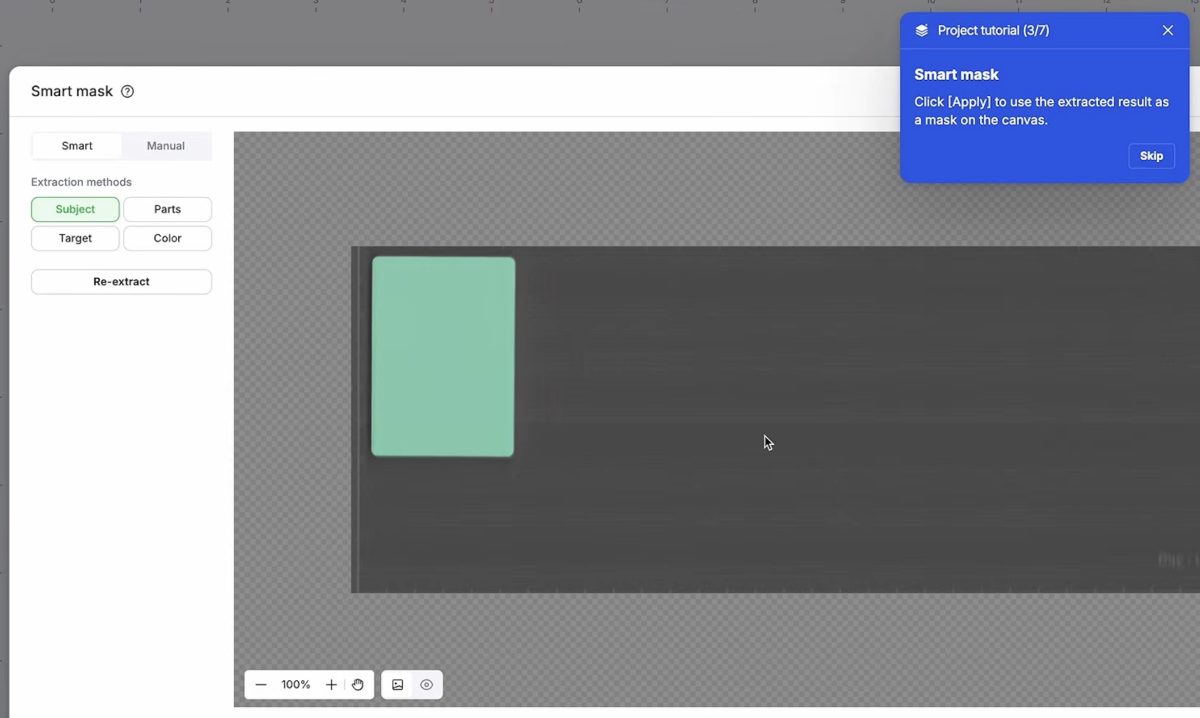
Continue to follow the steps in xTool Studio to print right onto the magnet.
When the printing is done, press the button on the front of the printer to move the base plate out. Remove the magnet from the base plate, and the ceramic magnet is finished.
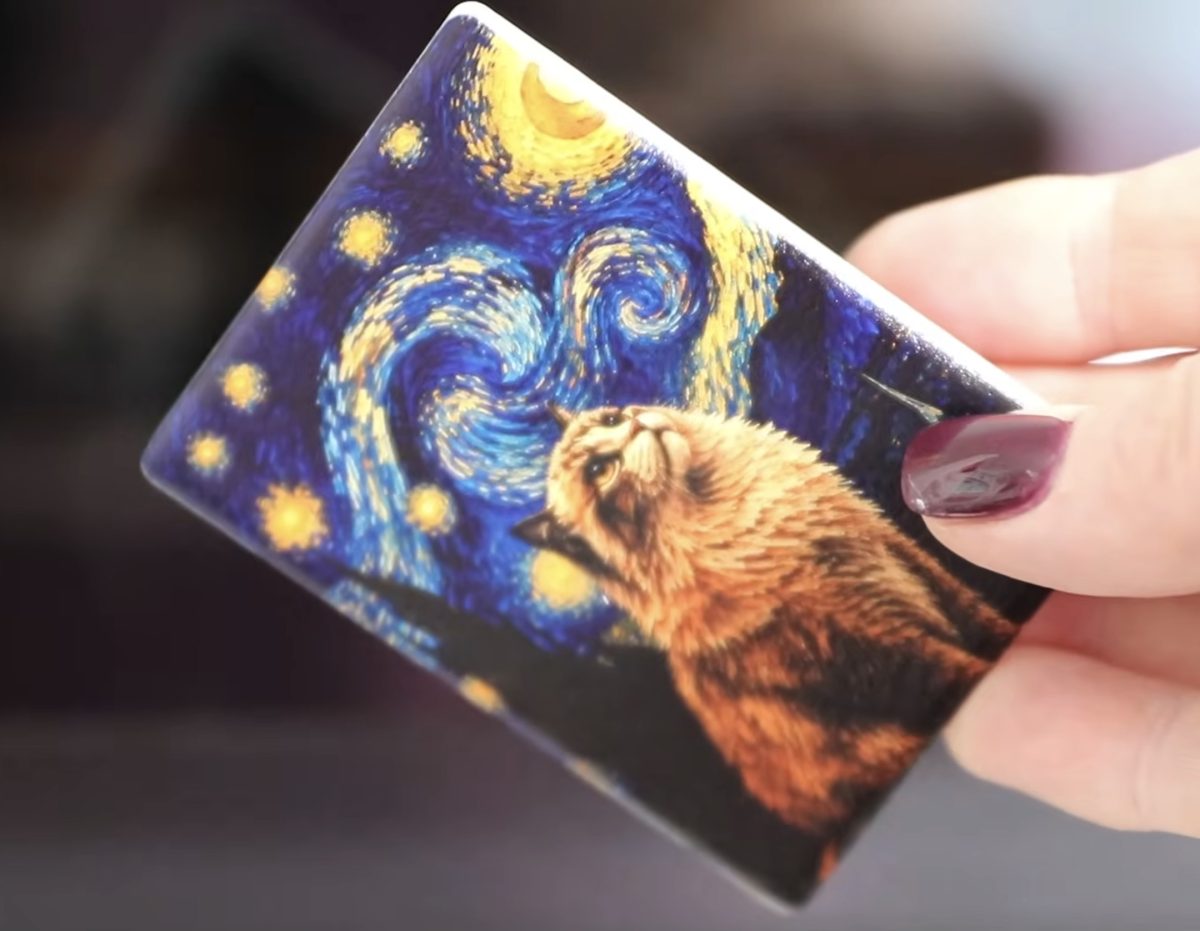
I am really happy with the way this magnet turned out. This is just a flat design; I could have made it raised, etc., if I wanted, but for a first project, this looks really good.
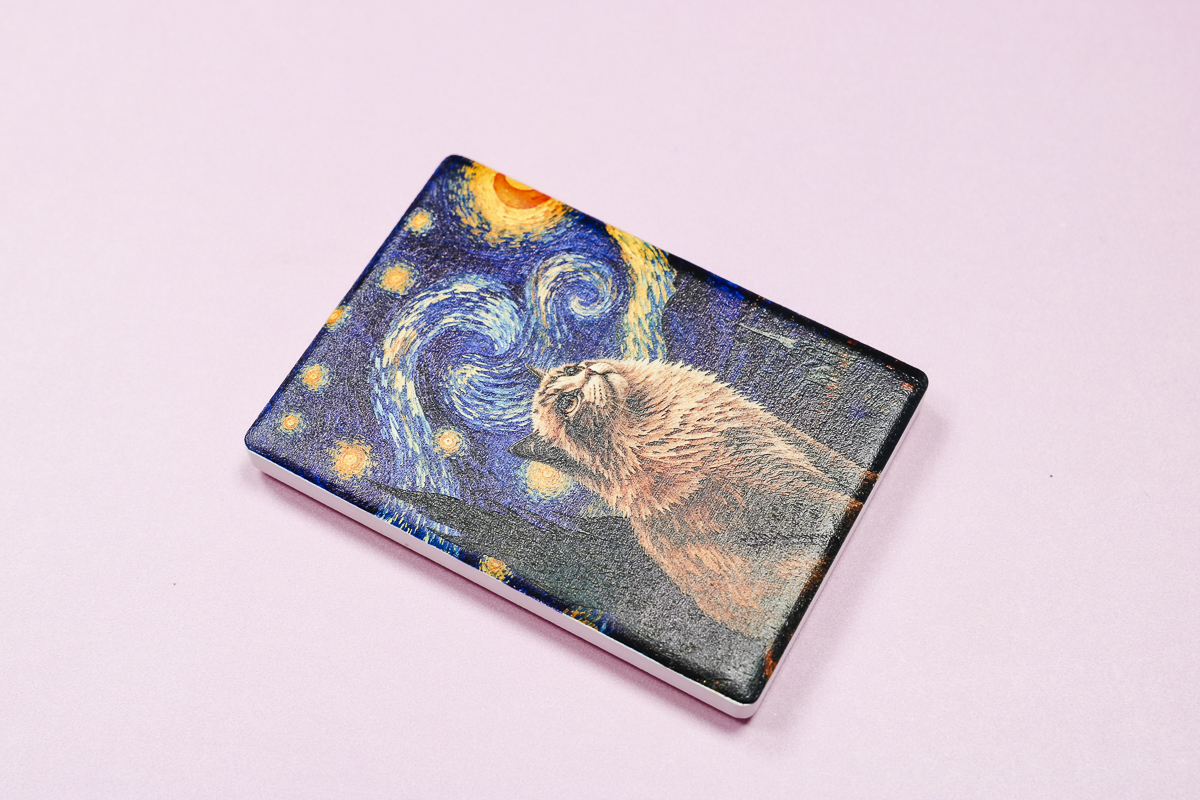
Note: This is the second ceramic magnet I made. I wasn't happy with the color on the first one, but after making a few adjustments in xTool Studio, I got these great results.
2. Plastic Power Bank
When I was thinking of a project to make in the xTool Omni, I thought of a power bank for your phone or other devices. This is a great option because it's an example of something you can make and sell with this printer.
The process for printing on the power bank was the same as printing on the ceramic magnet. This time, I uploaded my own logo into xTool Studio.
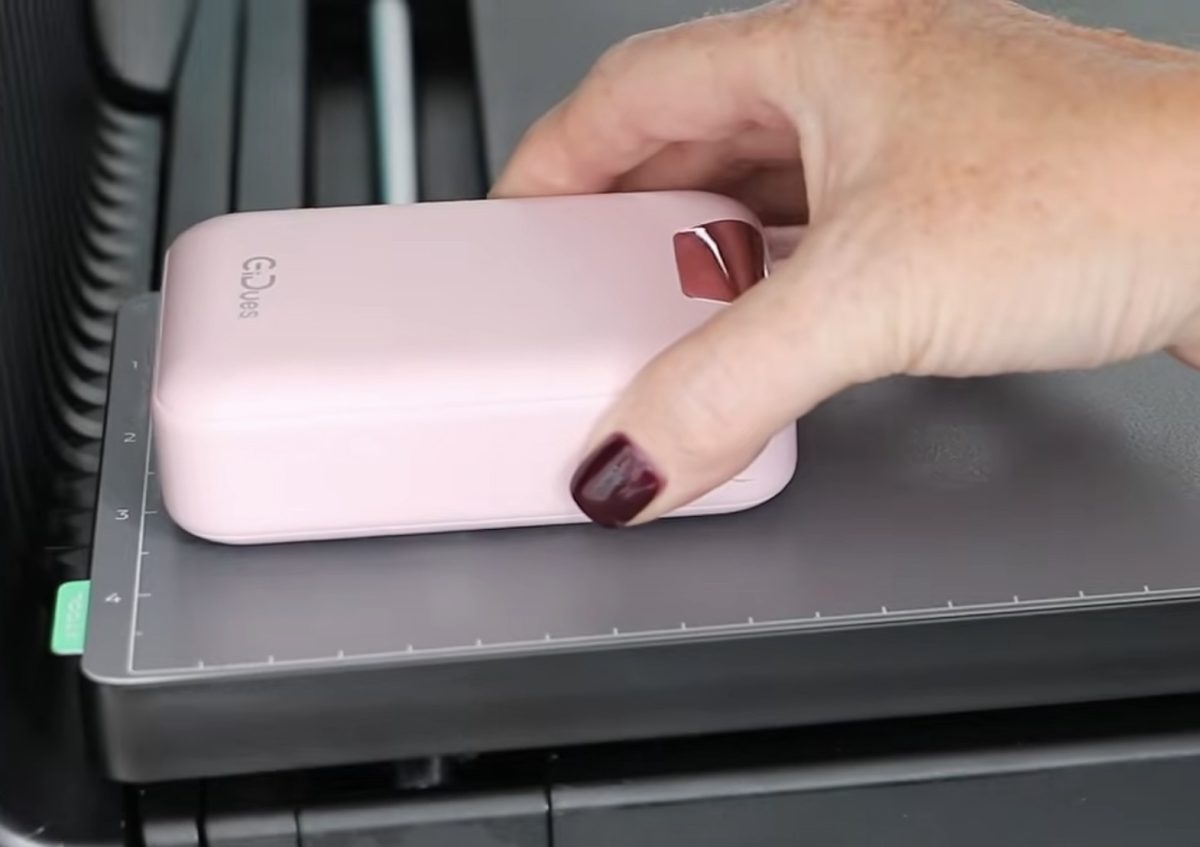
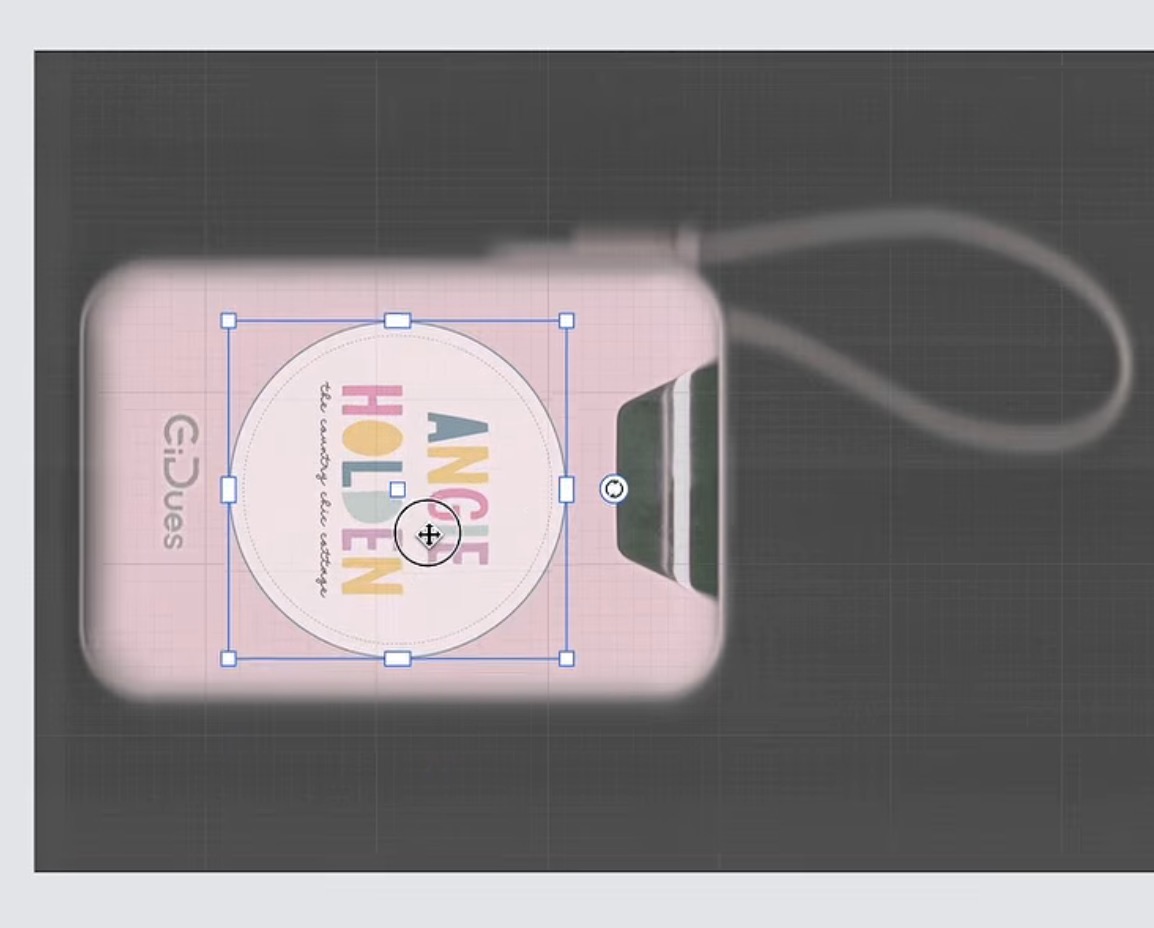
Place the power bank on the base plate and click Scan to see the power bank in xTool Studio. Now, I can resize and rotate the logo so it prints exactly where I want it on the power bank.
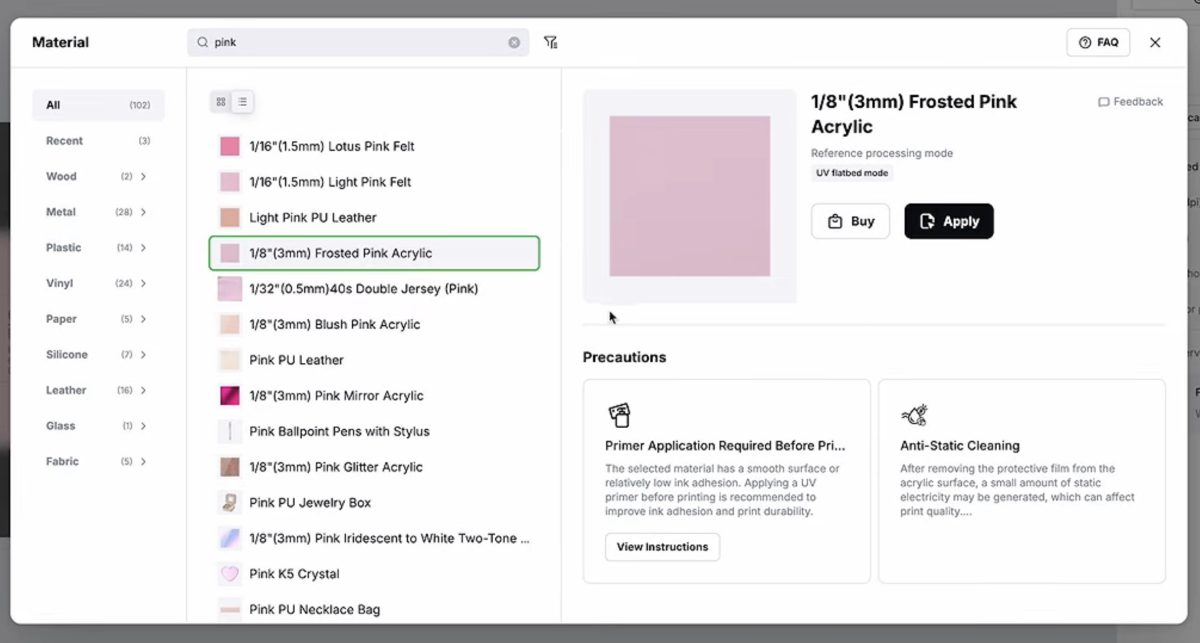
I searched Materials and found one that was similar to my blank, and then chose the ink settings. I am using the white + color + varnish setting. If my power bank were white, I could have skipped the white layer.
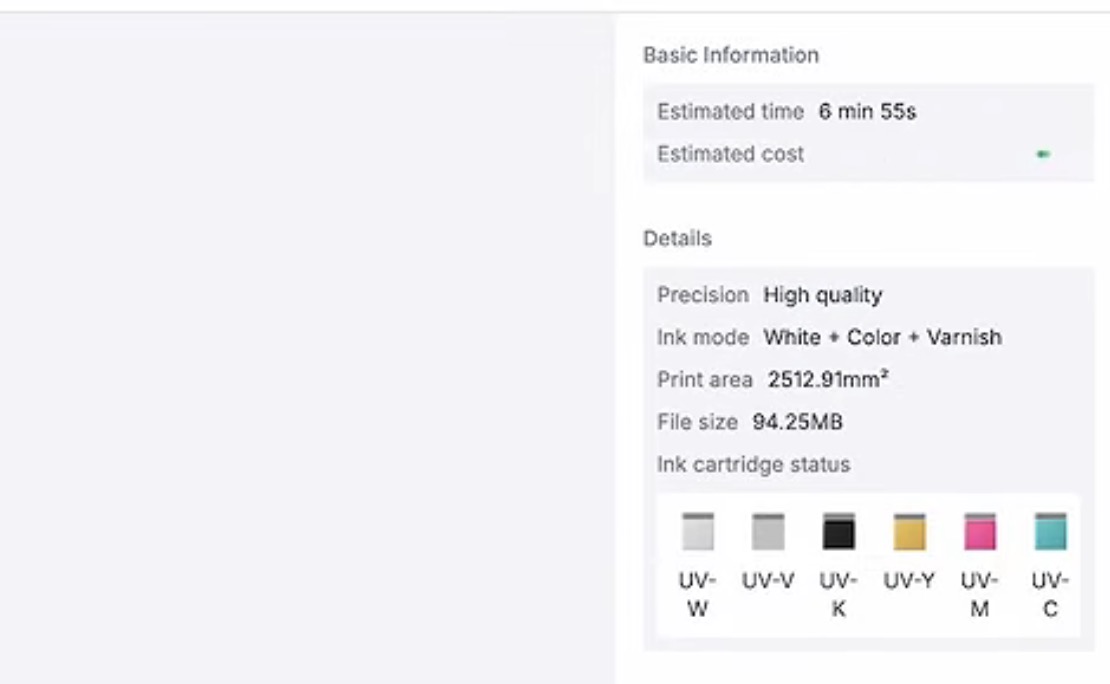
In xTool Studio, it will tell you exactly how much ink the project will take. If you add the price of your ink, it will tell you how much the project costs to print. It will also tell you how long it's going to take to print.
Click Print, and the design will be sent to the Omni. When it's done, press the button on the front of the printer to slide out the base plate, and your project is complete.
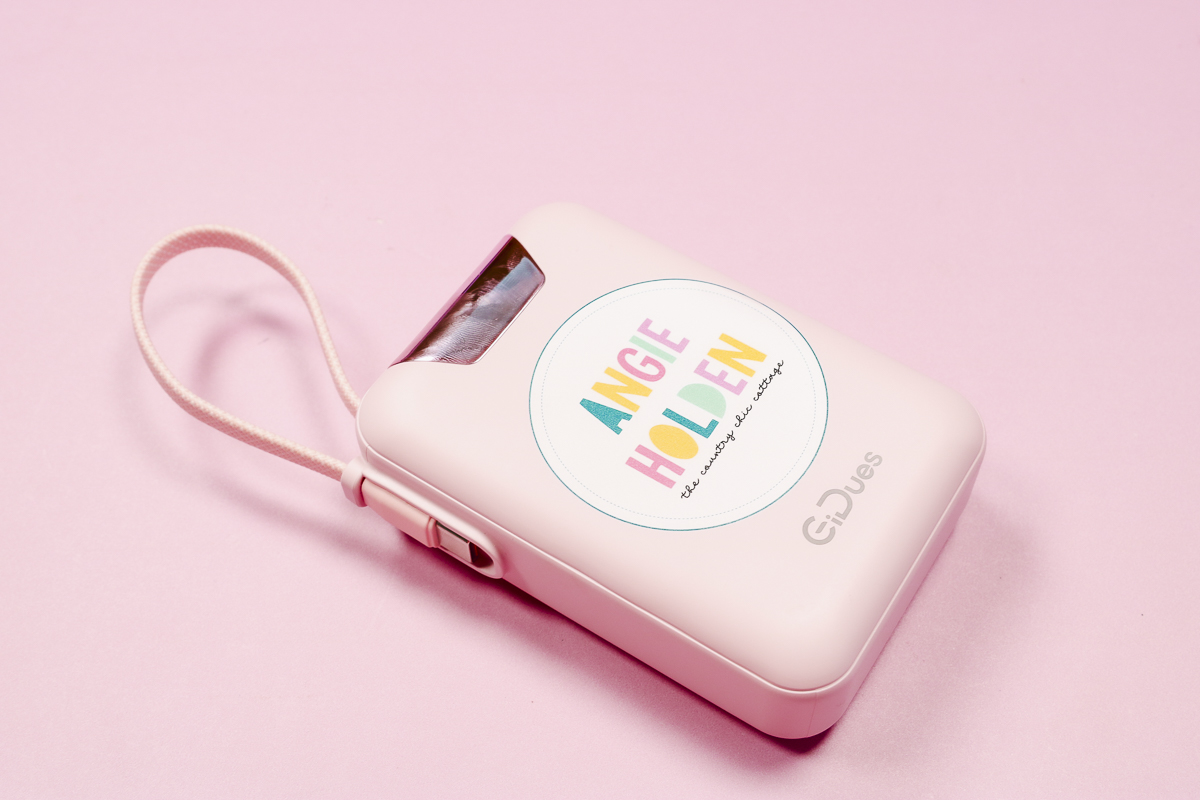
The logo on this power bank looks really good. I'm impressed, and now I have an example of a branded product I can offer for sale. Everyone needs a power bank, and this is a great permanent way to promote your business.
Ready to buy the Omni? Click here!
3: Cork Coasters
For my next project, I want to test the flexibility of the white ink. All of the colored inks are flexible because they are translucent. The white ink is opaque, which means it's more prone to cracking, especially if you apply it in thick layers.
Because I have the UV + DT model of the xTool Omni, I don't have the option to add flexible ink to it.
Cork is also more porous than the previous blanks I've used. I want to see if it works at all with this UV printer.
Once again, the process is the same:
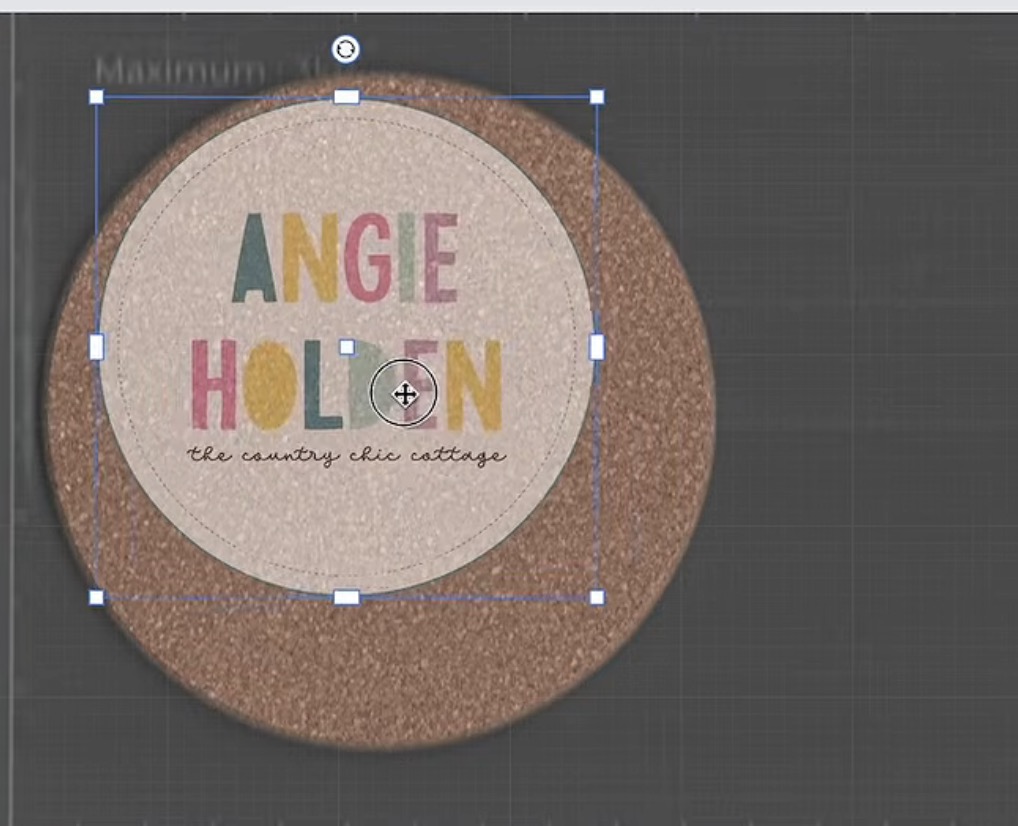
- Place the cork coaster on the base plate.
- Click Scan in xTool Studio to see the coaster on the base plate.
- Upload the design. I am using the same logo I used on the power bank.
- Rotate and resize the design.
- Select Cork as the material.
- Choose the number of layers of white and colored ink to apply.
I printed the logo on two different cork coasters. First, I printed white 4 times and color 1 time. I sent the design to the printer. When it was done, I removed the coaster from the printer.
You can see the logo, but you can also see the cork through the white. Because cork is porous, it's actually absorbing some of the ink.
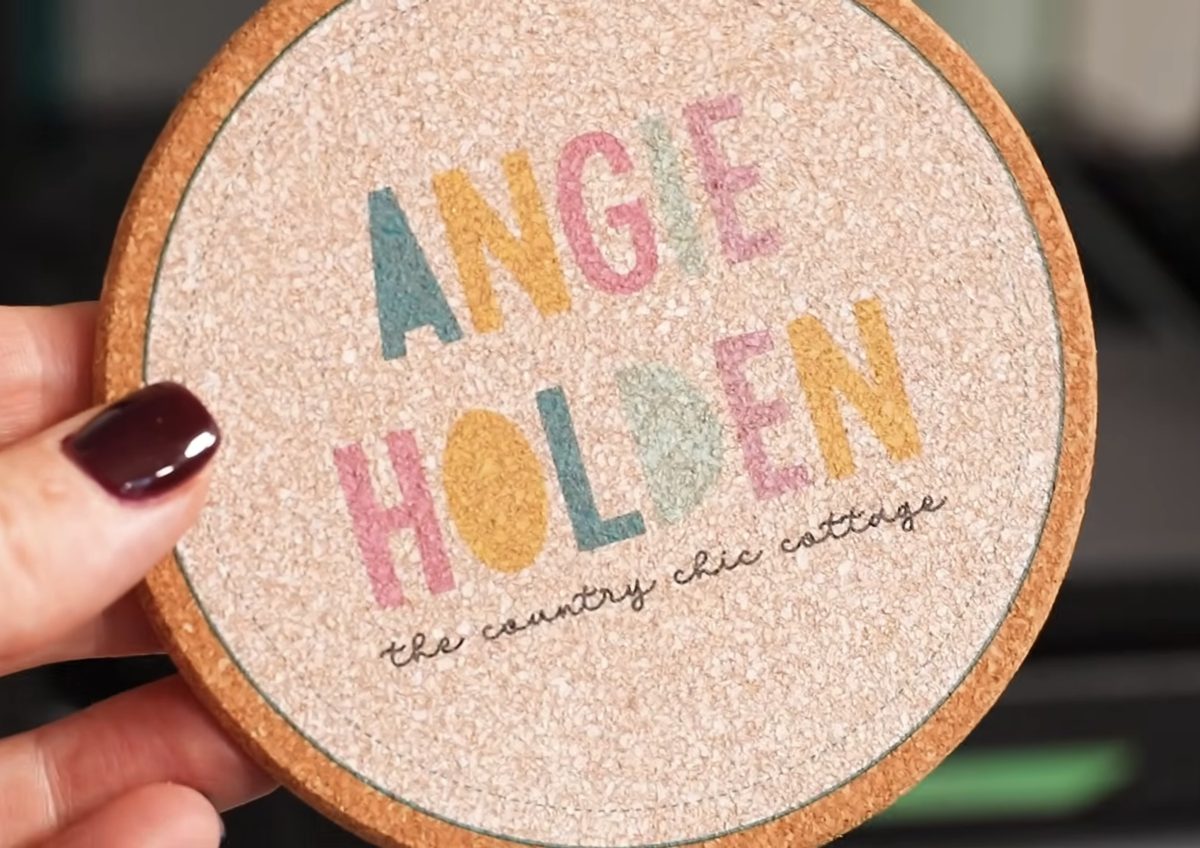
If this were a more solid surface, the solution would be to apply more layers of white ink. I tried that with the next coaster.
On this coaster, you can see the logo more clearly, but the ink also cracks if I bend the coaster at all.
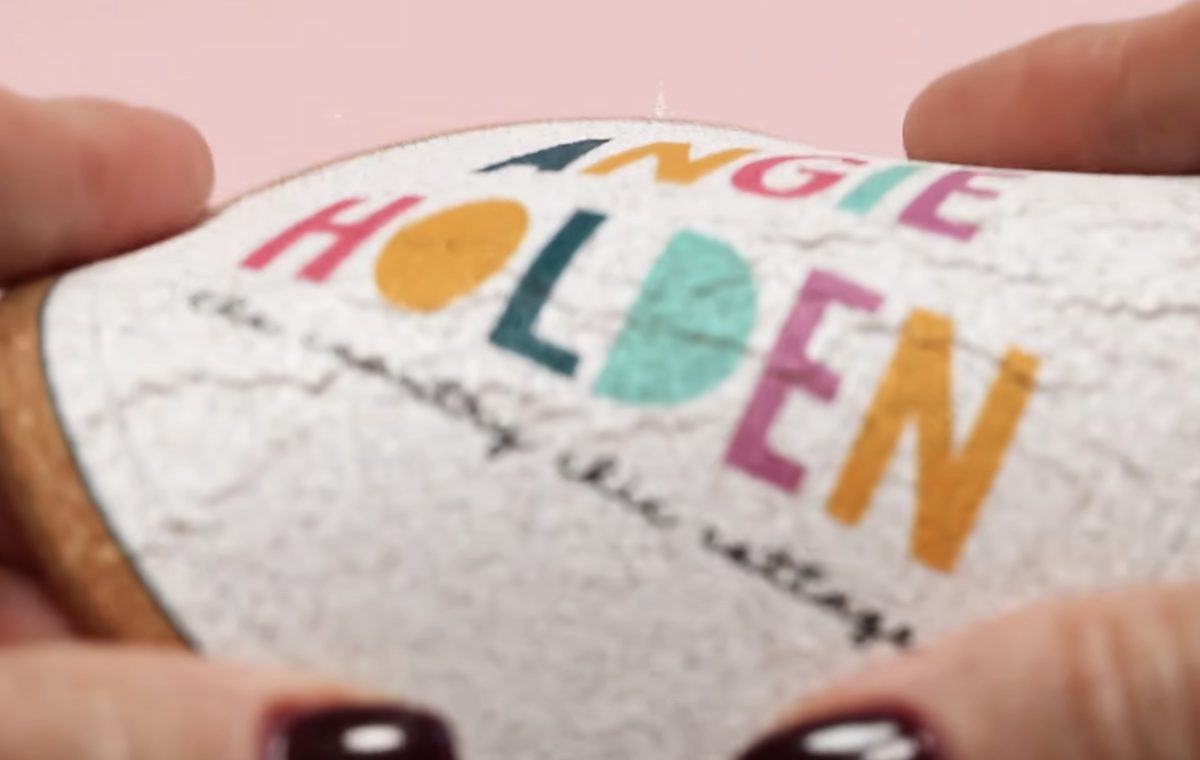
The first coaster isn't as vibrant, but I can bend the coaster a little, and the ink doesn't crack.
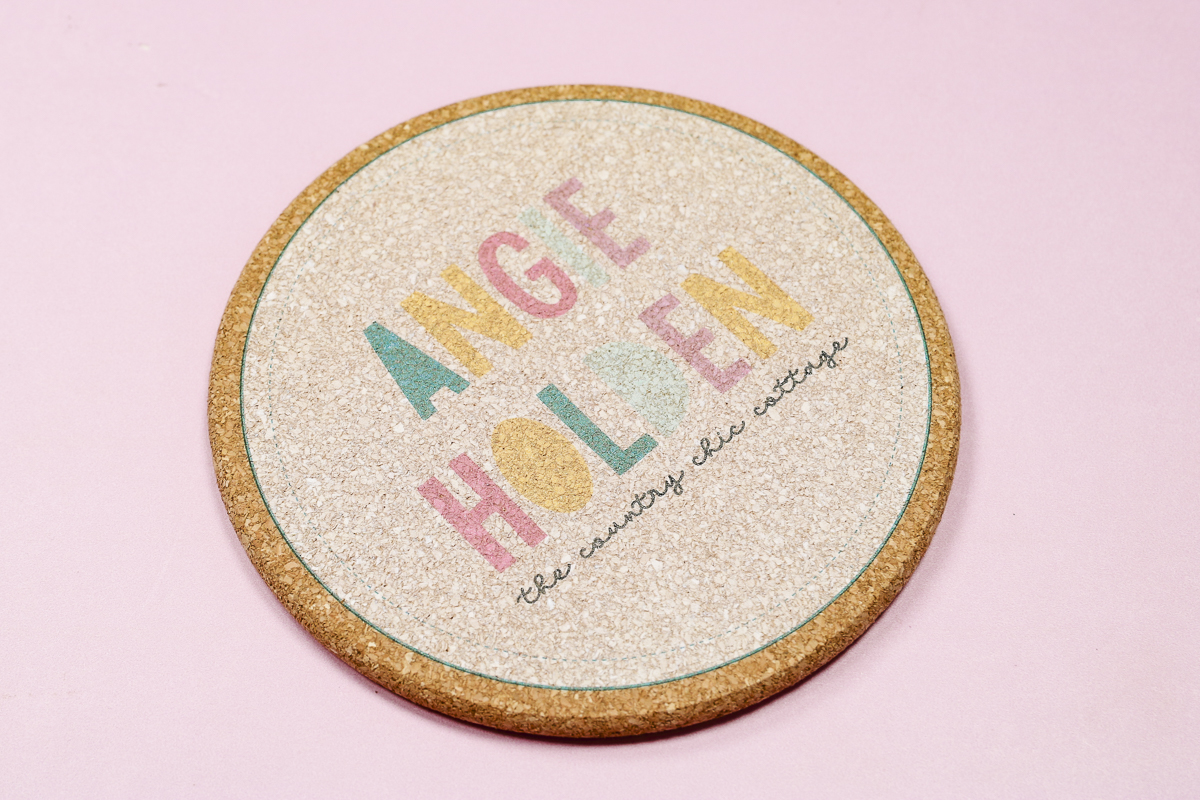
If you want to use blanks like cork or leather, things that are more flexible, you're going to want a UV printer that can use flexible white ink. The Omni Dual UV model allows you to use specialty inks like flexible white.
Ready to buy the Omni? Click here!
4. Stained Glass Nightlight with 3D Texture
So far, we've just done projects that are printed flat. For this next project, I'm going to add texture to get some of the raised effects you can get with the xTool Omni.
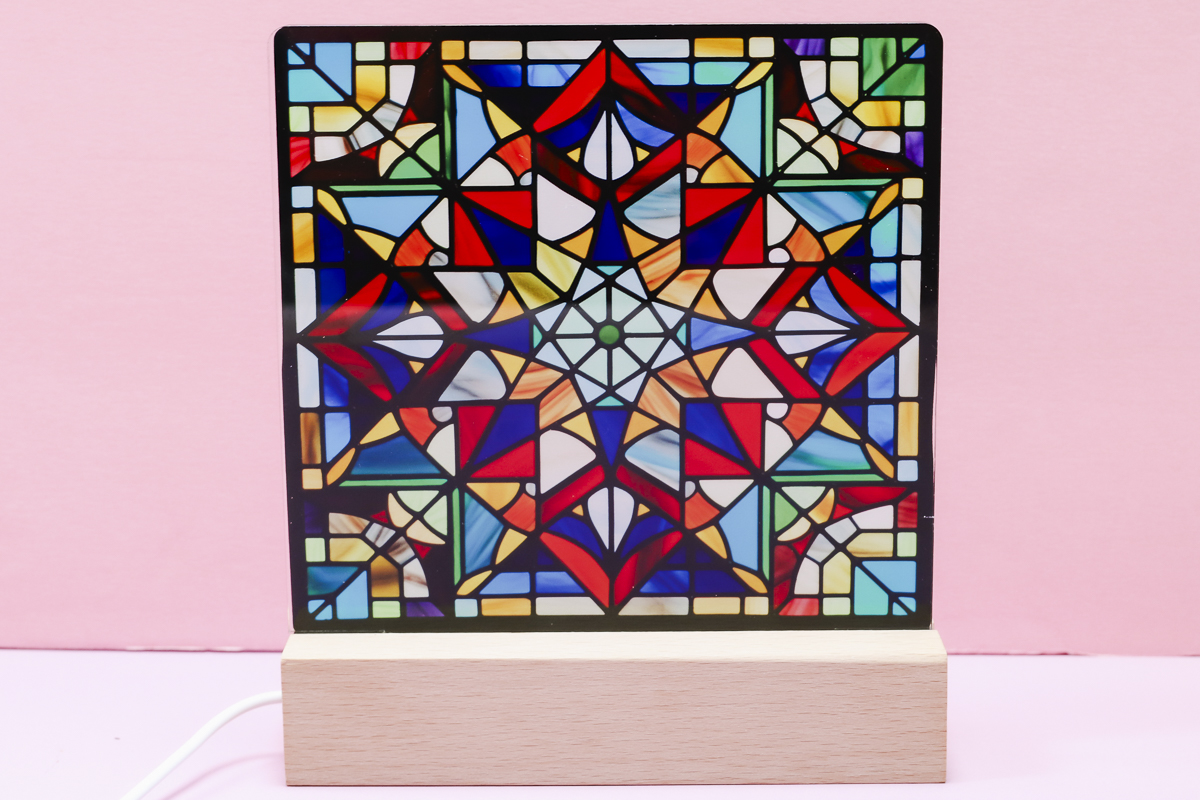
I'm using an acrylic nightlight, and I'm going to print a stained-glass design right on the acrylic.
This blank is too large for the small base plate, so I replaced it with the larger base plate. Next, I removed the protective film from one side of the acrylic and placed it in the printer with the uncovered side facing up.
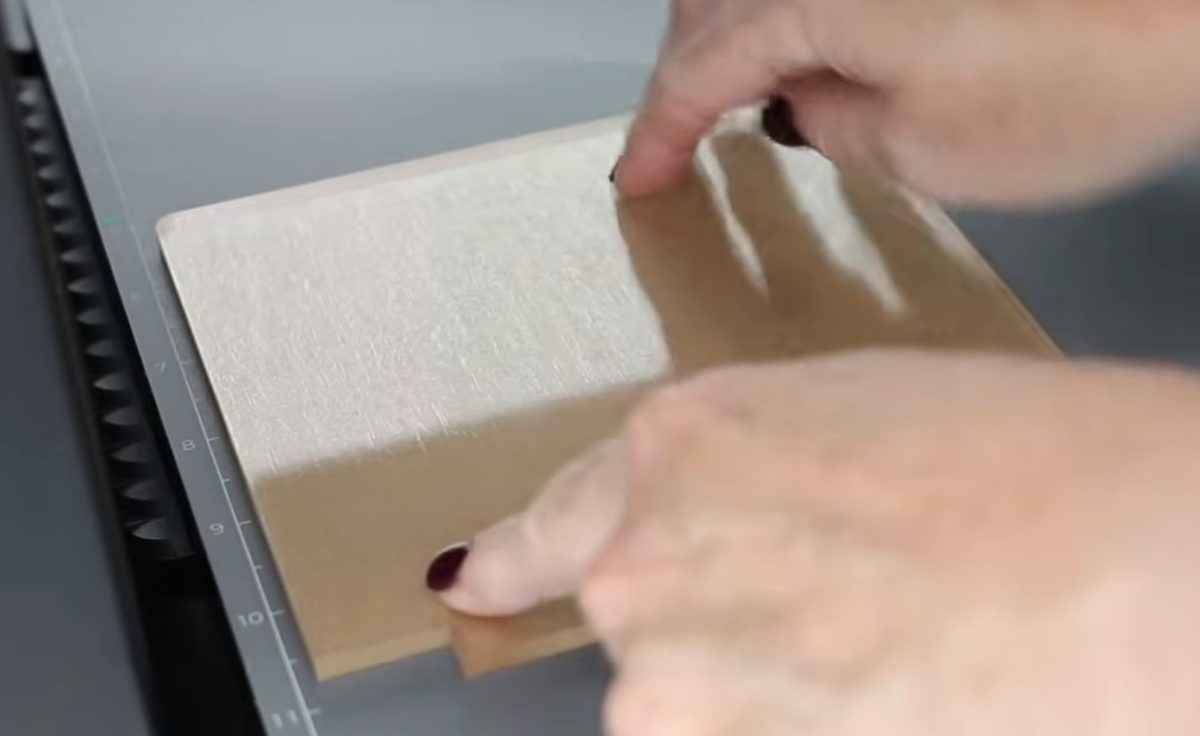
In xTool Studio, I uploaded the stained glass design and then clicked Scan. Now that I can see the acrylic, I resized the design so it fits the display area of the acrylic exactly. Don't print on the area that goes in the nightlight base.
Next, duplicate the design twice.
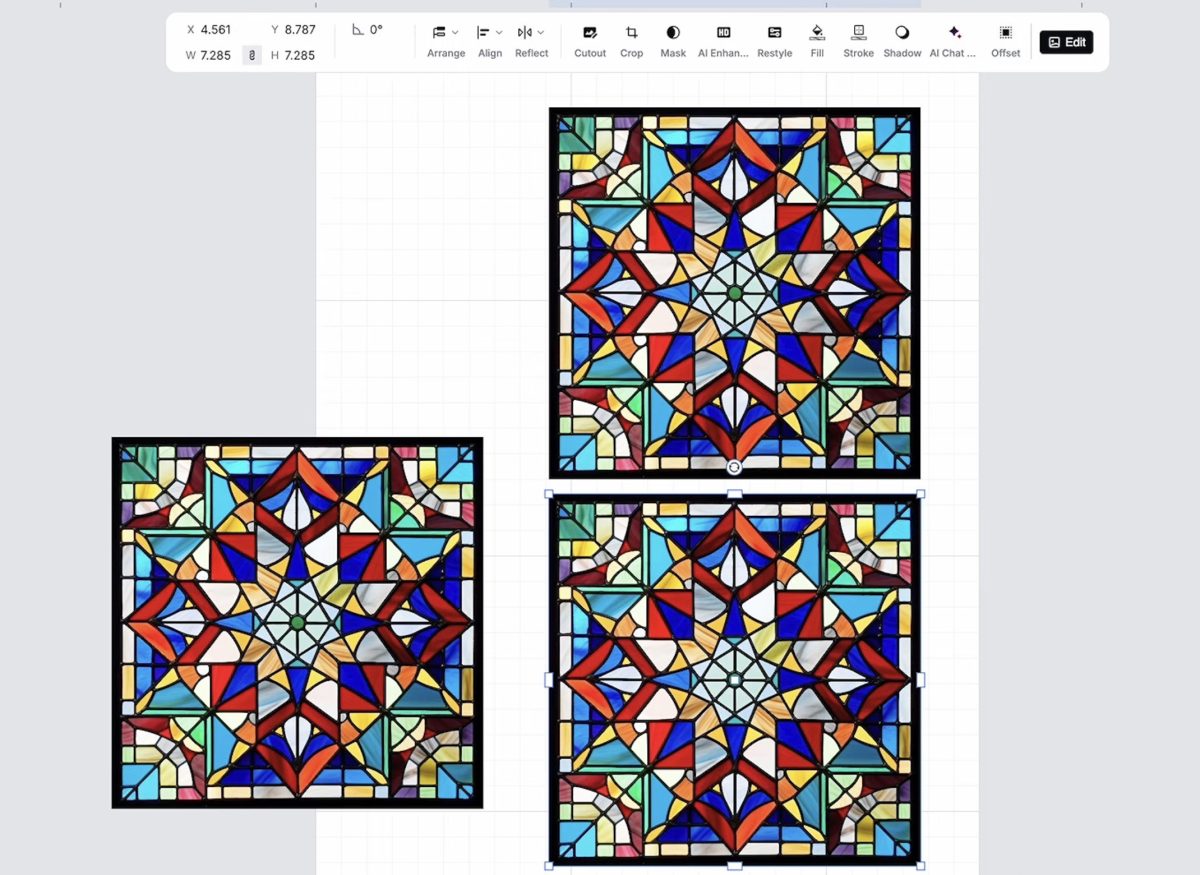
In order to get the finished look I want, I am going to print the design in 3 steps.
First Layer – I want this layer to show through to the other side of the acrylic, so this is a normal flat print.
Second Layer – On this layer, I want texture to give it the stained-glass look, but I want it to be see-through so it's just a varnish layer. When it was finished, I actually wished I had added more texture, so that is something to note for next time.
Third Layer – This layer is for the black lines in the stained glass design. I want those to look raised, so I did a relief effect. This is another layer where I wish I had done more of the effect, but you can see that it is raised.
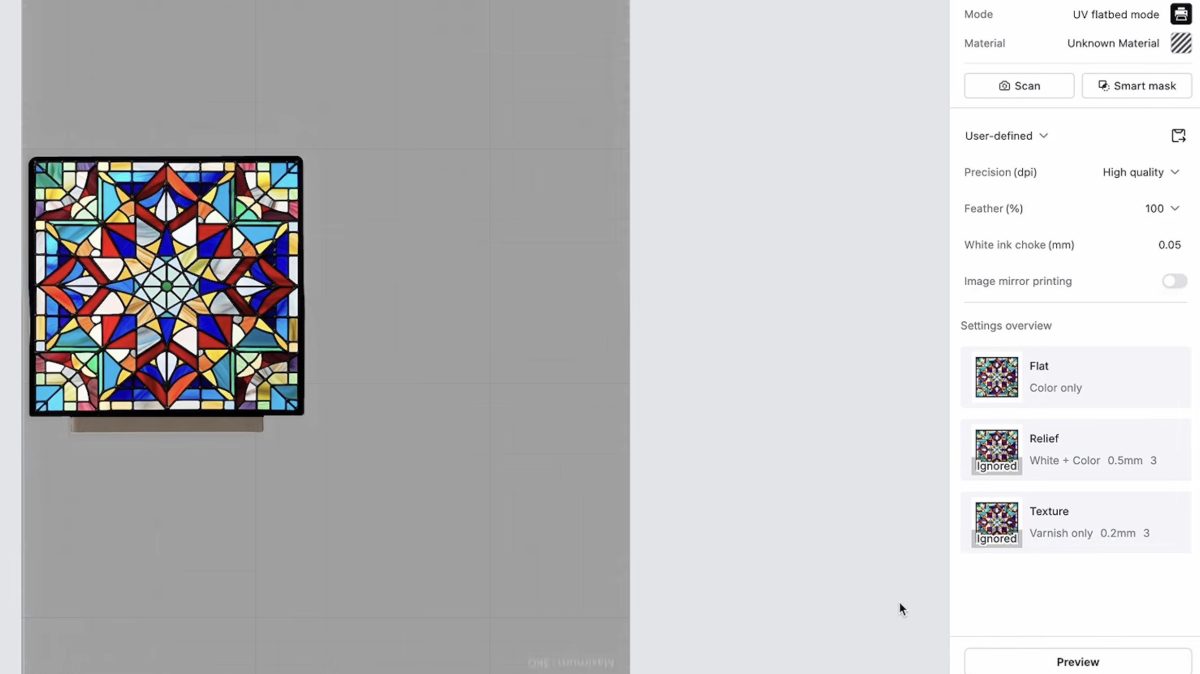
Step-by-Step Printing Process
This part can get a little confusing. The most important thing is not to move anything in xTool Studio, and do not move the nightlight piece on the base plate until you're done with all three layers.
- Locate all 3 layers on top of the acrylic in xTool Studio. They need to be lined up exactly.
- Turn the Output off for the texture effect second layer and the relief effect third layer.
- Send the first layer to the printer and allow it to print.
- Do not remove the nightlight from the base plate.
- Turn off the Output for the flat print first layer and the relief effect third layer.
- Turn on the Output for the texture effect second layer.
- Send the second layer to the printer and allow it to print.
- Do not remove the nightlight from the base plate.
- Turn off the Output for the flat print first layer and the texture effect second layer.
- Turn on the Output for the relief effect third layer.
- Send the third layer to the printer and allow it to print.
- Remove the nightlight from the Omni base plate.
- Remove the protective film from the other side of the acrylic.
Close Up of Stained Glass Nightlight
You can see the stained glass on both sides of the nightlight. On the acrylic side, the design is really smooth. On the print side, you can see some of the texture.
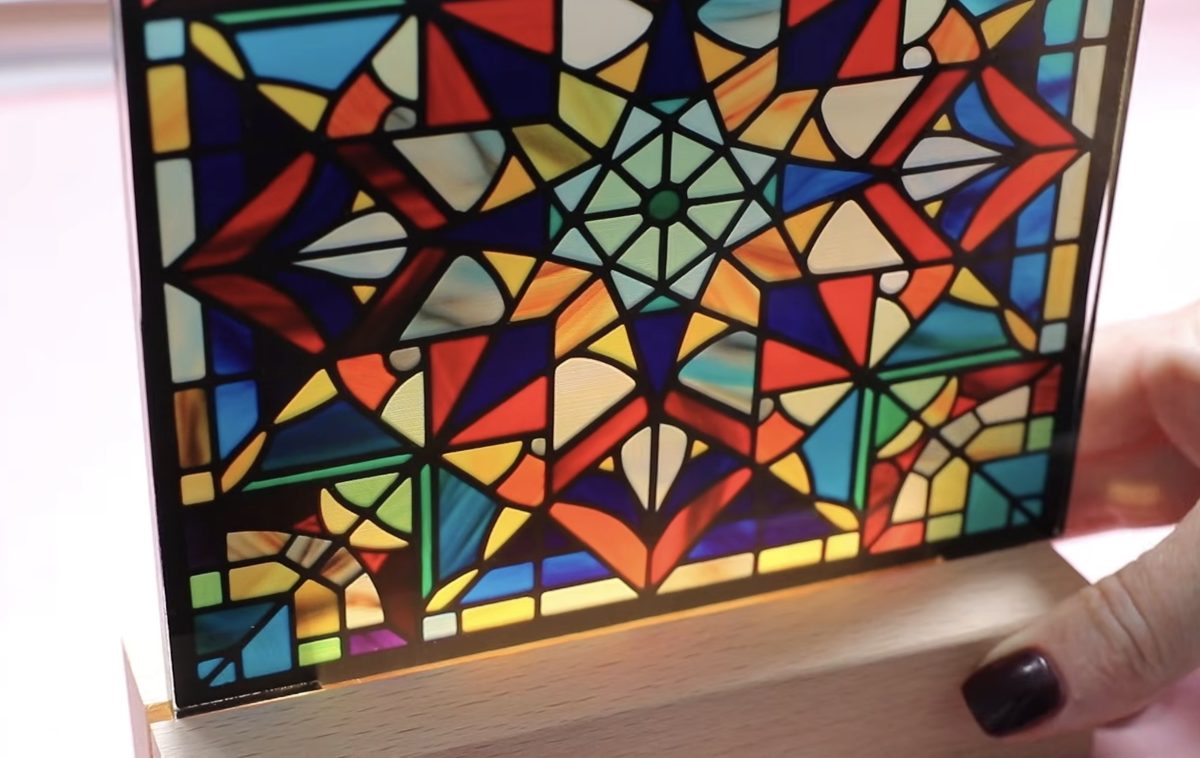
As I said above, I wish I had added more texture to both the stained glass layer and the black raised layer. You can still see the texture and that the black is raised, but it would look more like stained glass if those layers had more of those effects.
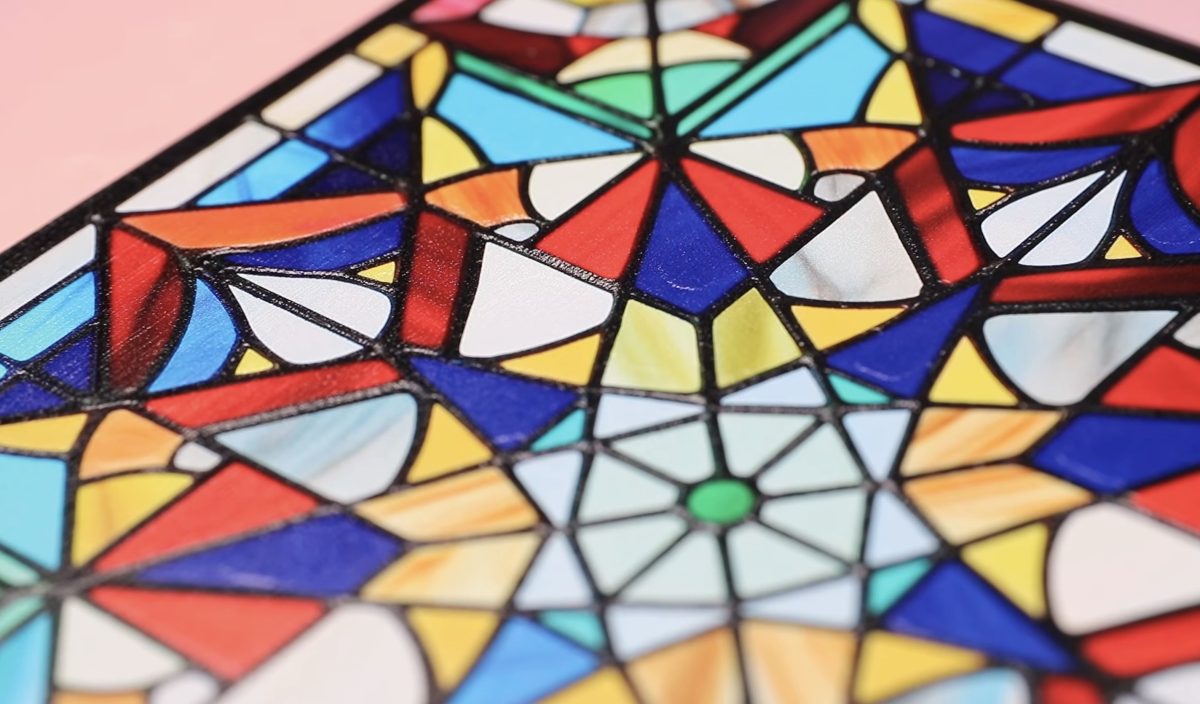
I also wish it were a little more see-through. With the settings I used, you can't really see the light shining through the stained glass, which doesn't make it a very good nightlight.
I am going to keep experimenting to get it right. That is one of the great things about owning a printer like this. I can keep trying different settings until it's exactly how I want it.
Ready to buy the Omni? Click here!
Using the Rotary Attachment in the xTool Omni UV + DT Printer
Now that we've made a collection of flat projects using the xTool Omni, I want to show you how you can print on curved surfaces using the rotary attachment.
I'm going to test two different tumblers to see which ones work well and which ones don't.
Installing the Rotary Attachment
Installing the rotary attachment could not be easier. Simply remove the base that is currently installed and drop the rotary attachment into place. The rotary attachment is magnetized, so it'll stay right where you need it to be.
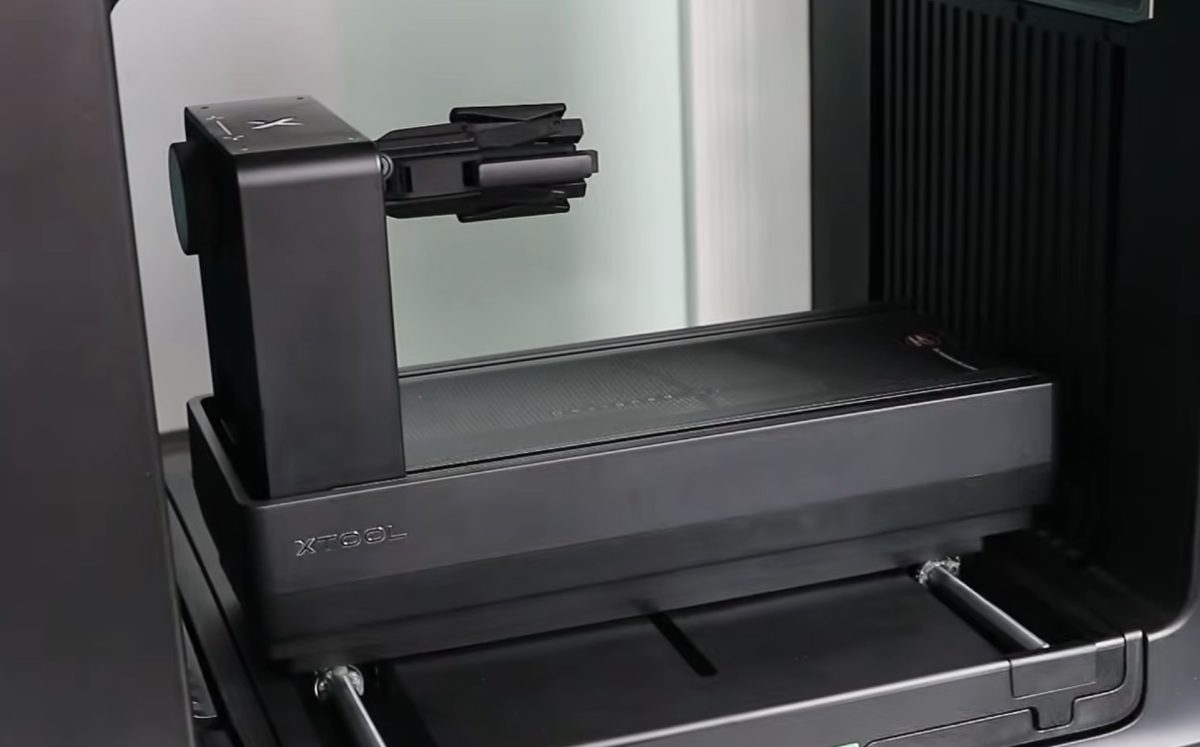
When switching to the rotary attachment, you need to make sure you change the setting in xTool Studio as well. Click Mode, then select the accessory you're using. In this case, I selected the Rotary Accessory option.
If this is your first time using the rotary attachment, you will be prompted to do a calibration before you can print.
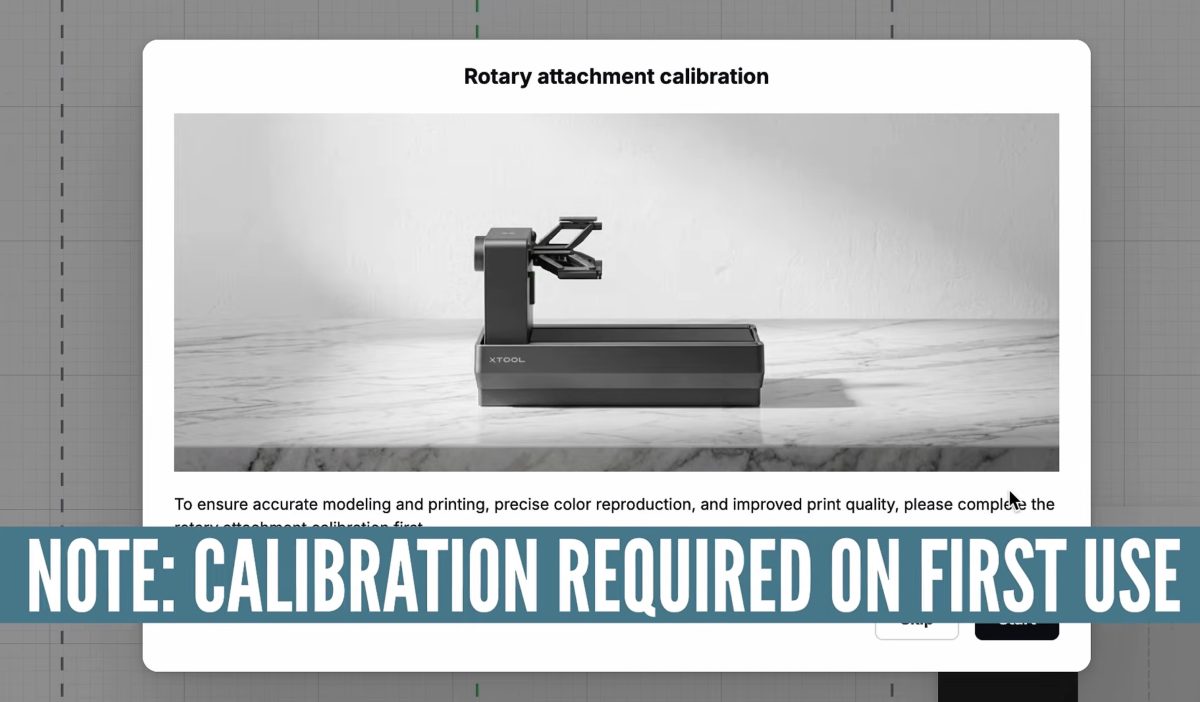
Depending on the size of your tumbler, the Omni may rotate it. Make sure you open the back door of the printer when using the rotary accessory.
When you scan the base plate, it is going to ask what type of tumbler you have installed. This is really important.
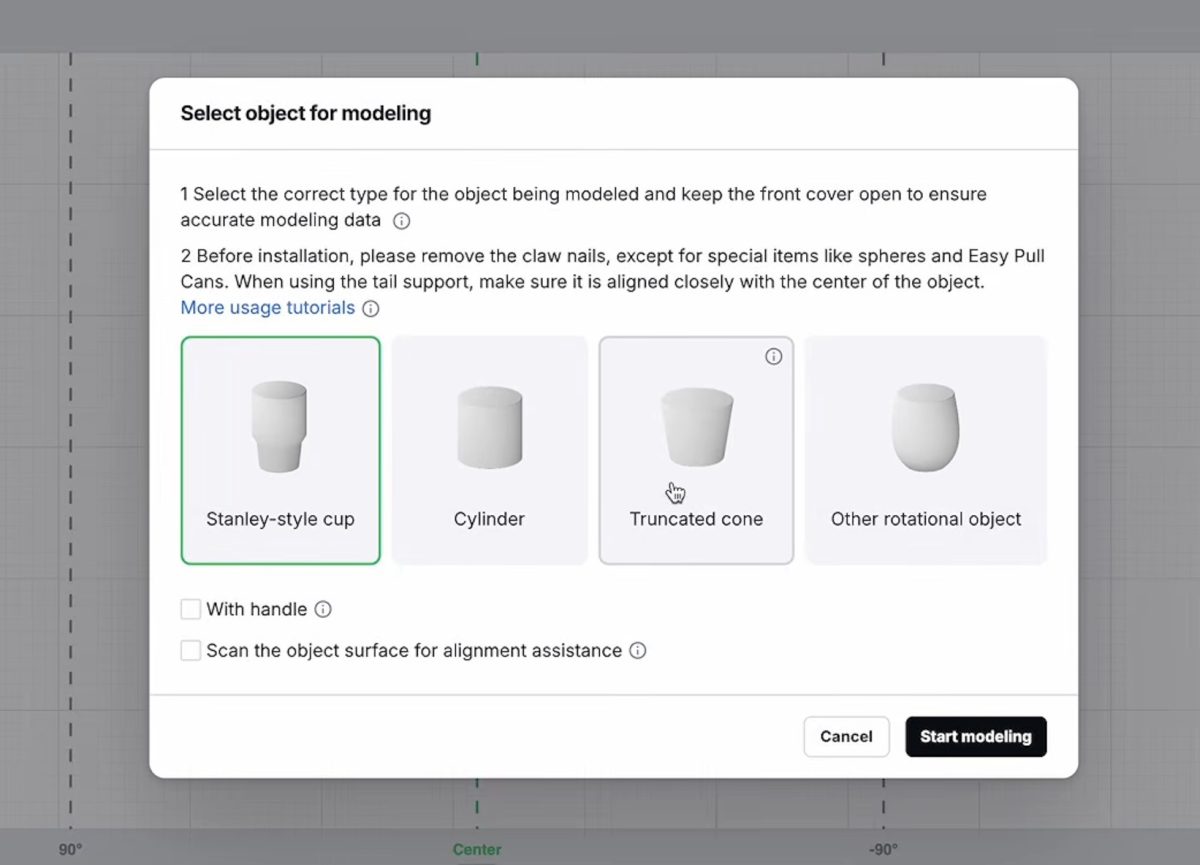
Choose the tumbler you have installed and click the button to preview the tumbler so you can make sure you locate the design correctly.
5. Full Wrap Tumbler
The first project I'm going to make with the rotary accessory is a small tumbler that does not have a handle.
Loading the tumbler onto the rotary accessory is really easy. Make sure it's pushed all the way on, and then turn the knob until it can't turn anymore. That will ensure the tumbler is centered and secure.
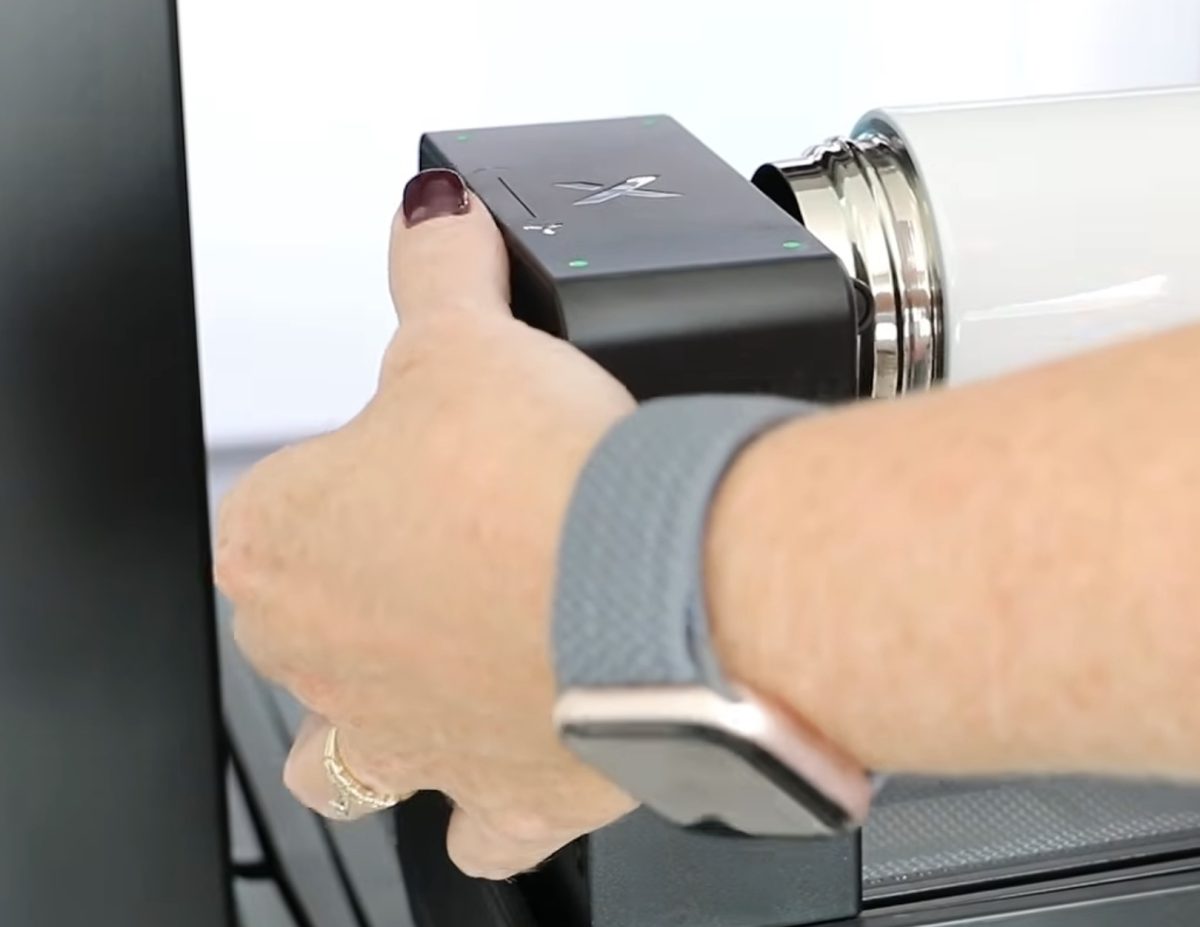
Press the button within xTool Studio, and the Omni will measure the tumbler, level it, and make sure it is installed correctly.
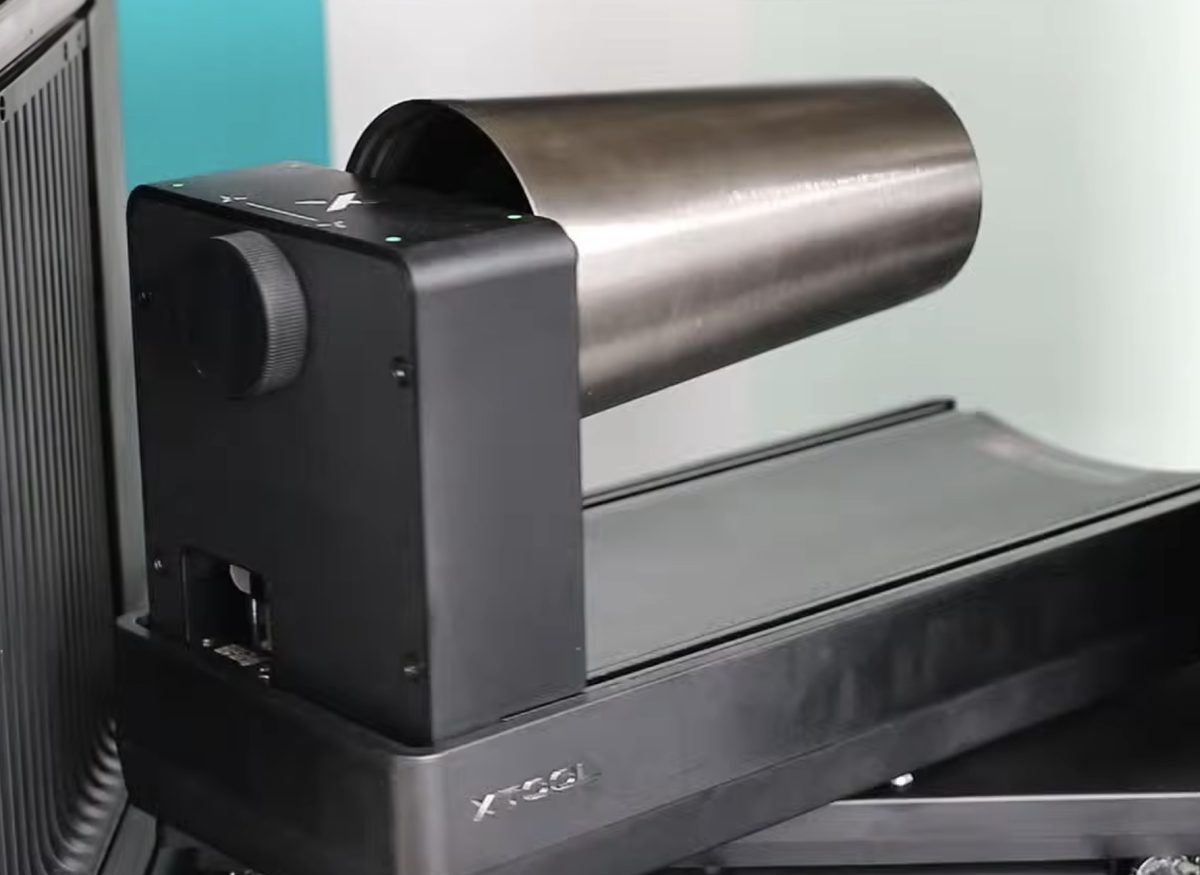
xTool Studio is going to scan the tumbler, check the size, make sure it's level, and make sure it is rotating correctly. It's also going to give you a preview right on the screen. The preview will show you the printable area.
Upload the design, resize it, and lay it out how you want it on the tumbler.
I am doing a full-wrap tumbler. So I want to make sure that the design will wrap all the way around the tumbler.
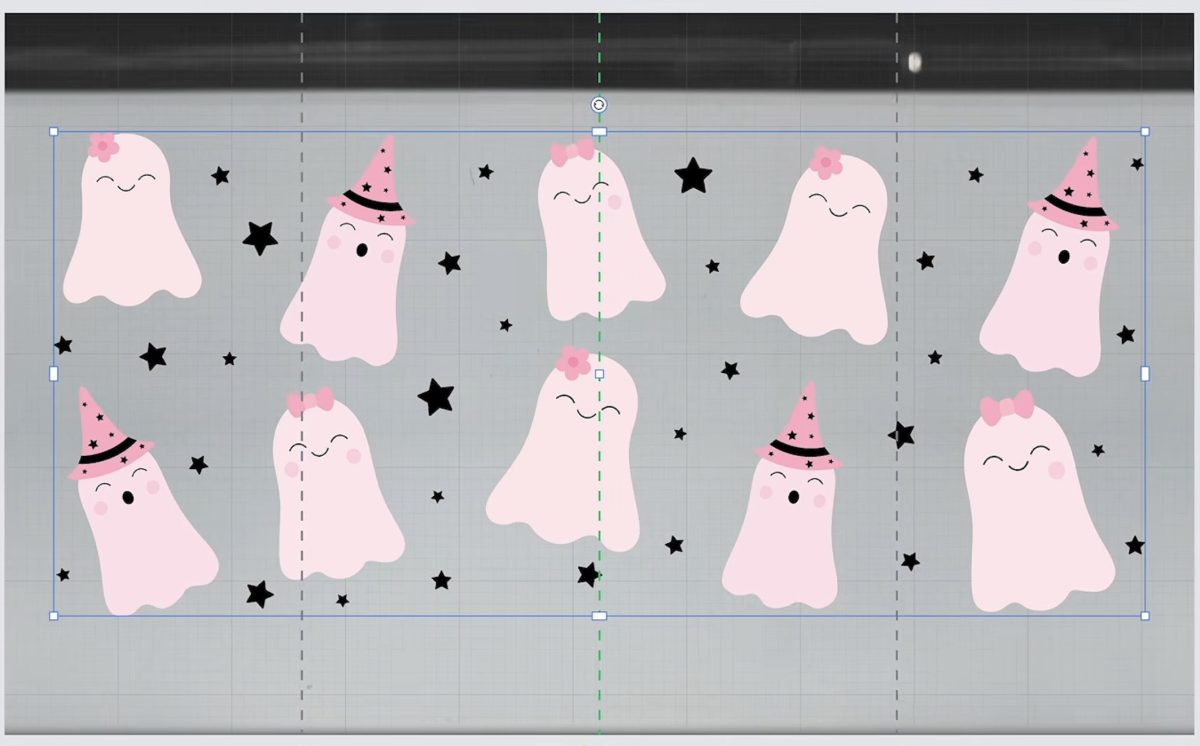
In the preview, I can see the threads at the top of the water bottle. I don't want to print on those threads. I actually accidentally did that on the first tumbler, and it looked really bad.
Leave room at the top and the bottom so the entire design will fit on the tumbler itself.
I chose the material of my water bottle, and because the water bottle itself is white, I didn't use any white ink to print this design.
Send it to the Omni, and while it prints, the rotary accessory will lift and turn the tumbler. I found it did a great job on the tumblers I printed on, and the location was really accurate.
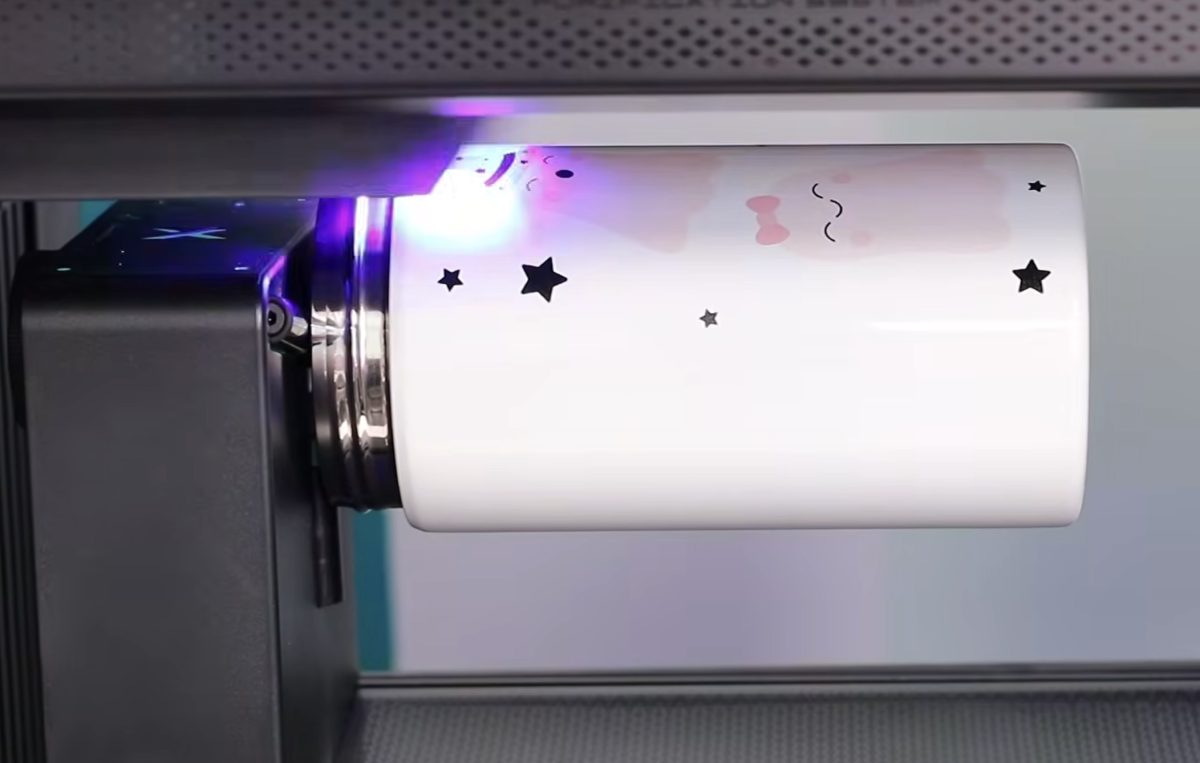
When it's done printing, it will lower down, and you can press the button on the front of the machine to bring the rotary accessory out of the machine. Turn the knob on the rotary accessory in the opposite direction to loosen the tumbler and remove the tumbler from the machine.
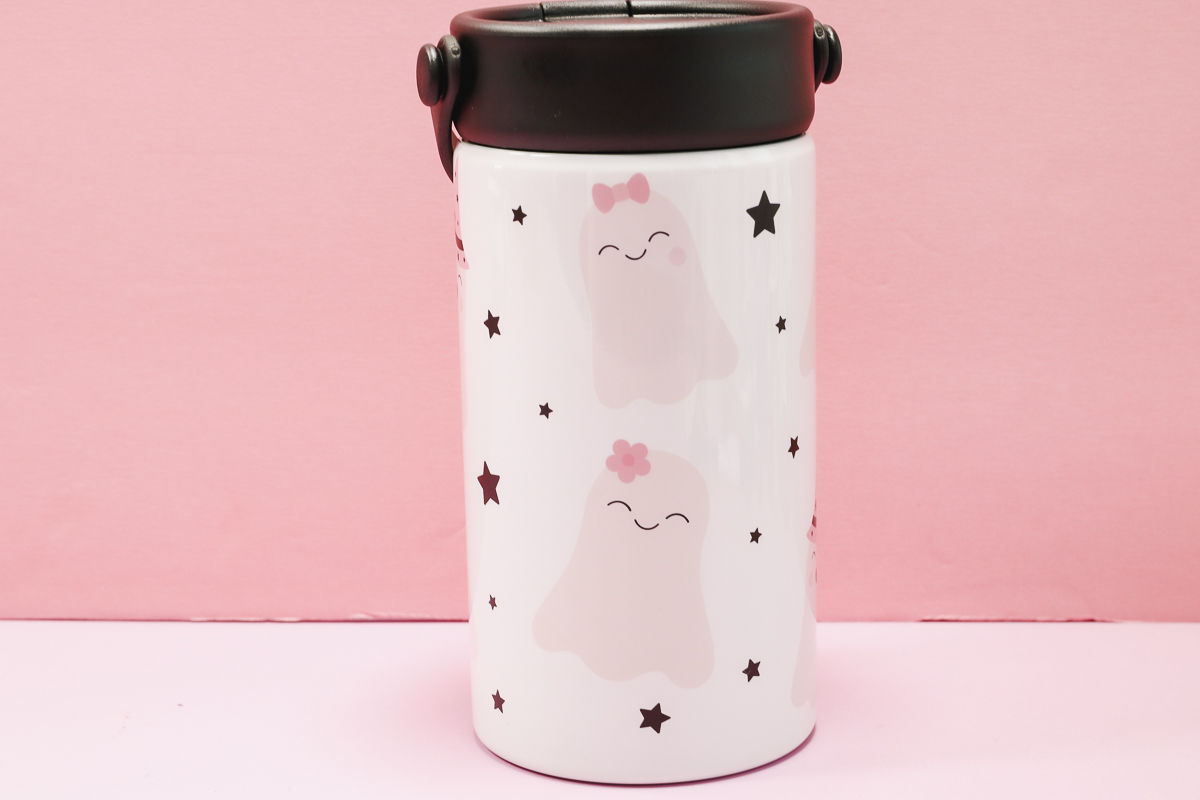
Close-up of the Finished Full Wrap Tumbler
I love how this tumbler turned out. It's so cute. The placement looks great, and I was able to get a full-wrap design easily. I can't even really tell where the seam is supposed to be.
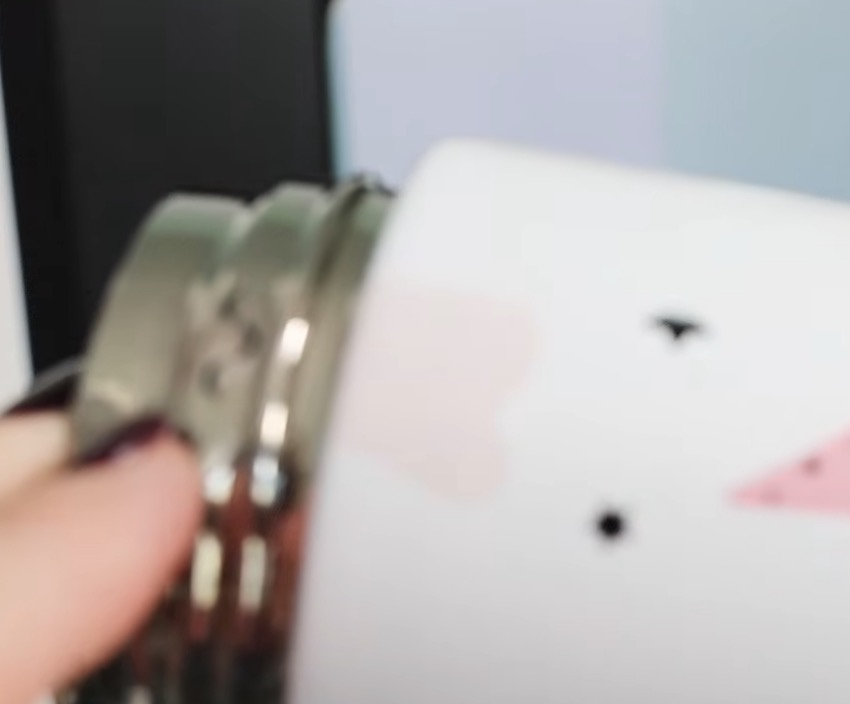
I wanted to show you what happened when I didn't check the preview button. It printed on the threads, and it looked really bad. I stopped it before it was done, so I didn't waste a lot of ink, but it was a good lesson for me to use the preview.
6. Large Tumbler with a Handle
Now that I've made a smaller tumbler, I wanted to see how big of a tumbler I could make with the rotary attachment and if it would work with a tumbler that has a handle.
I'm testing a 40-ounce tumbler with a handle, and I'm keeping the handle attached.
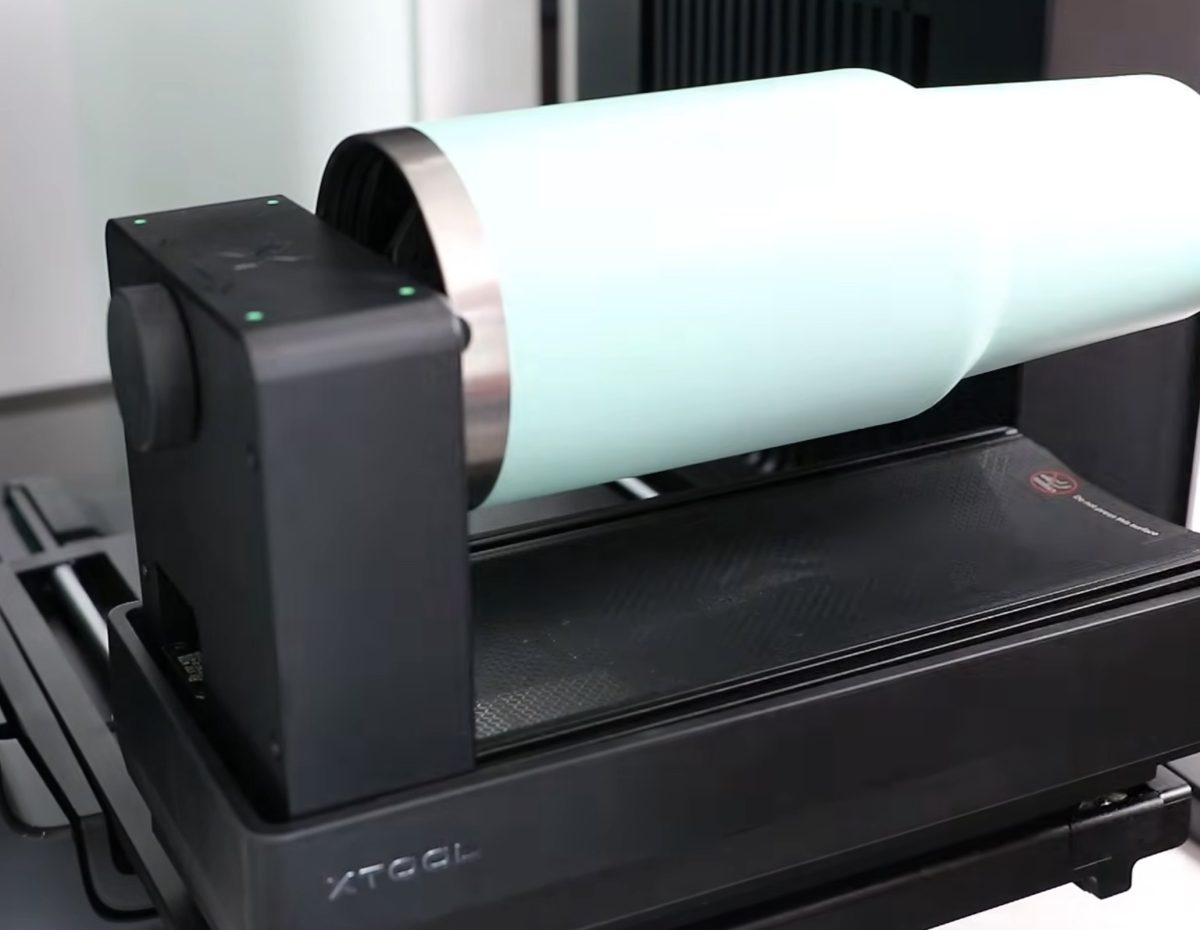
Add the tumbler to the rotary attachment the same way we did the previous tumbler, making sure the handle is toward the back.
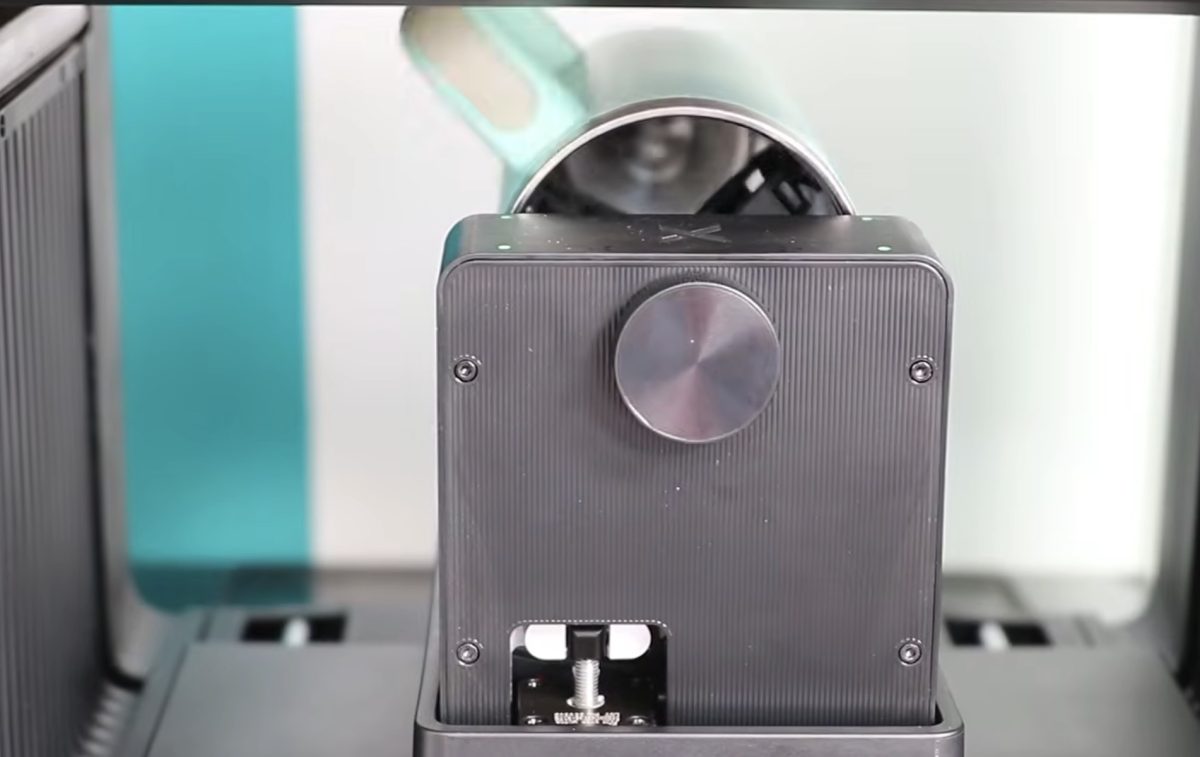
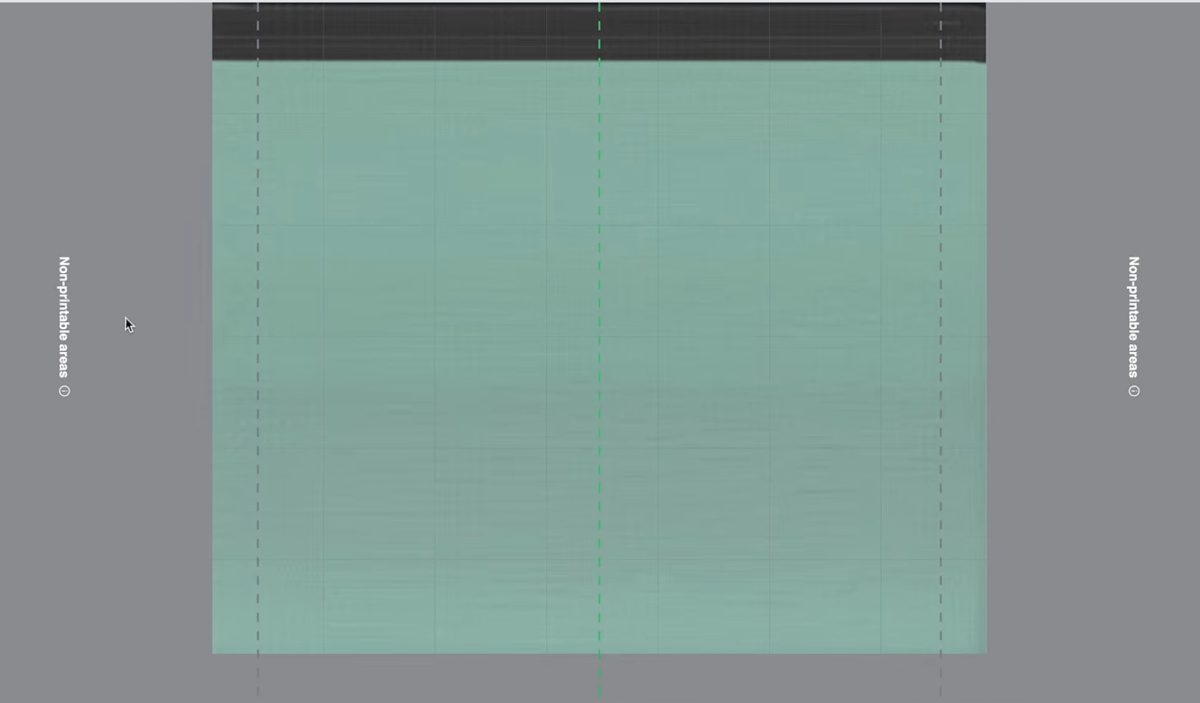
Scan the rotary accessory and tumbler. In xTool Studio, you'll notice the printable area is really small. For these 40-ounce tumblers, you can only print on the top portion of the tumbler. There is also a limit on how close you can print to the handle.
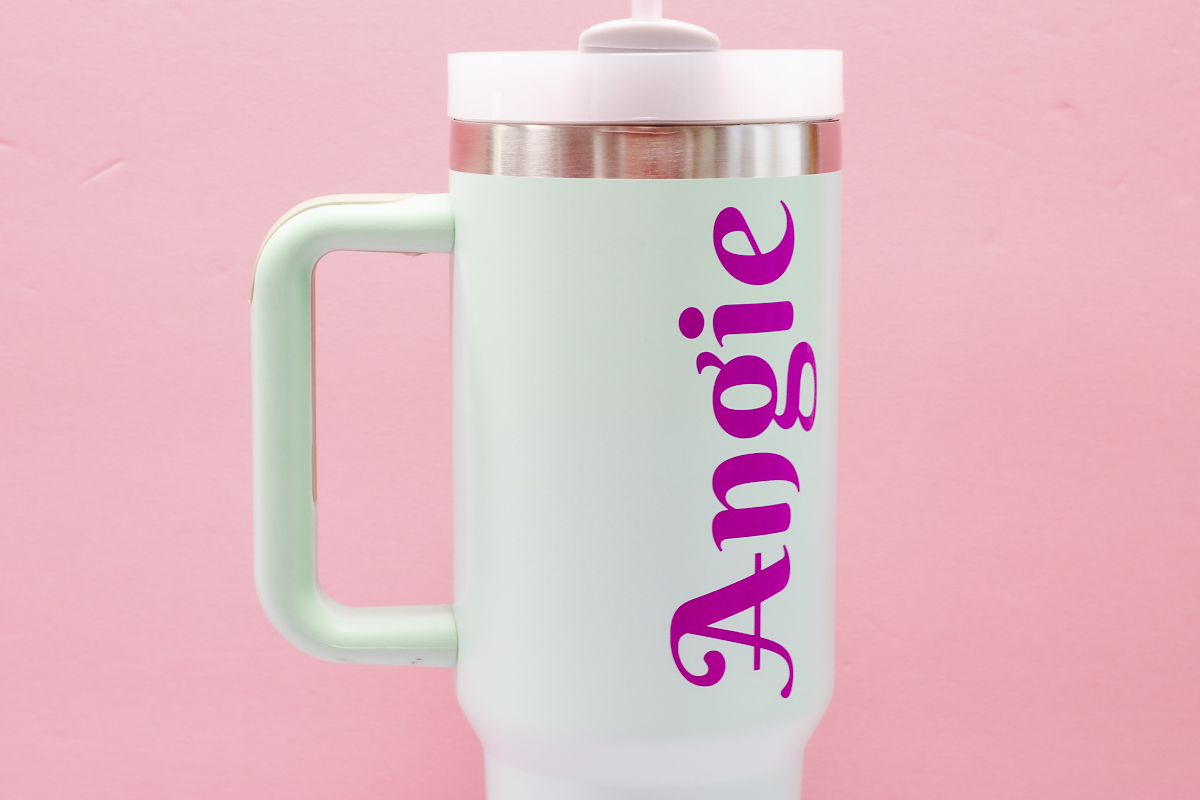
I'm going to use the Text tool in xTool Studio to add my name to this tumbler. Choosing a font I liked, I resized it to fit on the tumbler.
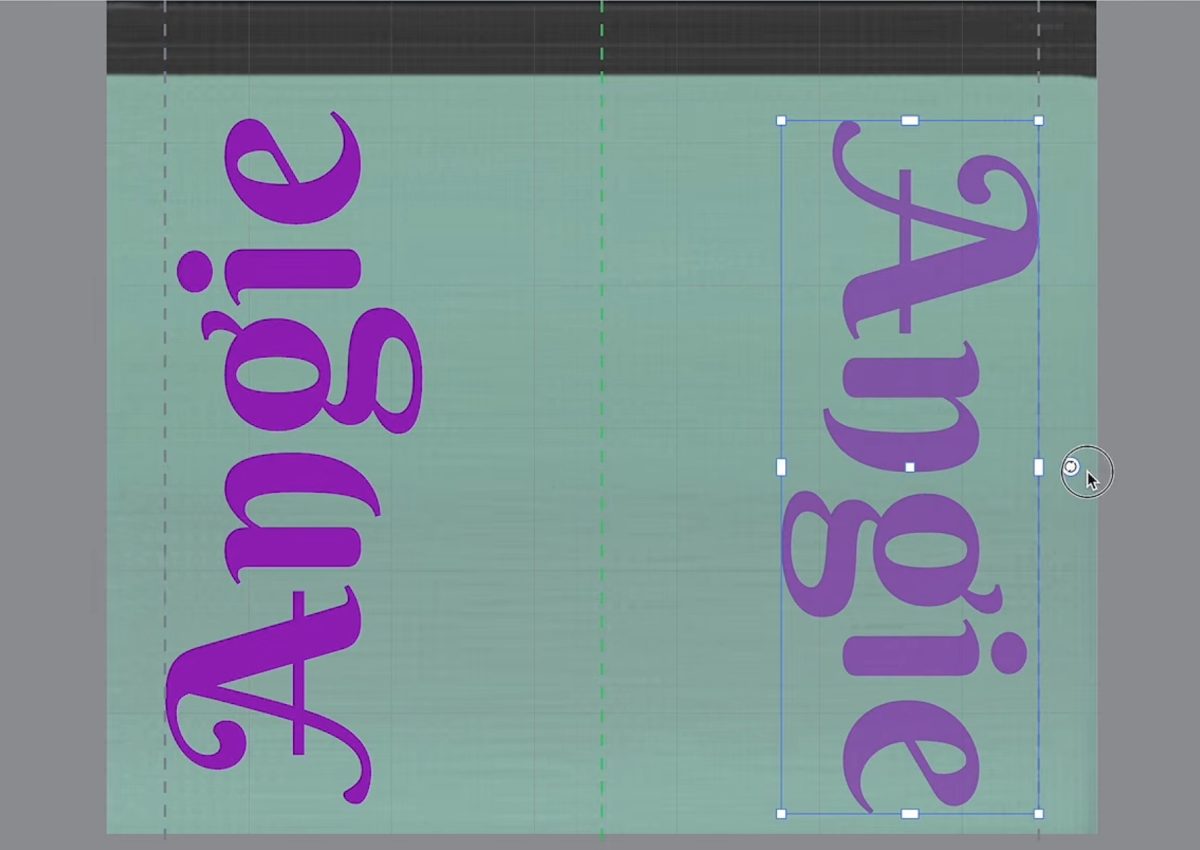
I really want to test the printable area for this style of tumbler. I added my name to both sides, as close to the handle as I could, and made sure to stop the text below the metal lip and above the bottom section.
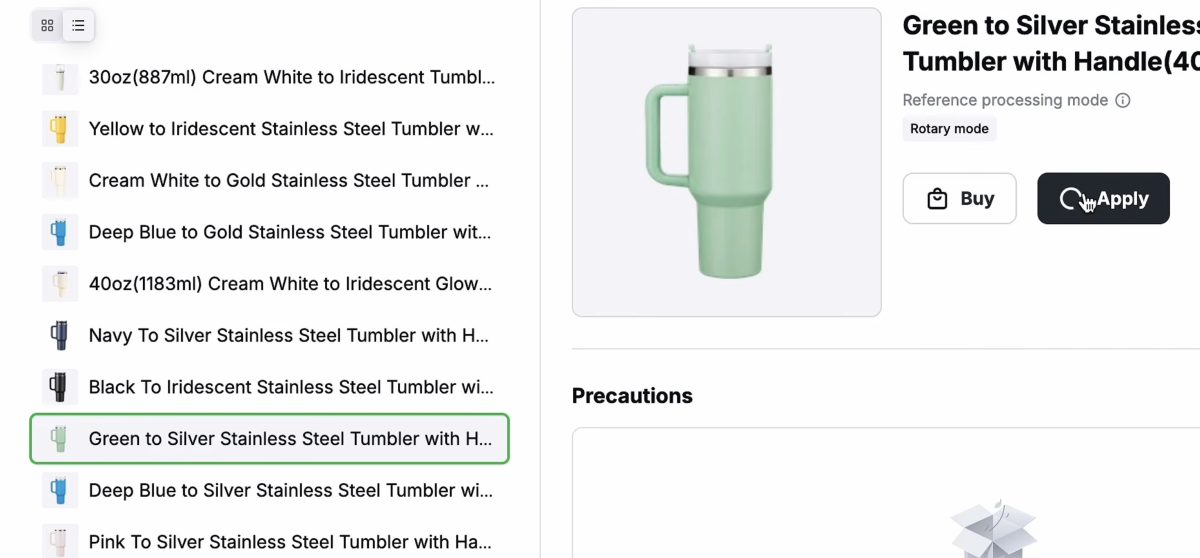
Next, I changed the color of the text and sent it to the printer to print.
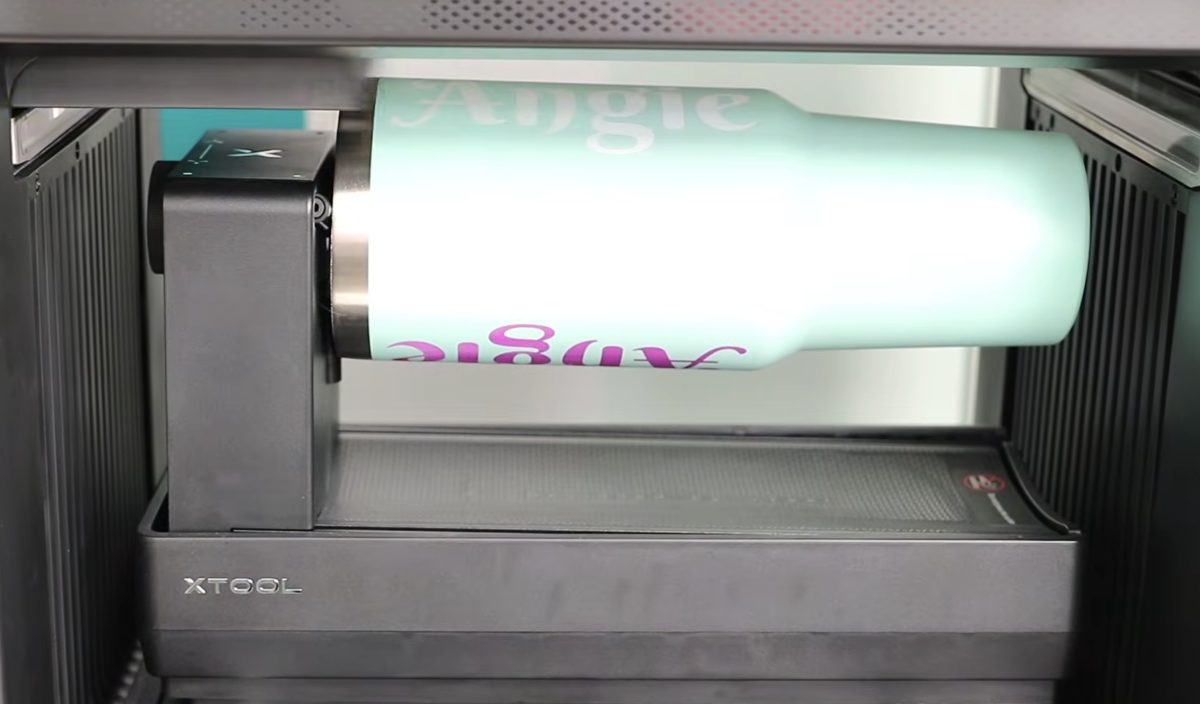
When the printer is finished, remove the tumbler from the rotary accessory.
Close-up of the Finished 40-ounce Tumbler
I want to note that the printing itself looks really good. The colors are vibrant, and the print is consistent across the entire design.
My name basically goes from the very top to the very bottom of the top section. However, this is as close to the handle as I can get the design.
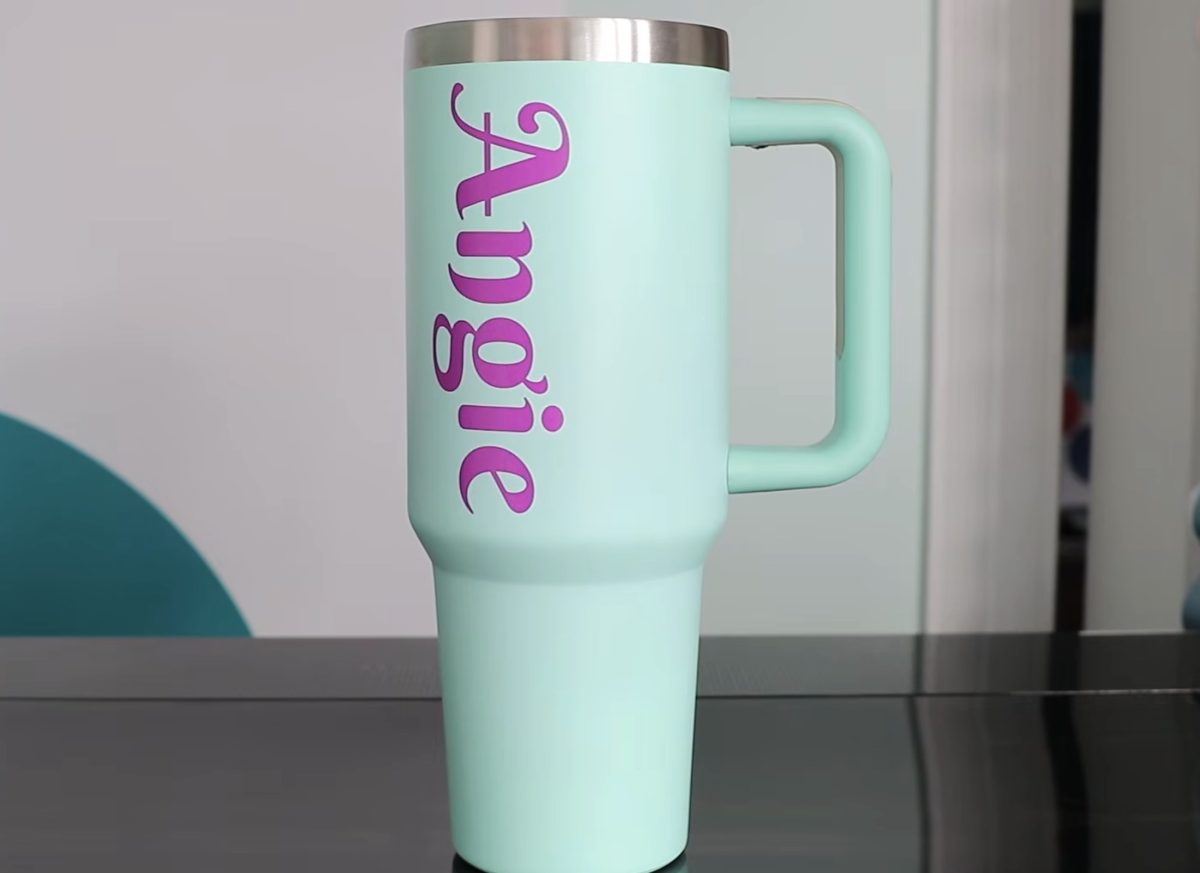
While holding the tumbler by the handle, the name is not centered on the side at all. I can still use the tumbler, and the design looks great, but the placement is not good.
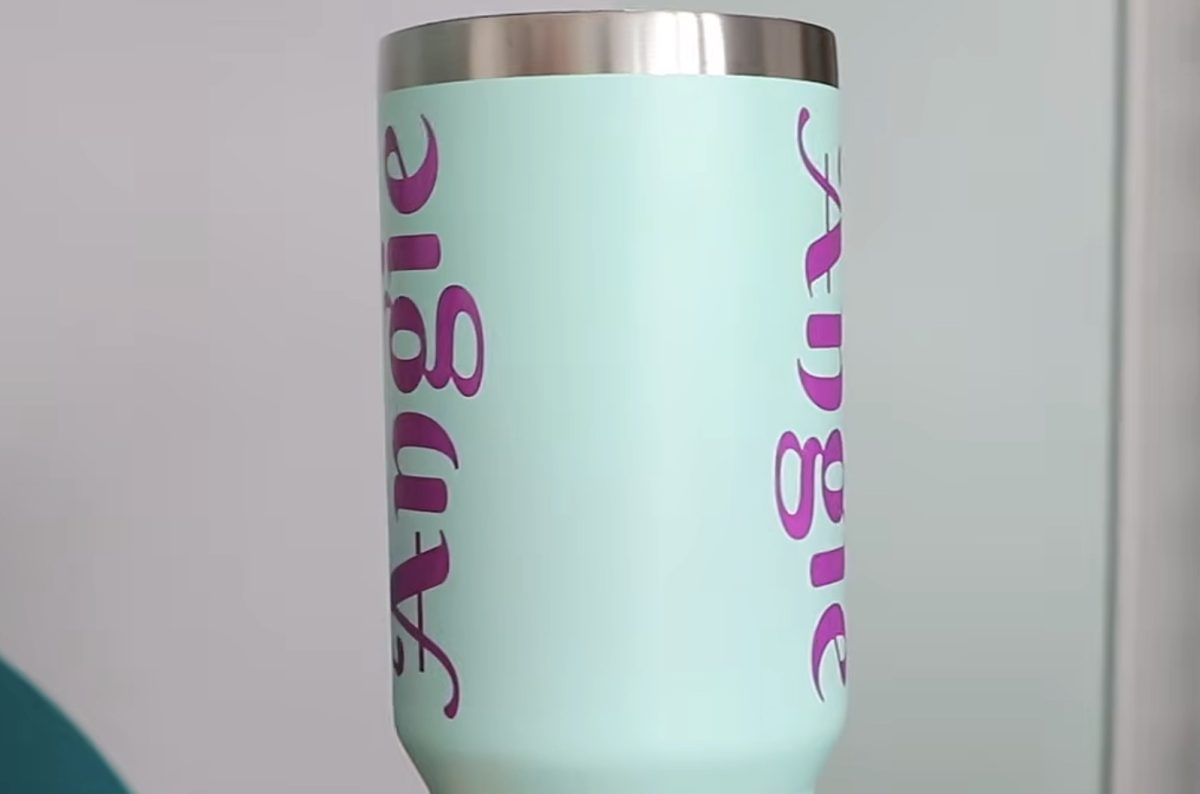
For this type of tumbler and design, I don't think the xTool Omni is the right choice. I could try removing the handle and bending the tabs down to see if I could get closer to the handle area.
You want to stay away from the tabs; we don't want to risk a head strike.
I think a better option would be to use the xTool Omni to create a UV DTF sticker that you can place exactly where you want it on the tumbler.
Ready to buy the Omni? Click here!
6. Direct-to-Garment (DTG) Printing on a Black Shirt
Now that we've tried a variety of different blanks with UV printing, I'm ready to try the DTG option.
This type of printing is an option for me because I have the xTool Omni UV + DT model. The other two models do not have this ability.
DTG stands for Direct to Garment. This is the ability to print directly on fabric. This printer requires you to use 100% cotton fabric to print directly on it. If you're using a different fabric or fabric blend, you'll create a DTF print, and you can put it on other fabrics.
Install the Garment Tray
Remove whatever base plate or accessory is currently installed in the xTool Omni and install the garment tray.
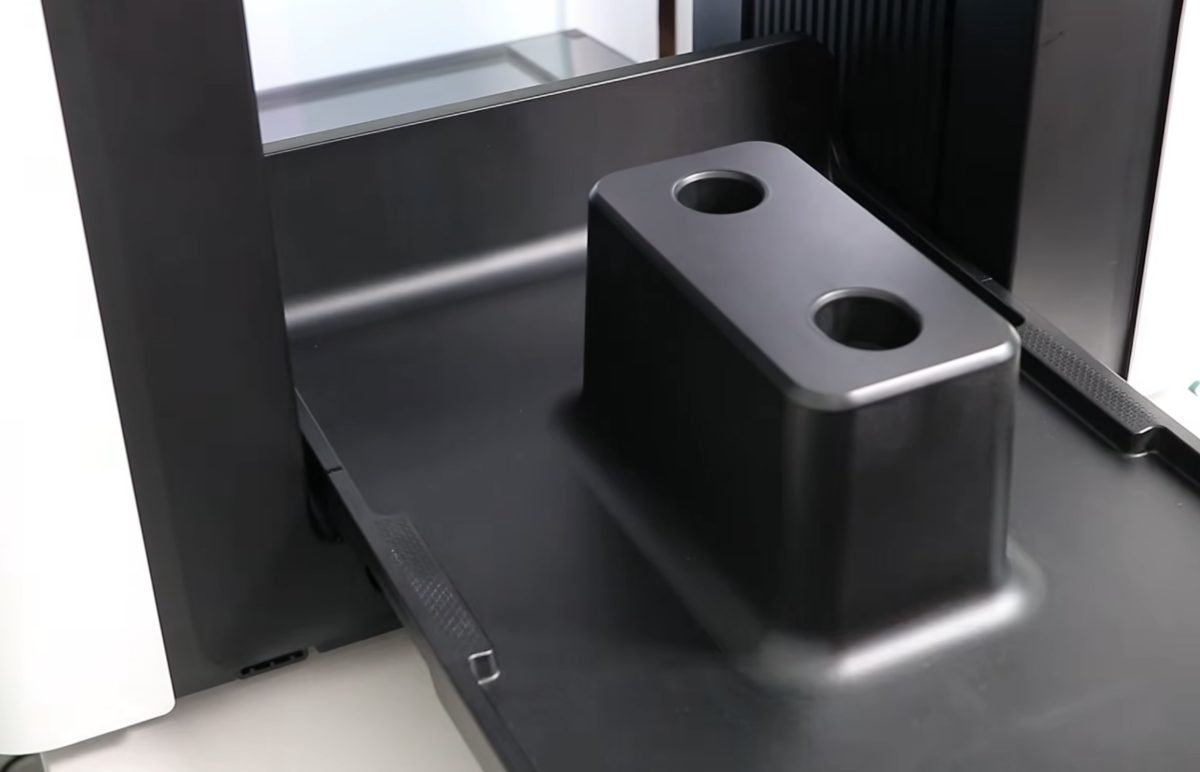
The garment tray is two pieces. The first piece will pop on with magnets, and the second piece attaches to the first piece with magnets as well.
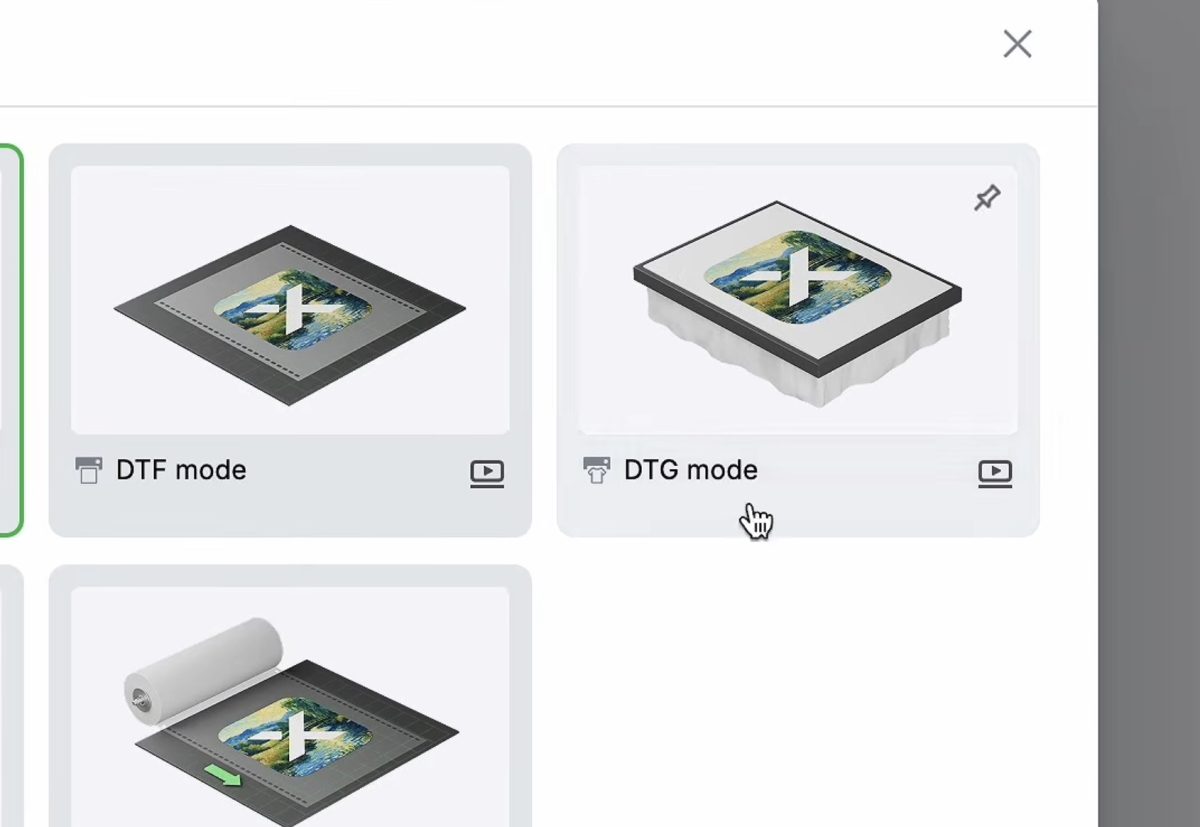
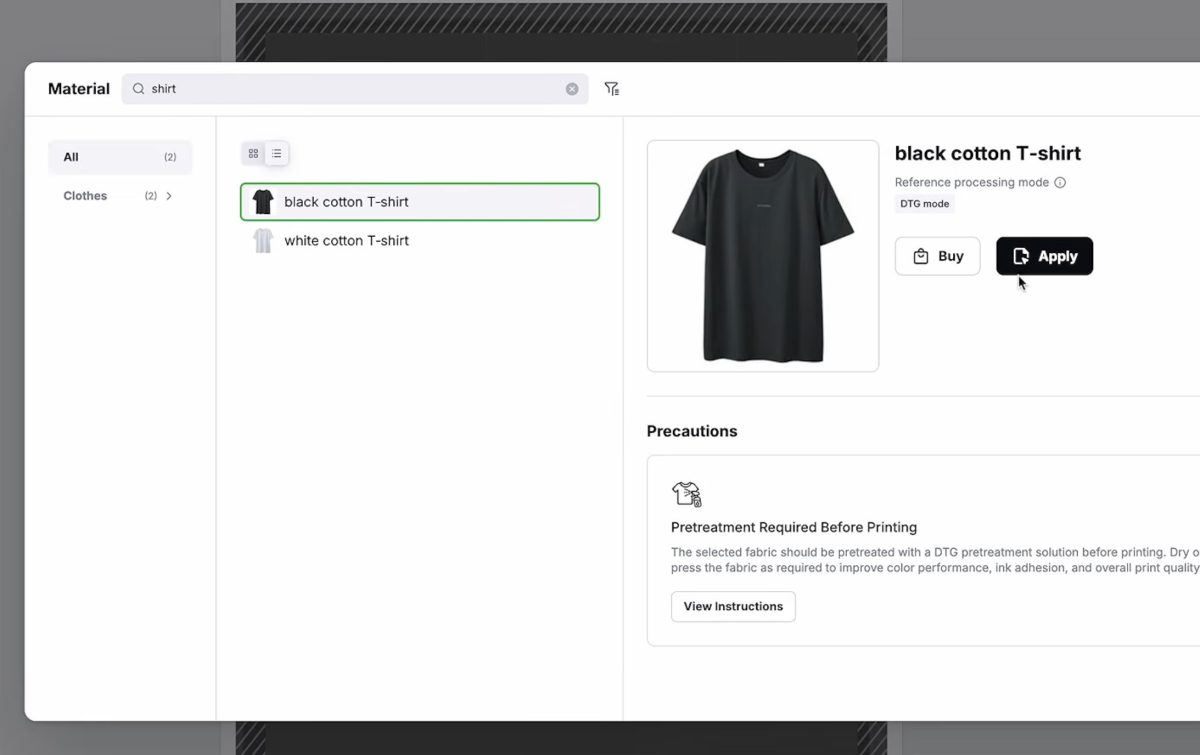
In xTool Studio, change the processing mode to DTG.
Pre-treat the Fabric
To print directly on fabric, it needs to be pre-treated. My printer came with two different types of pre-treatment. One is for light fabrics, and one is for dark fabrics.
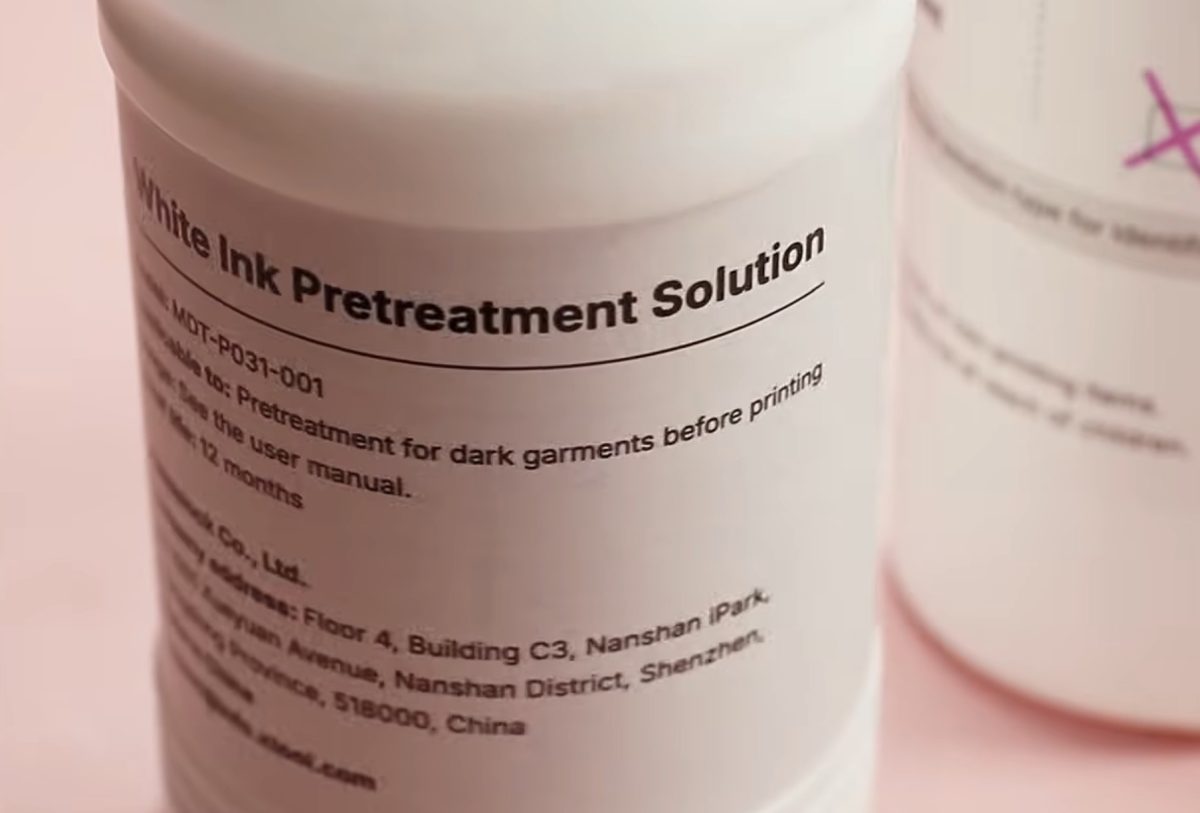
Since I'm using a black shirt, I'm going to use the pre-treat for dark fabrics.
Add the pre-treatment solution to the spray bottle and apply the pre-treatment to the fabric. I would say you need plenty of the solution on the shirt. Make sure you're pre-treating an area that is larger than the design you want to print on the fabric.
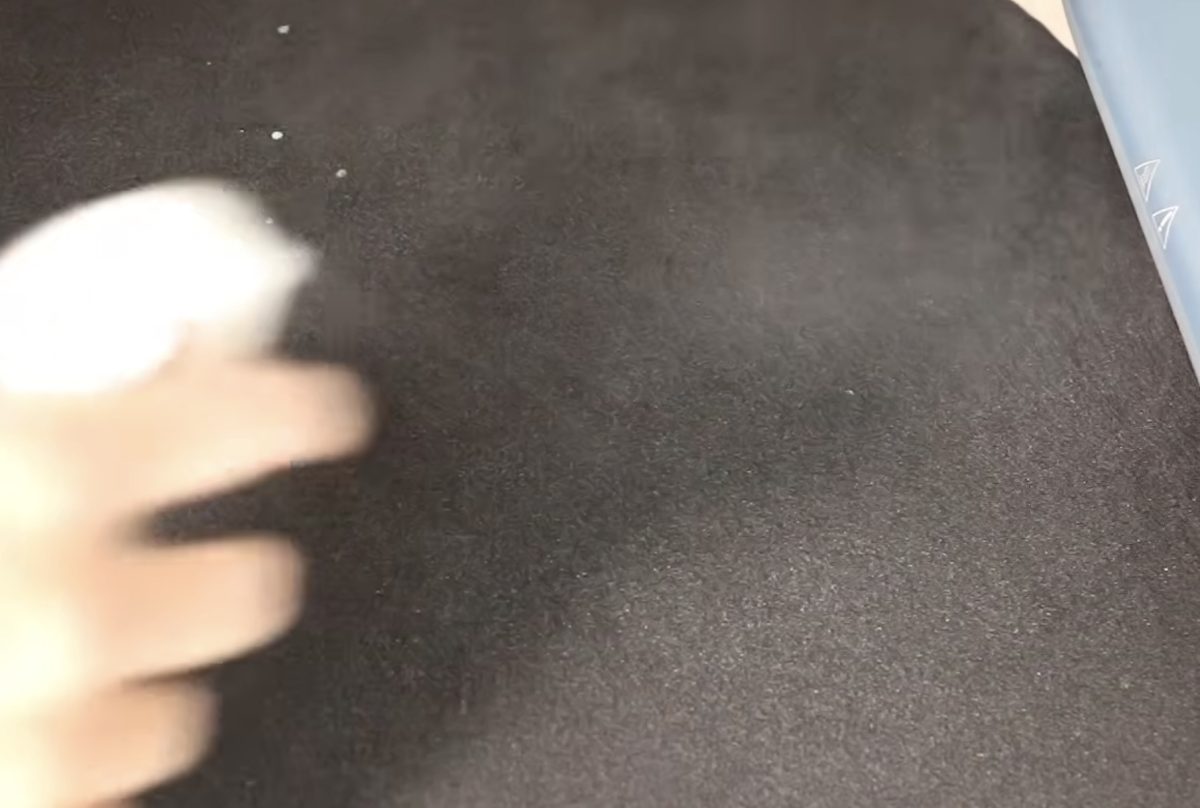
After applying the pre-treatment, cover the fabric with protective paper or a Teflon sheet and press the fabric for 60 seconds at 300°. You may need to do this twice. You need the fabric to be completely dry, so how long it takes to dry will depend on how much pre-treatment is applied.
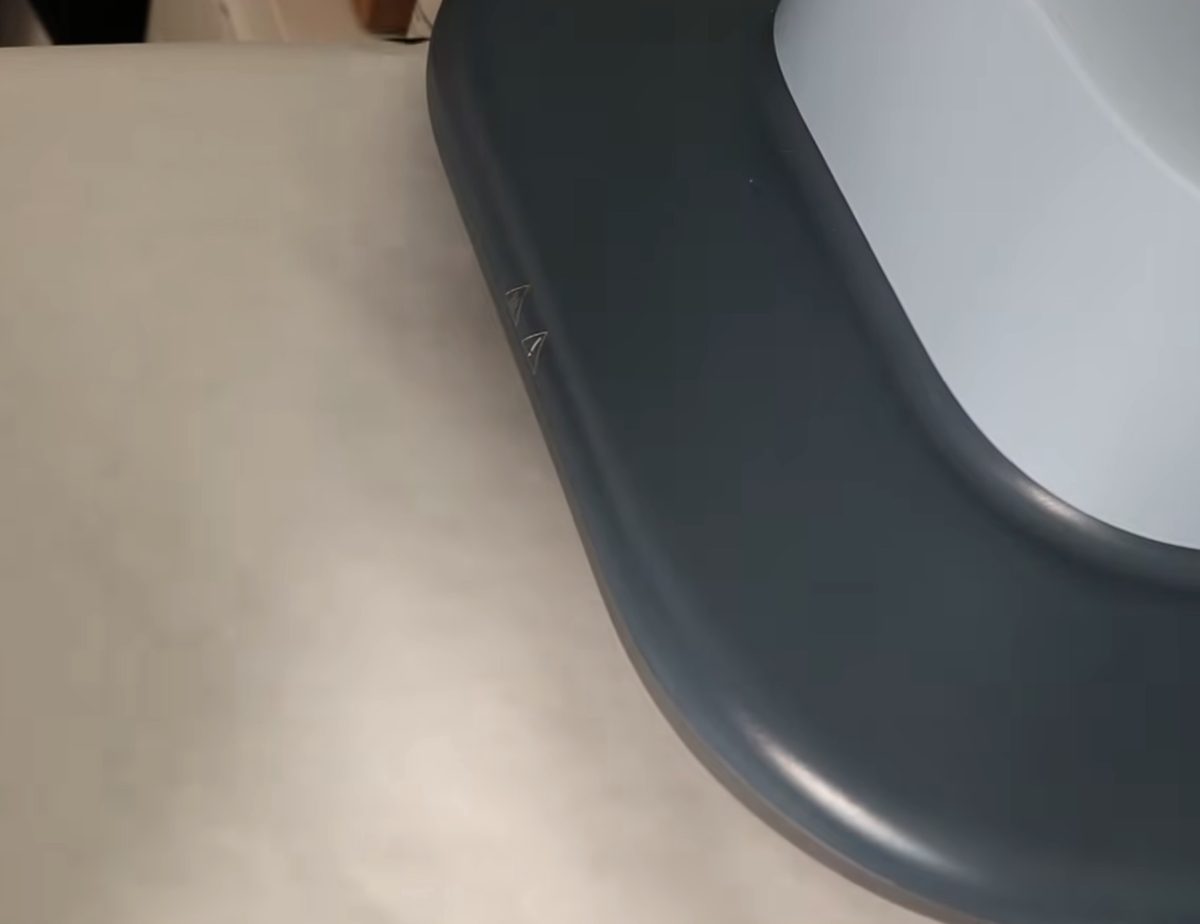
The DTG printable area in the xTool Omni is 12 inches by 16 inches.
Load the Shirt in the xTool Omni
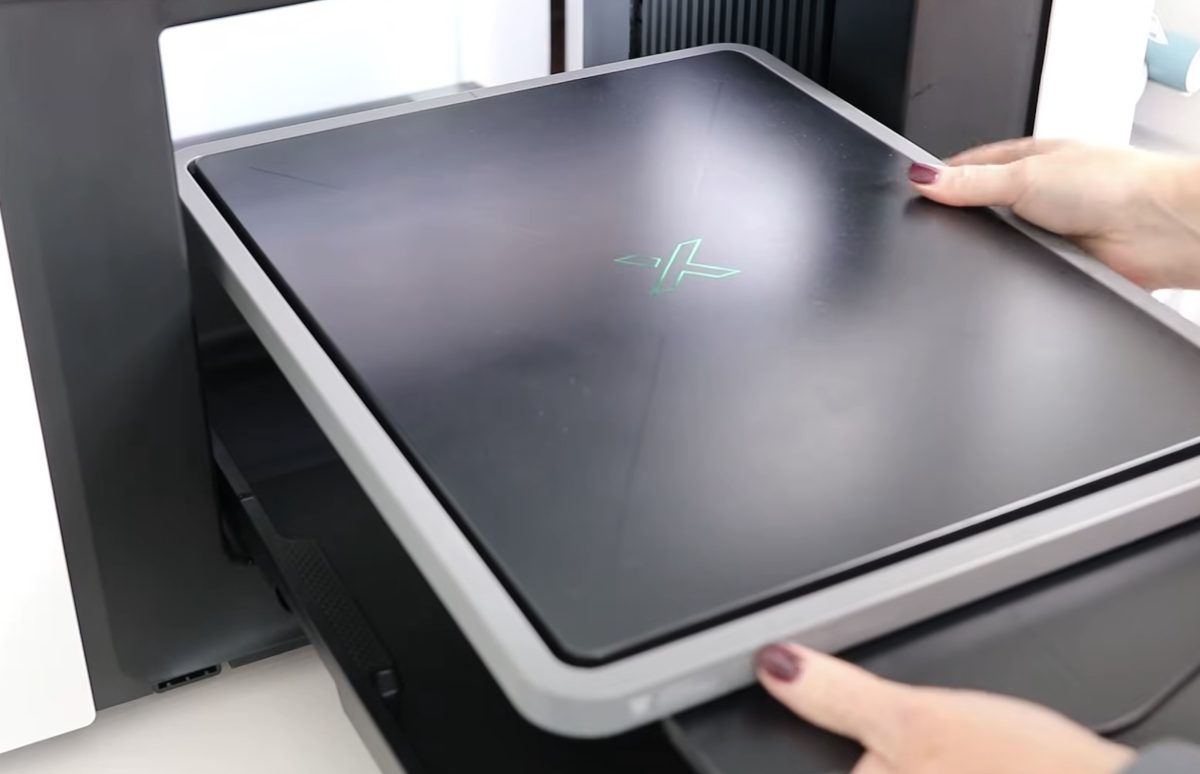
The DTG tray has a tab with a center line, and that is the area where we want the collar to be.
Remove the frame from the tray, load the shirt onto the tray with the collar toward the tab, and center the shirt on the tray. The collar should be hanging off the tray.
With the shirt loaded and centered, replace the frame. The frame will help hold the shirt in place, and it also has a center line to help you make sure things are lined up correctly.
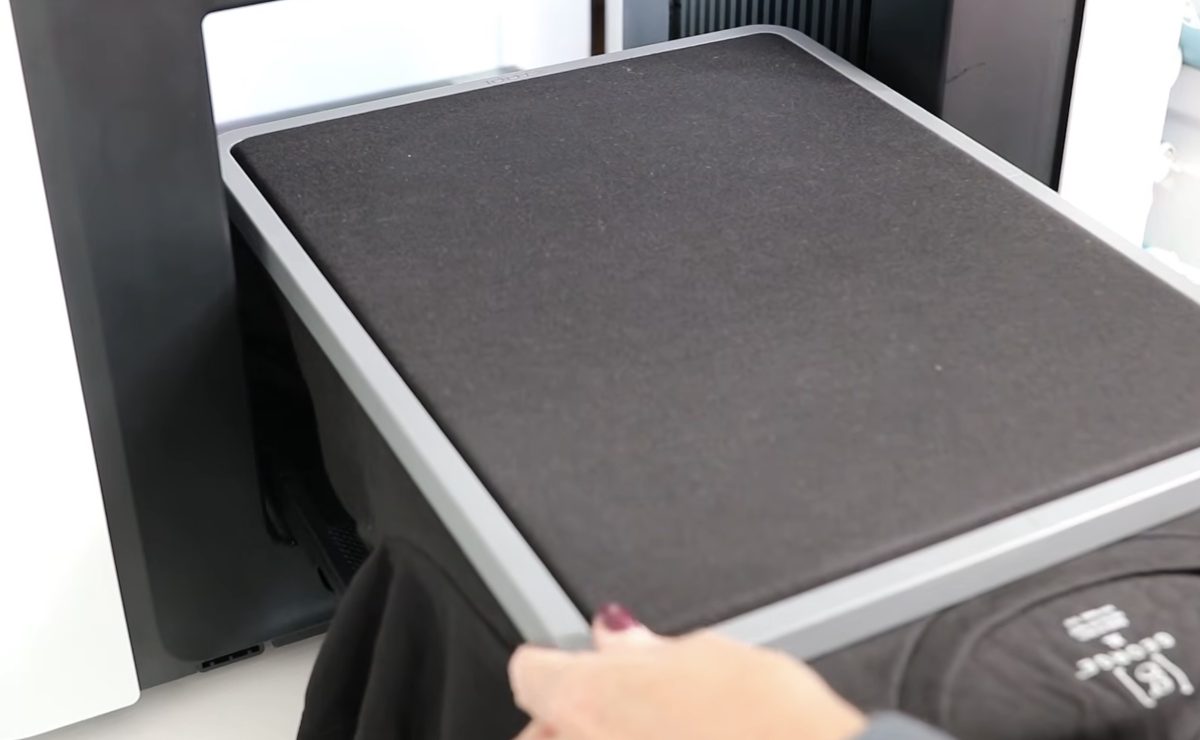
If your shirt is a larger size, tuck the fabric that is hanging over the sides into the bottom of the tray so nothing gets caught in the printer.
Adjust the Design in xTool Studio
Open xTool Studio and scan the bed. Now, we can see the printable area right on the screen.
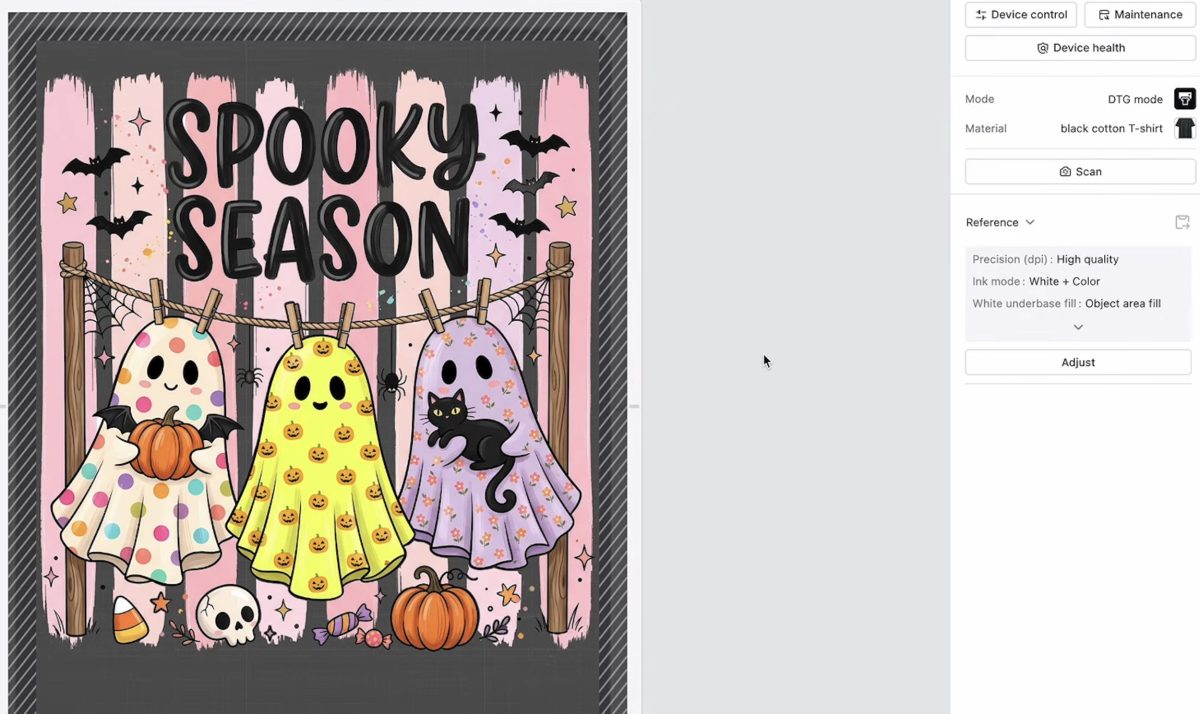
Upload the design and resize it to fit the shirt. I am making my design large to see how big a design I can print with the xTool Omni UV + DT.
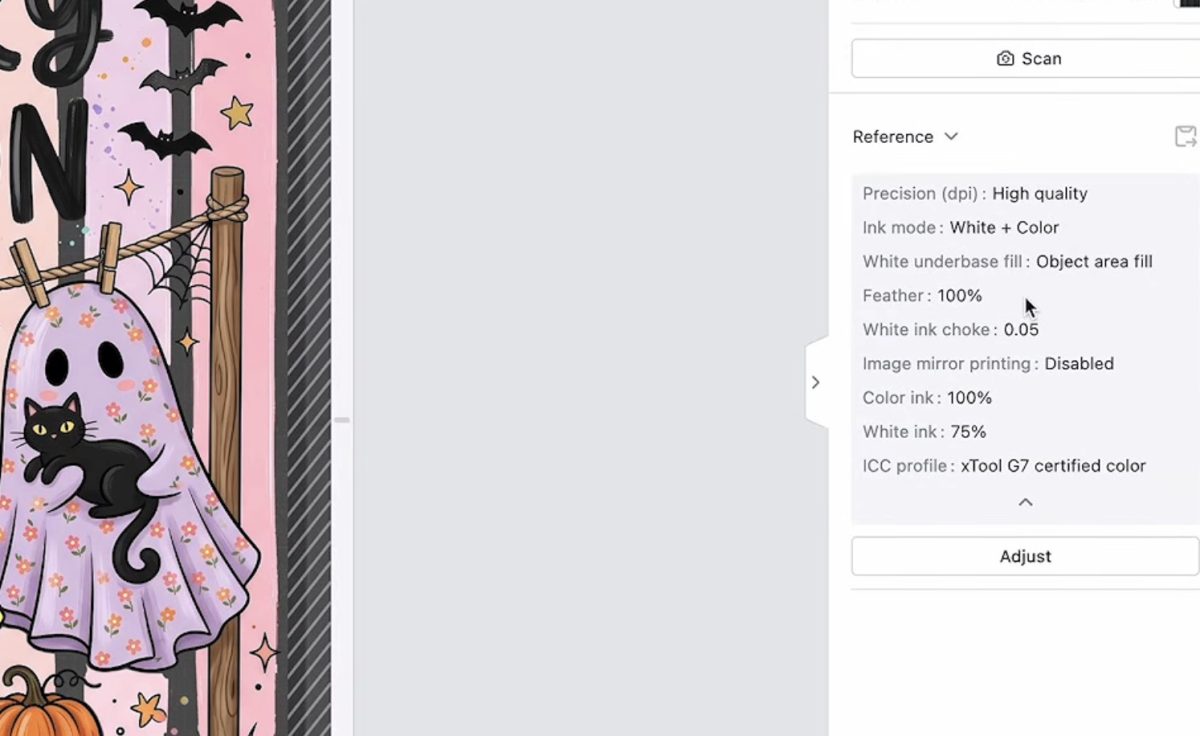
You can make a lot of adjustments to the printing parameters if you want. I used the parameters that are recommended when choosing a black cotton shirt as the material. After printing this shirt, if I used the same design again, I would probably increase the white layers to help brighten the colors in the design.
Note: If you have not used the xTool Omni for a DTG project in a while, make sure to do a nozzle check. I did not do that and ended up with a shirt with terrible results. Before you print on the shirt, you want to make sure all the inks are flowing correctly.
Print Directly on a Cotton Shirt with the xTool Omni UV + DT Printer
I did want to note that in xTool Studio, the top of the design will be at the top of the screen. The top of the screen is where the collar is on the printer.
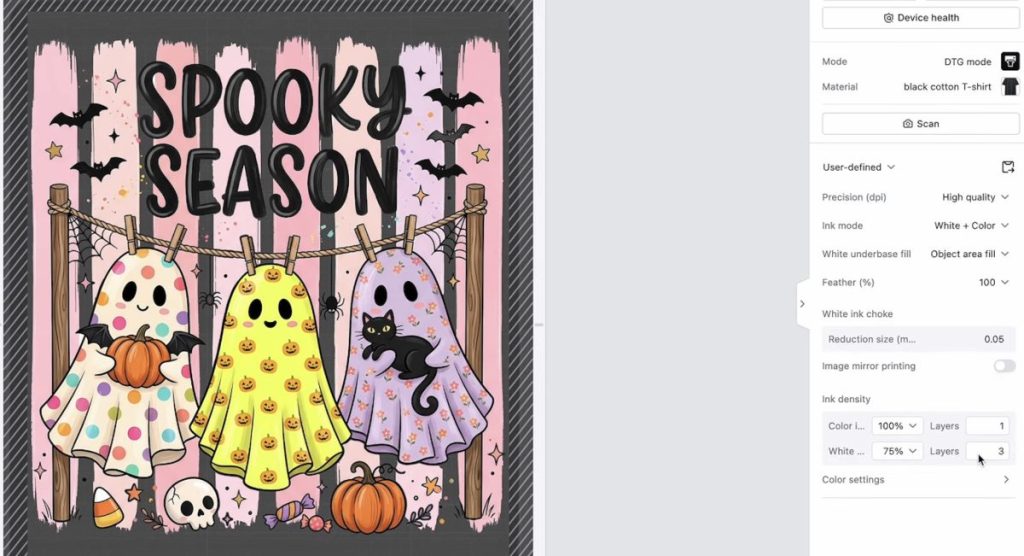
Once you click Print and send the design to the printer, you'll see the design flip itself so it replicates what you're seeing on the printer itself.
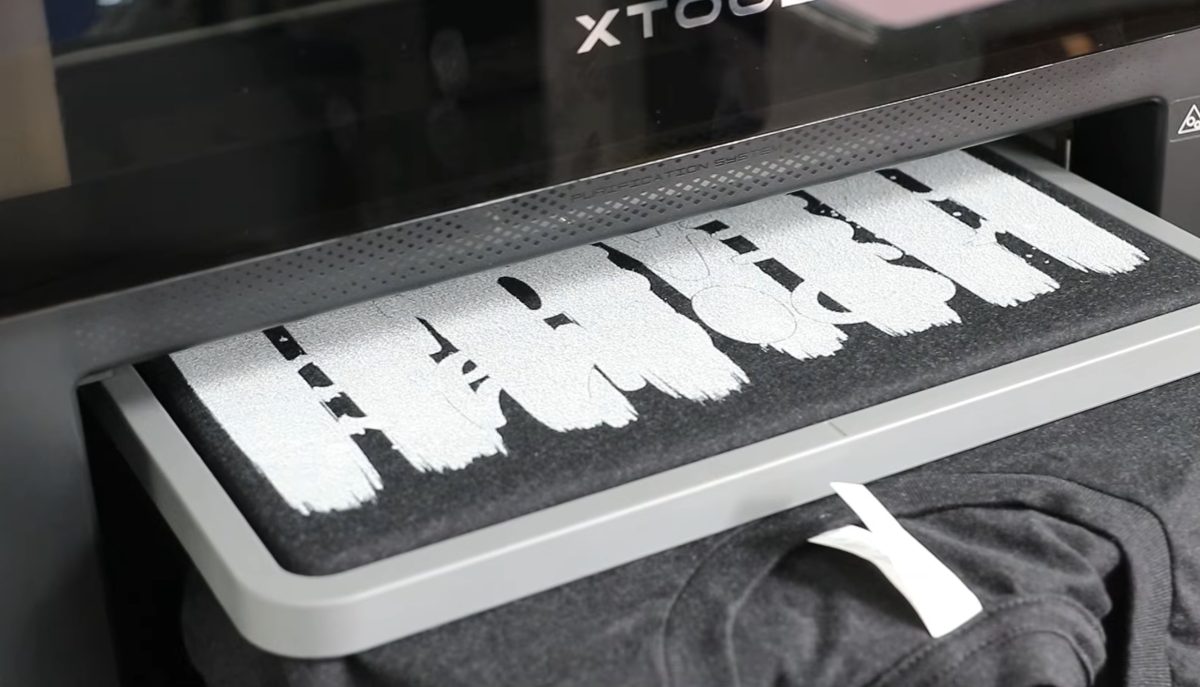
Send the design to the printer, and it will start the printing process. First, it will lay down the white layers, and then it will print the colors on top.
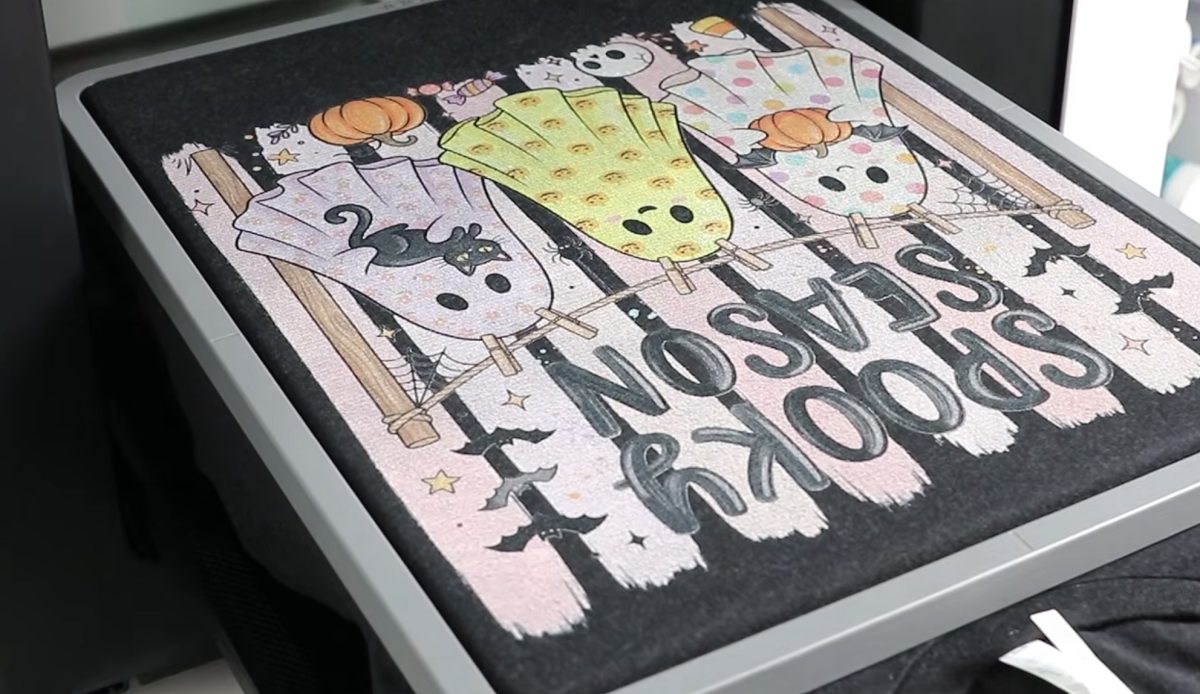
When the printing is done, the ink is wet. Carefully remove the frame and carefully remove the shirt without touching the ink.
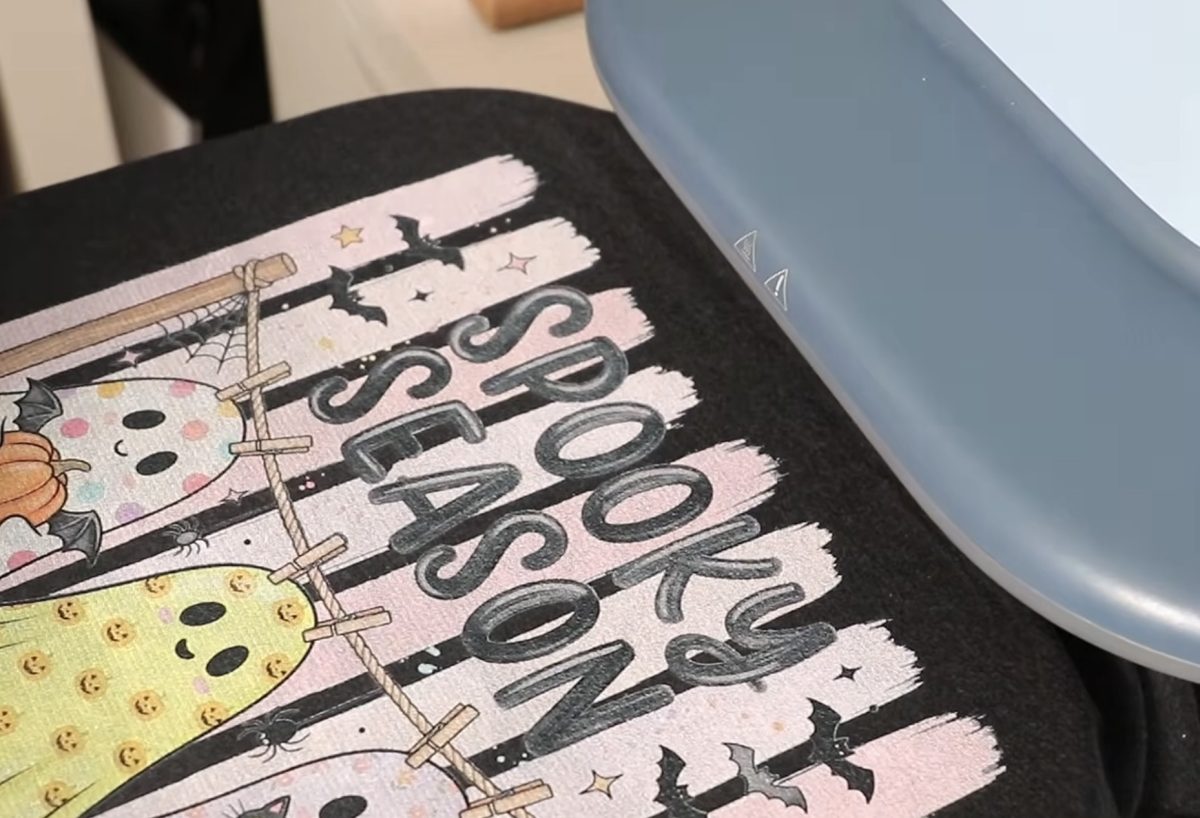
Place the shirt in the heat press with the wet ink facing up. Set the heat press to 300° for 180 seconds and cover the design with protective paper.
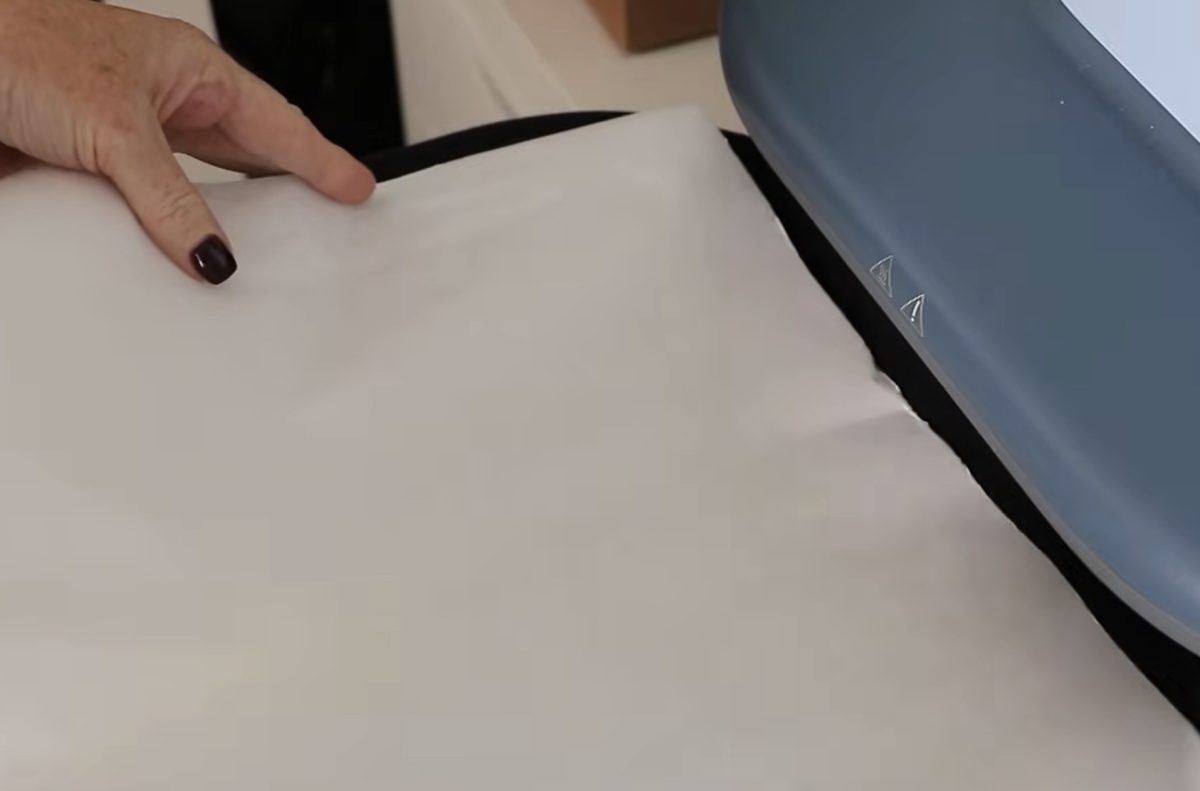
Press for the full time, and without removing the paper, watch for any steam coming off the shirt. After 180 seconds, I still had steam coming off the shirt, so I pressed for a few more seconds. If you have a lot of steam, don't be afraid to press longer.
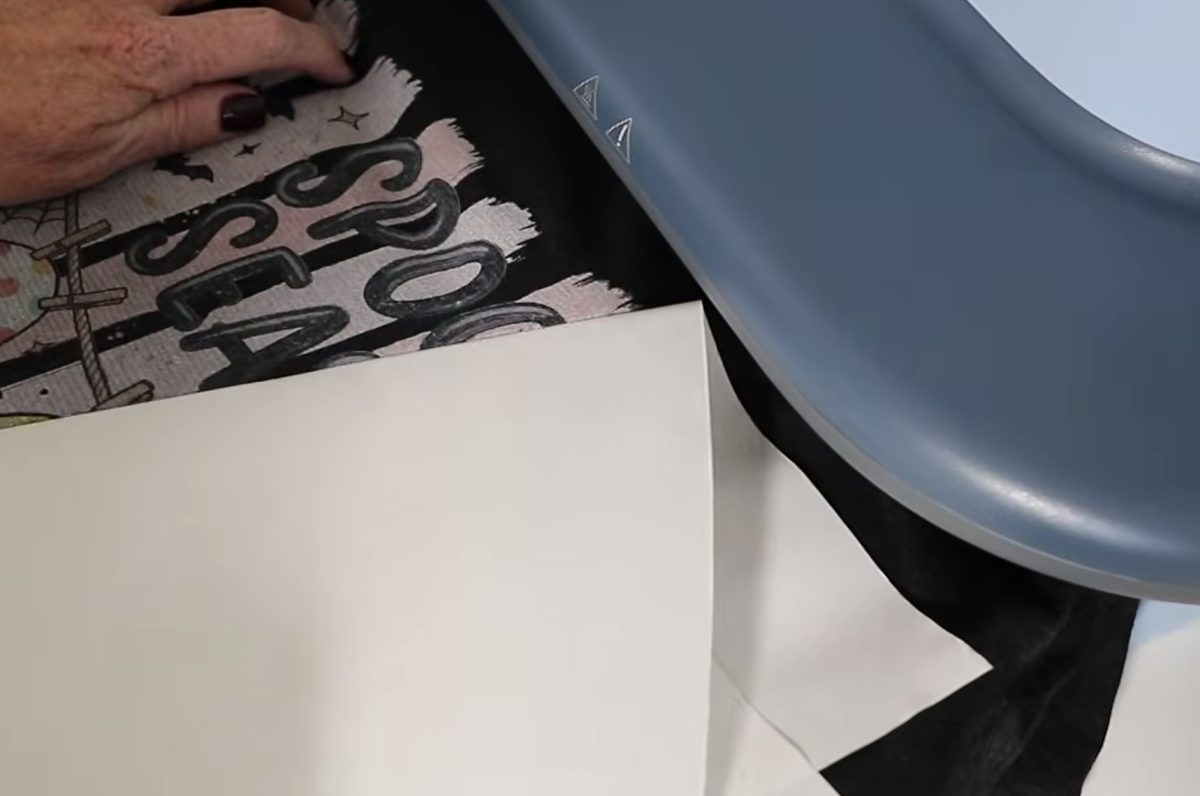
When it's no longer steaming, peel back the protective paper, and your shirt is finished.
Final Thoughts on DTG Printing from the xTool Omni UV + DT Printer
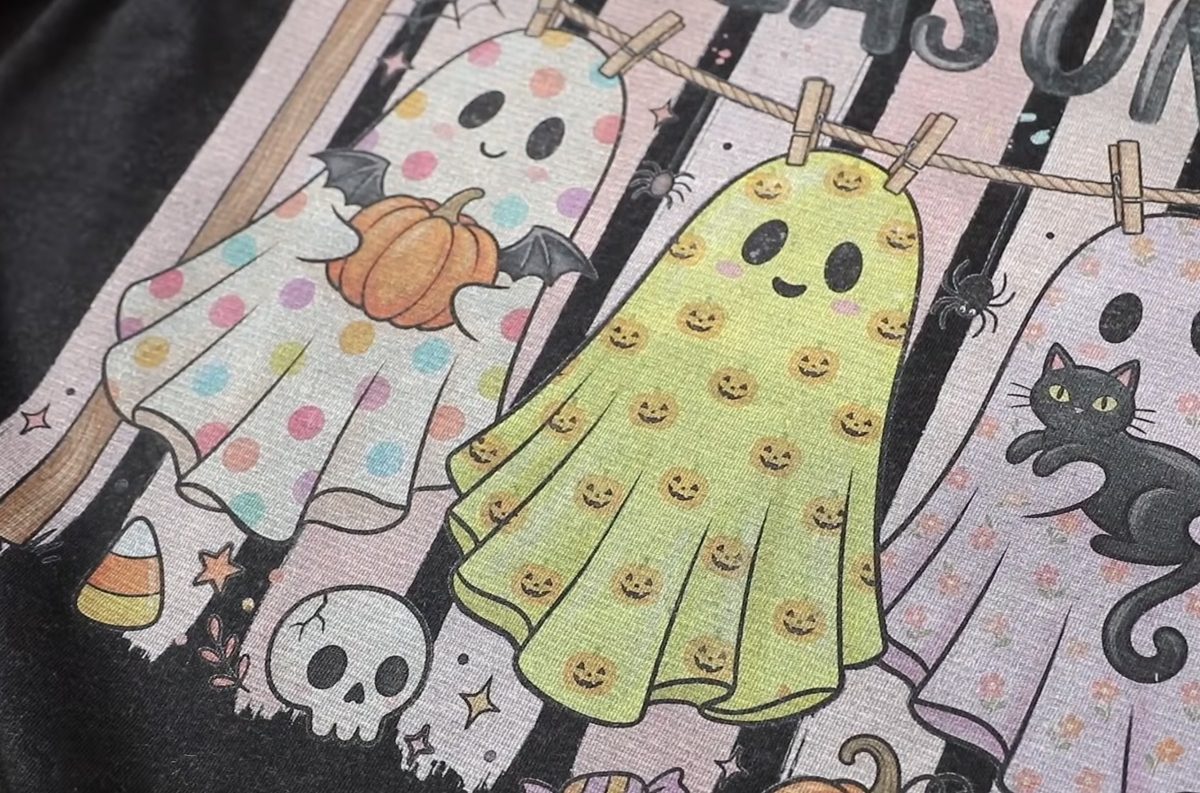
First, I want to call out the positives. The hand feel of this shirt is amazing. It feels really good, like it's actually part of the shirt.
With the recommended settings, you can still kind of see the black shirt through the white in the design. It's not as vibrant as I'd like.
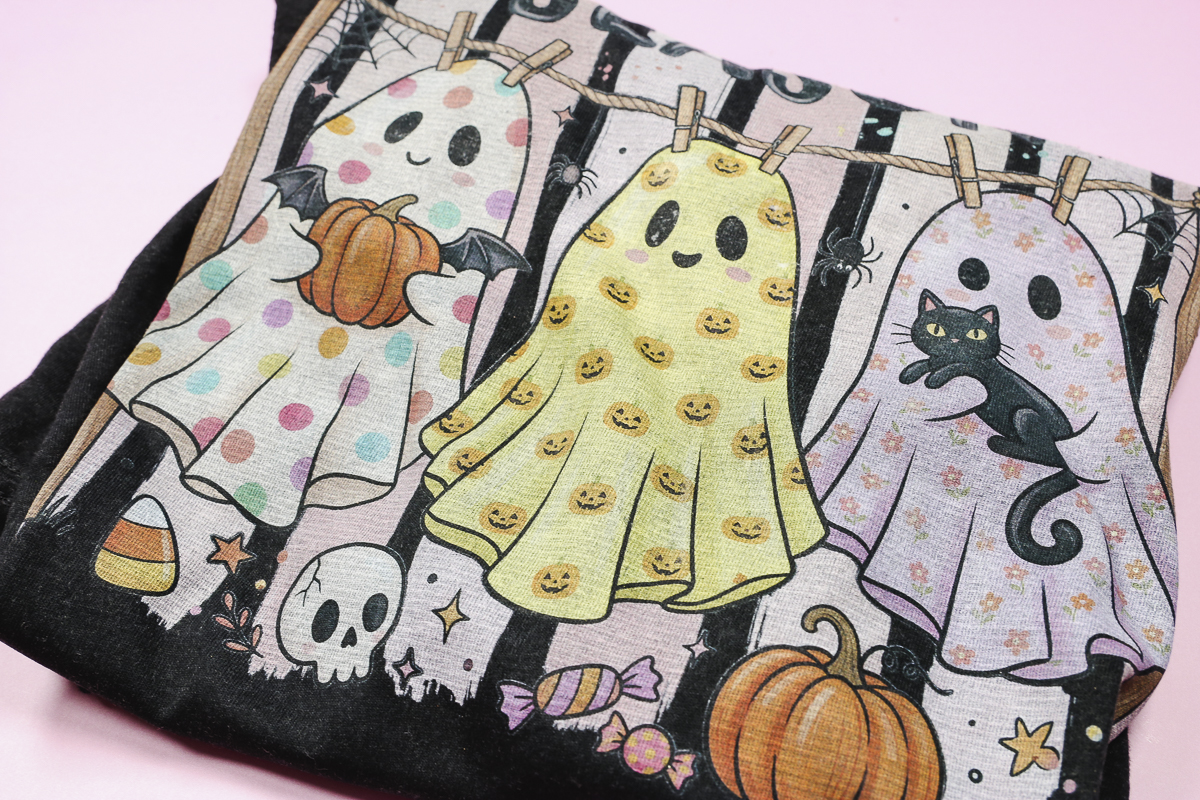
Normally, I'd say this is no big deal because I can just increase how much white is laid down, but in this instance, the print took almost 30 minutes to print. If I add additional layers, it's going to take even longer to print.
Another issue I had was that the paper stuck to the ink after pressing. I'm not sure if using a Teflon sheet would help with that, so I may try it in the future.
So yes, you can print directly on cotton fabric with this printer, but you need to be prepared for it to take a while. It's pretty slow, and I think you're going to need to make some adjustments to the print settings to get a final product you're happy with.
Note: This Omni model can print DTG, and it can also do DTF prints. Because of the setup for this printer, DTF prints would require manual powdering and manual curing, and due to safety concerns, I don't recommend that process.
After using all of the different features, I wish I had chosen the Dual UV Print Head model. I'd rather have the flexible white ink and the ability to print even faster than the DTG and DTF printing options.
xTool Omni Maintenance & Upkeep
Let's talk about the maintenance and upkeep of the xTool Omni.
- Once the printer is set up, you're going to keep it plugged in, and it will do a lot of the maintenance for you. It's going to do a lot of the moisturizing for you.
- Omni has a vacation mode, which is fantastic. You can click Vacation Mode within xTool Studio to prepare it for when you are going to be gone for an extended period of time. If your Omni sits idle for a while, it will turn on Vacation Mode automatically.
- xTool Studio will also give you automatic reminders for maintenance that needs to be performed. There are some weekly maintenance processes you need to do and others that are monthly.
- The Omni will keep the white ink stirred, and it has temperature controls to help keep everything at the right temperature.
- Anytime your printer sits for an extended period of time, make sure to do a nozzle check to ensure all of the inks are flowing correctly. When it was not flowing correctly, I just followed the instructions on the screen. There is a standard cleaning, a deep cleaning, and you can also go back into the moisturizing state and recharge the lines. You can also use the syringes to pull ink through the lines. The steps are very simple. I found it very easy to get it printing again.
I definitely recommend printing weekly. For automatic maintenance, you need to leave it plugged in. It's a little noisy at times but worth it to keep up with the maintenance.
Ready to buy the Omni? Click here!
Pros & Cons of the xTool Omni UV + DT Printer
Before we get into the pros and cons, I want to remind you that these are for the UV + DT model. I have not used the other models, so I can't speak to all of their abilities.
xTool Omni UV + DT Pros
- I will say the UV + DT model is a good option if you want one machine that can do all the things. You can do UV printing and DTG printing. It is a pro, but there is a trade-off: being able to do all these things results in them being slower.
- For me, the DTG printing will require tweaking to get results I am happy with.
- I got gorgeous results using UV printing. The prints, texture, and relief effects are all so good.
- I actually loved the rotary accessory. It was really easy to use, and the full wrap results were amazing. While I didn't love the results with the 40-ounce tumbler, with this style of tumbler, I can use the Omni to create UV DTF stickers that I can apply to the larger tumblers with a handle.
- The scanning tool in the xTool Omni is very accurate, and the scan itself is really fast. Because of how accurate the scan is, I knew I could move the image where I wanted it, and it would print exactly where I located it.
- I really like that the Omni does a lot of the maintenance for you. The Vacation Mode setting is a game changer. It's such a relief knowing I don't have to worry about the printer while I'm away from home.
- I like the two different base plate sizes. With the larger plate, you can batch a lot of smaller projects or make one large project.
- There are so many projects you can make with this printer that are perfect for small business owners.
I do want to note that the UV + DT model is not as fast as some other options. If you're looking for a UV printer for your small business, I would definitely recommend the Dual UV Head model. It gives you the option to use flexible white ink and other specialty inks and is a faster printer.
xTool Omni Cons
- Once you pick a model, you are stuck with that model. You cannot change your mind and swap out parts to make it one of the other models. I cannot recommend enough doing a lot of research to make sure you get the right model for your needs.
- It is a closed ink system. You need to buy the ink cartridges directly from xTool, and you cannot use third-party inks.
- This is not a large printer. You can do a lot with it, but you can't do everything, and you will be limited by the blank size and the time it takes to make each project. I would not consider this a production printer, and if you're running a small business that gets a lot of orders for projects requiring UV printing, this may not be the right option for you.
- I was not impressed with the DTG printing from this printer. It is very slow. If you're doing the pre-treatment yourself, that is also going to take time to do and press for each blank. The results I got were just okay. I am going to have to make a lot of adjustments to get it to where I'm really happy with it.
- I will not be using the Omni as a DTF printer. For safety reasons, I don't want to deal with manually powdering the ink or manually curing the powder. If that is something you're interested in doing with this printer, I would look for enclosed shakers and ovens that you could use with it.
- Some consider a learning curve a con. I consider it part of learning something new. If you've never used a UV printer, there is going to be a learning curve.
Ready to buy the Omni? Click here!
Is the xTool Omni UV + DT Printer Right for You?
If you're a personal crafter who wants to print directly on hard surfaces and you like what you saw in the projects I made today, this might be the right printer for you.
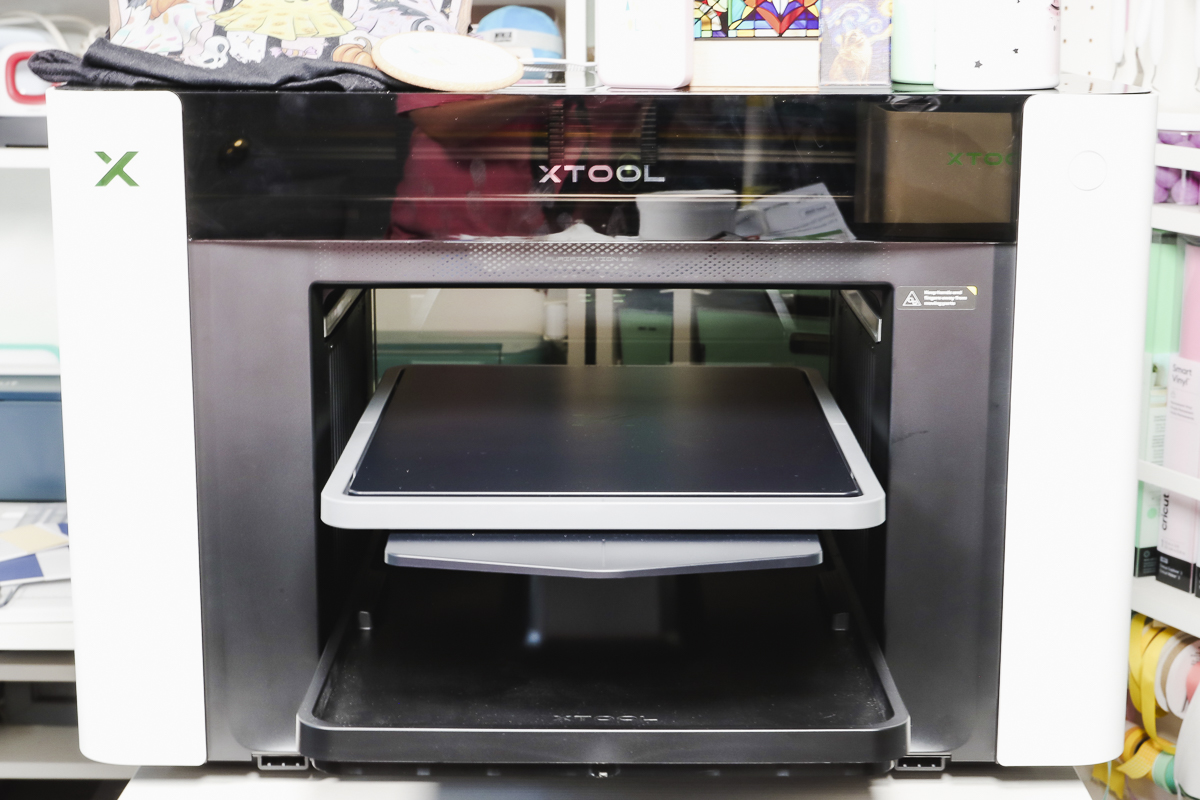
If you're someone who likes to print on a lot of different surfaces and wants to try DTG printing, this model is an affordable way to give DTG a try.
A sublimation or Cricut crafter who wants to try some new things, like UV and DTG printing, may like that you can do many things with one printer. Just be aware, I don't think it's fast enough to replace everything.
If you're someone who wants to print directly on shirts to sell in volume, this is not the right printer for you. The DTG printing process takes too long to make it the right choice for people who are making a lot to sell.
If you want the ability to use flexible white ink and other specialty inks like fluorescents, this model is not the right model for you.
Ready to buy the Omni? Click here!
All of the projects I made today were made with what came with my xTool Omni UV + DT printer. There are additional accessories you can purchase on their own or in a bundle that I will cover in a future tutorial. If you're curious about the laminator and making UV DTF stickers, don't worry; I've got that one coming.
I'll also try the roll feeder and printing directly on rolls in an upcoming tutorial as well.
I hope I've answered your questions about the xTool Omni UV + DT model printer. If you have any other questions, leave them in the comments, and I'll be happy to answer them for you.