
Have you ever wished you could make larger projects with your laser? I'm going to show you how to use the WeCreat Auto Pass-Through Feeder to make projects larger than you can make in the bed of your laser.
If you've ever been frustrated by the size limits of your laser bed, I think you're going to love learning how to use the pass-through feeder.

I have loved using the WeCreat Vision Pro. It has professional capabilities, and I've found it to be very precise. I've wanted to make a larger porch sign, and by combining the Vision Pro with the pass-through feeder, I was able to make this adorable Halloween geese sign.
WeCreat Pass-Through Feeder
I have to admit, I've been a little reluctant to try a pass-through feeder. They appear to take up a lot of room; I didn't know how hard it would be to set up and use, and I wasn't sure what kind of results I could expect.
I'm glad I decided to give it a try and I think you will be too.
How Does a Pass-Through Feeder Work?
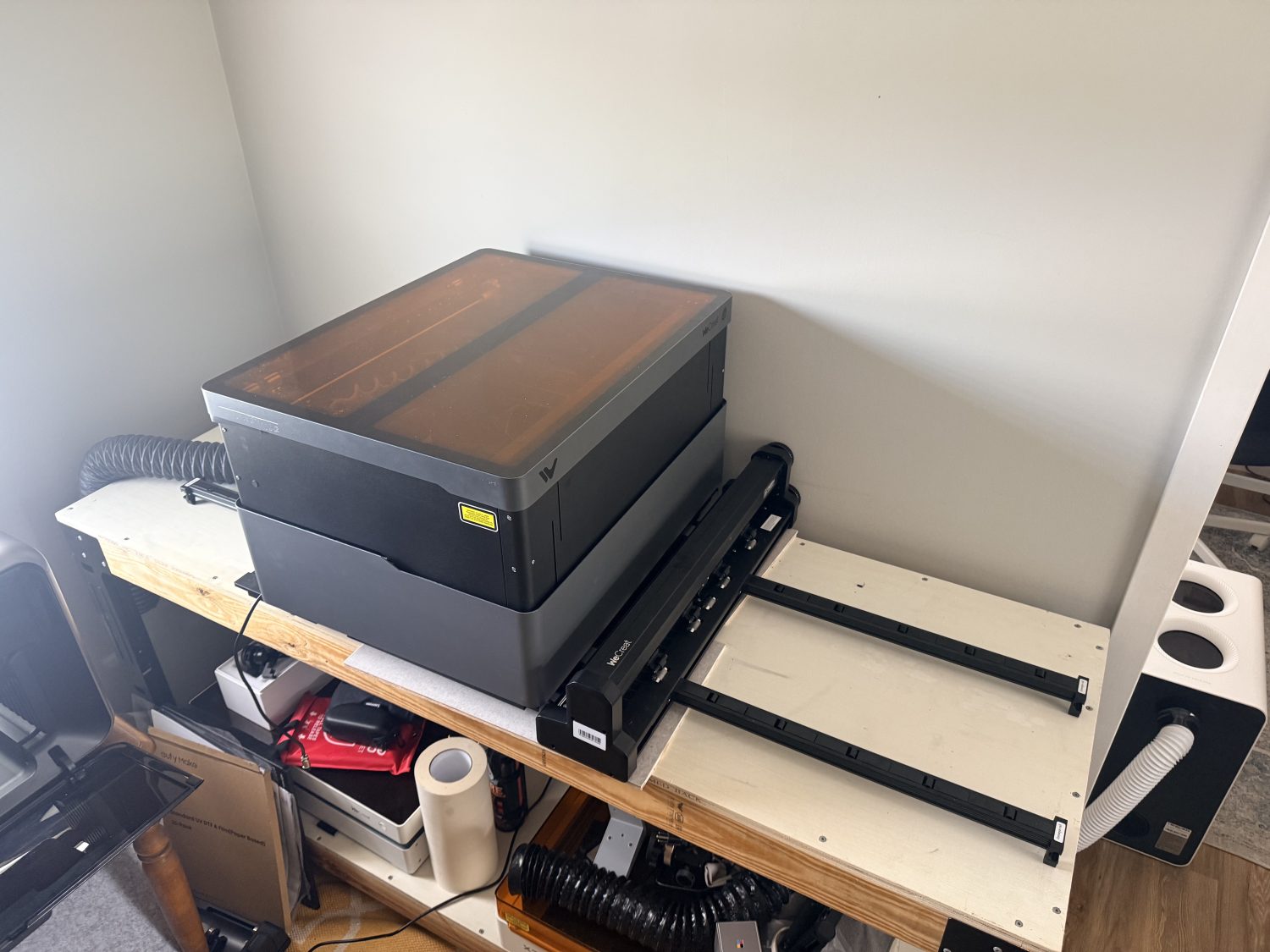
This is a powered pass-through feeder. It moves the material back and forth in the laser to give the ability to create larger projects than with only the laser by itself.
This feeder sits under the WeCreat Vision Pro. The material sits on rollers, which allow it to move into the laser to be cut.
This particular feeder says it can work with the WeCreat Vision Pro, but it also says it can work with other lasers, including other brands. I haven't tried it with other lasers yet, but it's exciting to think that one pass-through feeder could work with different lasers you may own.
How Much Larger Can You Cut and Engrave Using the Pass-Through Feeder
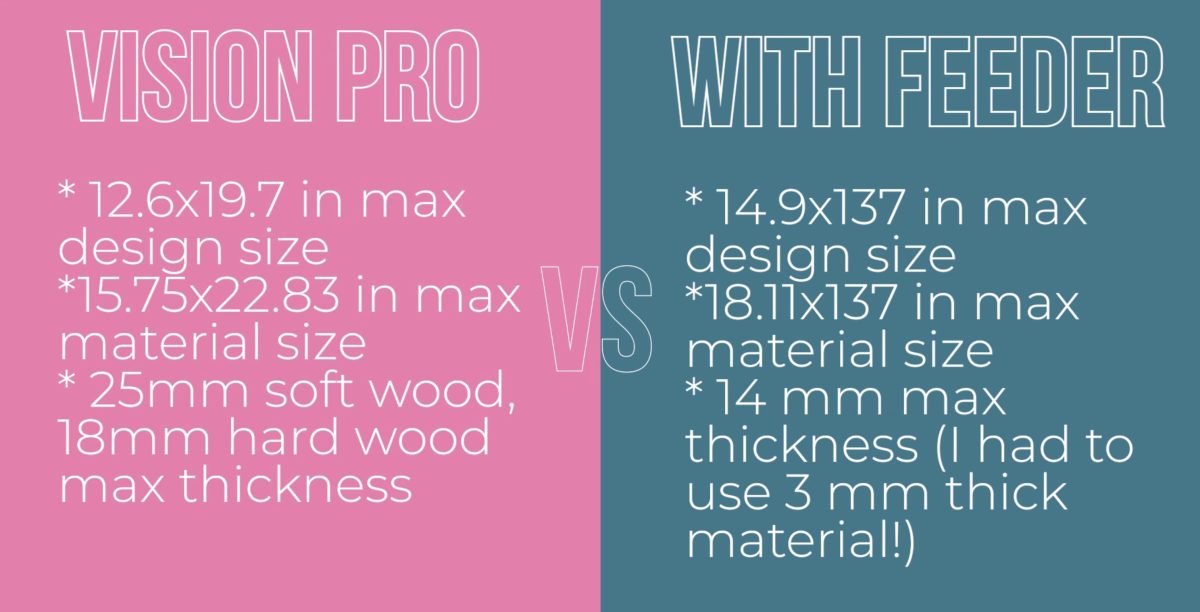
For the WeCreat Vision Pro, the maximum design size is 12.6 inches by 19.7 inches. The maximum material size is 15.75 inches by 22.83 inches.
By adding the pass-through feeder, the design size increases to 14.9 inches by 137 inches. The maximum material size is 18.11 inches by 137 inches.
This increase opens up not only larger projects but also the ability to batch smaller projects, making many items at once without needing to swap materials.
How Thick of Materials Can You Use with the Pass-Through Feeder
WeCreat states the maximum thickness for the Vision Pro for soft wood is 25 mm, and for hard woods the maximum is 18mm.
I tested a wide variety of materials with the pass-through feeder, and I was unable to successfully use any of those thicker woods. The only material I was successful in creating a full project with was 3mm thick.
To feed the wood into the laser, you have to manually tighten the wheels on the laser pass-through feeder. When using thicker materials, my wood pieces kept slipping, which caused alignment and cutting issues.
Note: Because you have to manually tighten the wheels for the feeder, it's possible someone with stronger grip strength may be able to use thicker/heavier materials. I wanted to test what I could do on my own, and 3mm was the thickest I was able to successfully use.
How to Set-up the Pass-Through Feeder
Before we begin the setup process, please review the space you need to use the pass-through feeder. You're going to need a long, flat surface for the feeder.
I was really impressed with how easy it was to set up. Following the directions I had it set up in no time.
I followed the manual that was included with the feeder, and it goes into detail for each step along the way.
To begin, unbox everything. Inside the box, you'll find the feeder base, cables, brackets, etc.
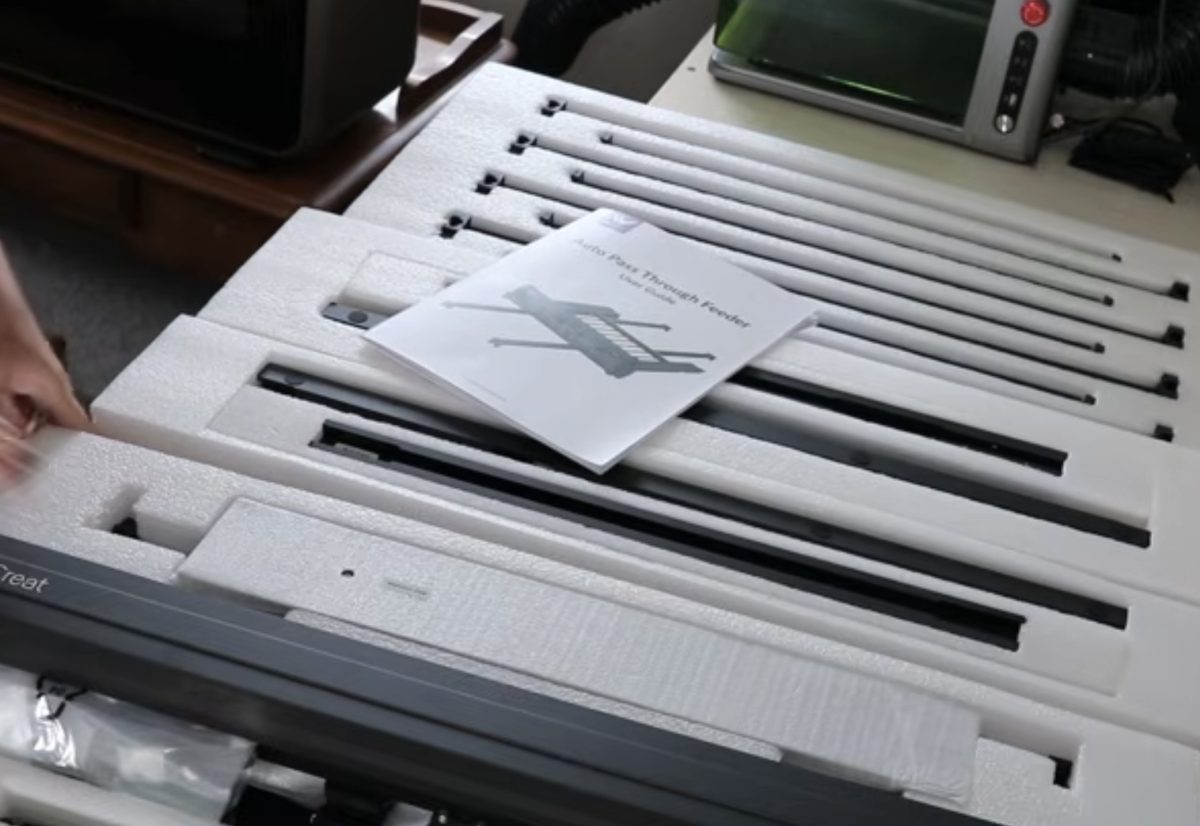
First, assemble the support frame. There is a left frame, a right frame, and a top and bottom frame. Screw everything into place and flip the piece over.
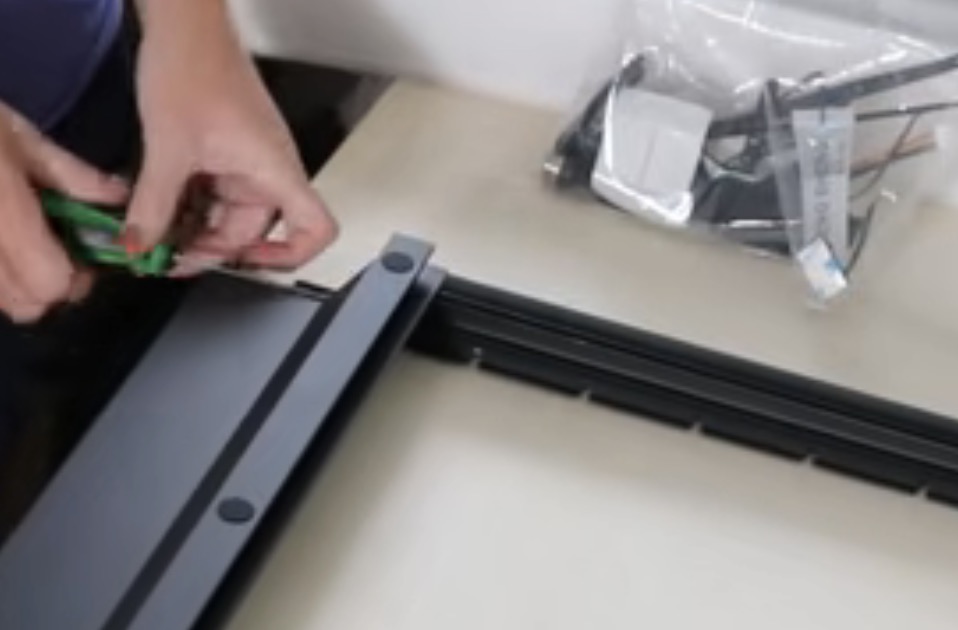
Feed the cable from the feeder through the base frame.
Then insert the entire frame into the feeder. It should slide into place, and then you'll secure it with a couple of screws.
Put the conveyor roller in place, and then put either the WeCreat Vision Pro laser bottom inside the frame or the feeder comes with aluminum sheets that you can place inside.
Place each of the aluminum slats into the grooves.
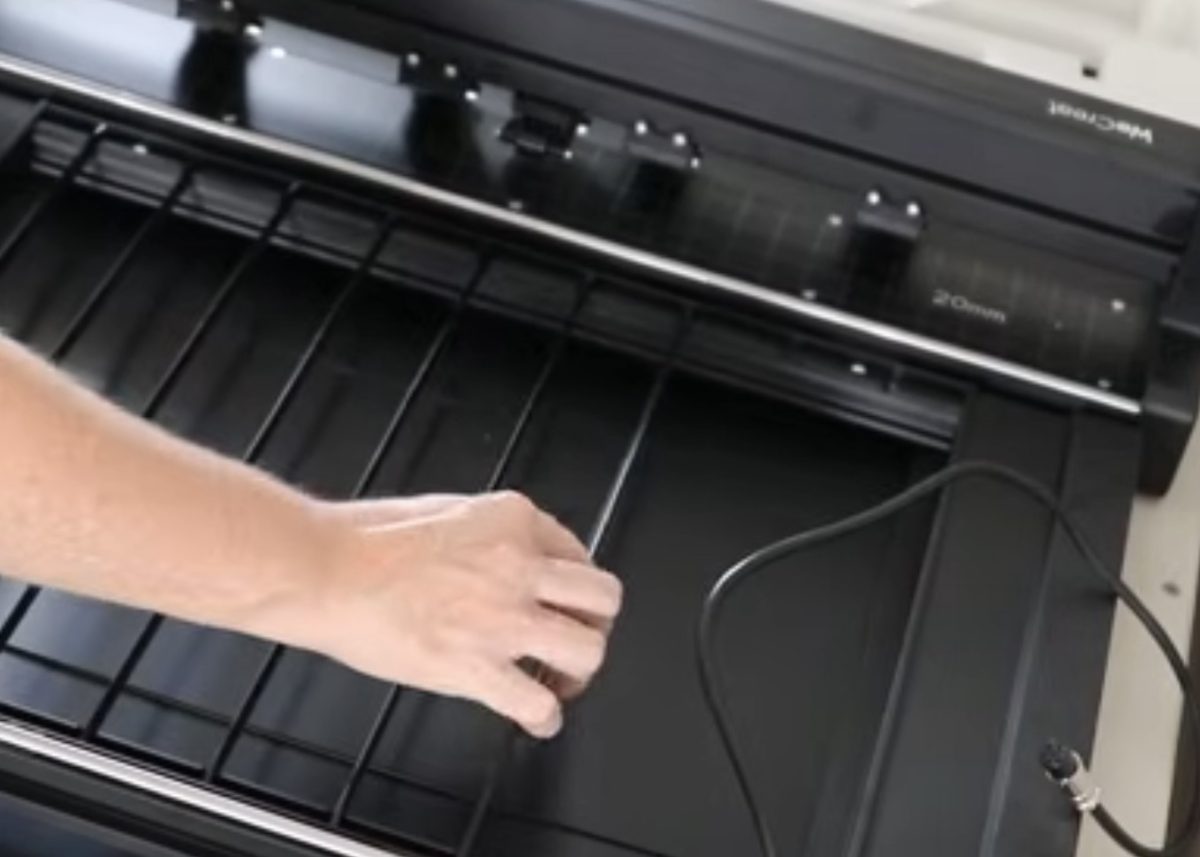
Attach the conveyor rails to the front and the back of the feeder.
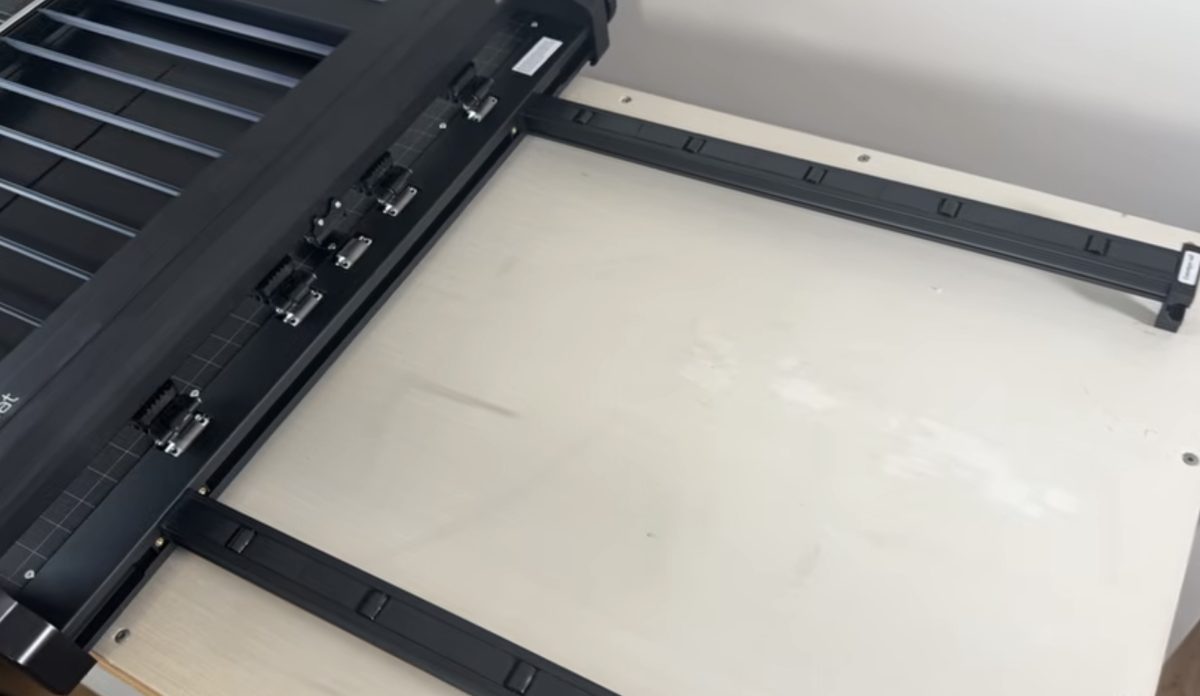
If needed, there are additional rails that you can purchase if you're cutting longer blanks. Remember, before ordering the maximum amount, you are going to need a table long enough to support the frame.
Add a Laser to the Pass-Through Feeder
Now, we're ready to add the laser to the pass-through feeder.
- Unplug your laser.
- Remove all cables and hoses from the back of the machine.
- Remove the tray and bed from the laser.
- With the lid and start button facing the feeder, set the laser on top of the frame.
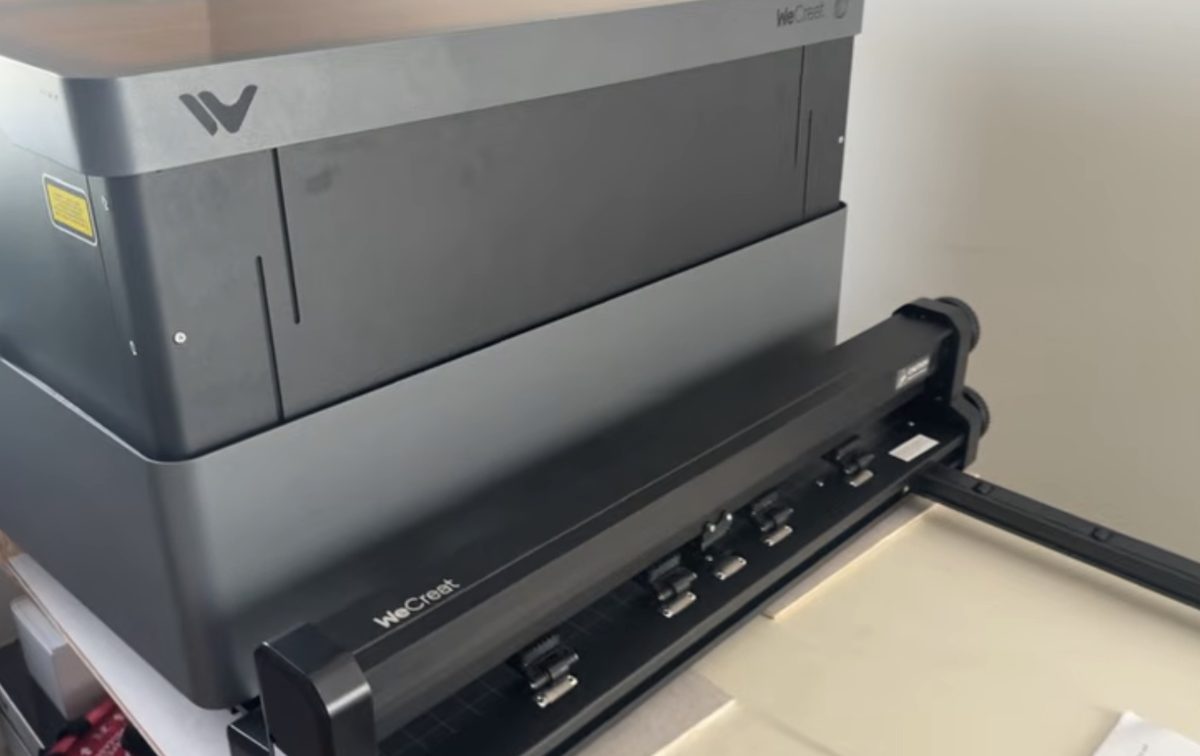
- Reconnect all of the plugs and the exhaust hose.
- Use the included cable ties to keep the cords up and out of the way of the feeder.
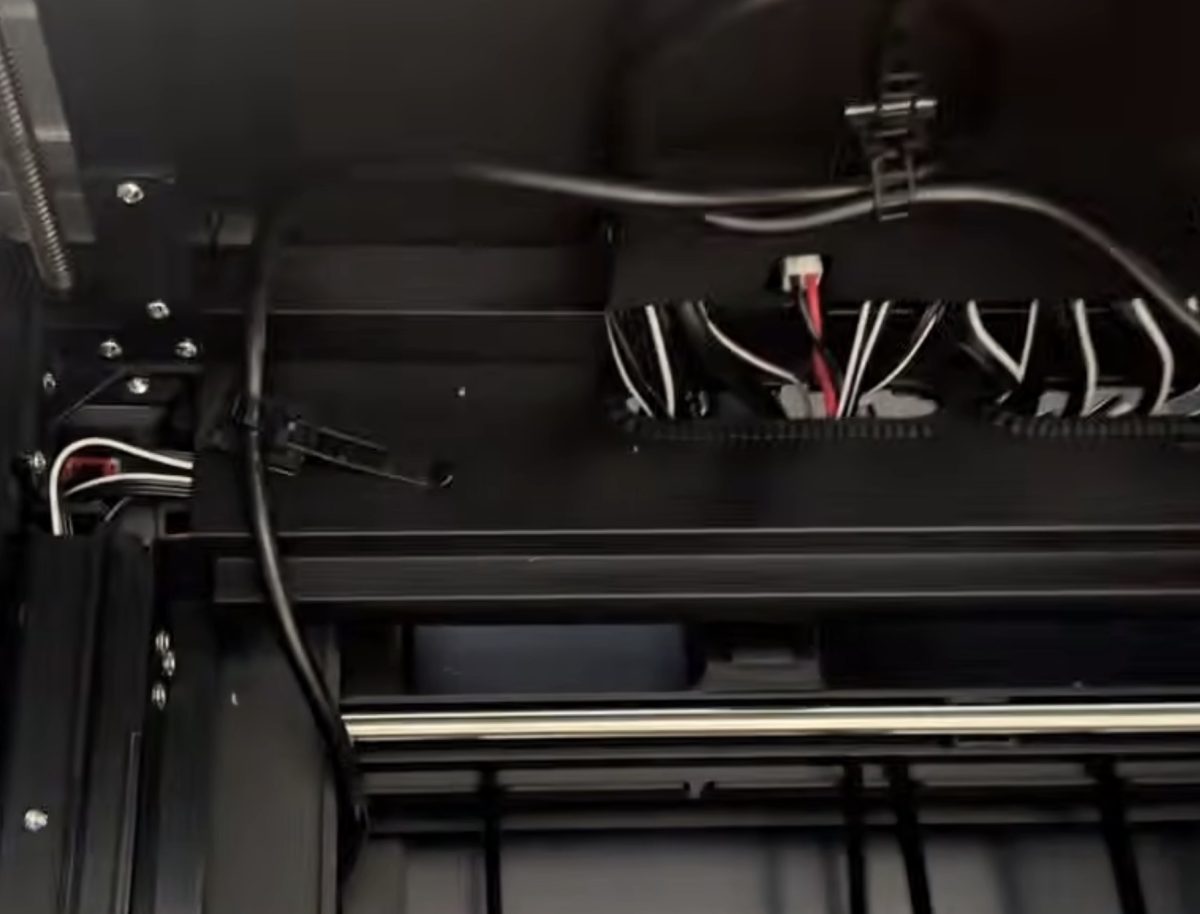
- Thread the feeder wire through the base and connect it to the machine where you attach the rotary attachment.
Notes:
1. Check the machine for any hanging wires: Inside the laser chamber and along the bottom frame, you must use the included wire ties to secure all cords completely out of the way. If a loose cable catches on a moving board inside the feeder, it can ruin your cut or damage your machine.
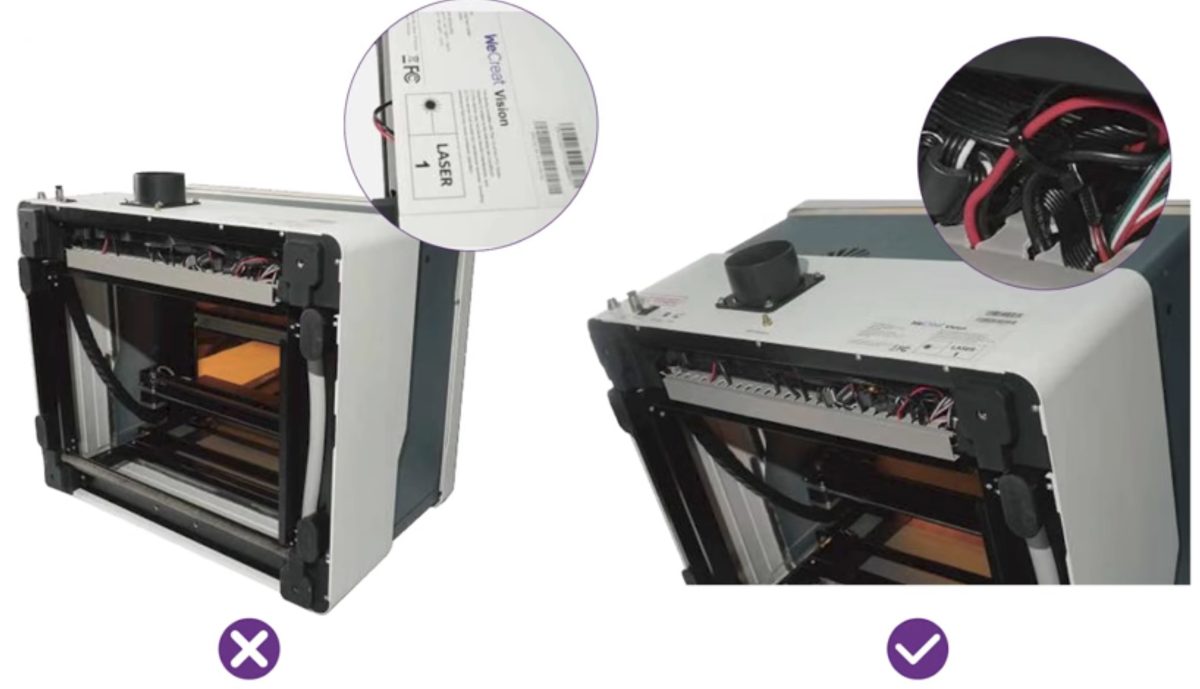
2. Double-check the laser alignment: Make sure the laser is all the way forward and aligned with the front of the frame.
3. Make sure your table is long enough for the pass-through feeder and material: Because the wood feeds straight through from front to back, your entire board needs to stay flat and level through the entire cutting process.
Create a Halloween Goose Wooden Sign
To test the feeder out, I cut a large standing goose porch sign using an 18-inch-wide by 3mm thick wood board.
Load the Material into the Pass Through Feeder
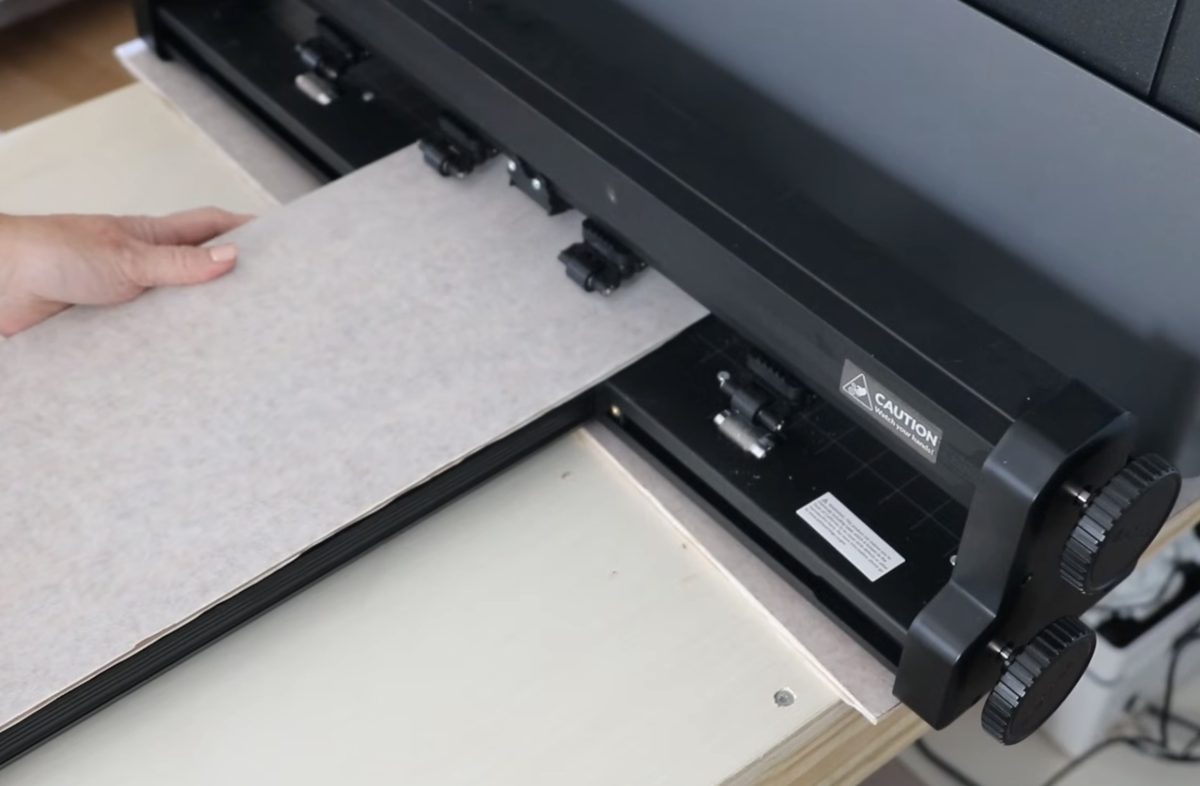
First, we need to load the wood. Using the knobs on the side, you can loosen and tighten the opening to hold the material in place. You also want to move the guides so they support the material.
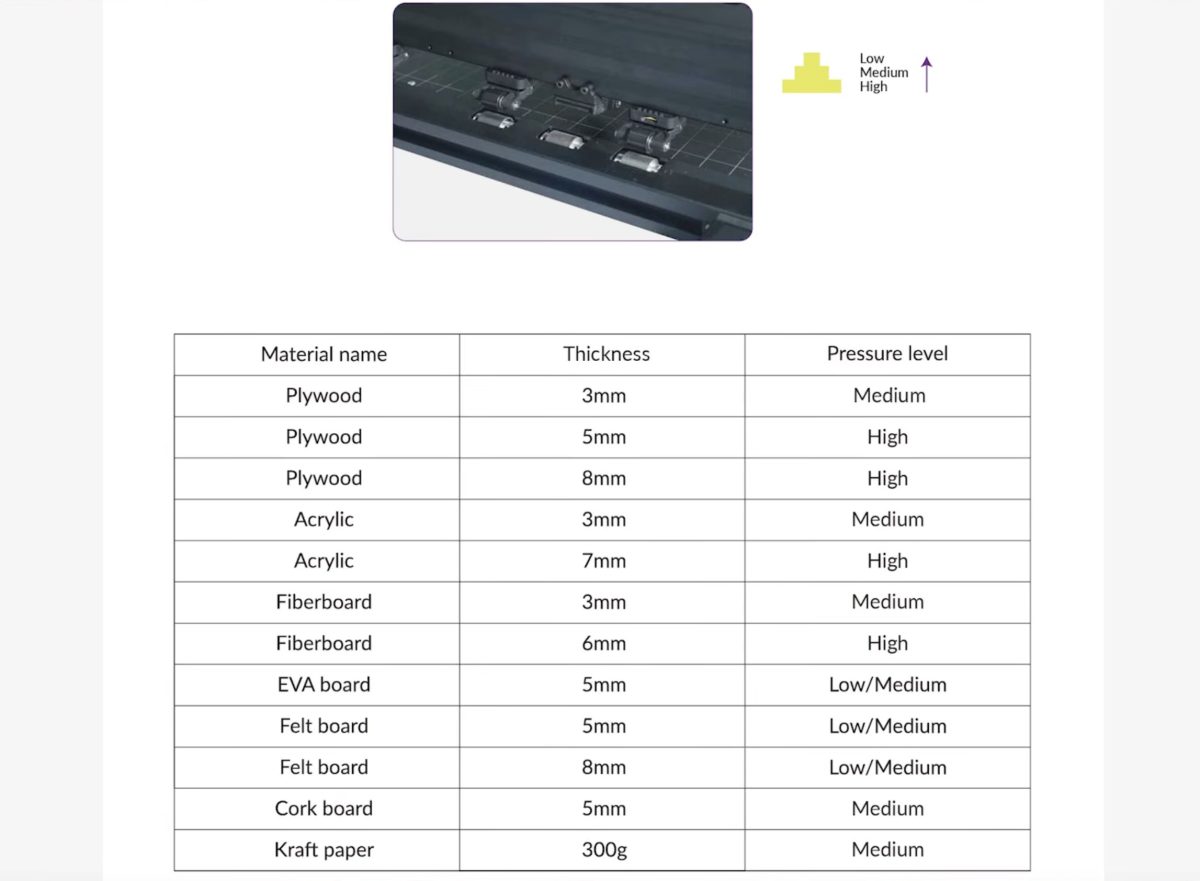
WeCreat has recommended pressure settings for different materials you can use in the pass-through feeder.
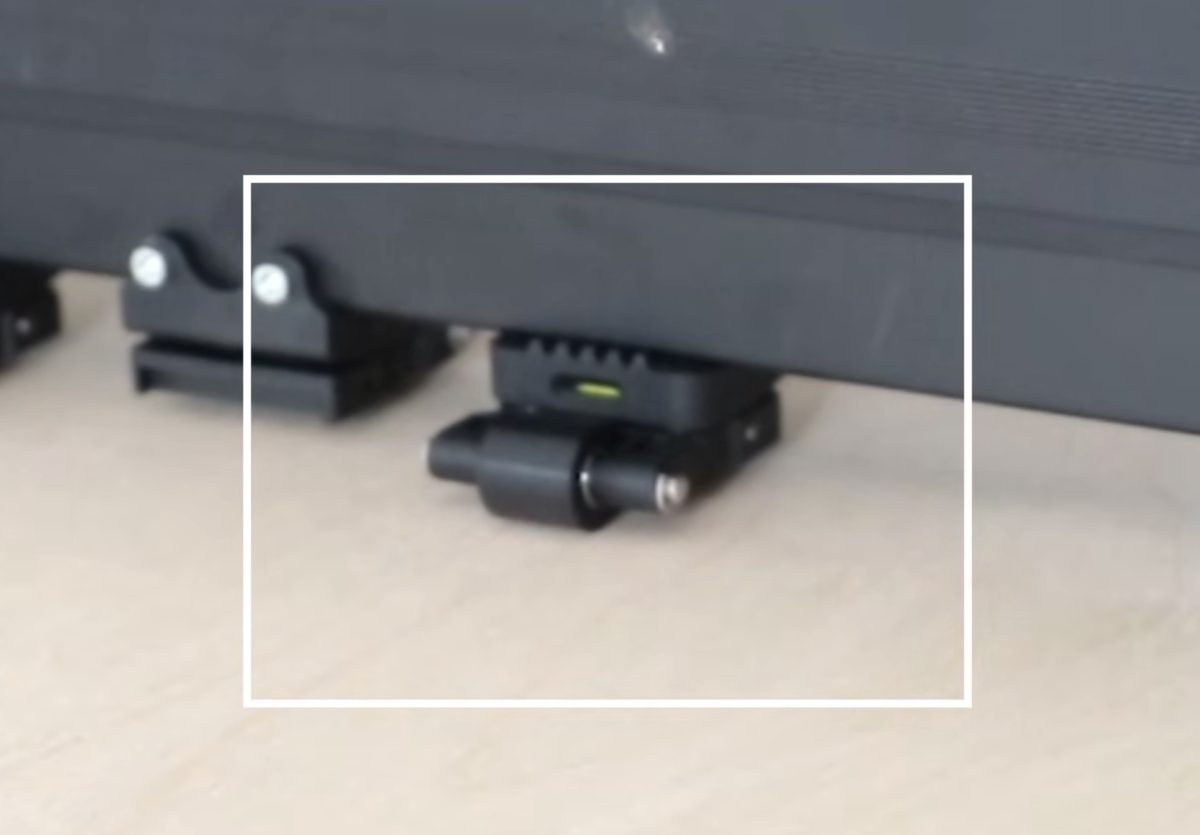
There is a window on one of the wheels that you can look at and it will show you the pressure setting.
Rotate the wheel to move the material into the laser. You'll need at least 4 inches of the material inside the laser. I moved the material all the way through the laser and then back out to make sure it didn't hit anything.
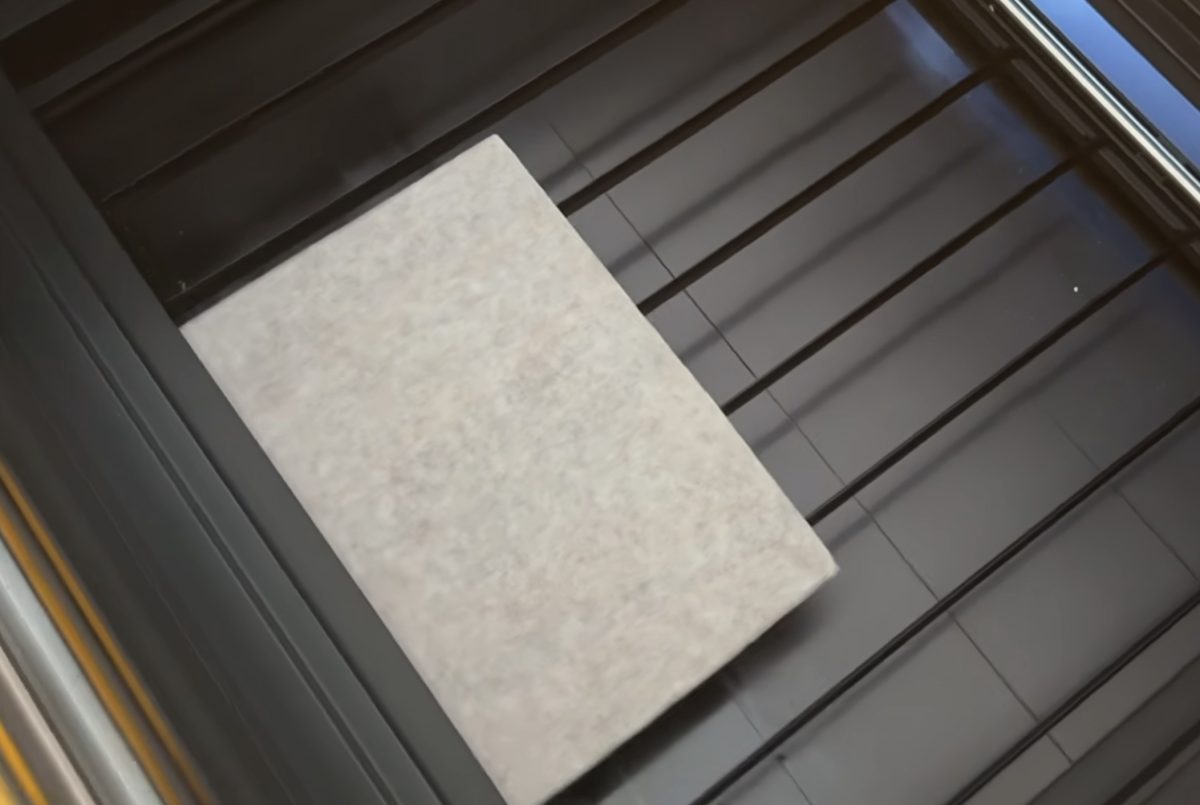
Open the WeCreat Make It Software
Open WeCreat Make It Software and connect to the laser. Make sure to choose Auto Pass Through Feeder as the working mode.
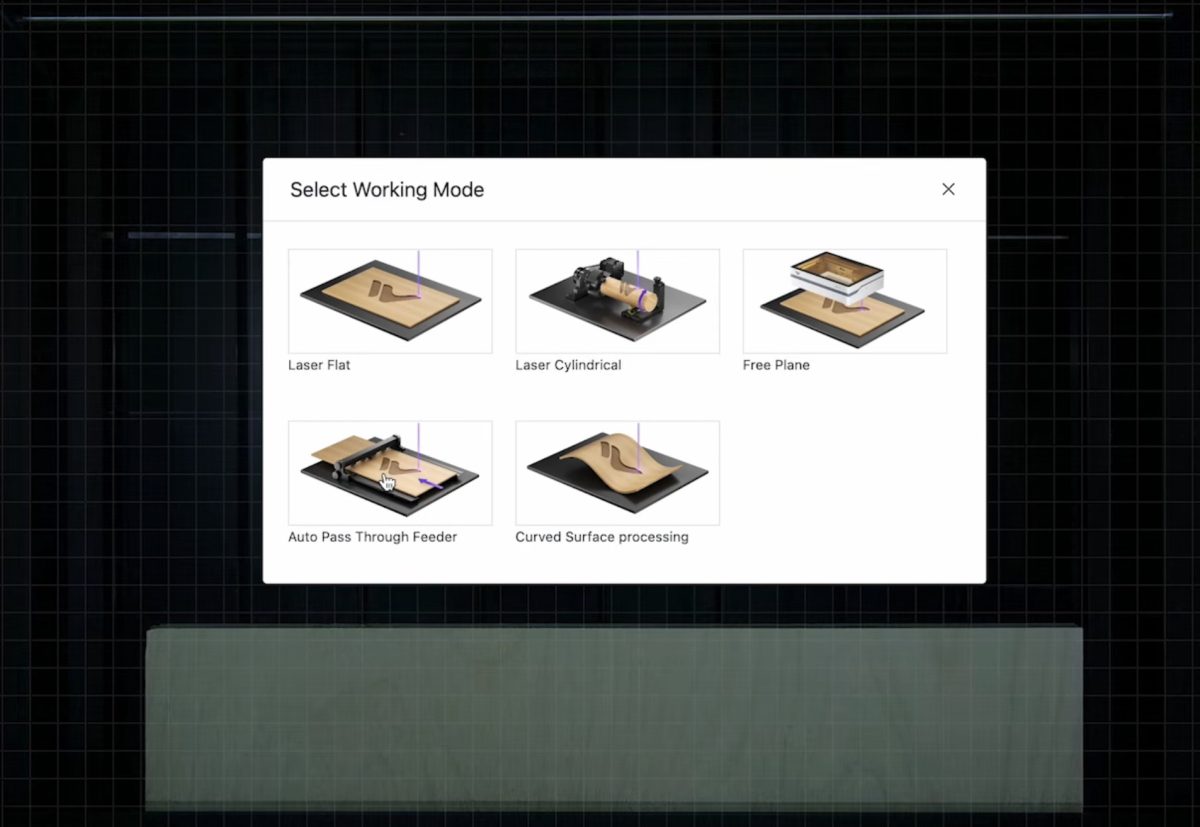
Now that we can see the board in the software, upload the design and make any size adjustments.
Make Any Design Adjustments in WeCreat Make It
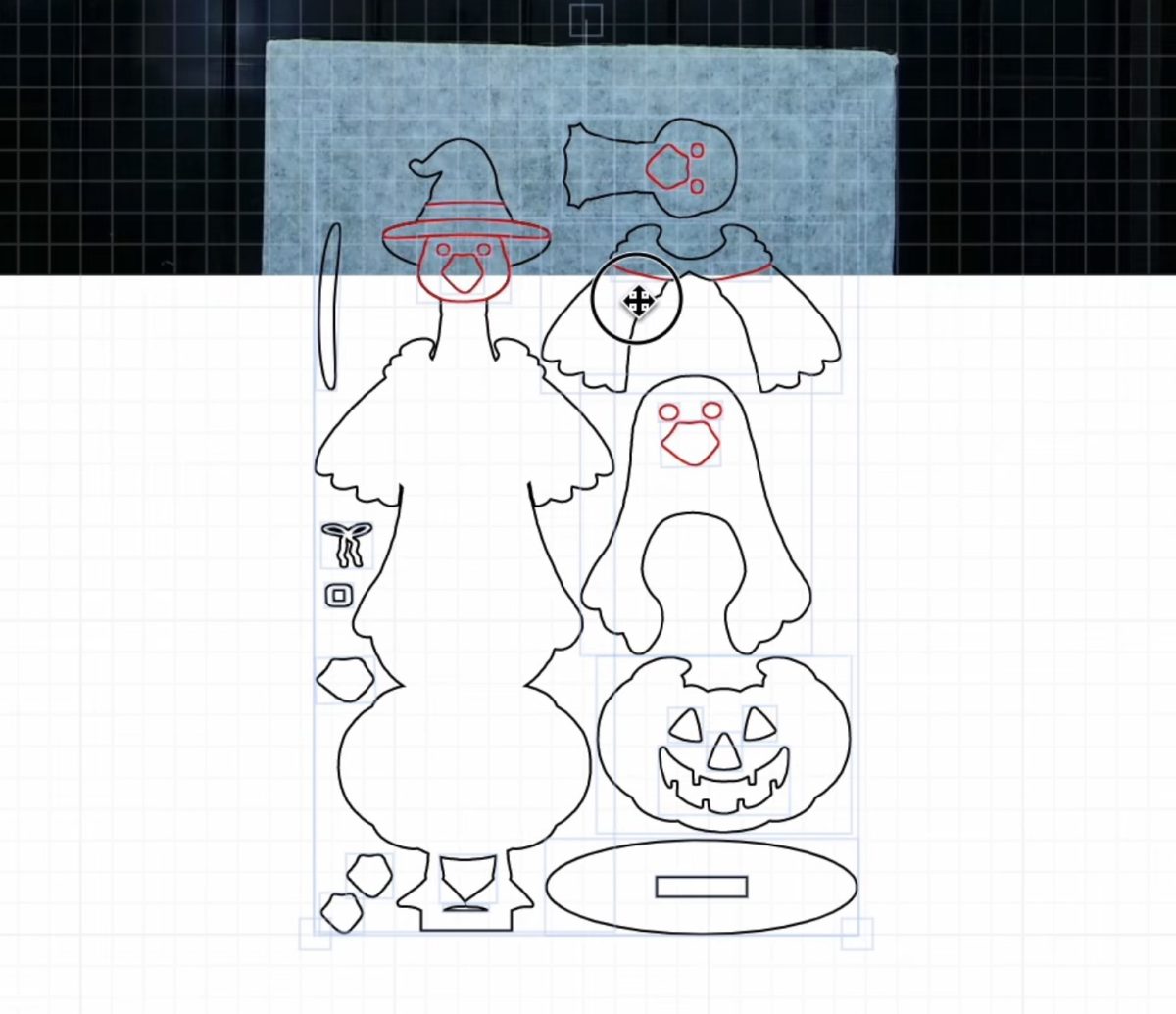
I want to make the project as big as I can with this material, so I removed some of the layered pieces and resized the design to be as wide as the material.
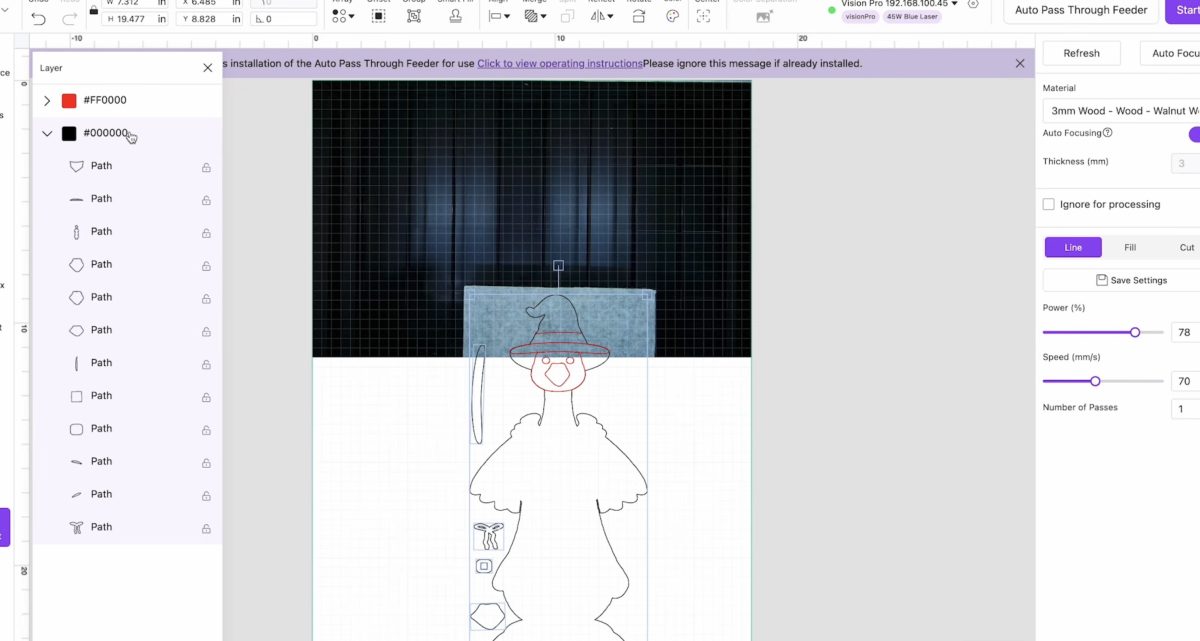
When you have the design resized, click Auto Focus, and I found the auto focus to work really well, except when I tried to use the included feet to raise the laser. If you're using those feet to work with thicker materials, you're probably going to need to make some adjustments to get the focus correct.
Because the material is going to be moving in and out of the machine, I am clicking to turn on the perforated cut line so the pieces don't fall through as they're cut.
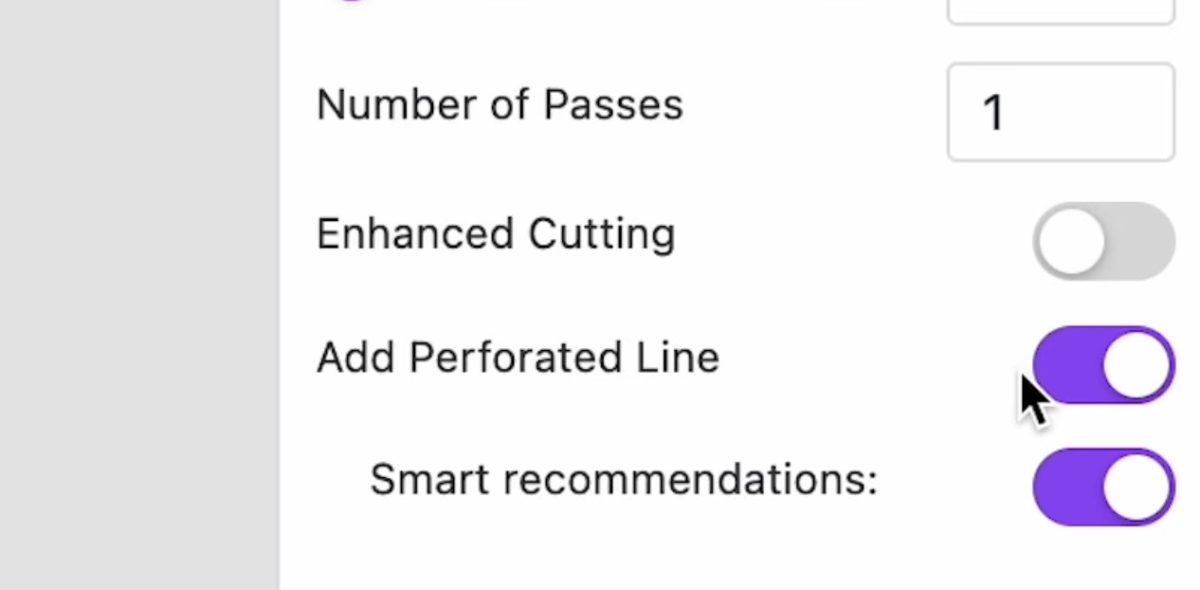
I also used the framing tool to make sure that as the pass-through feeder moves in and out of the laser, the cuts stay on the wood the entire time.
Click Start and then press the button on the front of the laser to start the cutting and engraving process.
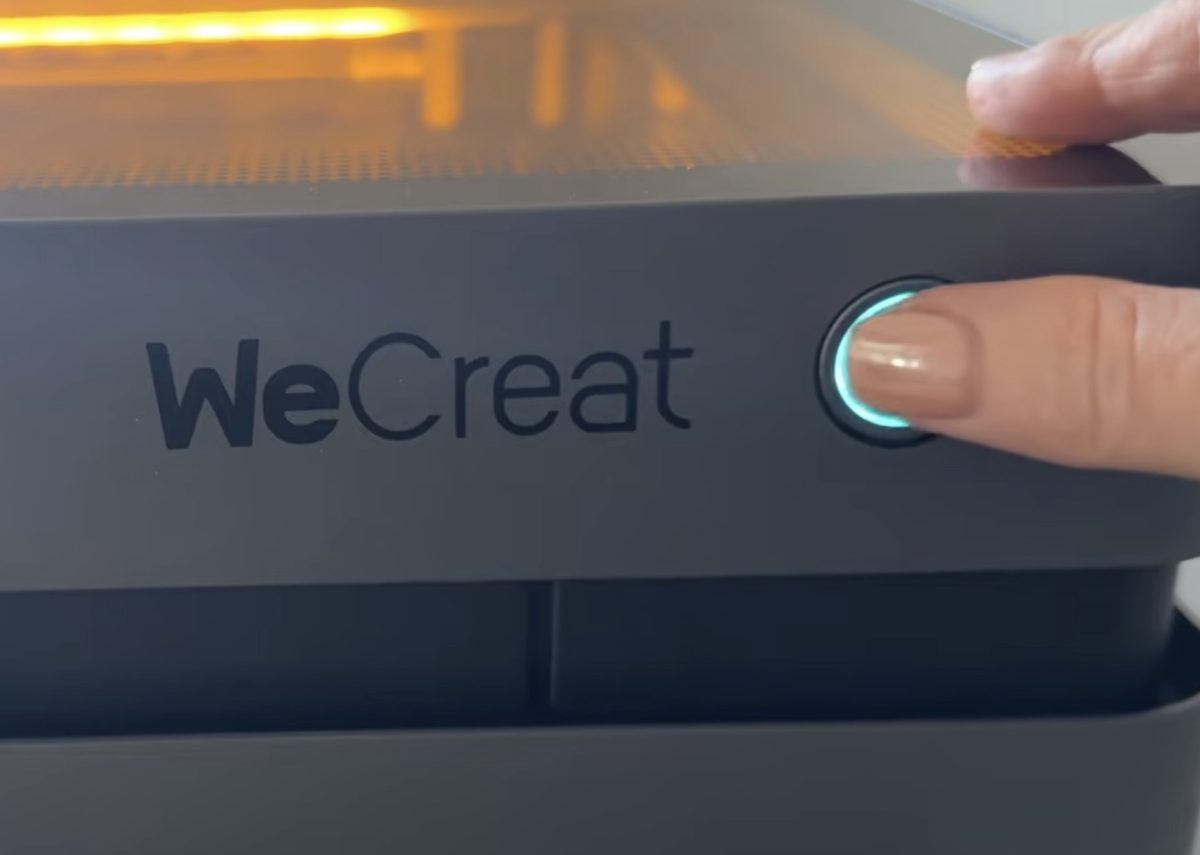
Cut and Engrave Wood with the WeCreat Pass Through Feeder
Now, the pass-through feeder will automatically move the material in and out of the laser while it's cutting and engraving.
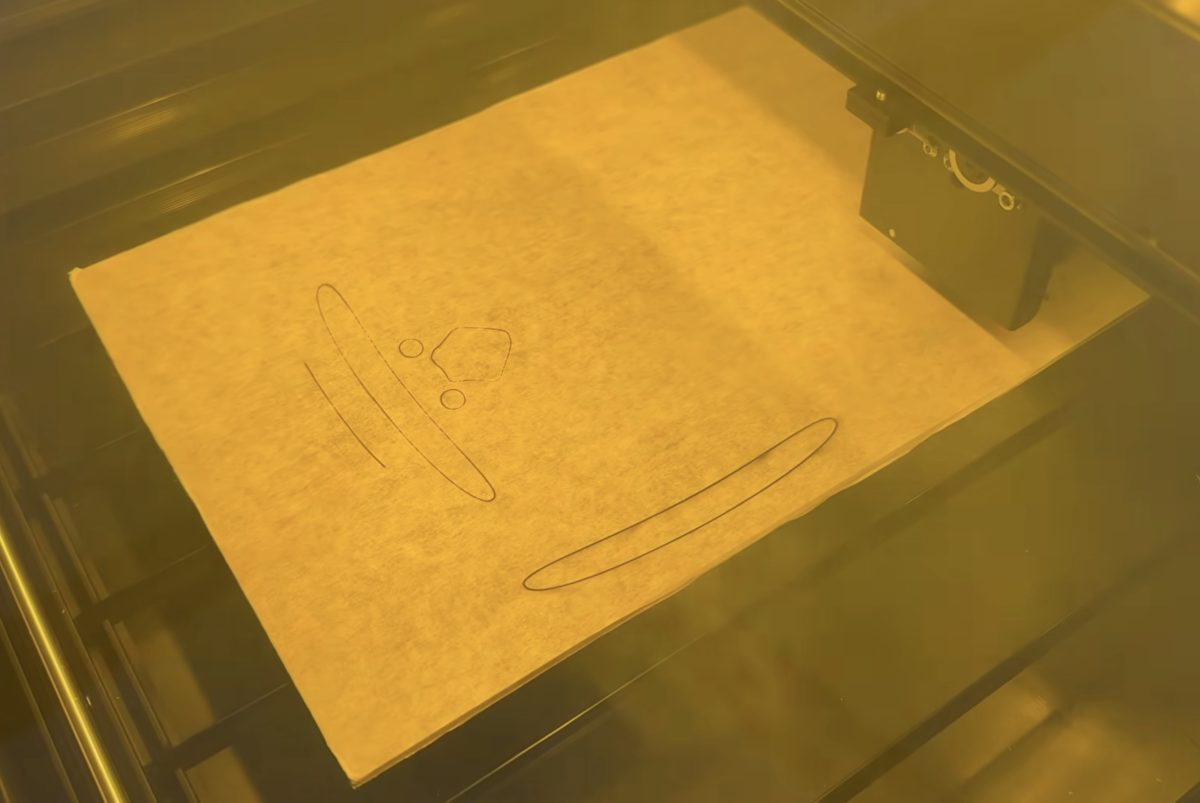
Because I used the perforated cut settings, all of the pieces are still inside the original material. It was really easy to pop them out with my fingers. No additional tools are needed.
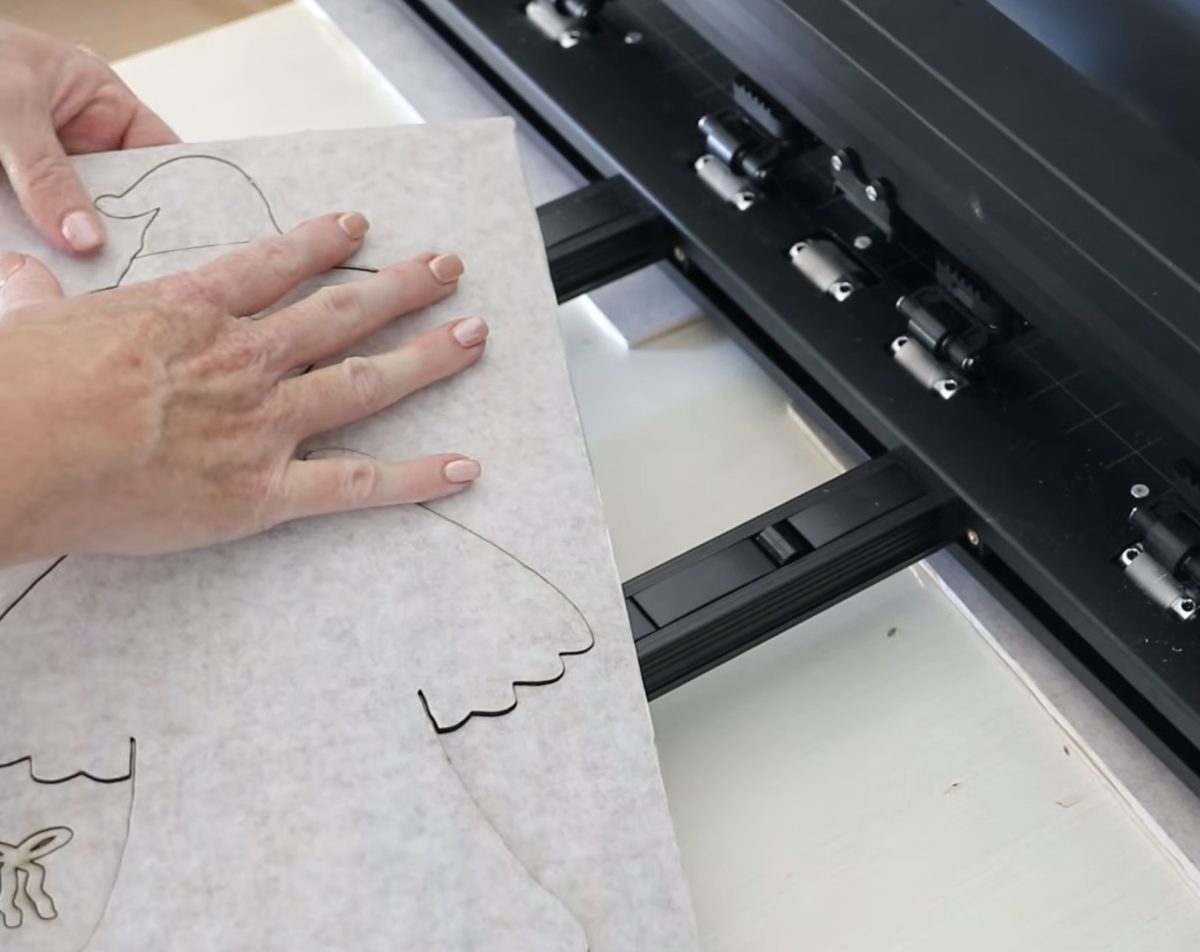
Remember, your material needs to be longer than your design. The feeder’s rollers need physical contact with the material from start to finish. That means your material needs to be about 15 to 20 inches longer than the actual design so the rollers have material to grip while the laser finishes the end of the project.
- Always Enable Perforated Cut Lines: When cutting designs out of a long board, you don't want the cut pieces dropping out onto the rollers while the board is moving back and forth. Make sure to check the box for “Add Perforated Line.” This process adds tiny micro-tabs that keep your cut shapes safely secured inside the board while it's being cut. Once it's done cutting, you can easily press the pieces out by hand!
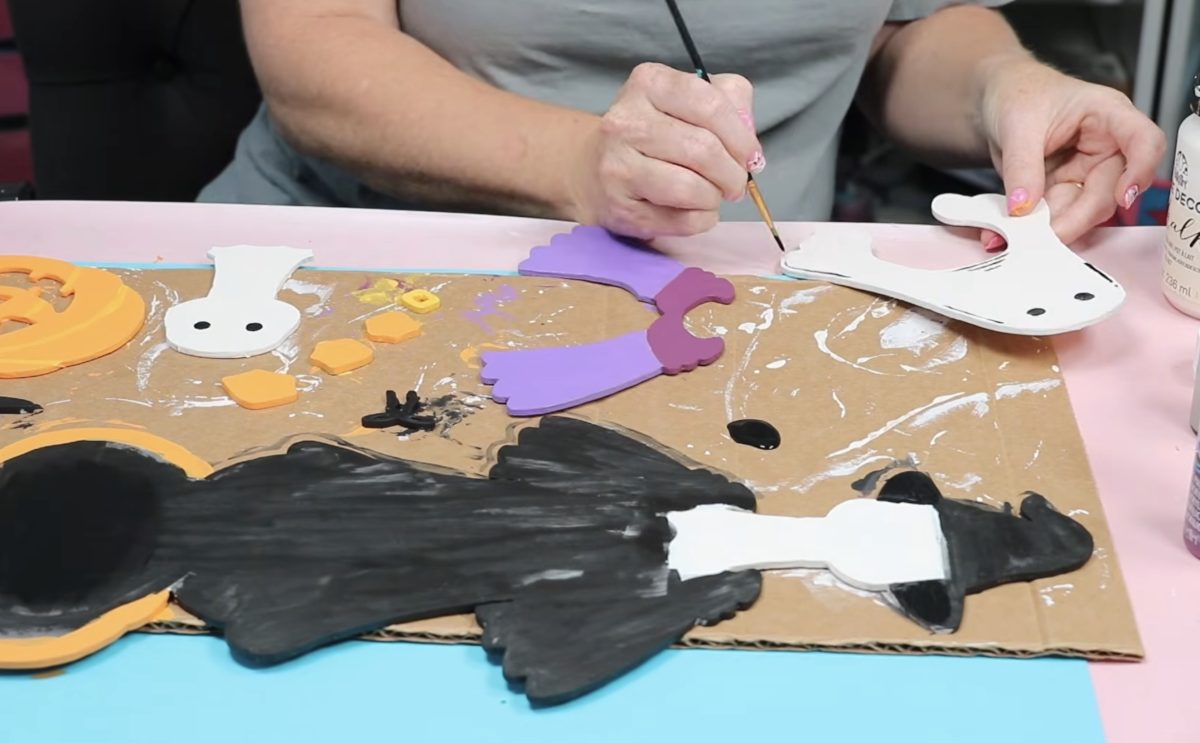
Finish the Halloween goose sign by painting and assembling all of the pieces. I painted everything before gluing the other elements in place, and I just love how it turned out.

Is the We Create Pass-Through Right for You?
The WeCreat Auto Pass-Through Feeder was easy to install and use, once I figured out the right materials to use.
I tried a lot of different things to use thicker materials, and every time I had slipping that impacted the cutting and engraving process.
I also want you to remember the maximum width. Even though I could have made a much taller sign with the pass-through feeder, this design didn't allow it to be that large because of the width of the design.

Who is the Auto Pass-Through Feeder Right For?
- Makers who want to create oversized decor: Do you love making tall porch signs, height charts, large name plates, or architectural accents? This may be what you're looking for.
- Small businesses batching thin materials: If you cut hundreds of small 3 mm wooden ornaments, keychains, or tags, loading a single long board saves tons of hands-on loading time.
Have limited space and/or don't have a desire to make larger projects? You probably do not need this feeder. If your space or crafting needs change, you can always add it as an accessory later.
If you have the workspace and want to build big, bold decor, this feeder opens up a whole new world of creative freedom for your laser setup.
I hope I've answered any questions you have about the WeCreat Auto Pass-Through Feeder. If you have any additional questions or have some suggestions for what I should make next, leave them in the comments, and I'll be happy to answer the questions and add the projects to my list.