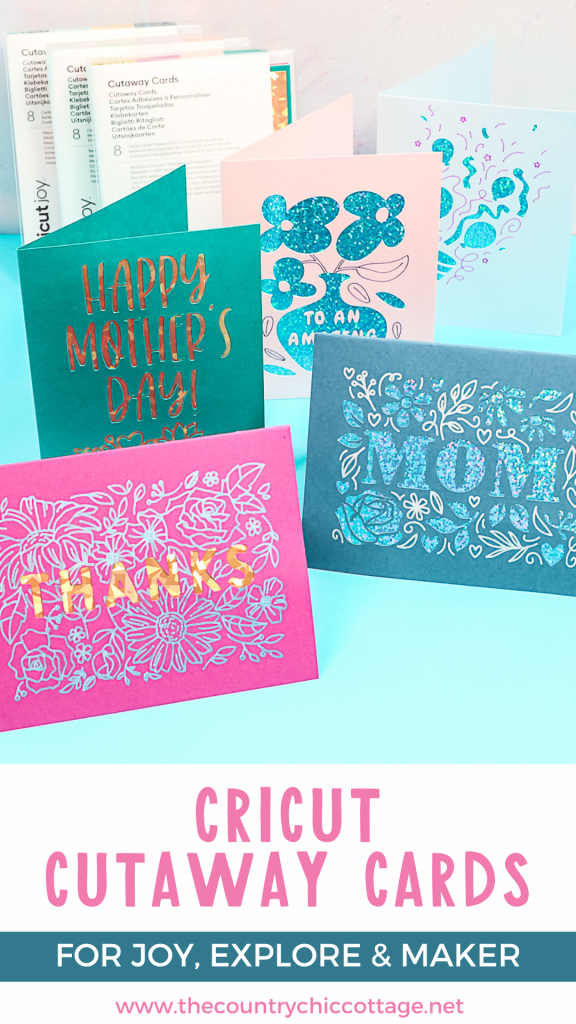
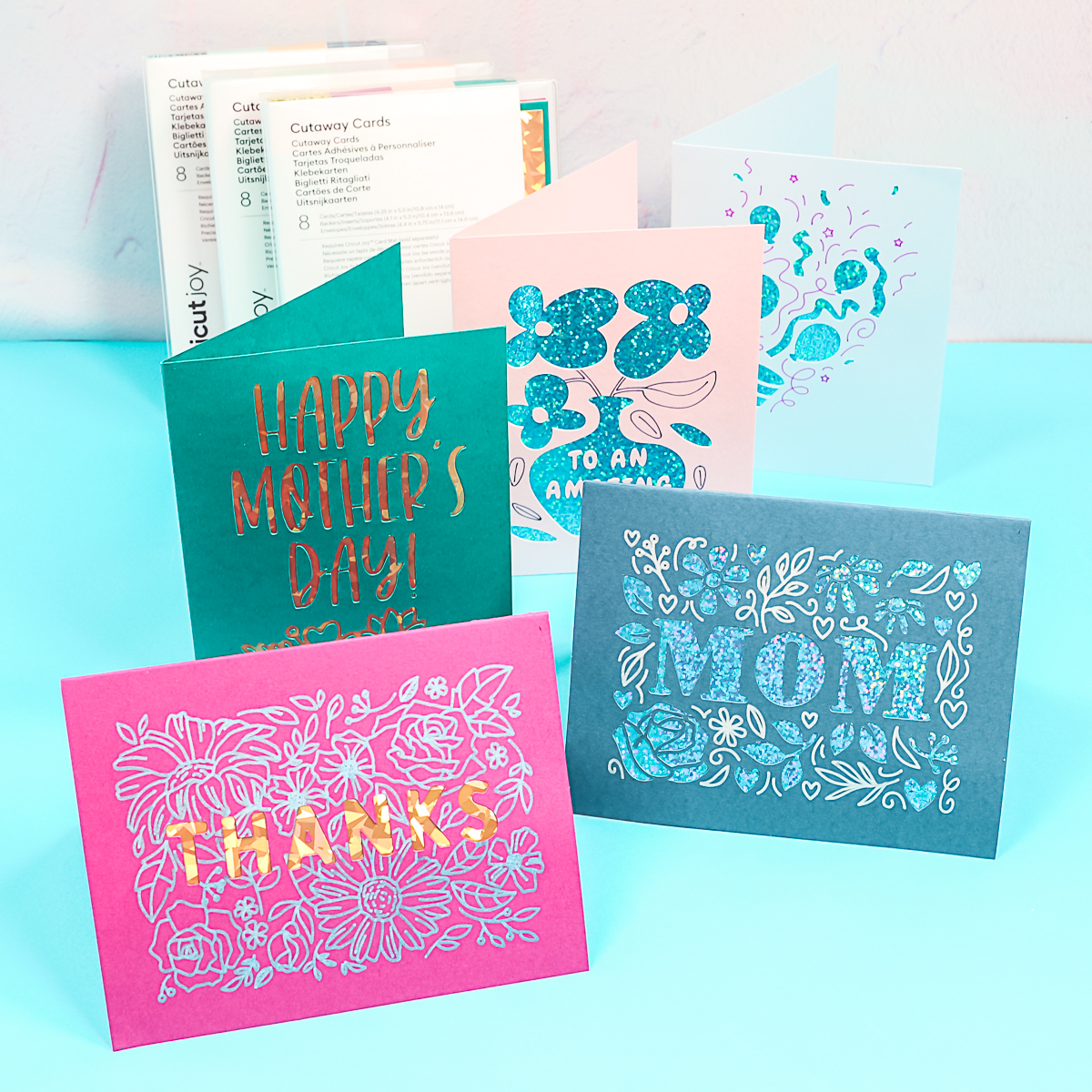
Have you seen Cricut Cutaway Cards? These were initially released for the Cricut Joy, and I'm here to show you how to use Cutaway Cards on your Cricut Joy, Joy Extra, Cricut Maker, Cricut Explore, Explore 3, Maker 3, and any machine that you might have. If you're familiar with the Insert Cards for the Joy, Cutaway Cards are similar, but in my opinion, even better. They take it to a whole new level and make it even easier to make cards with your Cricut machine. I am in love with this product!
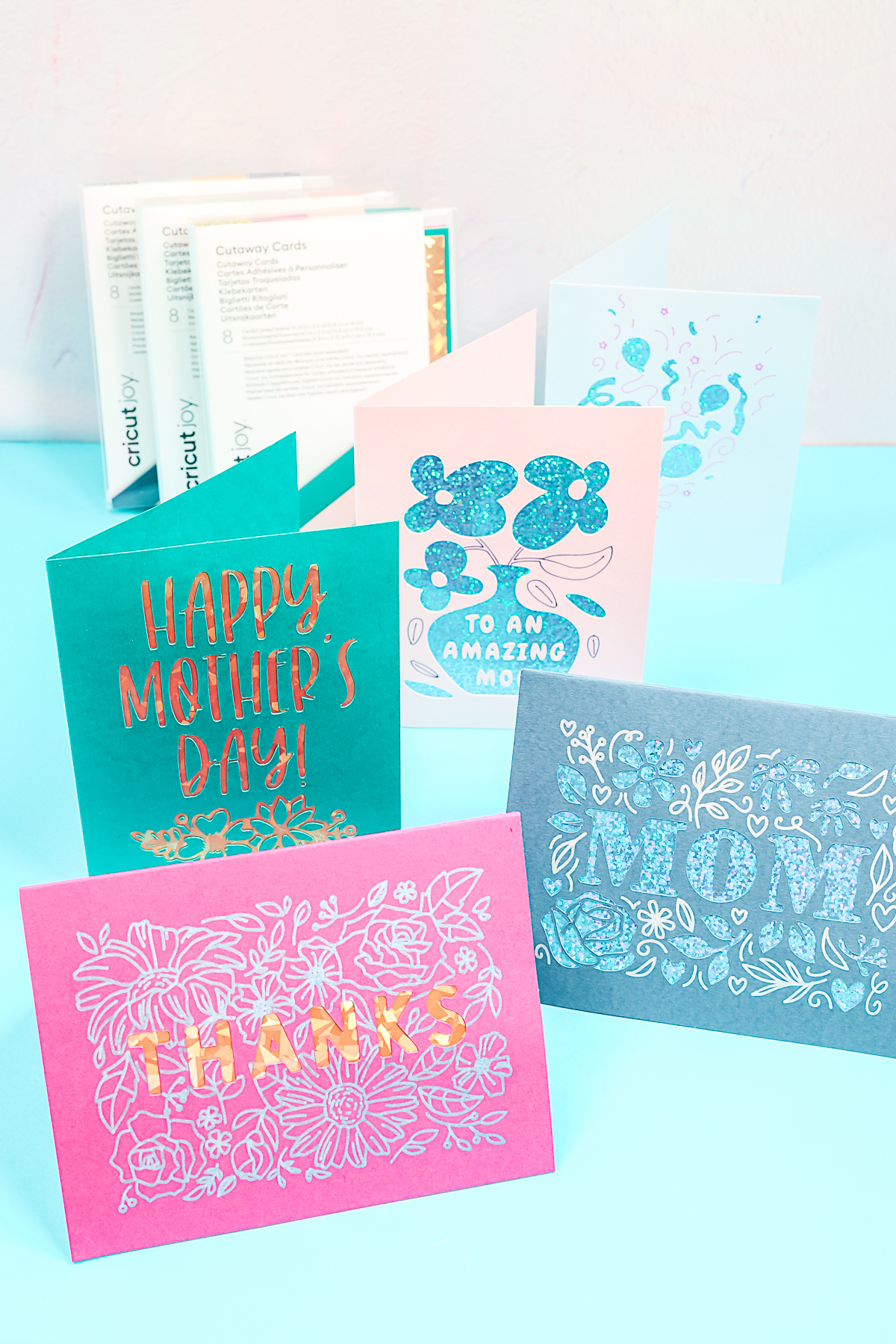
Cricut Cutaway Cards
In the video below, I am making a huge, wide variety of cards. I'm going to show you how to create cards that already exist in Design Space, as well as design your own cards directly within the Design Space application. Click play to watch!
Can't watch the video or miss some of the information? You can also follow along below!
Supplies Used
- Cutaway Cards
- Cricut Machine
- Weeding tools (optional)
- Cricut Joy Card mat
Designs Used
- This project is made with Design Space files. Once on your profile, find the image of the project you want to create, click it to open it, and then you can customize it yourself.
NOTE: After I filmed this video, Cricut released a card mat for the Explore and Maker. You can see how to use it with cutaway cards here!
What are Cricut Cutaway Cards?
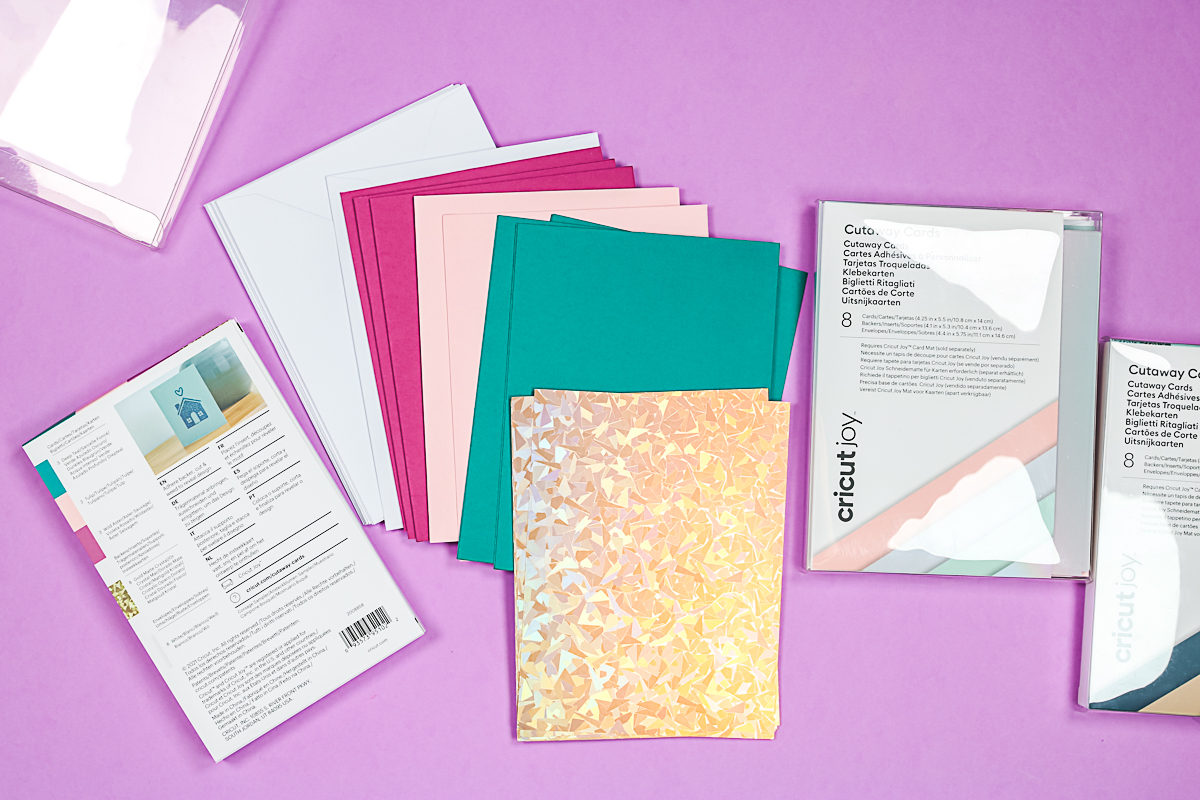
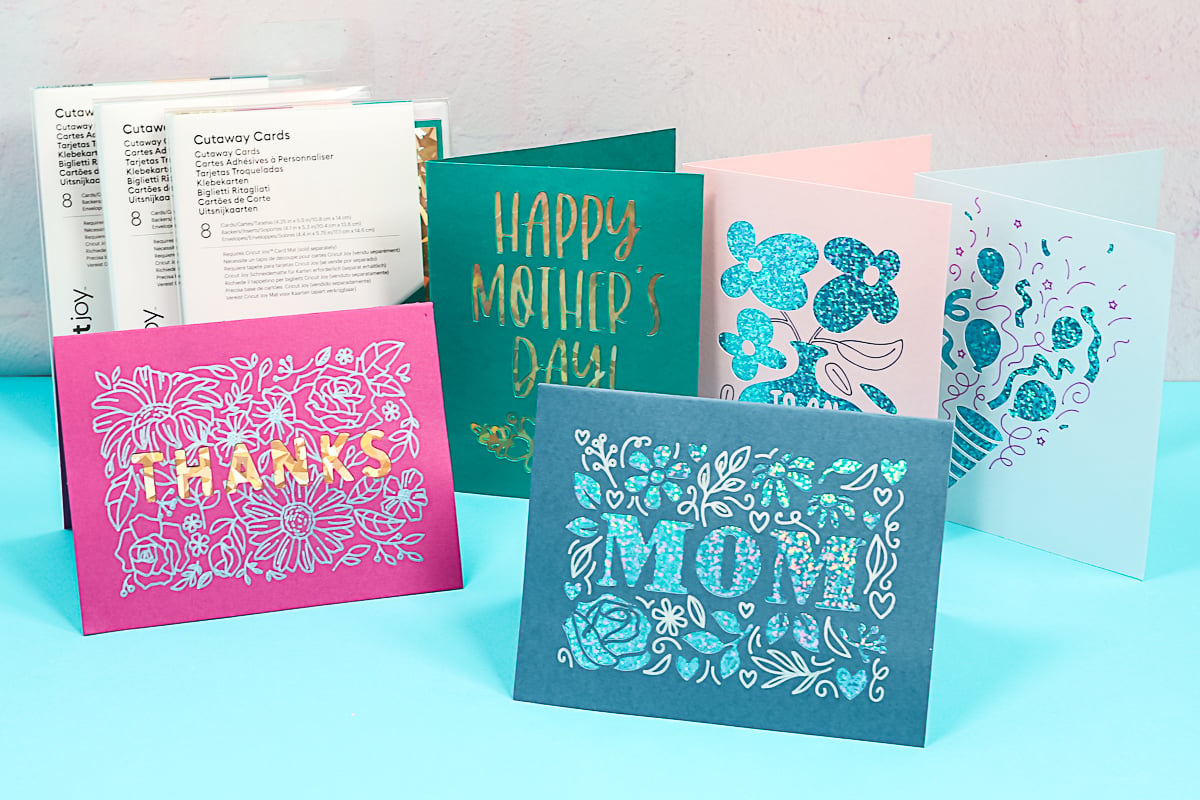
These are the Cricut Cutaway Cards. Look for boxes labeled ‘Cutaway Cards' (as opposed to ‘Insert Cards'). The number of cards in each pack is indicated on the box. You receive cards, backers, and envelopes in each box, and they are available in different color packs.
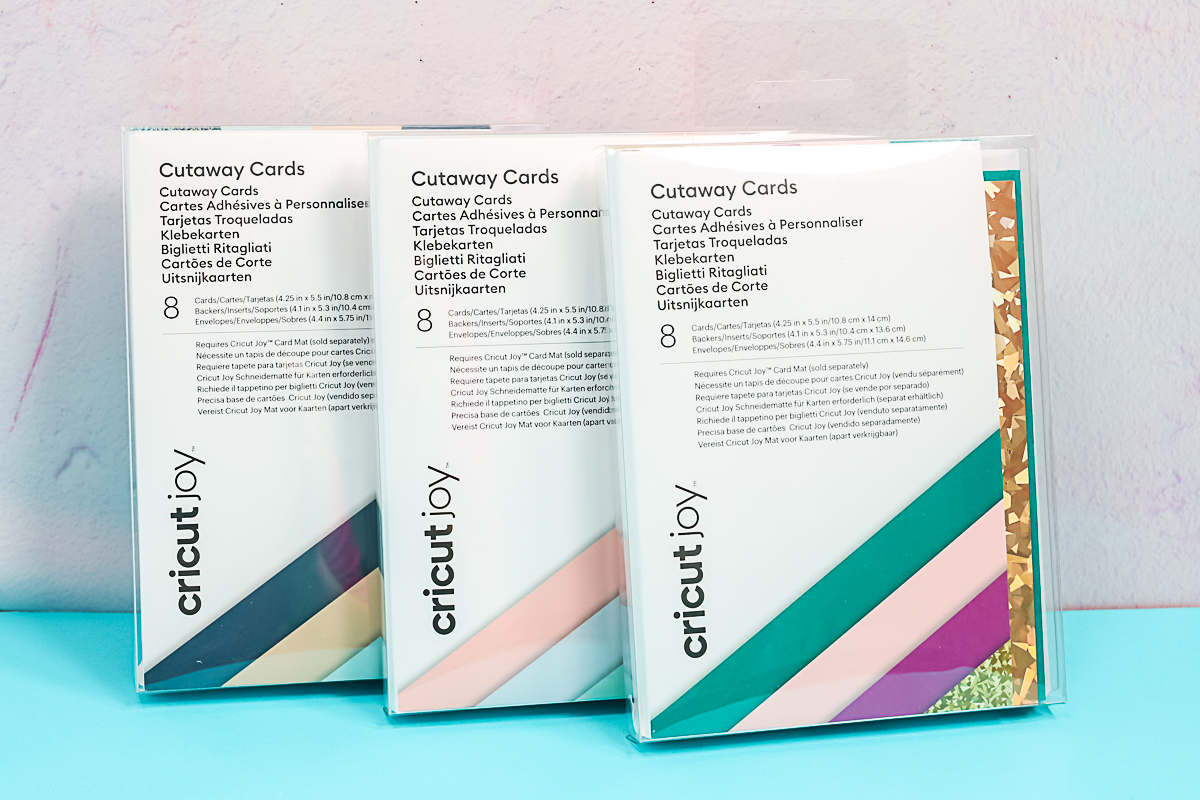
On the back, you can see which colors represent the cards and which represent the backers. In this case, I have white envelopes, three different colors of cards, and gold backers.
How Do They Work?
On the inside of each card, you'll find an adhesive layer; then, you will need your backer sheet. Peel the backing sheet off the adhesive coating on the inside of the card. This leaves a layer of adhesive on your card.
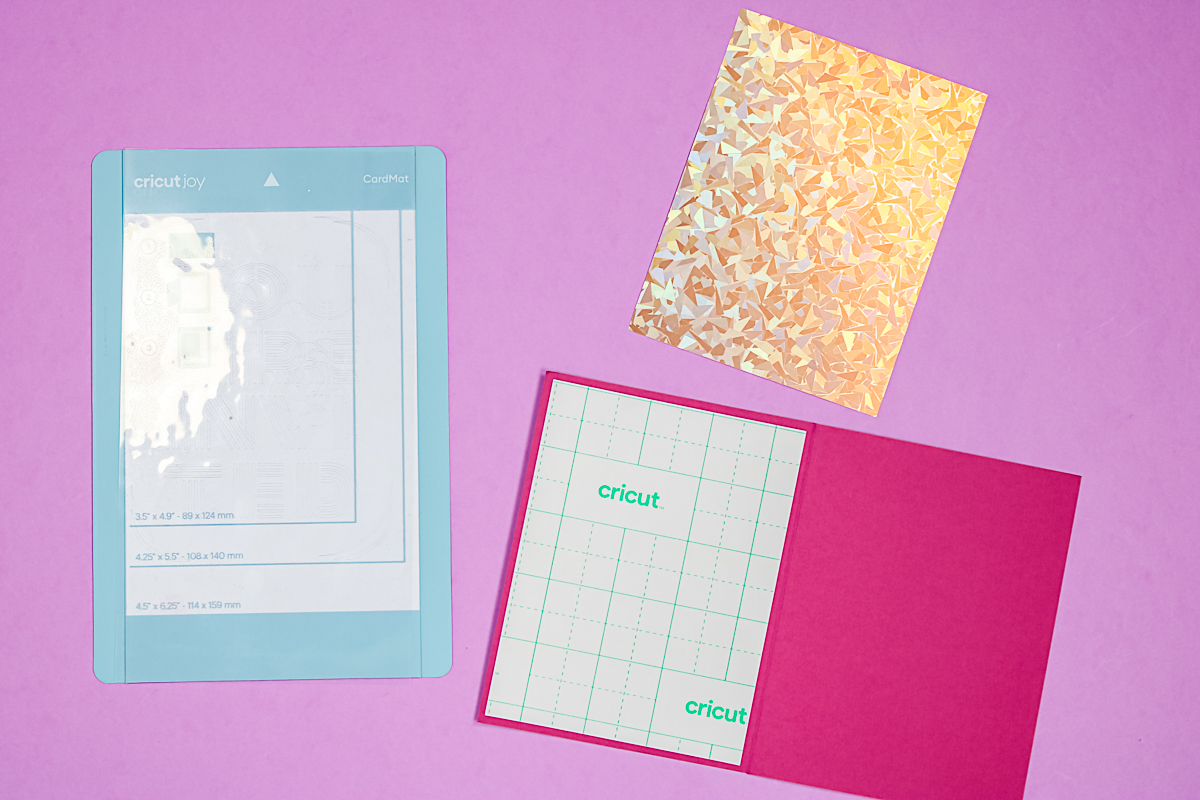
Place the backer with the good side down on the adhesive, ensuring that you don't exceed the fold line on the card. Once your backer piece is in place, press it down well. Now, your card is ready to cut.
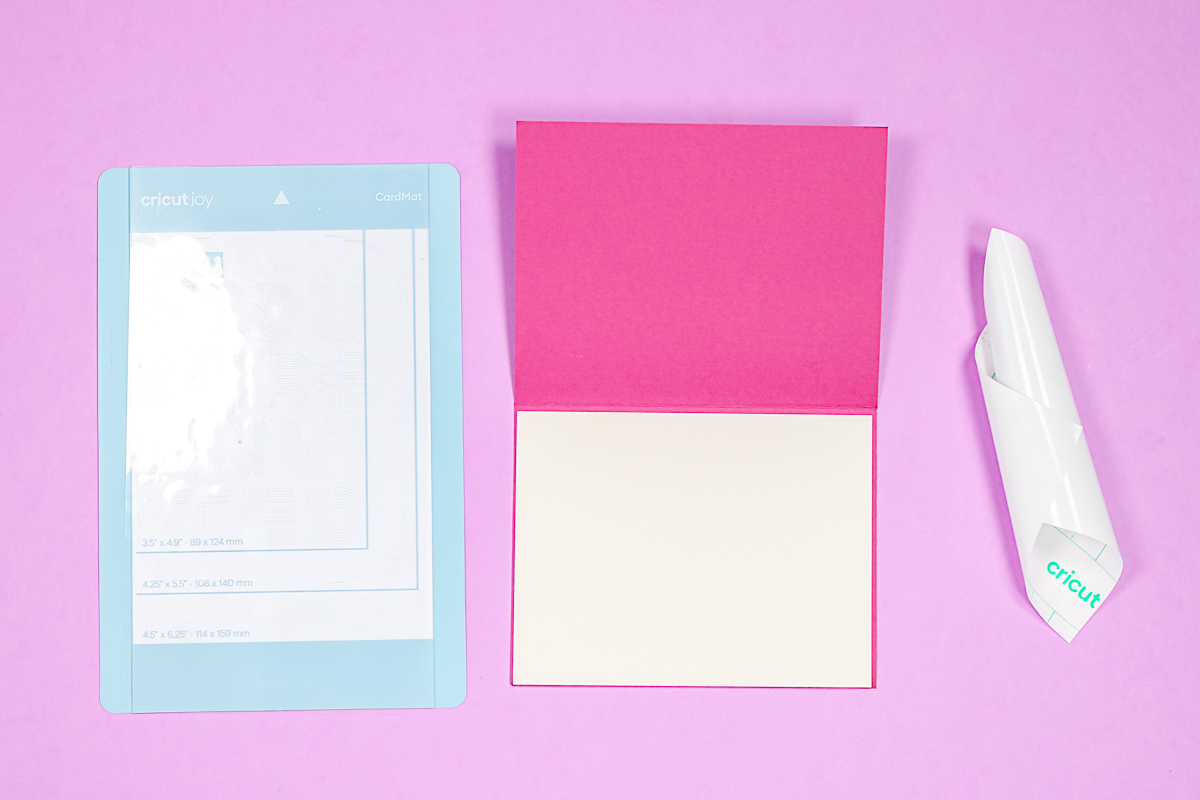
Cutting Cricut Cutaway Cards
For this first batch of cards, I'm using the Cricut Joy with the Cricut Joy card mat. Follow along to see how to use these new Cricut cards.
Adding the Cards to the Card Mat
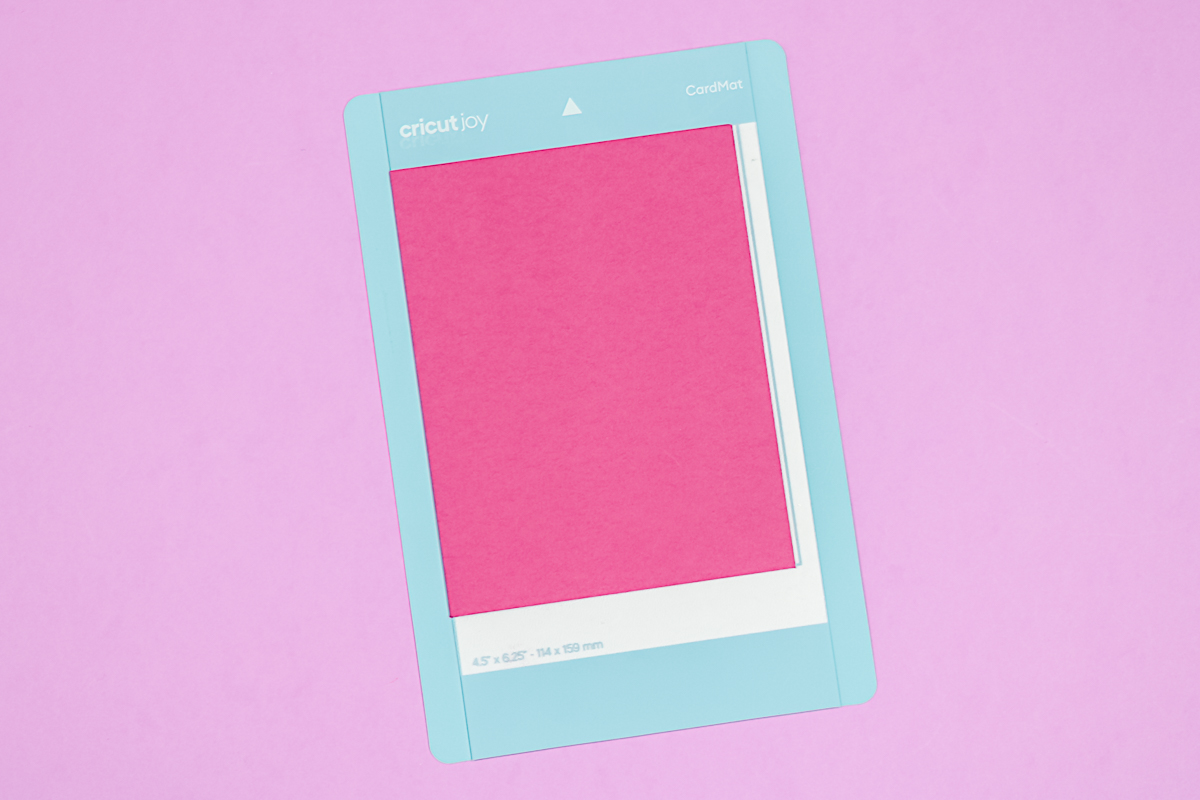
You want to remove the protective film from the card mat. Add the back of the card inside the mat so that the side with the backer is on the mat adhesive. Be sure to push the card all the way up and make sure the fold line is all the way over. Press the card down firmly and ensure the backer is securely attached to the card mat, with the card front facing up.
Finding Designs in Cricut Design Space
You can find designs in a few different ways:
- From your “canvas” in Design Space, select your machine (in the upper right corner) and click “projects”. Search for “cutaway” and you'll get a variety of cards that are already made in Cricut Design Space. Pick a card and click “make it” or “customize”. If there is a “customize” option, you can then alter the design or customize it on your canvas. This is all you need to make a Cutaway Card. There is no need to resize, as they are the correct size in Cricut Design Space when you select the appropriate projects.
- Click “images” and type “cutaway” for even more Cutaway Card designs.
- Design your own card. We will take a look at designing our own cards later in this post.
Picking Cut Settings
Once you have chosen your card design, click “Make” and select the card mat on the next screen. Design Space locates the designs according to your card size. You can change the card size on the left-hand side if needed. Always ensure that the material size matches your card size before clicking ‘Continue'. On the next screen, pick Cutaway Card as your material setting.
Cutting and Drawing on a Card
The first thing the Cricut Joy will do is draw, so add the pen of your choice to the clamp. Load the card and press “go” right in Cricut Design Space. For other machines, Cricut Design Space will prompt you when to add or change blades/pens.
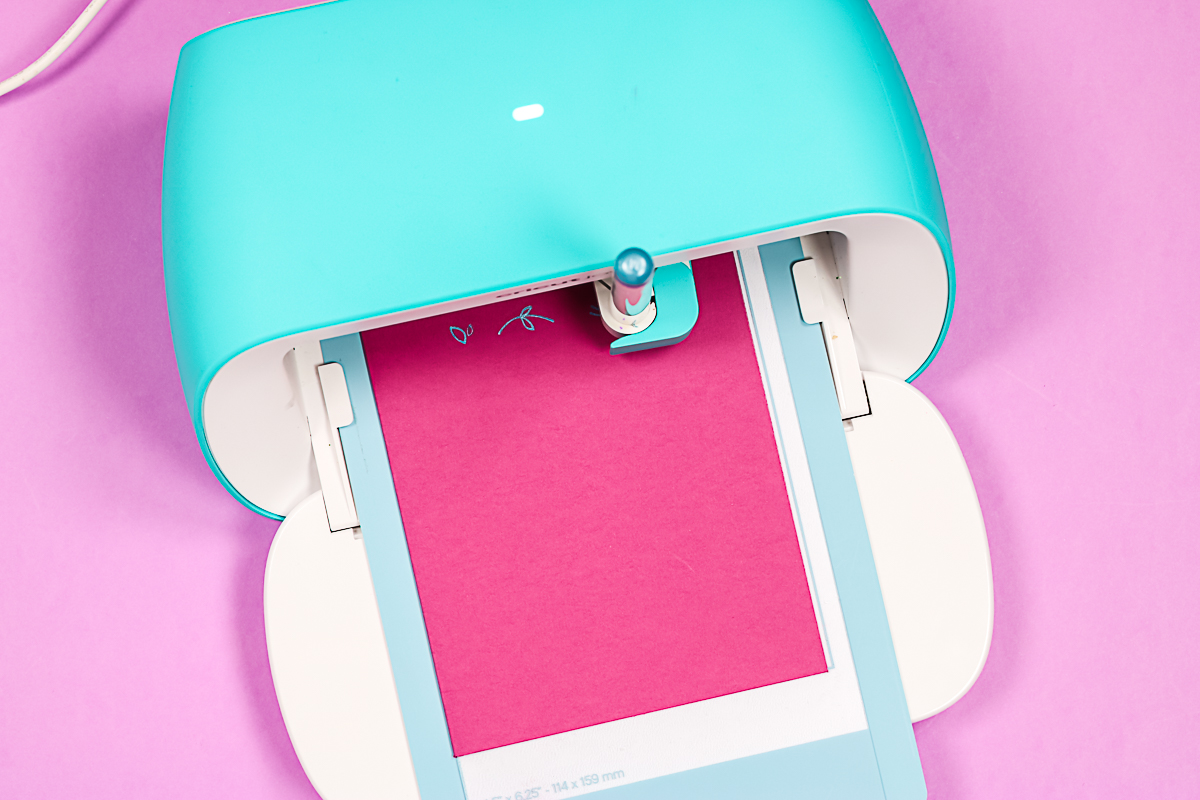
Once it's done with the pen portion, remove the pen, add the blade to the machine, close the clamp, and click “go” in the app. Once that's done, click “OK” in the app to unload.
Weeding the Card
I do find it easier to remove the card from the mat to weed the cut areas. The cut pieces are only cut through the top layer. It does not cut through that backer.
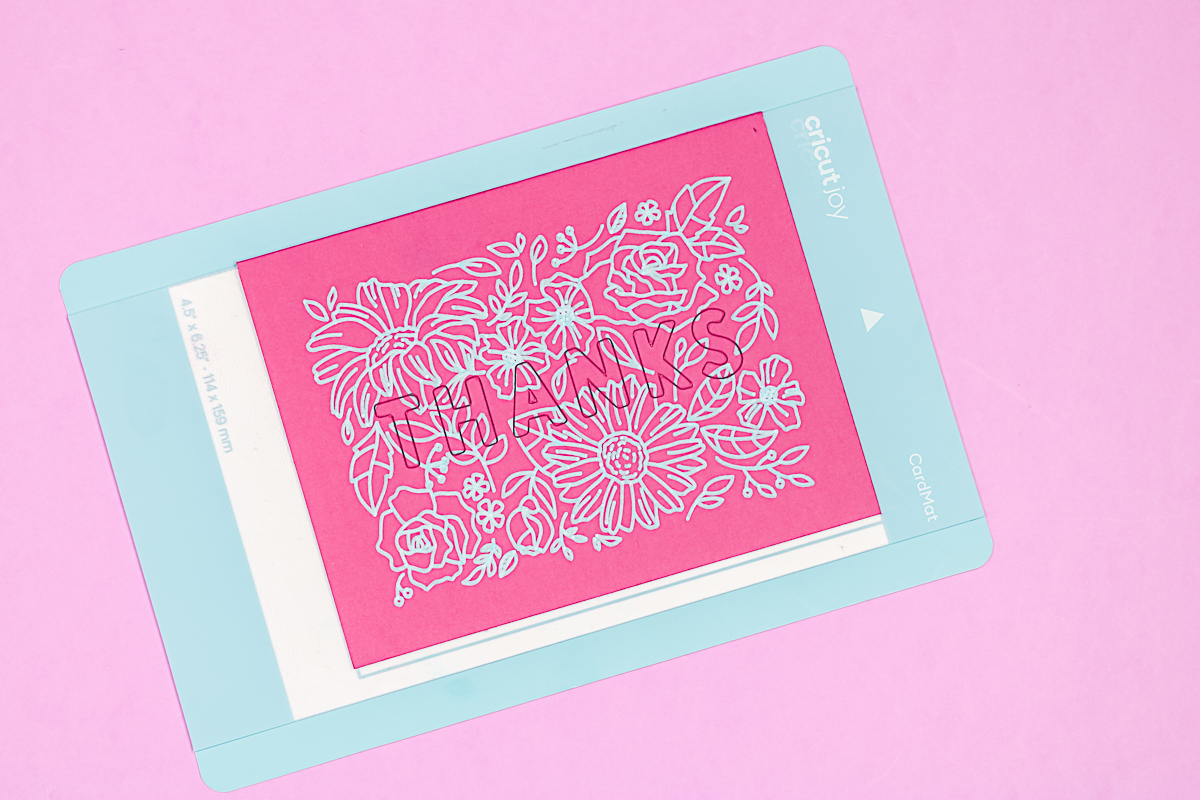
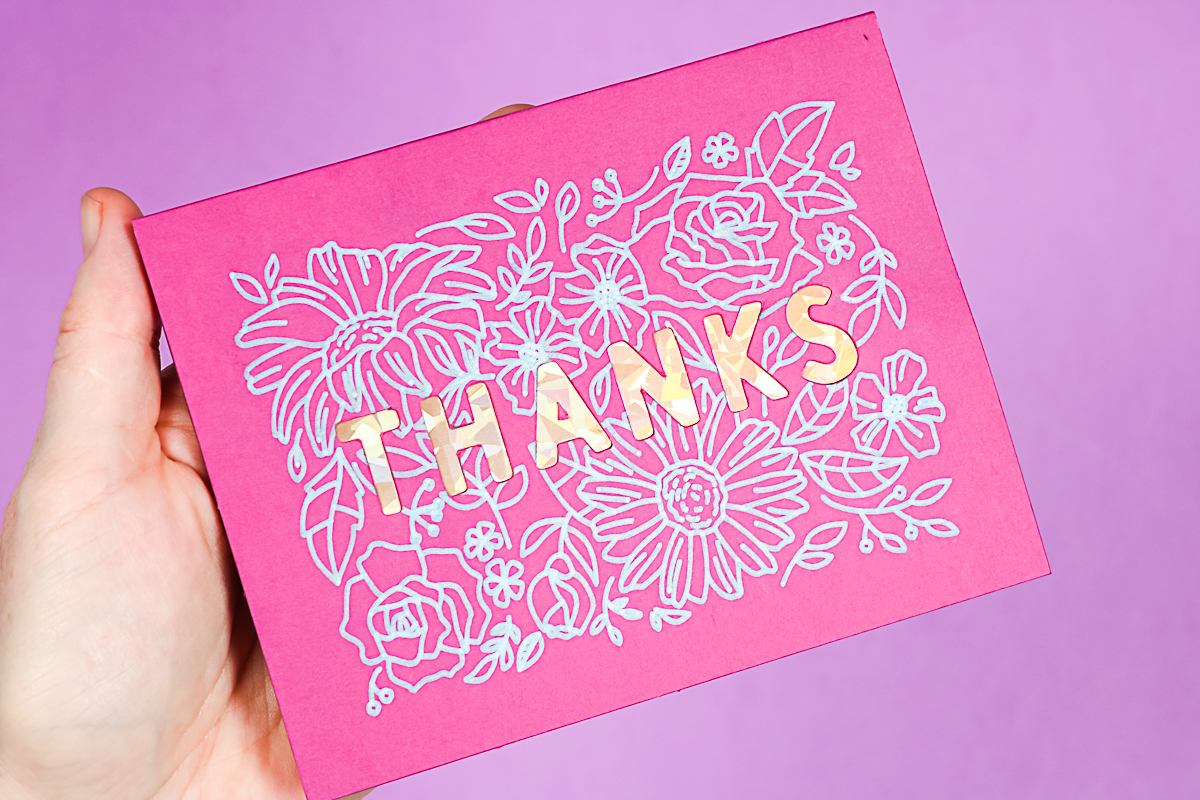
You can use weeding tools for this, or use your hands. I prefer to use my hands only when necessary. If you can lift the pieces without damage, you can even use them for other projects. If you do use weeding tools, use them carefully so you won't scratch the paper or backer. Here's that card completely weeded and done.
Designing Cutaway Cards
Want to make your own card designs? Here is the method that I used!
- From your canvas in Design Space, click Projects, and type “cutaway” in the search bar. Then choose a project that is a Cutaway Card design setup. Click that and click “customize”. This allows you to achieve the desired size for your design. Instead of trying to find the size yourself, it's easy to pop this into Design Space. You'll delete this layer before clicking “Make”. You want to stay within the dotted line with your design. Be sure to rotate your card if you are making a horizontal one.
- Add a design to the front of your card. What kind of design can you put on the front? You can put anything you would like. You can add fonts or images. I added a floral design, along with some text.
- Don't just want cut areas? Add some pen designs if you would like to.
- Once you like your design, be sure to pick everything and click “attach”. Then you are ready to click “Make”.
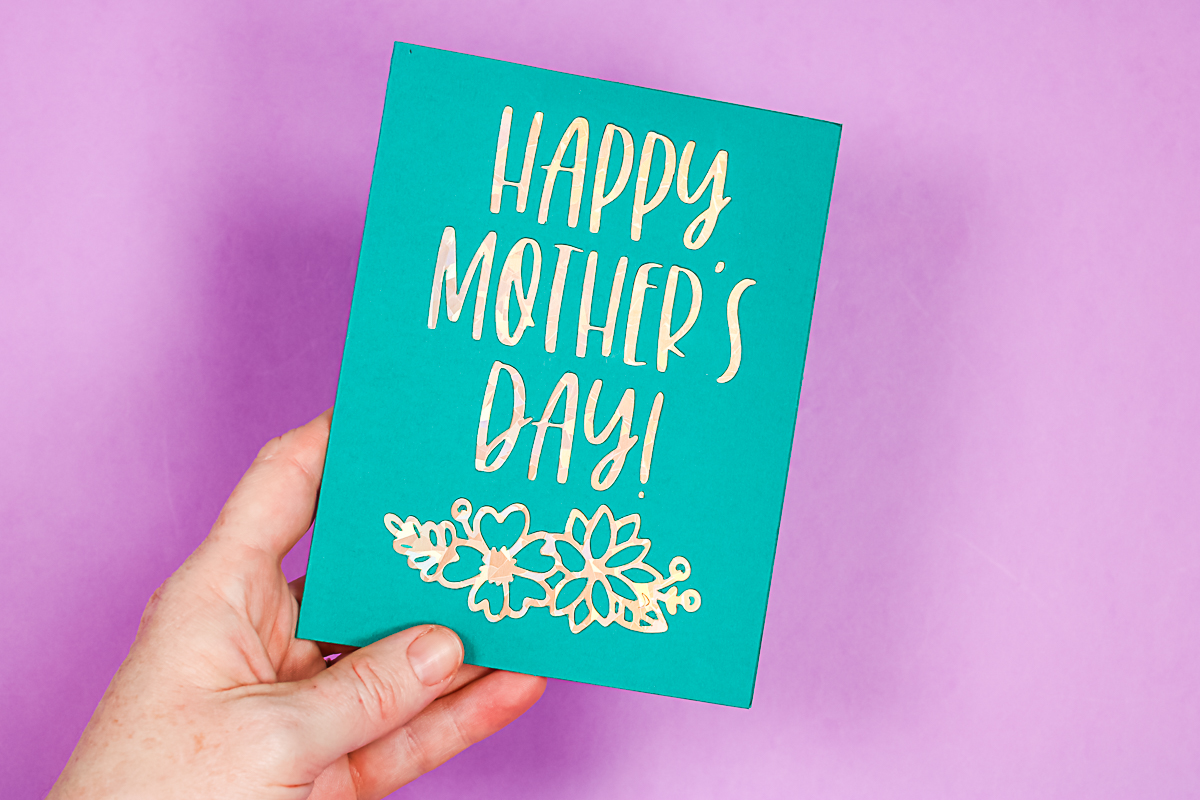
I intentionally included some really small details in this one, and some of those got messed up. You might want to avoid adding super small details, but overall, I'm extremely impressed with Cutaway Cards.
Cricut Cutaway Cards Weeding Tips and Tricks
Having issues weeding the Cricut Cutaway Cards? Here are some things that I found helpful!
- Weed as much as you can with your hands.
- If you need to use weeding tools, do so carefully to avoid scratching the paper.
- If you are peeling away the cut pieces and some of this backer sheet is coming up, peel from the opposite side. I found that peeling from the opposite side works every single time.
- You may find that it cuts into the backer sheet in a few places, but generally, it doesn't happen very often. Try peeling from another direction if this starts to lift.
- If you find that your top layer of cardstock is ripping, try peeling it from the opposite direction. As a last resort, use the blunt end of your weeding tool to remove any remaining areas on the card.
Using with Other Machines (without a Cricut Card Mat)
If you have a Maker 3, Explore 3, any of the Explore models, or the original Maker, simply select the machine you want to use. I'm going to use my Maker 3 today. Similarly, we discussed finding Cutaway Cards for the Joy; you can find them for your Maker or Explore. I just searched for “cutaway” and picked my card. It pops it onto your canvas. There's no need to resize or modify it. We'll click “Make”.
NOTE: After I made this post, Cricut released the Cricut Card Mat, which works with other machines. If you have it, click here! The post below will explain how to use the regular mat with these same cards.
Cut Settings for Other Machines
In Cricut Design Space, pick “On a mat” and click “Continue”. To use a regular light grip mat, we do need to trick the machine a bit. Flip the design over, then we want to center it on the card itself. You will want to look at where the card is on your actual mat and match that in Design Space. You may need to experiment with this location slightly for your specific machine. Be sure to place the card all the way in the corner of the mat with the backer side facing left.
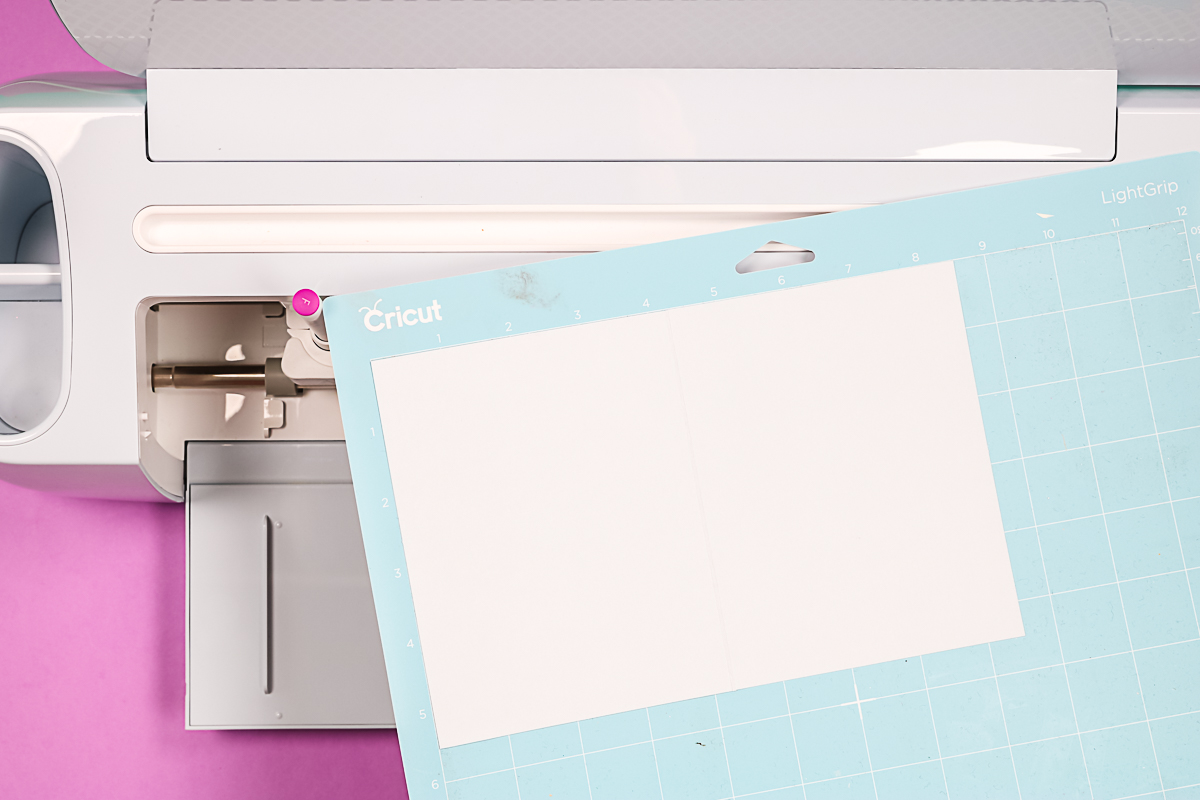
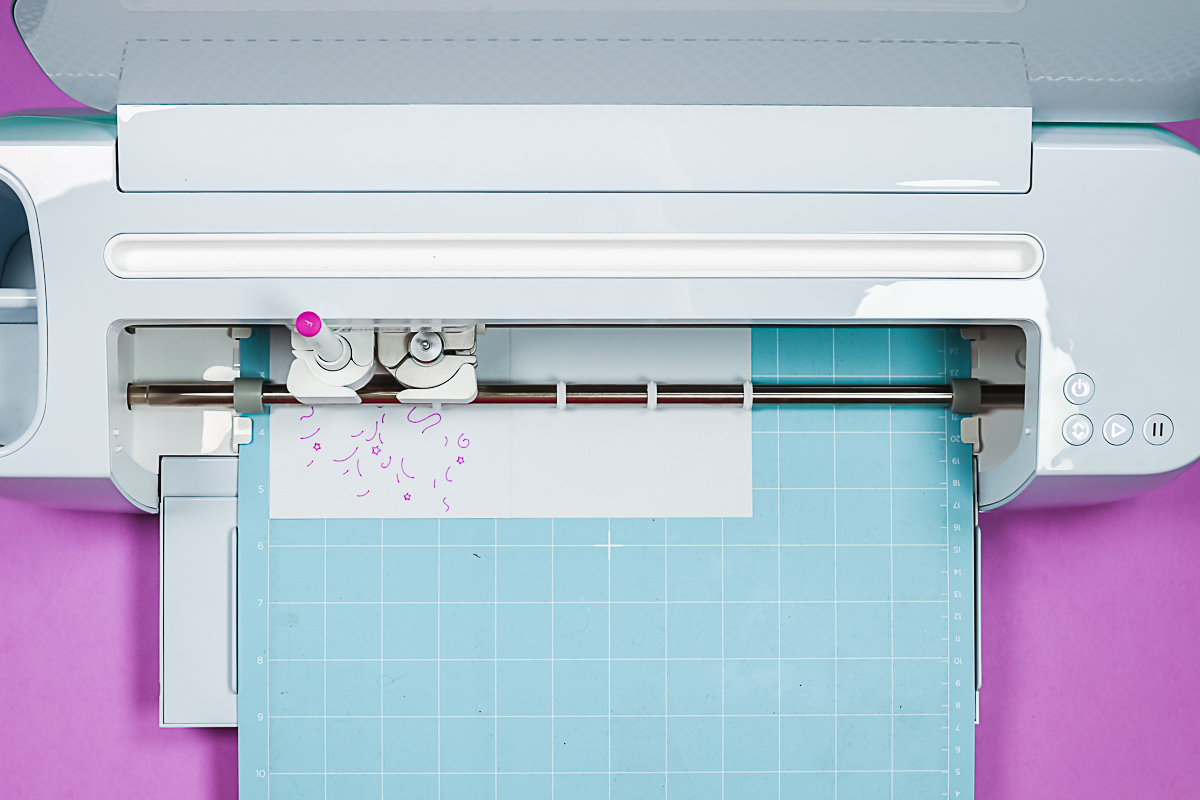
When loading it into your Cricut machine, ensure the mat is pushed all the way to the left. That way, it's always in the right location. For Maker 3, I used a medium cardstock setting. I found that this works fine with the Cutaway Cards. If you find that this setting is cutting too deep or not deep enough, you can try adjusting the setting or pressure for your cards. Add a pen to clamp A if you have drawn lines, and your fine-point blade to clamp B. Then just cut your card!
Finishing the Cards
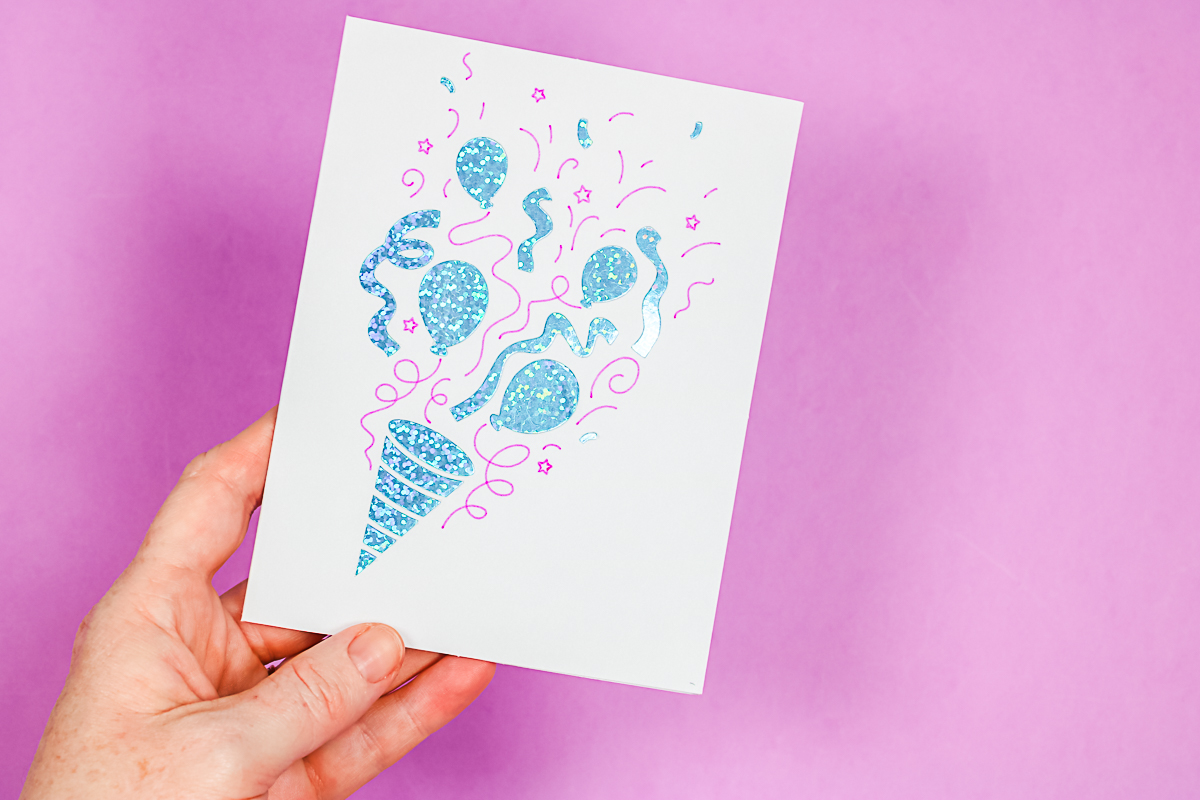
In the same way as we did with the other cards, you'll want to weed out all the pieces. You should be able to just pull them back with your hands. For small pieces, I prefer to use a weeding tool; however, for the most part, I simply use my hands to peel away all the pieces. Here's that card I made on my Maker 3. As you can see, it looks amazing.
Are Cricut Cutaway Cards Worth It?
I know that I will be using Cutaway Cards from now on. To me, it makes the process even simpler. With insert cards, you had cuts in the four corners, and those could sometimes get off-center. Then the entire card would look just a little bit off. These are much easier in terms of location!
I do think you might have to fine-tune the location with your Maker or Explore a little bit if you are using the standard light grip mat. With the Cricut Joy, I found the location spot on, but with these cards, even if the location is slightly off, the card is still fine.
The only thing I would suggest for the Cricut Card Mat is to always ensure that the card size matches the size of the card you're using. I messed a few up like that. Otherwise, have fun creating with Cricut Cutaway Cards!