

Today, I'm sharing an overview of what this tool for the Cricut Maker can do. I will also compare it with the scoring stylus to help you decide which one is the right fit for you. Which Cricut scoring tool should you use with your Cricut Maker? Read on to find out!
The Cricut Scoring Wheel Versus The Scoring Stylus
I'm excited to share some helpful information with you to guide your decision on which Cricut scoring tool is the best fit! If you're looking for something specific, check the table of contents to easily locate what you need.
Cricut Scoring Tool Video
For all the details in a video, watch my comparison below, along with everything you need to know about the Cricut scoring wheel to see if it’s a good fit for you.
Can't watch the video or missed some of the steps? Read on below for more information!
What is the Cricut Scoring Wheel?
The scoring wheel is a tool specifically designed for the Cricut Maker series, intended to create sharp creases in various materials. It applies up to ten times the pressure of the scoring stylus, resulting in improved score lines for all your papercraft projects. The scoring wheel consists of a single housing with two interchangeable wheels that you can switch out as needed.
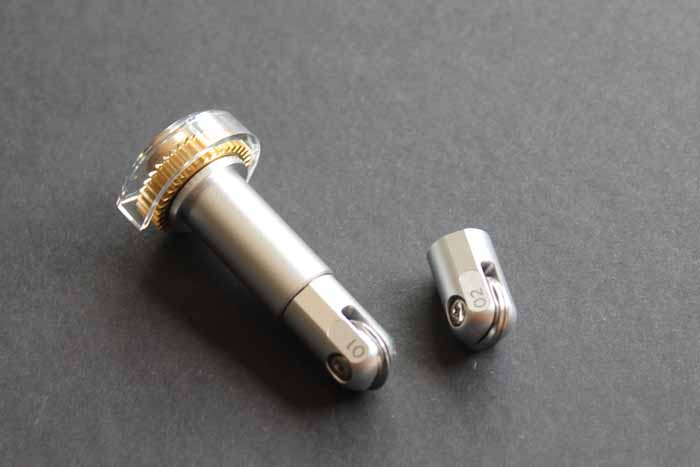
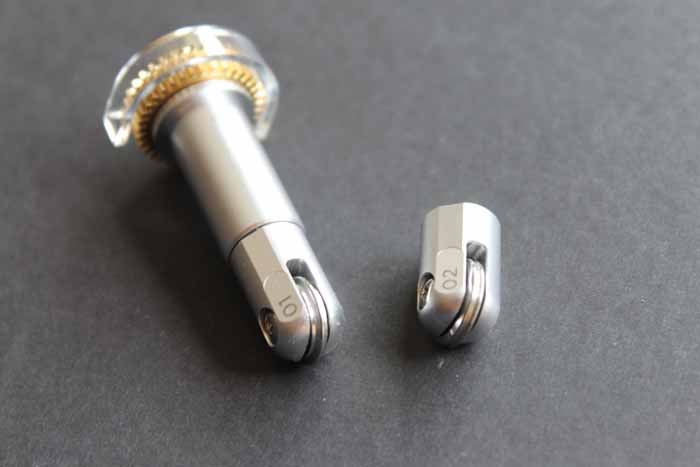
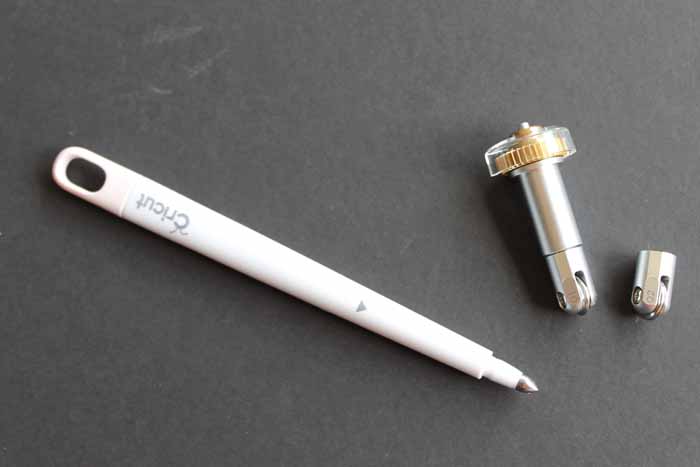
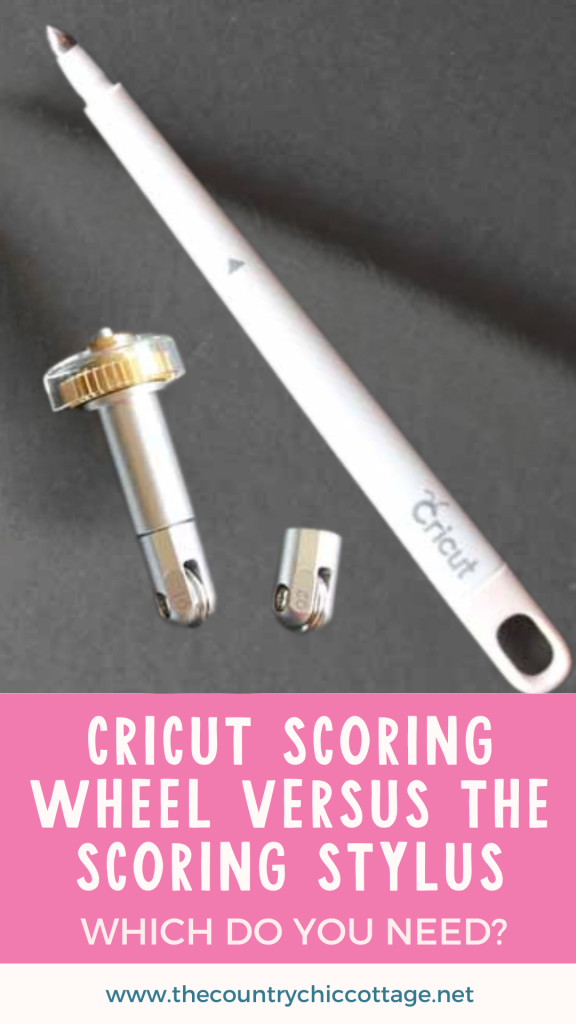
The 01 tip is a single roller, while the 02 wheel is a double roller. You might be able to tell the difference in the image below. Even if you can't, however, do not fear! They are engraved with 01 and 02 to easily tell them apart. Simply push the plunger on top to remove one and insert the other. You can see me change the tips in the video above.
What is the Cricut Scoring Stylus?
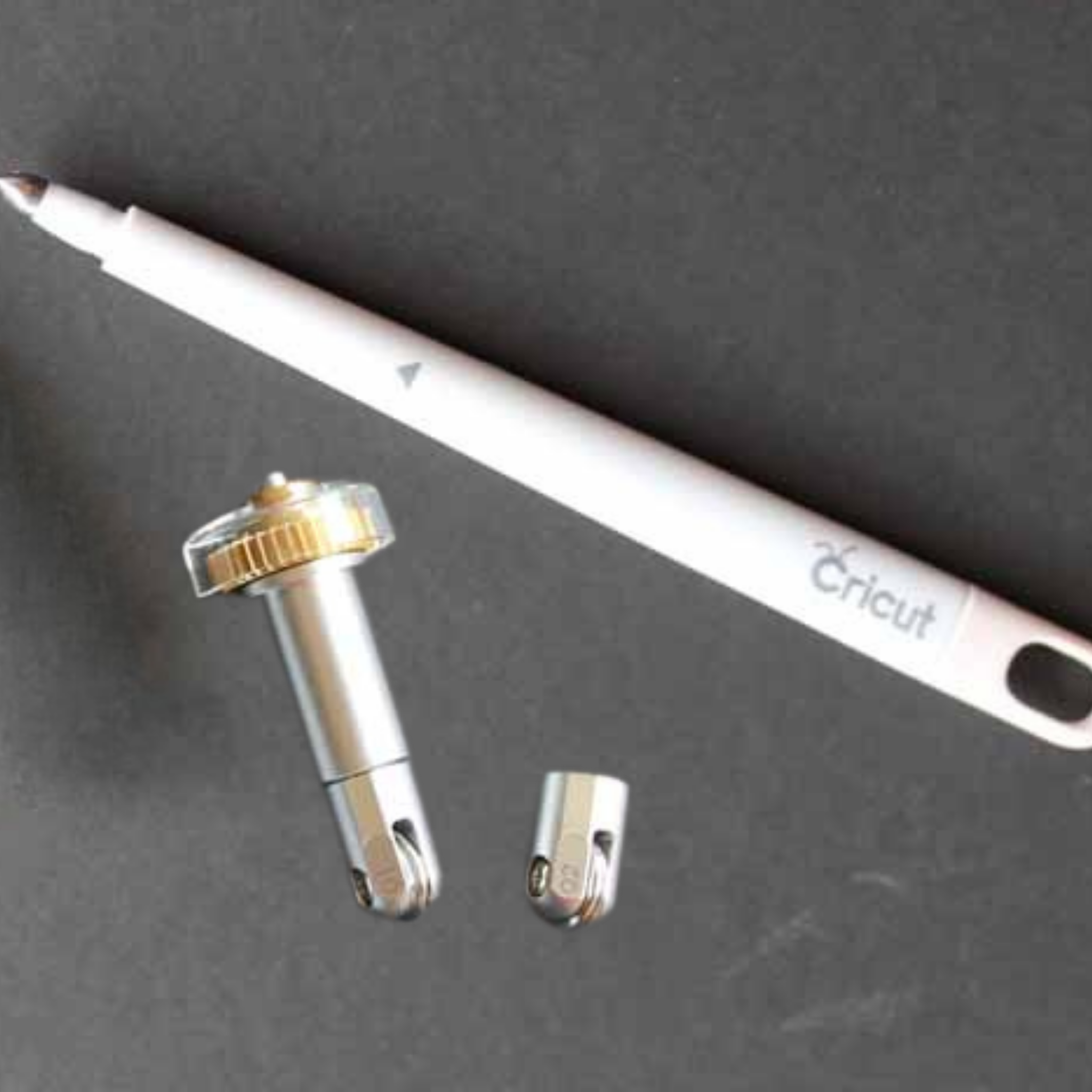
Now, what is the scoring stylus? You can see it below, compared to the scoring wheel. The stylus has been the only Cricut tool for scoring for some time. You can still use the stylus in the Venture, Maker, and Explore models. In Cricut Design Space, when the software calls for the scoring wheel, click “edit tools” and select the stylus instead. However, if you are an avid paper crafter, you might want to read on to see what the wheel can do for you!
How do you use the Cricut Maker scoring wheel?
How do you use this new tool? Here are a few tips and tricks to help you get started.
- The scoring wheel does not need to be calibrated like the knife blade does. Simply insert it into your machine and go!
- The software will tell you which wheel to use: 01 or 02.
- You can't use fast mode when scoring, whether you use the wheel or stylus.
- Use the recommended mat for the material you are using. No special mat is needed when scoring.
- The pressure cannot be adjusted when scoring. The “more” and “less” functions do not apply in this case.
- The Cricut Maker will verify that you have a scoring wheel installed in your machine; however, it cannot determine if it is the 01 or 02 wheel. I always recommend using the option displayed in Cricut Design Space, which is specifically recommended for your material type.
- The machine will first ask for the scoring wheel, then score your material, and then stop, prompting you to change to the blade. After making the change, the cut will be completed on your project.
What material can you score?
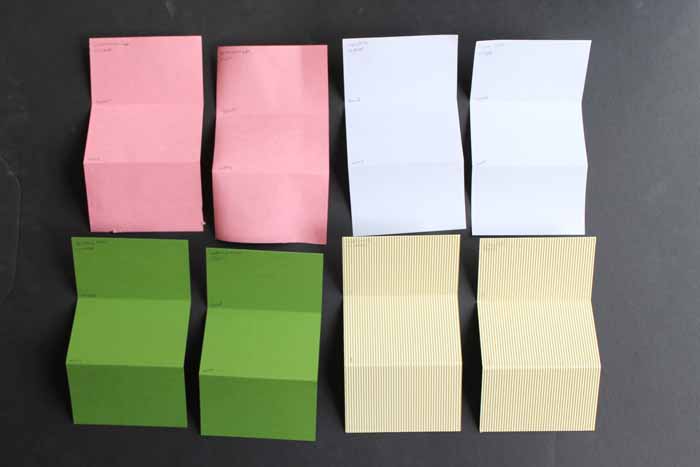
There is actually a huge list of materials that can be scored using the scoring wheel and stylus. I picked just a few to experiment on below. For these tests, I cut a rectangle with two score lines using both the wheel and the stylus. I then did one fold towards the score line and one away from it. That way, I could compare the tools and any cracking or imperfections that may have been introduced into the materials.
Simple Materials
I started with simple materials, such as construction paper, copy paper, cardstock, and corrugated paper. I didn't really notice any discernible differences between the tools in these cases. Both made adequate score lines that could be used for your paper crafts.
Specialty Papers
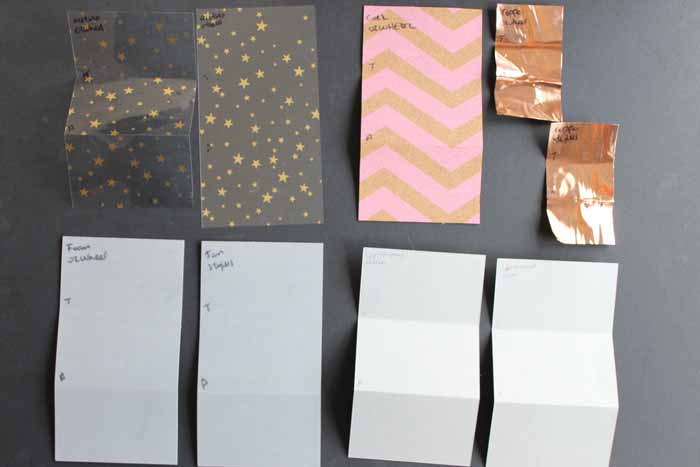
I then moved on to more specialized materials, such as shimmer paper, embossed foil paper, foil poster board, glitter paper, and sparkle paper. With these materials, cracking along the fold can be a significant issue. I found that in these cases, the scoring wheel makes a huge difference. It helps with finding the score lines, achieving a crisp fold, and reducing cracking.
I will say, however, that to achieve the best folds with these materials, you will need to fold your paper towards the fold in all cases. So, you may need to actually make your cuts with the pretty side down on the mat, depending on what your final project will look like.
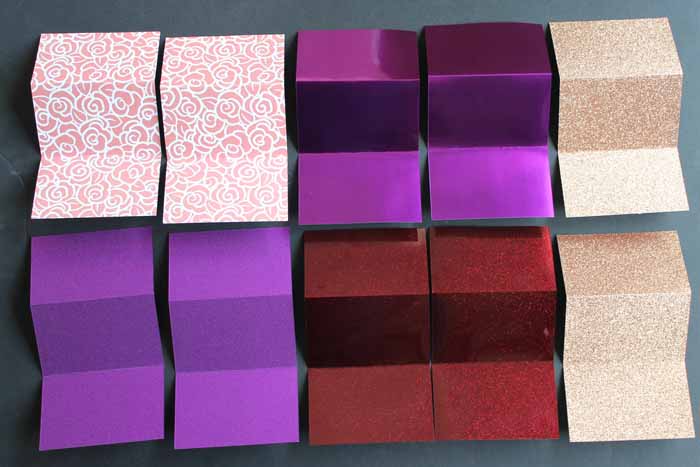
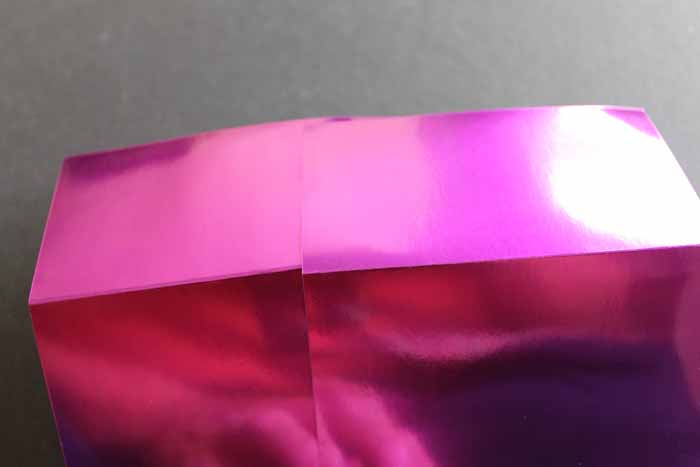
Most of these materials will require a double score line, created by the 02 wheel, to achieve the best folds. You can actually see a double line on the sample on the left in the image below.
Other Materials
Yes, you can go beyond paper with the scoring wheel. This is where the differences really show up!
- Acetate – Frankly, I was unable to get this material to score with the stylus. The Cricut scoring wheel, however, did an amazing job!
- Cork – The stylus ruins this material by dragging through it. The scoring wheel, however, made perfect fold lines. Always be sure to fold towards the score line, as it will crack otherwise.
- Metal – I found that thin metal (in this case, 40-gauge copper) is difficult to bend, regardless of the tool used. If you have a project that uses this, be prepared to proceed slowly and be patient. The wheel sample did perform slightly better.
- Foam – Both tools did a great job adding score lines. I will say, in this case, the stylus is a bit cleaner as the wheel leaves additional marks in the foam.
- Chipboard – Yes, you can score chipboard! Here, I would say the scoring wheel is the way to go, as the folds are much easier.
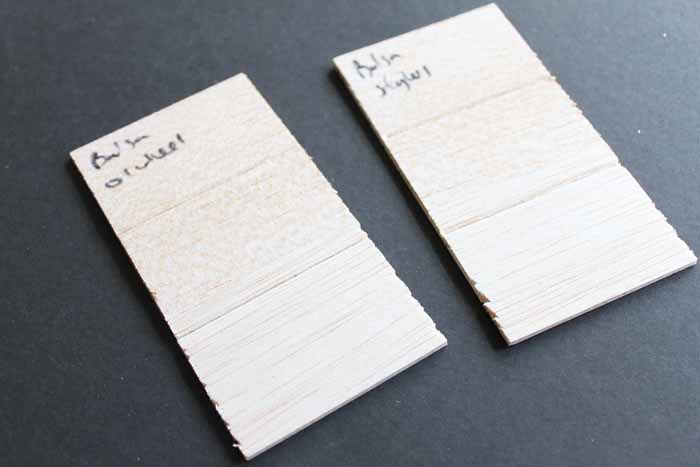
Now, it is not recommended to score wood, but I wanted to give it a try! I used soft balsa wood and ran both tools over it. Both worked great! I am sure you can dream up a project using this technique. I will say if you bend along the score line, the material will break there.
Single versus Double Scoring Wheel
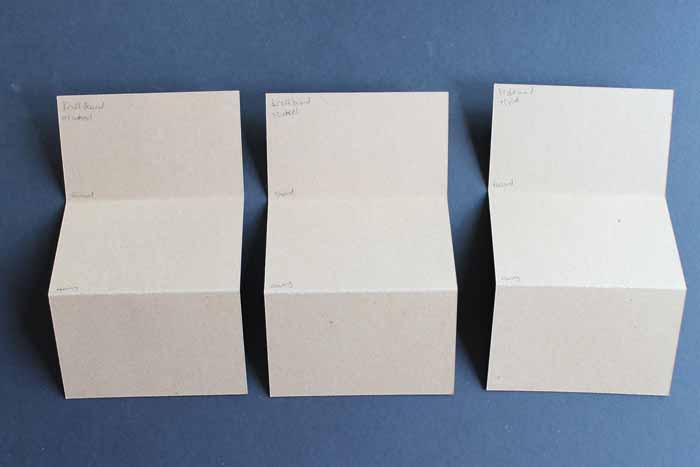
I also ran some experiments comparing the 01 wheel, 02 wheel, and stylus. I found that on this Kraft board, the results were almost the same, but it was much easier to fold the ones scored with the wheel. In all cases, use the wheel recommended by Design Space first, then try the other if you are not happy with the results.
Recommendations for Scoring on a Cricut Maker
Bottom line, if you are an avid paper crafter who wants to score and bend specialty paper and other materials, the scoring wheel is well worth the investment. If you don't have either one currently, I would say consider just getting the wheel, as you may want to expand your crafting later. Already have the stylus? You might wait until you are no longer happy with your folds or until you want to expand into some of the materials mentioned above.
Want to score with the Cricut Joy? You can find a video on how to do that here!
Where to buy a Cricut scoring tool?
Alright, where do you get it? You can buy the scoring tools using the links to the Cricut website below.
You can also find the scoring wheel at most craft retailers that carry the Cricut brand. This includes Michaels, HSN, and here from Amazon.
Do you have any other questions about scoring and these tools? What is going to be your first project when you get your own wheel?
Need more information on what machine to buy? See our comparison of the Cricut Maker and Explore here.











Very Cool! Pinned! Thank you for sharing on Merry Monday! Hope to see ya next week!
Kim
So, I’m having trouble with my stylus literally just ripping through copy paper. BUT ONLY ON ONE SIDE OF THE SHEET. I contacted Cricut and they sent me a new stylus and it’s worse! So bummed, and there’s nothing about it on the web. Of course, it’s also the weekend, so I can’t chat with them.
Hmmm….I have never tried it on really thin paper like copy paper. Do you have any thicker paper you can use as a test?
I just got my cricut maker a couple days ago and trying to figure this all out. I tried to make a card and I only had the stylus not the wheel. My friend has an air 2 so I thought the stylus was all i needed for scoring. I was using card stock and it tore through the paper as well. Like the gal above, I haven’t found any info as to why this would happen. It never happened on my friend’s machine…
Any thoughts???
That is odd! Did you have a new mat or an old one?
Yes. I am having the same issue with the stylus. Tried it on thick cardstock. It ripped it. What’s going on?
Thank you so much for your detailed posts. I am still trying to determine if I will be able to do some of the things I want to do with a cutting machine. So far the Maker is looking like it will meet more of my goals than any other machine. One question I have is about using the scoring tool with “print then cut”. Would I be able to print, then score, then cut? I’d like to do some 3-D models with printed images rather than plain card stock. Machine scoring and cutting would save a lot of time. If this is possible, am I right to think I could print without having the score lines printed, just scored? That would make the model much nicer looking without having the score lines printed.
I have not tried it but I don’t see why not! As long as you make your lines true scorelines they are not printed!
Thanks for all your great posts and being willing to answer questions so quickly.
Thank you. Helps me alot
Thank you, Angie. I got all the information I need about the stylus vs the scoring wheel from this comprehensive presentation.
Thank you for that highly detailed tutorial about scoring .
I am having problems with my Stylus pen popping up out of clamp A of my cricket maker what can I do
Call Cricut. I think your holder needs to be replaced.
i have the explorer 2. I tryed using the stylus on 65lb cardstock it didn’t leave any marks so i thought it was maybe the stylus so i bought a new one it didn’t work either. When i put it in the arrow was at the front and it clicked when it went in. could you suggest anything else.
I would say you need to check that the insert that is inside of your clamp is all the way down and in.