

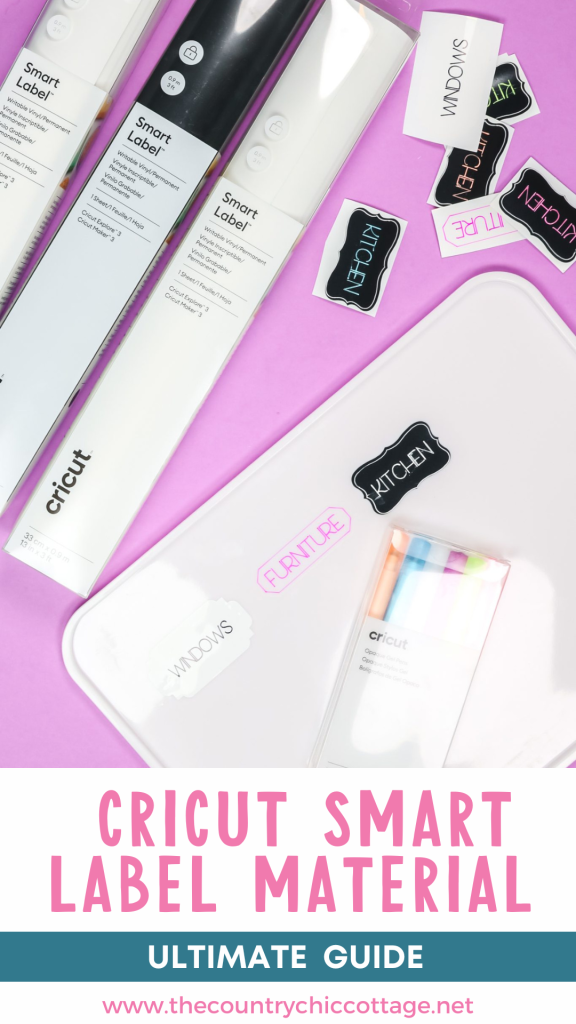
Did you see that there is now Cricut Smart Label material for Maker 3 & 4 and Explore 3 & 4 machines? Smart Label has been around for a long time in the Cricut Joy size and in the color white. It's a material I really like, so I was excited to see it released for the other machines.
Trying to decide whether to get a new machine? Check out my updated Cricut machine comparison post here.
What is Cricut Smart Label Material?
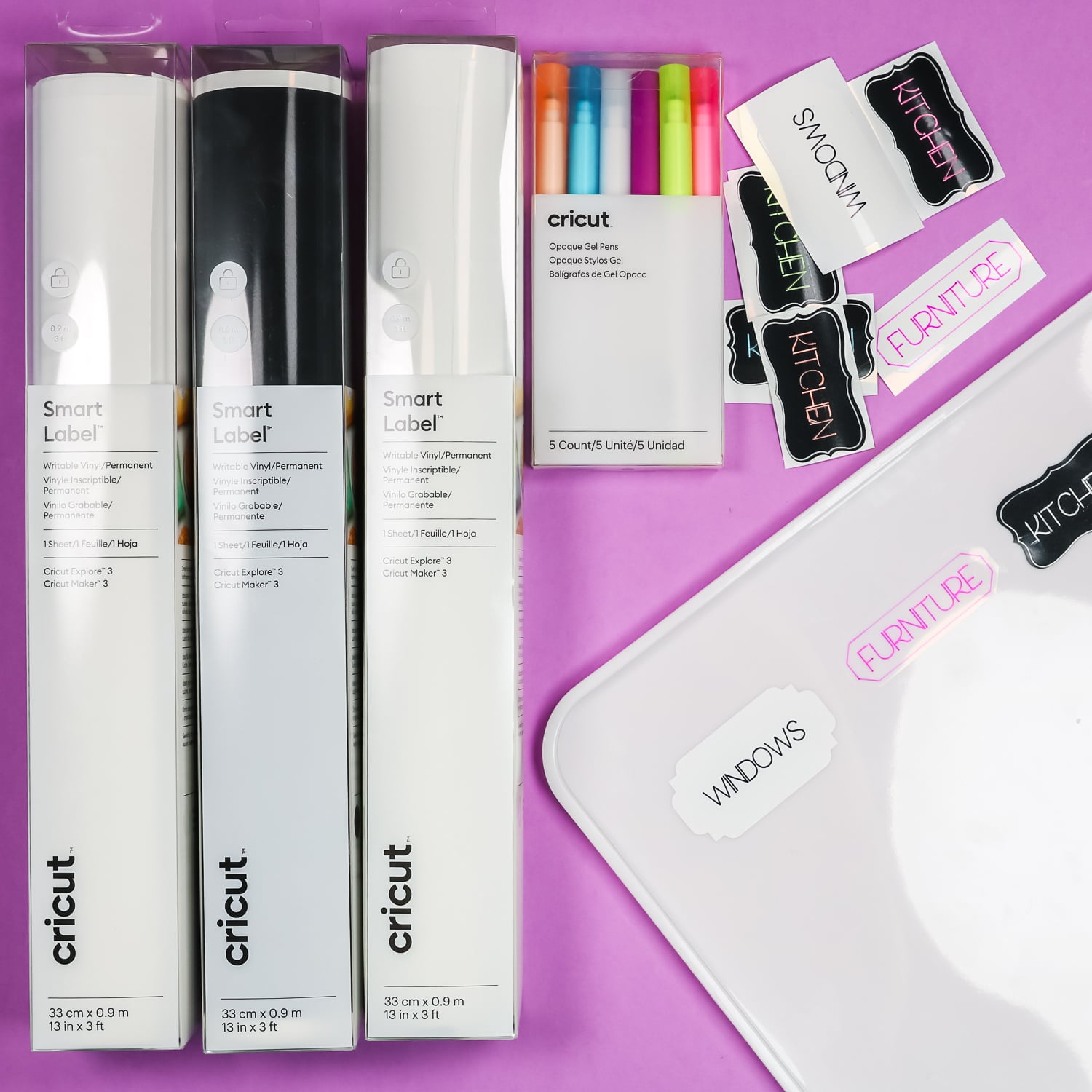
Cricut Smart Label is a writable vinyl. The vinyl surface is different from regular vinyl, so you can write on it with Cricut pens without it smearing. It dries quickly, and you can make labels really easily with it.
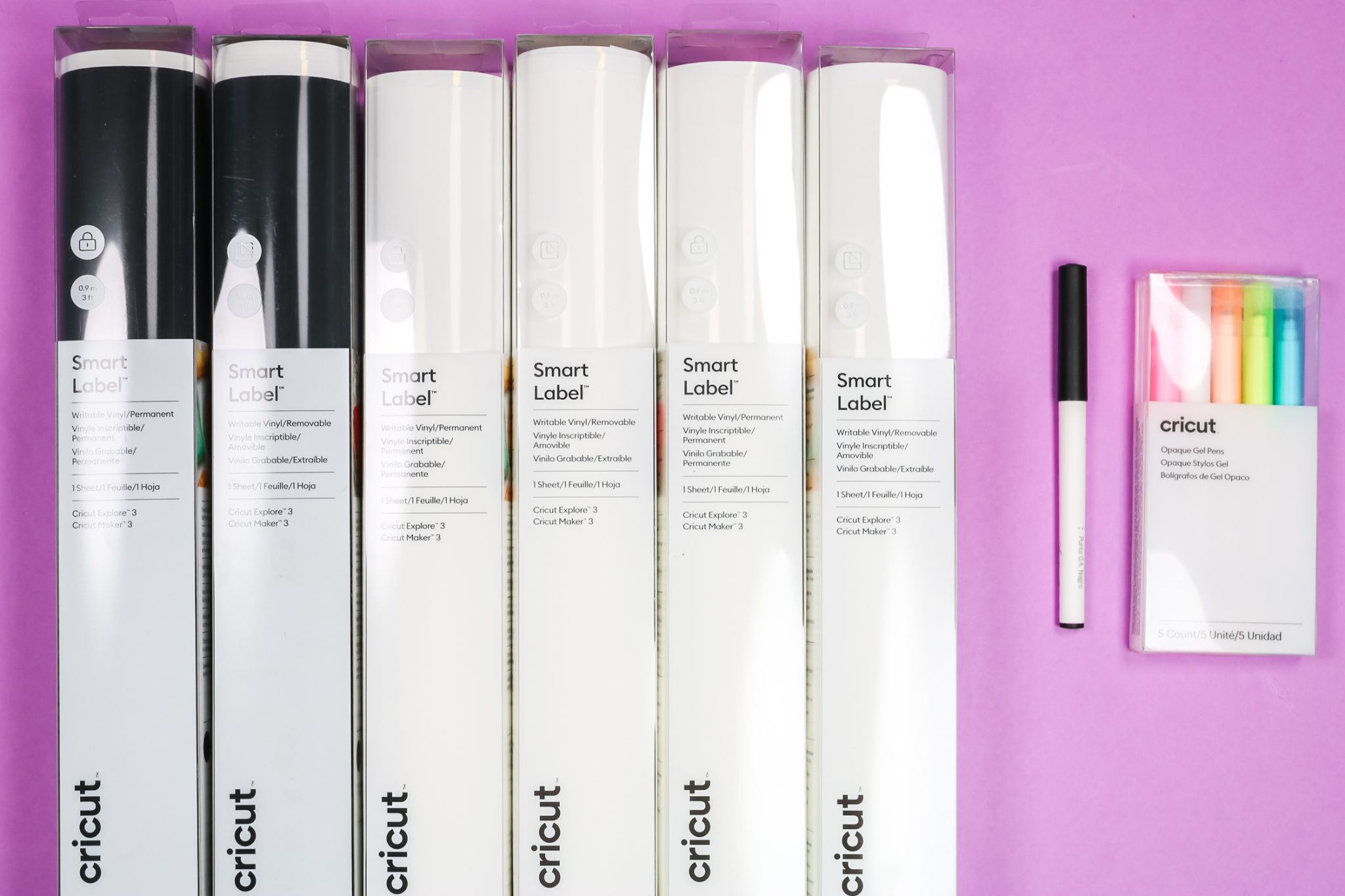
Originally, Smart Label came only in a size that fits the Cricut Joy. Recently, Cricut released larger rolls that fit in the Explore 3 & 4 and Maker 3 &4 machines. When they released these larger rolls, they also released new colors. Now you can get Smart Label for the Cricut Joy in several colors, and in the larger sizes, you can choose white, clear, or black labels.
Smart Label material is also now available in permanent and removable vinyl. So you can choose the grip strength that will work with the project you have in mind.
Opaque Gel Pens
You may be asking yourself how you're going to write on the black Cricut Smart Label. Well, Cricut also released a set of opaque gel pens, including a white pen for writing on the black Smart Label.
Today I'm going to show you how to make labels with each of these new materials. Want to watch me test out each material? Just click play on the video below:
Supplies Used to Make Cricut Smart Labels
How to Use Cricut Smart Labels
I am going to test all 3 label colors to see how they work in Explore 3 & 4 and Maker 3 & 4 models. If you have an earlier machine, you can use this material, but you will have to cut it down to fit it on a mat. I am using my Explore 3 today to test it without a mat.
When using white or clear Smart Label materials, you can use regular Cricut pens. For the black, you'll need a pen that will show up on black. I'll be using the white pen that came with the new opaque gel pen set to see how it works.
Step 1 – Create a Label
When it comes to labels, you can find a lot of options in Design Space. You can also use the shapes in the shapes tab if you'd like. Use the size tool to resize your labels to fit the surface you're applying them to. Once you have the design you like and have it sized correctly, it's time to add some text.
Step 2 – Add Text to Labels
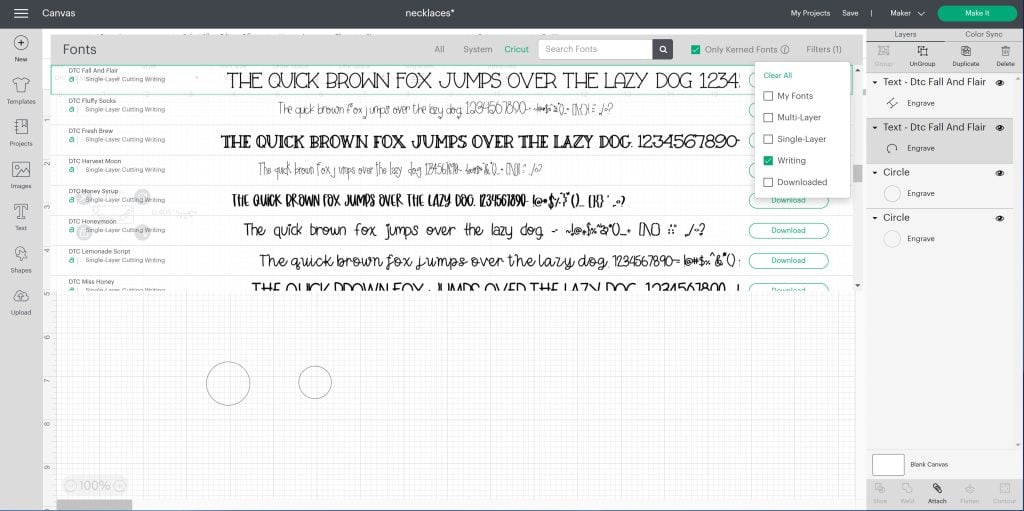
Decide what you want your labels to say, then type them onto the canvas. Make sure you're using a writing font. You can do that by selecting writing under filters in the font drop-down. Choose any font you like the look of and select it. Change your operation type to draw, and then the style to writing.
By choosing a writing font and adjusting the settings, you'll get a look that reads like writing, not an outline of the letters.
You can also change the pen color in the box next to the operation type selection. Make sure, especially if you're using multiple colors on one project, that you change the color to reflect what you want to use. This will tell the machine to pause and prompt you to change the color.
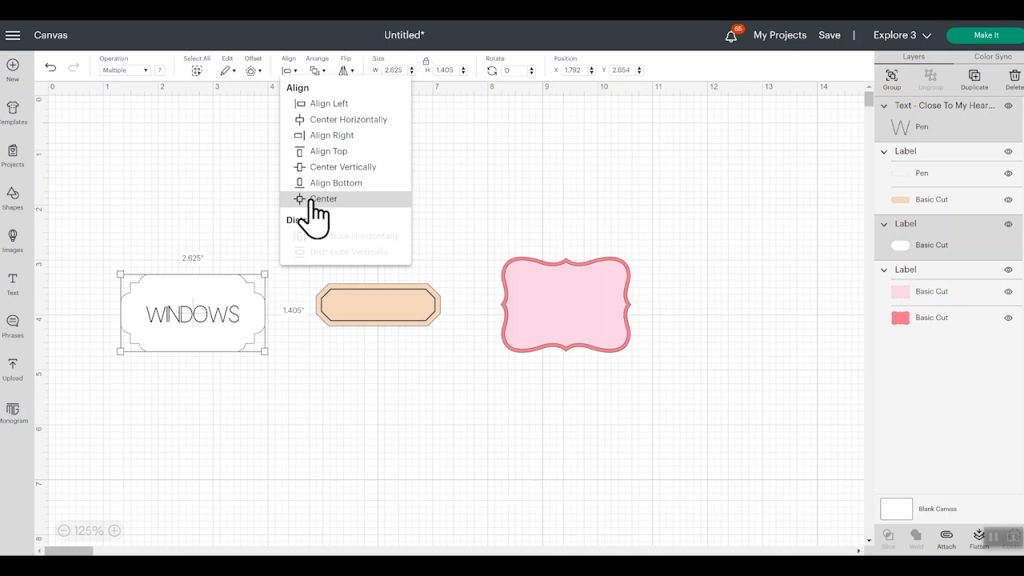
If you want your words centered, select both layers and align them, then center. If you want them aligned to the right, left, top, or bottom, you can also use the align tool.
When everything is set up just how you want, select both layers and click Attach in the layers panel. By attaching the two layers, your machine now knows to write the words inside the label and to cut around its outside.
Working with Multi-layered Label Designs
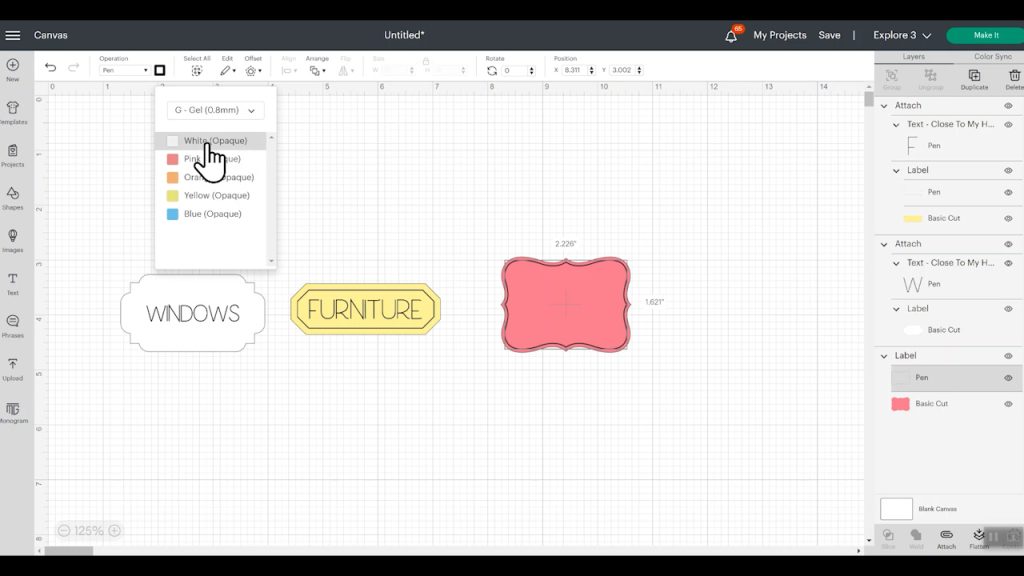
The design I chose for my black Smart Label is multi-layered. Since I don't want my label to actually be two cut layers of Smart Label, I'll select the top layer and change it to a draw layer.
You could delete that layer if you don't want it, but I like the look, so changing it to a drawn layer gives me a similar look without having to cut two different colors. Since my label material is black, I will use a white pen. I changed my pen to the gel 0.8 millimeter pen because that is what I have for the opaque gel pen.
Adding text and setting up the final label are the same as before. Don't forget to attach!
Step 3 – Cut Smart Label Material
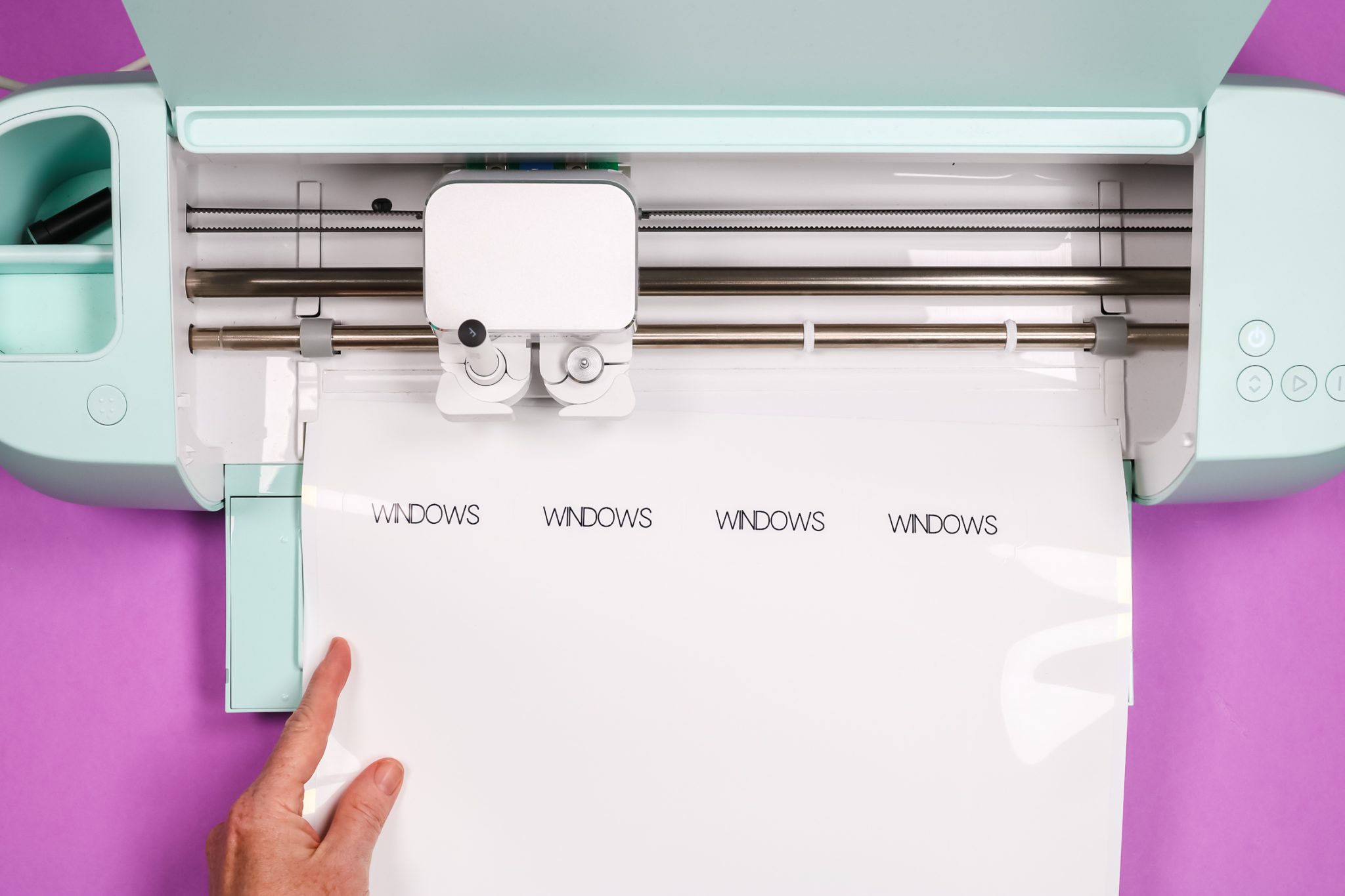
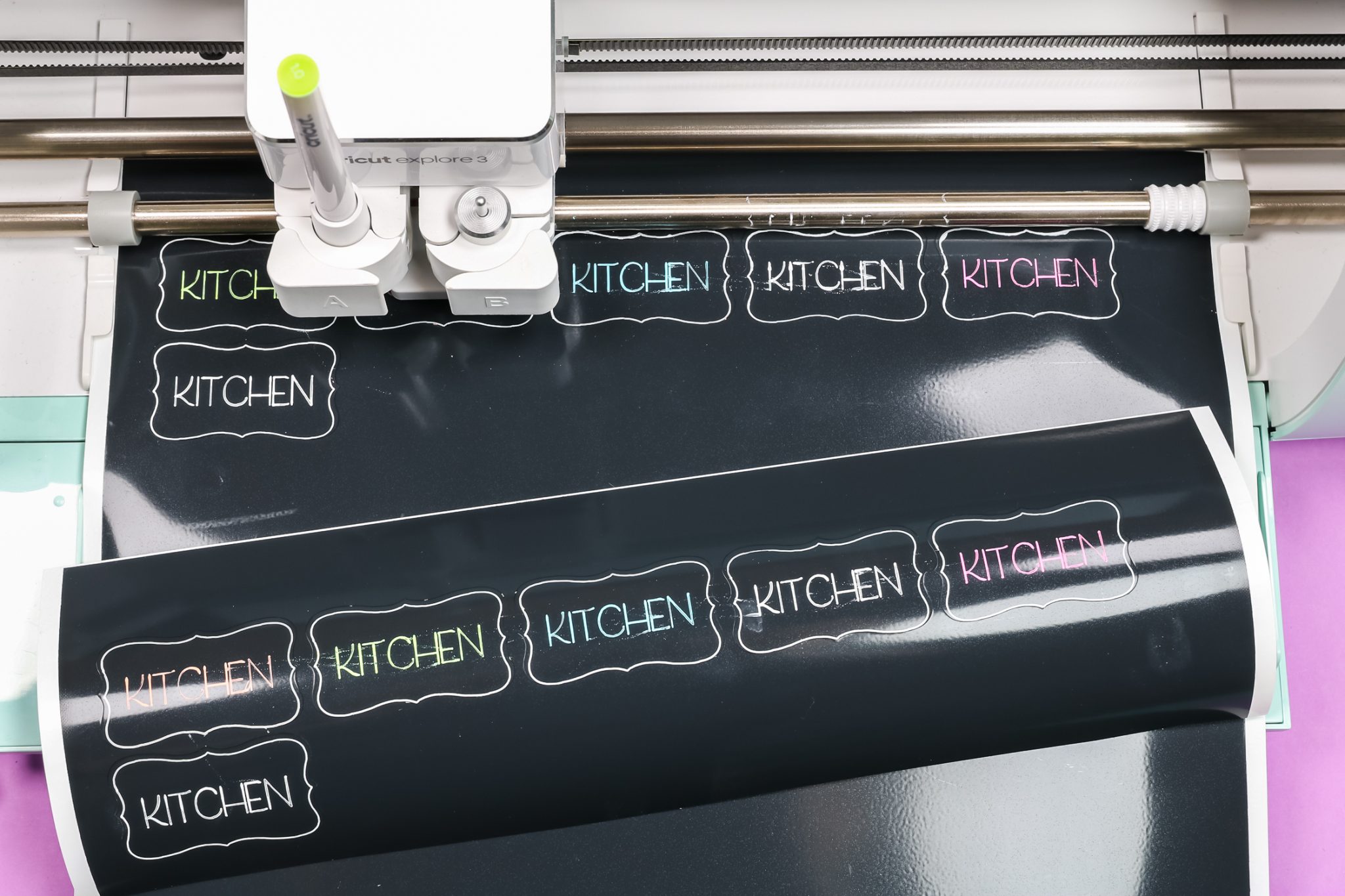
I am using my Explore 3 machine to make these labels. Once your design looks the way you want it, click Make. Then, since I'm using a smart material, I am selecting without a mat. If you are using an Explore 3 & 4 or Maker 3 & 4, you would do the same. If you are using another machine, you will need to cut the material and place it on a mat.
Because I changed the color of all my labels on the canvas, Design Space knows I am using different materials, so it will load one design at a time.
I am using Smart Label as the material. These new materials come in both permanent and removable, so make sure you select the material you're using. Remember, only Smart Label vinyl is writable. If you try to use regular vinyl, the pens will not write on it; it'll smear and likely make a mess.
Load your Smart Label material into your machine, and make sure your fine-point blade is installed and that you're using the correct pen for the label you're making. Press Go, and your machine will draw with the pen first and then cut.
Ste 4 – Weed Smart Labels
Weeding the Smart Labels is really easy. Just peel away all the excess, as you would with other vinyl designs.
Step 5 – Apply Smart Labels
Cricut states that you should not use transfer tape or transfer paper when using Smart Label vinyl. You shouldn't use this material for any intricate cuts.
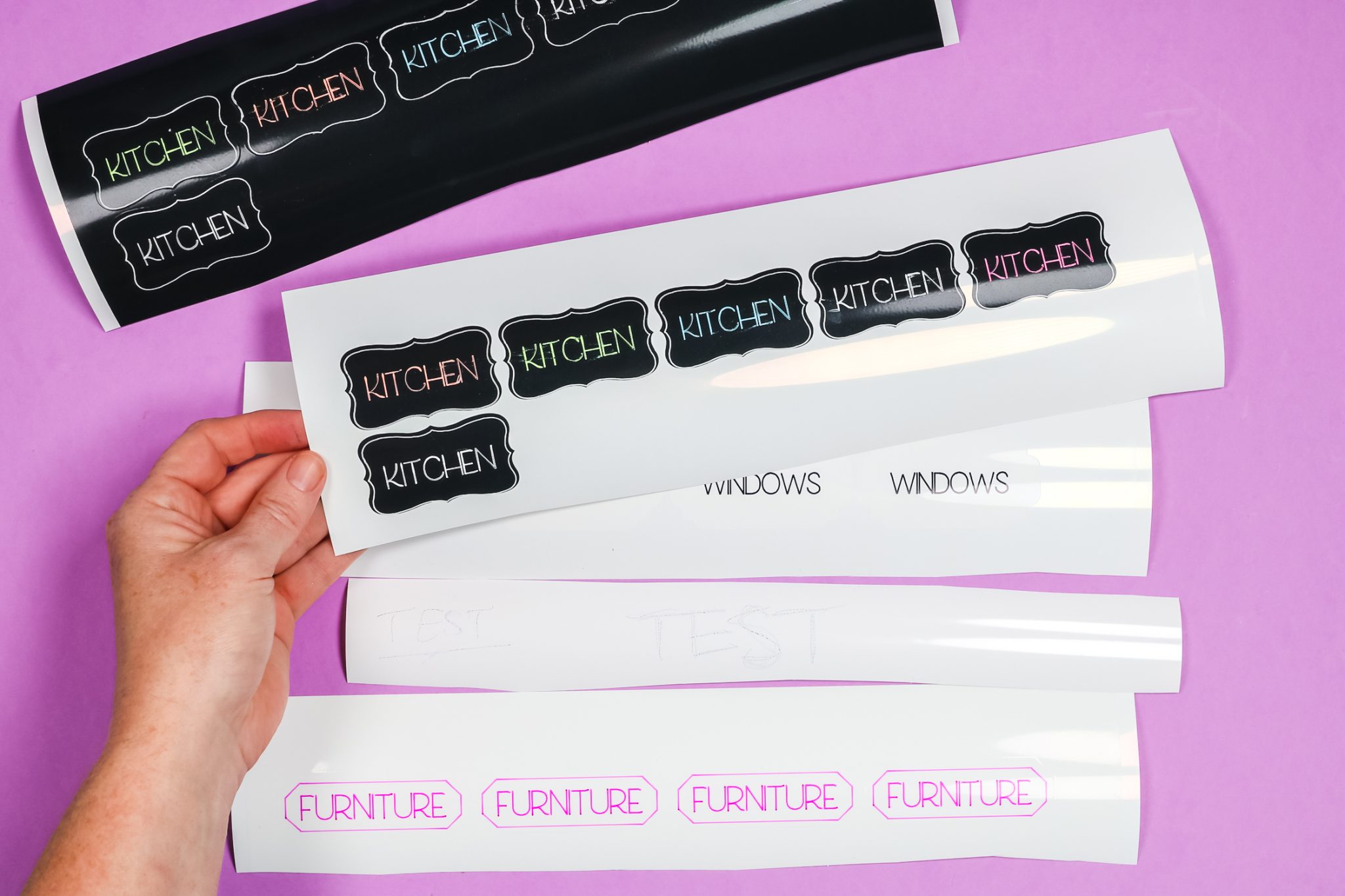
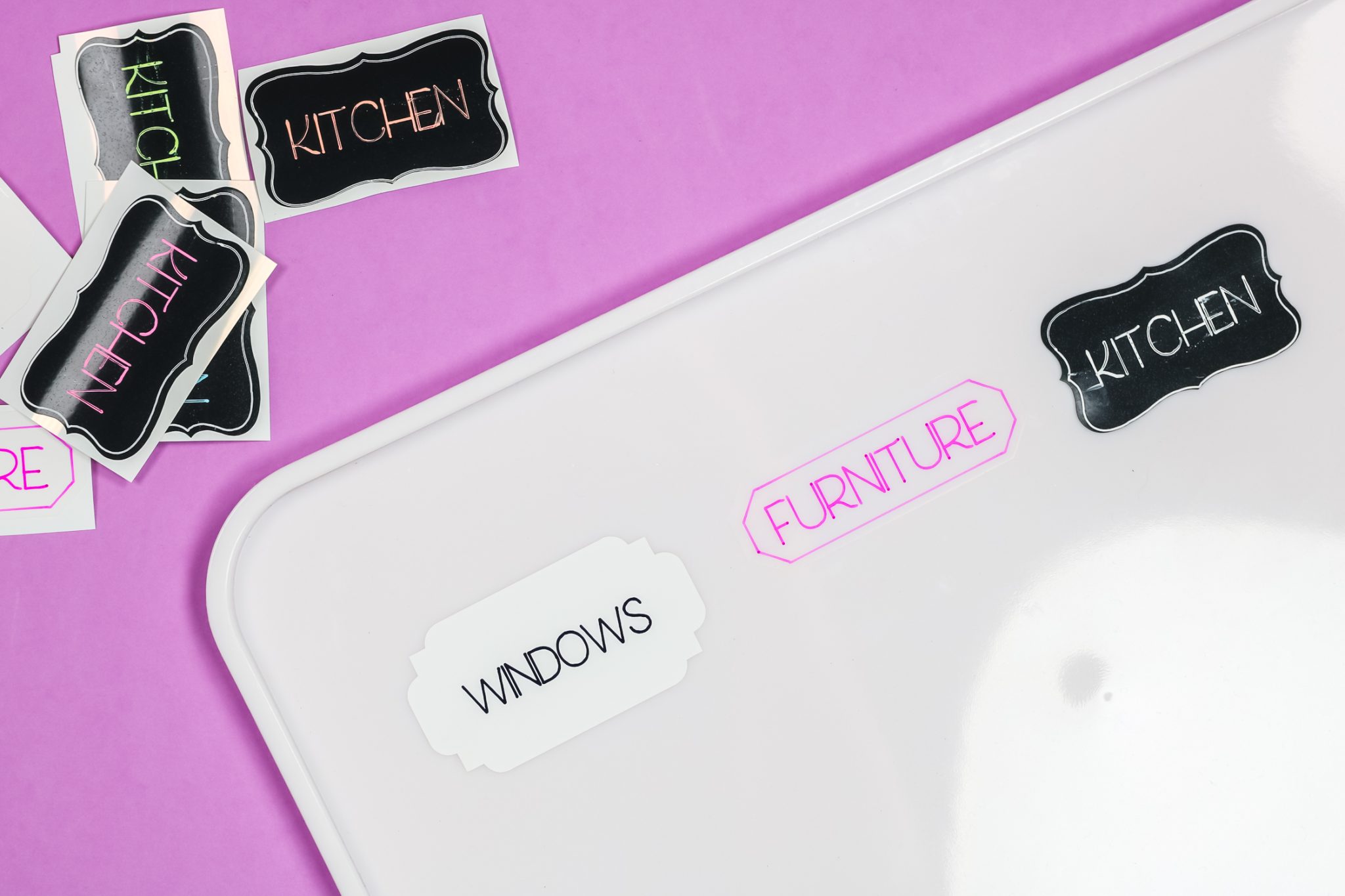
To apply your labels, just lift them off the backer and place them on your surface like a sticker. They apply nicely and stick really well. Remember, with the clear vinyl, whatever you stick it to will show through. This means you need to take that into consideration when you choose your pen color so you can see the writing after it's placed on the surface.
Final Thoughts on Cricut Smart Label Vinyl
I've been using Smart Label material for a long time, basically since the Cricut Joy was released. I've used it in a variety of areas and really like it. Note that you wouldn't want to use it where it might get wet or in areas with a lot of moisture, as it may fail in those conditions. Otherwise, I think it is the perfect material. I love that it now comes in permanent, removable, and different color options.
Unfortunately, I wasn't impressed with the black because the gel pens smeared no matter what I did. I'm hopeful that someone will come up with tips and tricks to help it work better. Sadly, it just didn't work well with the gel pens that Cricut released. I do like the look of it, though, so I really hope it gets improved.
The clear and the white, however, I love those, and I will continue to use those. I like that it now comes in a wider size for my Maker 3 & 4 and Explore 3 & 4 models. This means that now, when I want to make labels, I don't always have to get my Joy out.
Frequently Asked Questions
Can I Use Smart Label Materials with Explore Air and Maker Machines?
Yes, you can. You just need to cut the material to fit on a regular cutting mat, then feed it into the machine as usual.
Do I Need to Move My Star Wheels?
I didn't move my star wheels, and with the white and clear Smart Labels, the pens didn't smear at all as the machine cut them.
When I was making the black labels using the white opaque gel pen, I got some dragging of the pen when the star wheels rolled across the ink. The final labels didn't look clean, so I moved all the star wheels to the side to see if that would look better.
Somehow, this caused the pen to get on my roller. That left me with a lot of cleanup to do on my machine. I would recommend leaving the star wheels spaced evenly across the bar. Just note that with the opaque gel pens and this black Smart Label material, you might have some places where it doesn't look just perfect.
Can I Write on Regular Cricut Vinyl?
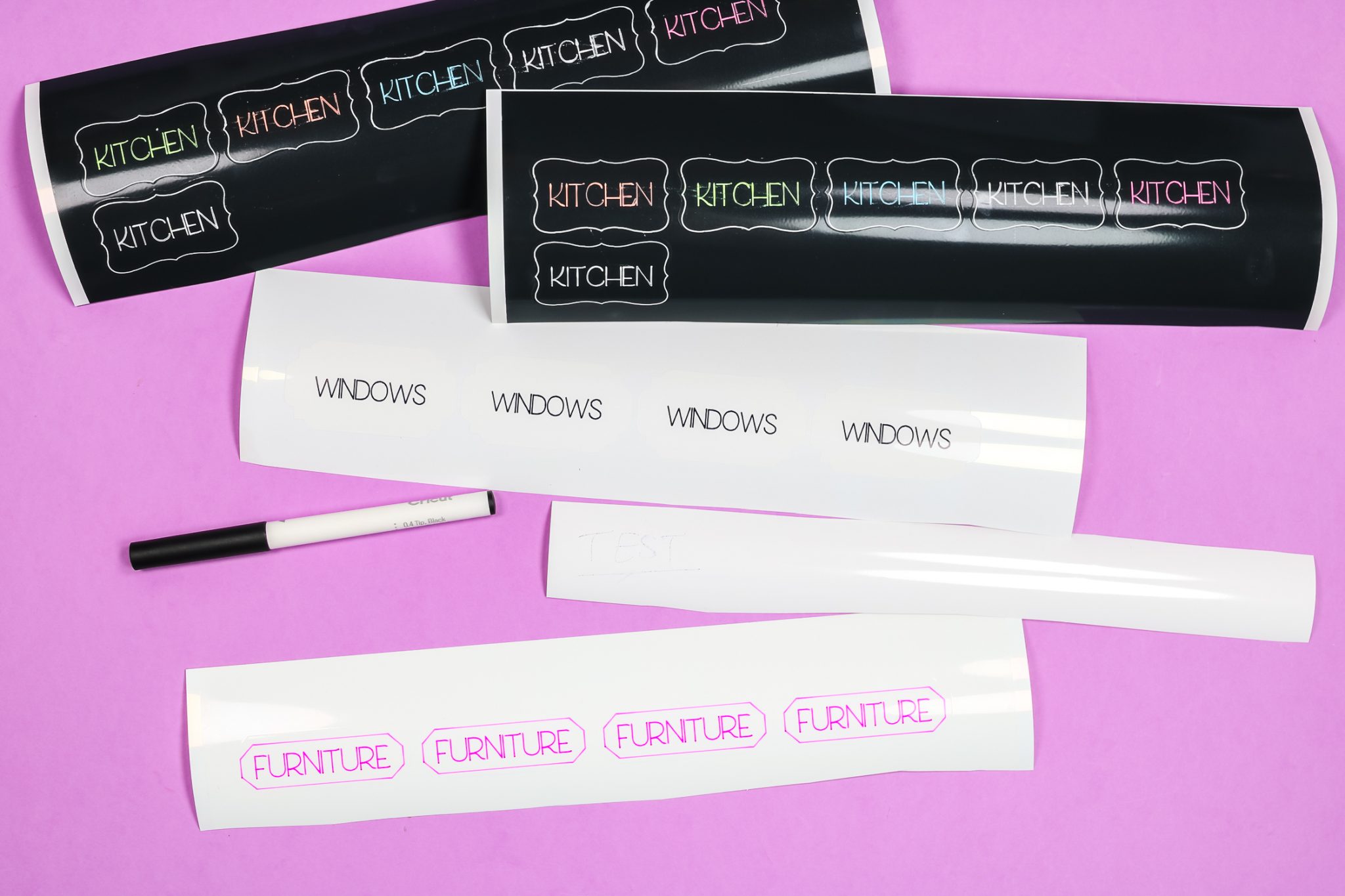
I tested regular Cricut Permanent vinyl with the same pen that I used on the white Smart Label. When I write on regular vinyl, not the Smart Label, it doesn't really write at all. This shows that you do need the Smart Label material to write on the vinyl.
Is Cricut Smart Label Material Waterproof?
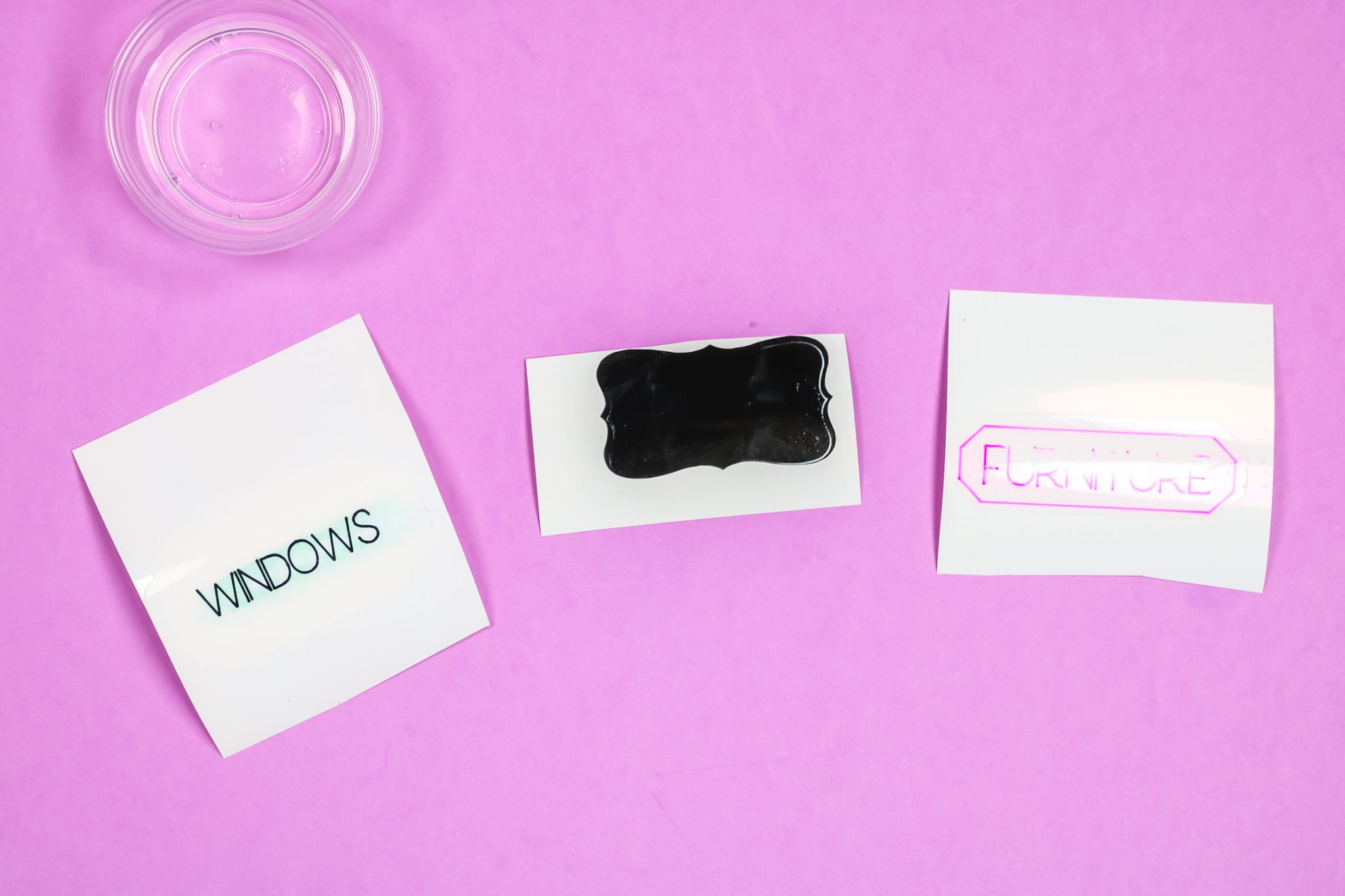
One of the questions I get asked most often about Smart Label material is “Is it waterproof?” I decided to test each material, and this is what I found out.
I made sure each label was completely dry before rubbing the ink with a wet cloth.
- White: the ink smears when water is applied with a cloth.
- Clear: the ink actually starts to rub away.
- Black: the ink almost completely disappears when water is applied.
The permanent vinyl itself may be somewhat waterproof or water-resistant, but the ink is not. If you want to use Smart Labels in places where they may be exposed to moisture, you'll need to protect them. If you need water-resistant labels , check out my video on YouTube.
I hope this answers all your questions about Cricut Smart Label vinyl. If you still have questions, feel free to leave them in the comments, and I'll answer them.











Vinyl and Cricut pens can work well together for creating, but there is a trick. You require a certain kind of vinyl known as “writable label vinyl.” The ink stays tidy and vibrant since this vinyl is designed to function with pens.
This is true, you definitely want to use a writable vinyl so it doesn’t smear 🙂
Hello! Would you be able to suggest what “base material” I would select if using the smart vinyl on an older cricut machine with a cutting mat? Thank you!
You may want to try a couple of options. I would start with the regular Premium Permanent vinyl setting. If that doesn’t work you can also try the chalkboard vinyl setting or glitter vinyl setting. I like to do a test cut with a heart shape because it has points, curves, and straight lines 🙂