Have you been looking for a compact laser that can easily cut materials like clear acrylic, engrave glass, and mark metal without taking up your entire craft room? You're going to want to keep reading to learn about the new FLUX beamo II CO2 laser.
There are a lot of lasers on the market, and knowing what projects you want to make with a laser can be helpful when deciding which laser is right for you.
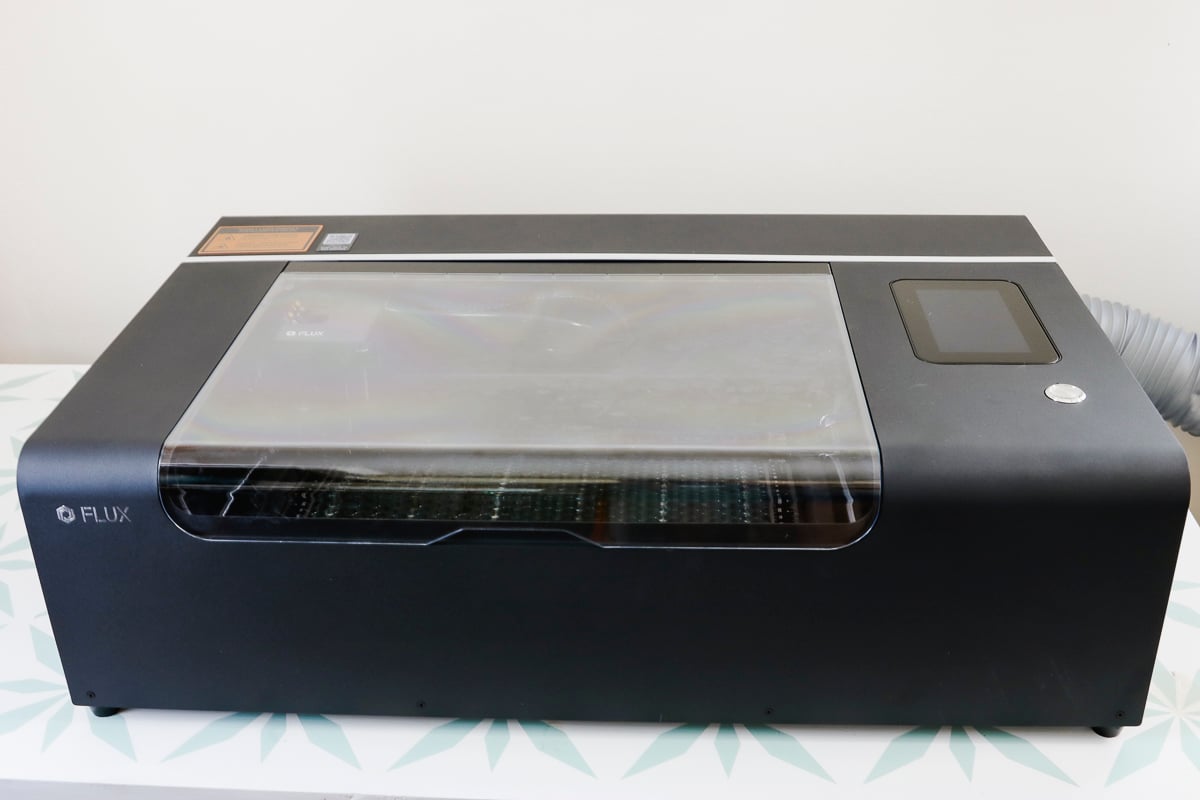
A while back, I tested and reviewed the original FLUX beamo laser and loved its portable footprint. While using it, I found some features and improvements I was wishing for, and beamo II addresses almost every pain point I ran into.
Click play on the video below to watch my full review of the FLUX beamo II.
All New FLUX beamo II
The FLUX beamo quickly became one of my favorite lasers because it can cut and engrave clear acrylic. That is the biggest limitation I run into when using a diode laser. It's also the question I get asked about the most.
The beamo II is a CO2 laser, just like the original beamo, but it has improvements I'm very excited about.
If you've ever thought, “I want a laser that cuts clear acrylic. I want it to be small and affordable.” Keep reading to learn all about FLUX beamo II.
See more and buy the FLUX beamo II here!
How is the FLUX beamo II Different From the Original beamo?
Let's talk about how the beamo II and original beamo are different.
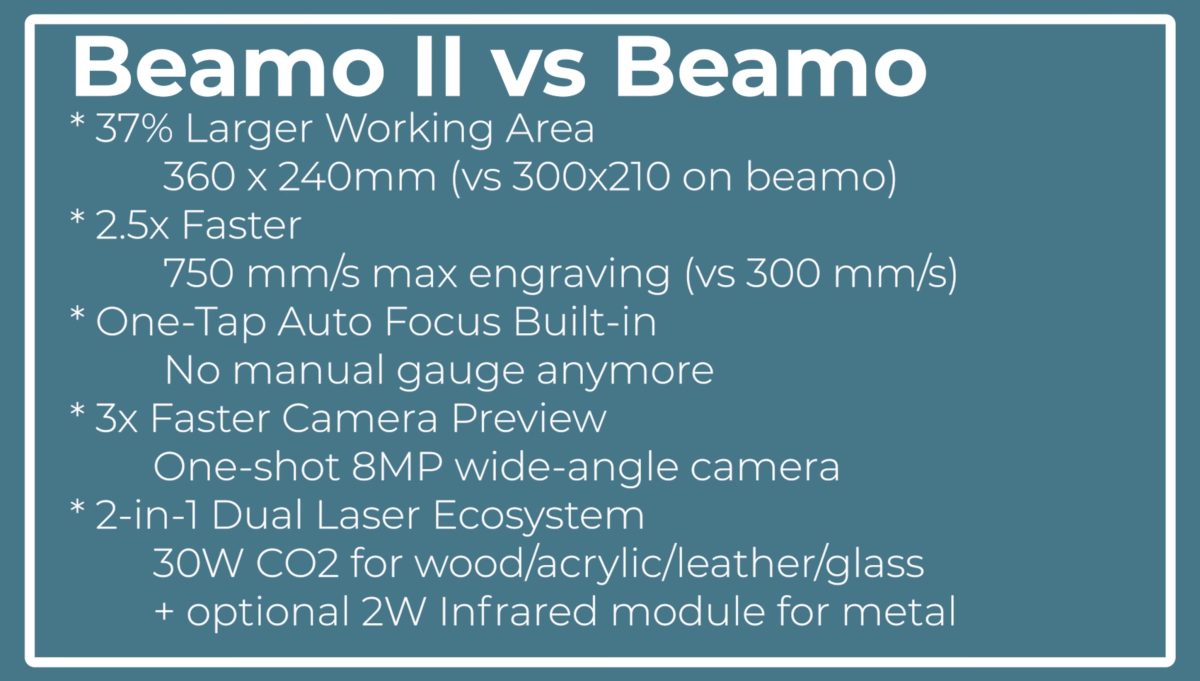
Larger Working Area
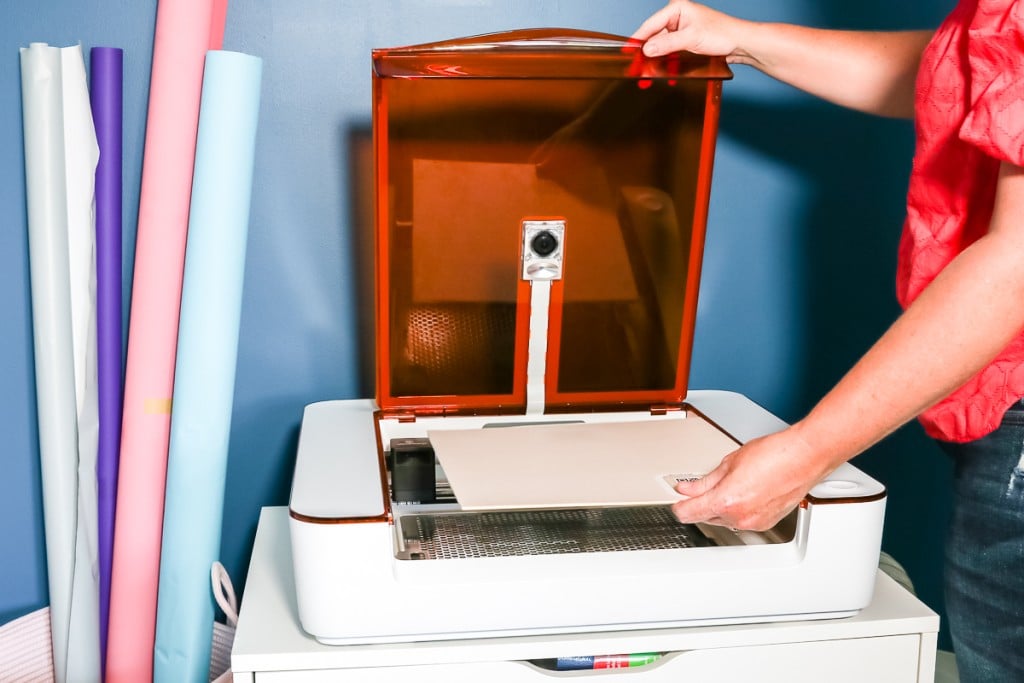
The beamo II has a 37% larger working area. While that may not seem like a lot, it makes a huge difference because now 12-inch by 12-inch materials fit in the bed without needing to be bent or trimmed down.
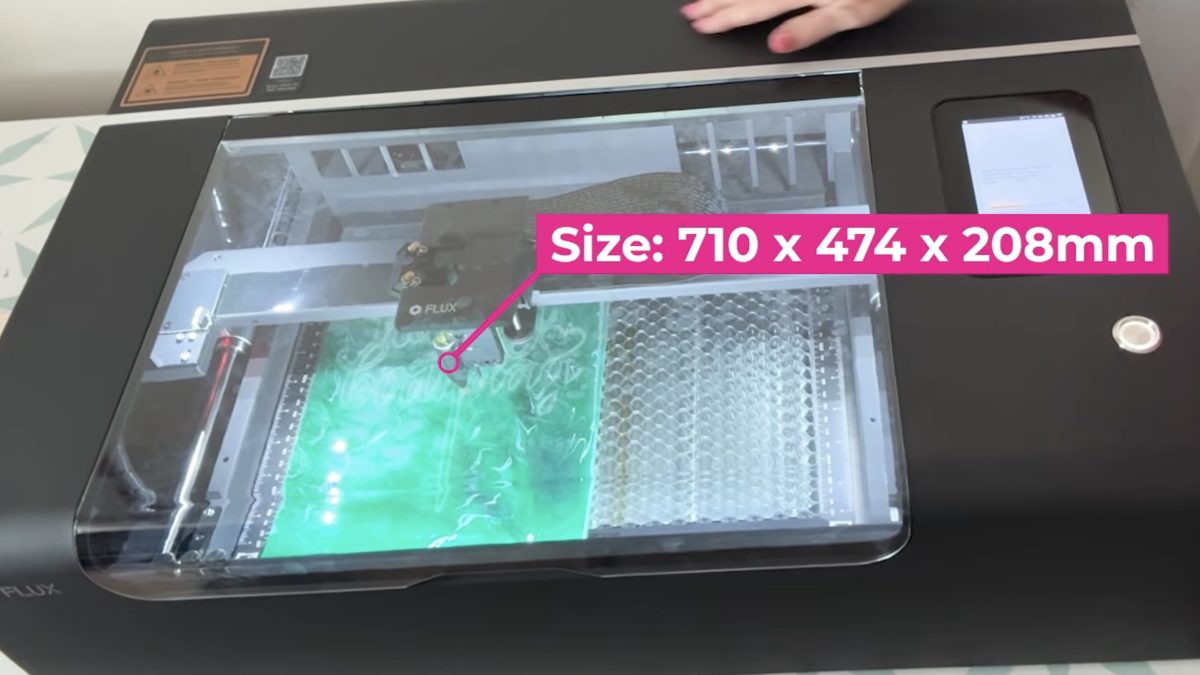
This was a really big pain point for me with the original beamo. I often want to make projects in my lasers that test the limits, and finding materials that use the full bed of the beamo without needing to be trimmed down was difficult.
Faster Cutting and Engraving
The beamo II is also two and a half times faster than the original beamo. While I really like the orginal beamo, the speed is one of the things I would consider a pain point.
I was really happy to see that the new version is faster. I am impressed with the speed of this beamo II.
Autofocus Included
If you saw my original beamo content, you may have had questions about how the focusing works. In the original beamo, you need to manually focus the laser. There is an autofocus option that you can purchase as an add-on, but swapping it was not an easy process and is not something I recommend.
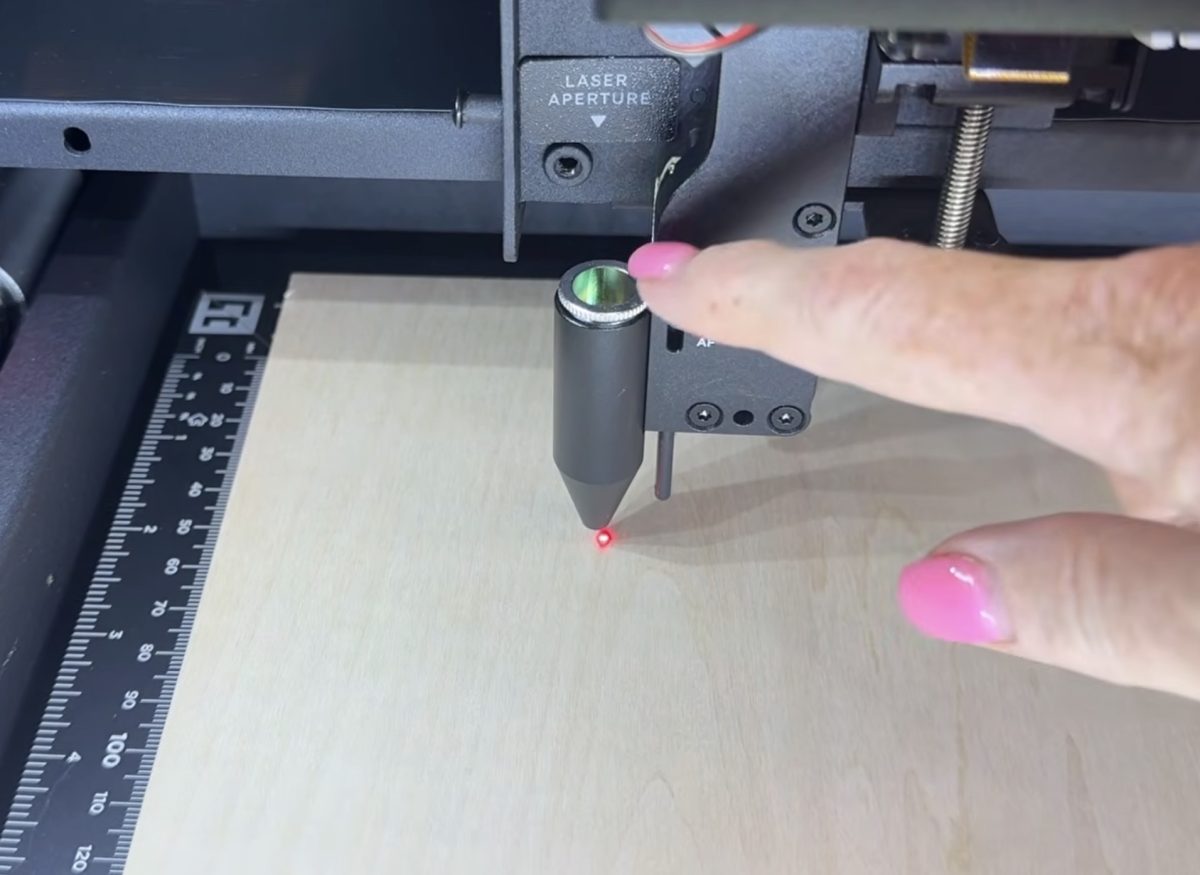
The beamo II comes with autofocus, and it is really easy to use. At this point, autofocus is a laser requirement for me, so I am really glad the beamo II comes with it.
3x Faster Camera Preview
The original beamo does have a camera preview of the bed of the laser, but it is taken in multiple photos, which is a slow process. The accuracy was really good, but I hated waiting for it to scan the whole bed.
With a one-shot wide-angle camera, the beamo II is so fast that I was shocked at how quickly it took the image and loaded it into the software.
Being able to see the material in the bed of the laser makes creating laser projects much easier than trying to guesstimate where to place the design.
Two-in-One Dual Laser Ecosystem
With the new beamo II, you can use both the 30-watt CO2 laser head for wood, acrylic, leather, glass, etc.
You can also purchase an optional 2-watt infrared laser module that will allow you to engrave metal. Think stainless steel, aluminum, gold, silver, copper, and more. You can engrave all of those materials with the infrared laser head.
Because the infrared module is an optional add-on, I am not going to use it in this review today.
The beamo II also has a more focused airflow, which gives you cleaner cuts than the previous version.
See more and buy the FLUX beamo II here!
Get my FREE Laser Ready course!
Learn everything you need to know about getting started with laser crafting with this free video and guide. We'll discuss the different laser options, how lasers work, and what types of materials you can use.
What is a CO2 Laser?
I mentioned above that the beamo and beamo II are both CO2 lasers. A lot of the lasers I use in my crafting are diode lasers and are great for many crafters. CO2 lasers are different, so let's look at how a CO2 laser is different from a diode laser.
A CO2 laser uses a different light than a diode laser. Diode lasers have a blue light that goes right through clear and light colored materials. A diode cannot cut or engrave things like clear acrylic and can struggle with light colored and blue materials.
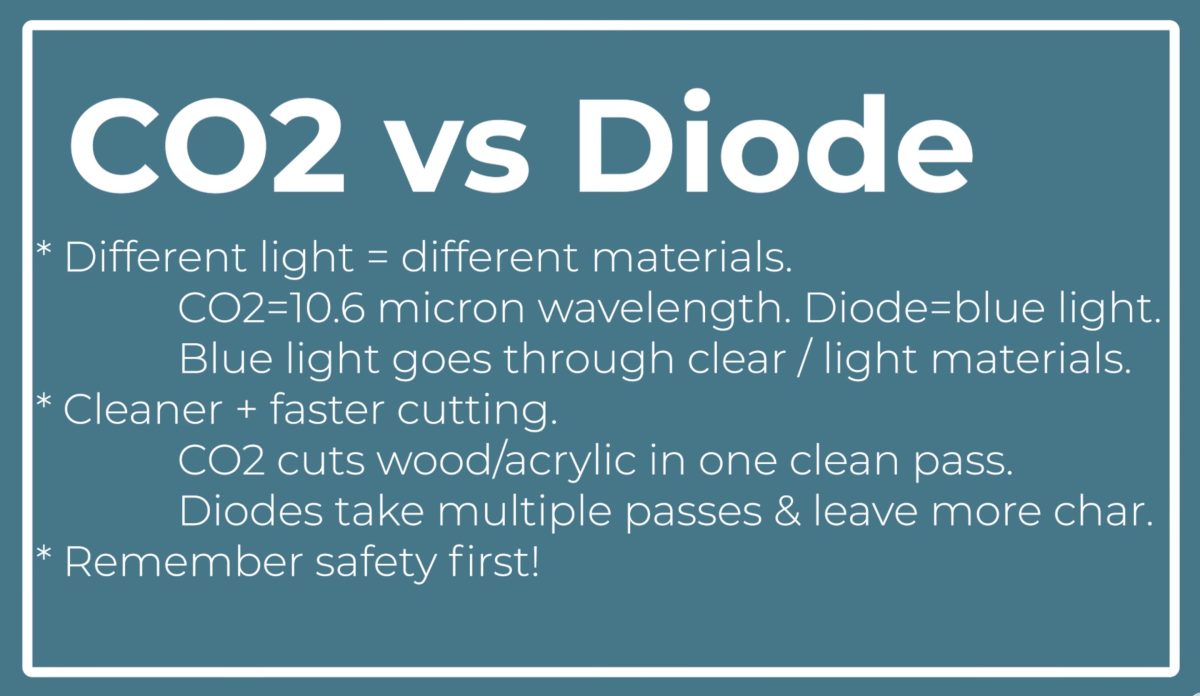
When using glass in a diode laser, you may need to trick the laser with something like a marking spray, in order to get it to work.
A CO2 laser works with all of those materials, right out of the box. It's ready for clear acrylic, you can engrave on glass, the CO2 laser is not going to go right through those materials.
I've also found that generally, CO2 lasers offer cleaner and faster results because they can do them in one pass vs. several slower passes with a diode laser.
Laser Safety
Before we start making anything, we need to talk about laser safety. I try to review only lasers that offer at least the basic safety features. I want it to be fully enclosed, stop automatically when I open the lid, and have some type of fire detection.
If you're new to laser crafting, make sure to review my full laser safety article to craft in the safest way possible.
Unboxing the beamo II
When you receive the beamo II it will come in a box and everything included will be packaged inside the laser.
Remove the whole thing from the box and then remove all of the packaging material, including tape.
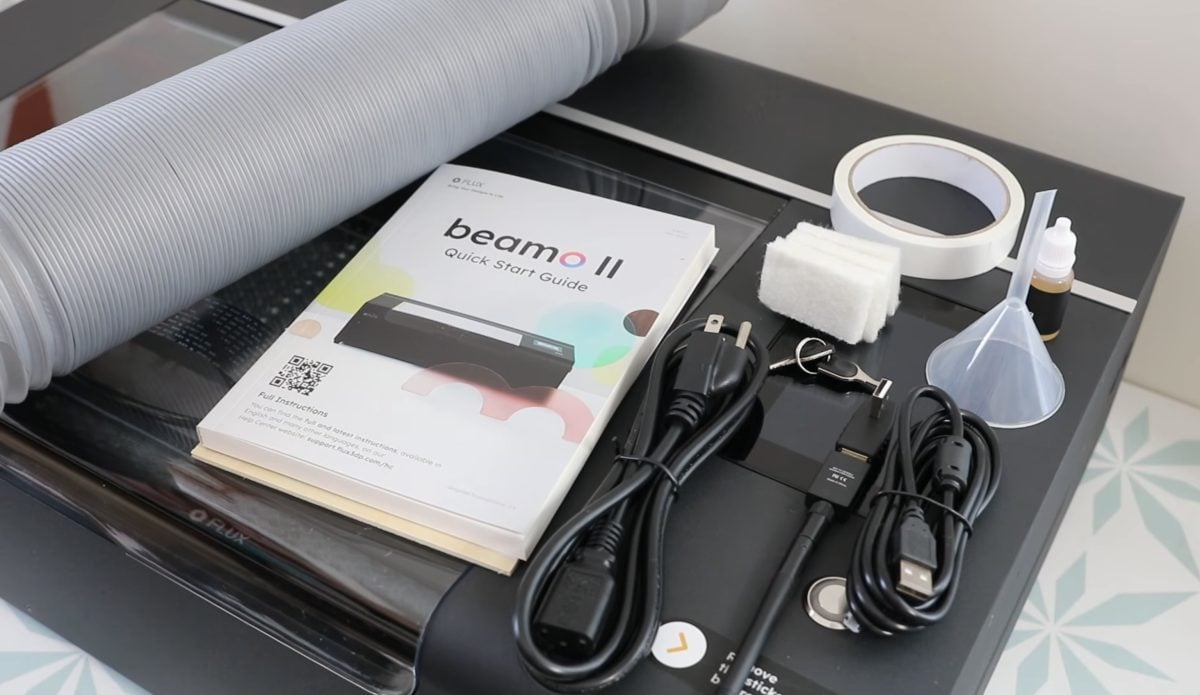
Open the lid and remove everything from inside the laser. The bundle I received included a funnel, clamp, power cord, Wi-Fi dongle, vent hose, USB cable, safety key, and a quick start guide. There were also some tools, lubricating oil, double-sided tape, and an air pump filter. To ensure you can get the laser up and running right away, there are even some materials included to get you started.
Setting Up the FLUX beamo II
With everything removed from the laser bed, you will see some labels that say “Remove this screw before getting started.” There are three screws inside the laser that you can unscrew with your fingers. There are slots on the front of the laser where you can store those screws.
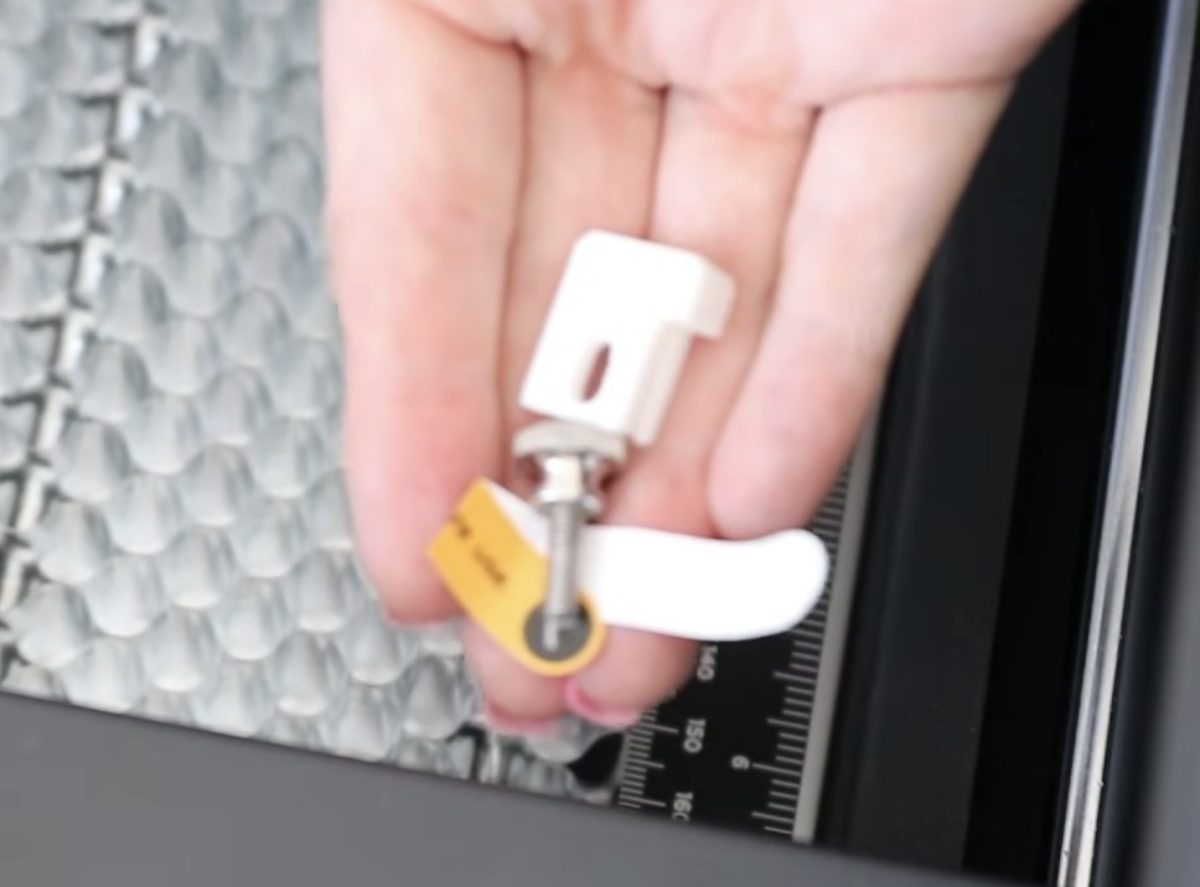
Next, loosen the clamp and remove the exhaust fan cover. There will be a piece of cushioning material inside the vent hose, make sure to remove that before attaching the hose to the laser.
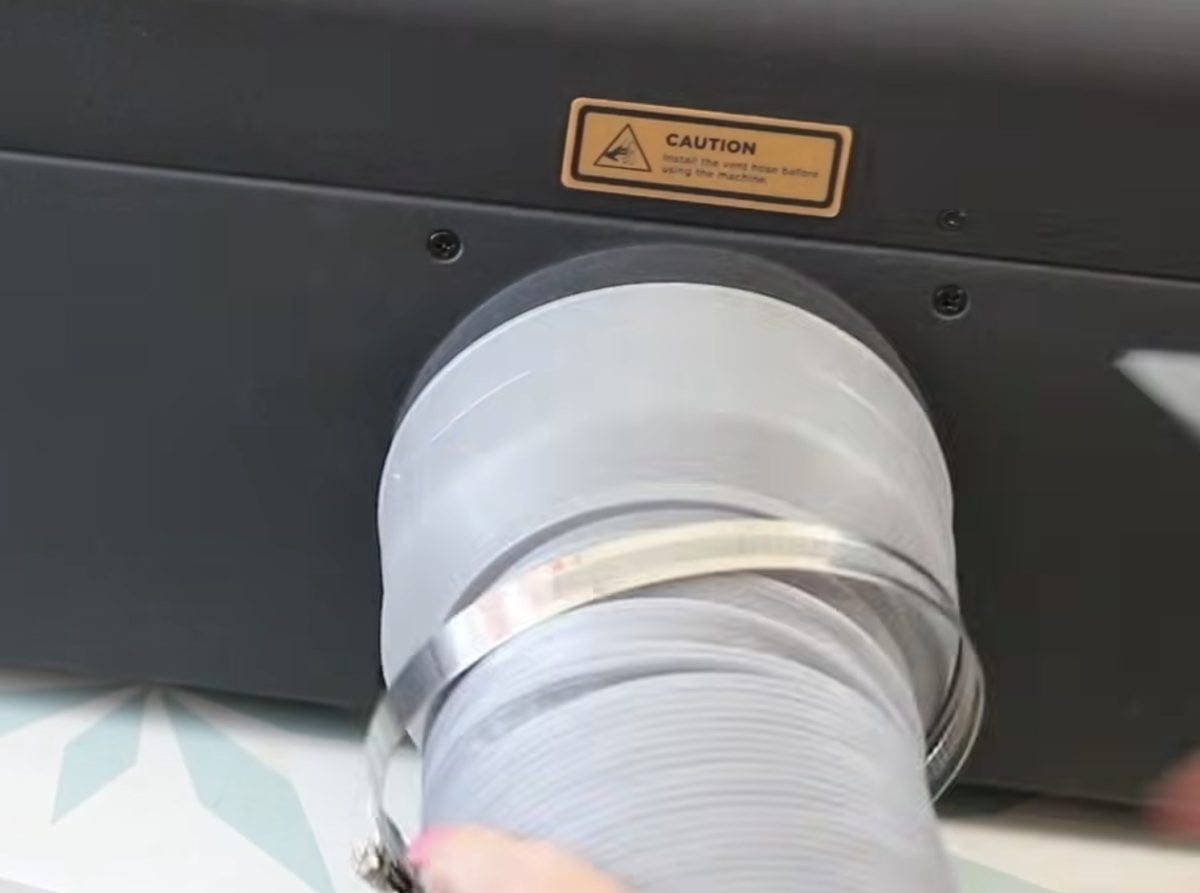
Tighten the clamp to secure the vent hose to the back of the laser and vent the other end either out of a window or attach it to an air filter.
Insert the Wi-Fi dongle into the machine and make sure the red stop button is pulled out. It can get pushed in during the shipping process.
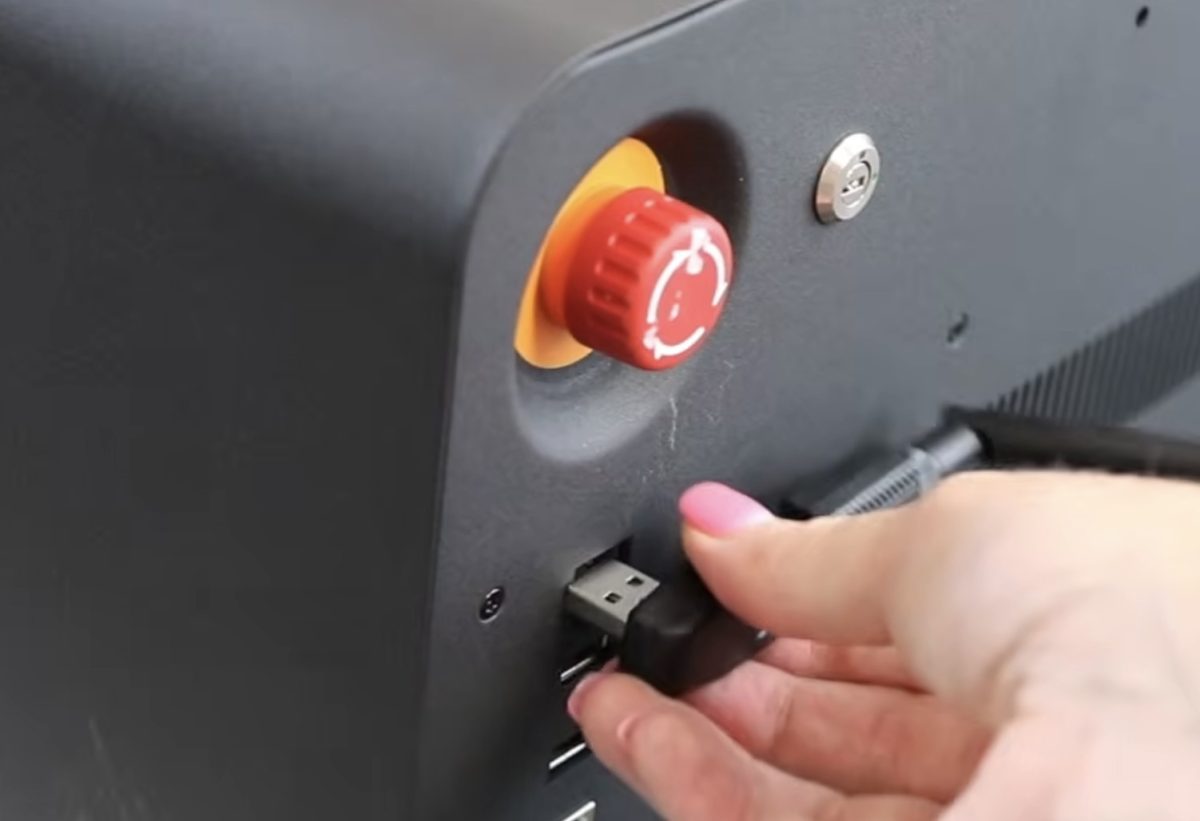
Plug one end of the power cord into the back of the laser and the other into a power outlet.
Press the power button to turn the machine on. Be aware that it takes about 2 minutes for the machine to start up for the first time.
For the rest of the setup process, follow the prompts on the screen. It will walk you through the entire setup process, including some safety precautions and a series of tests.
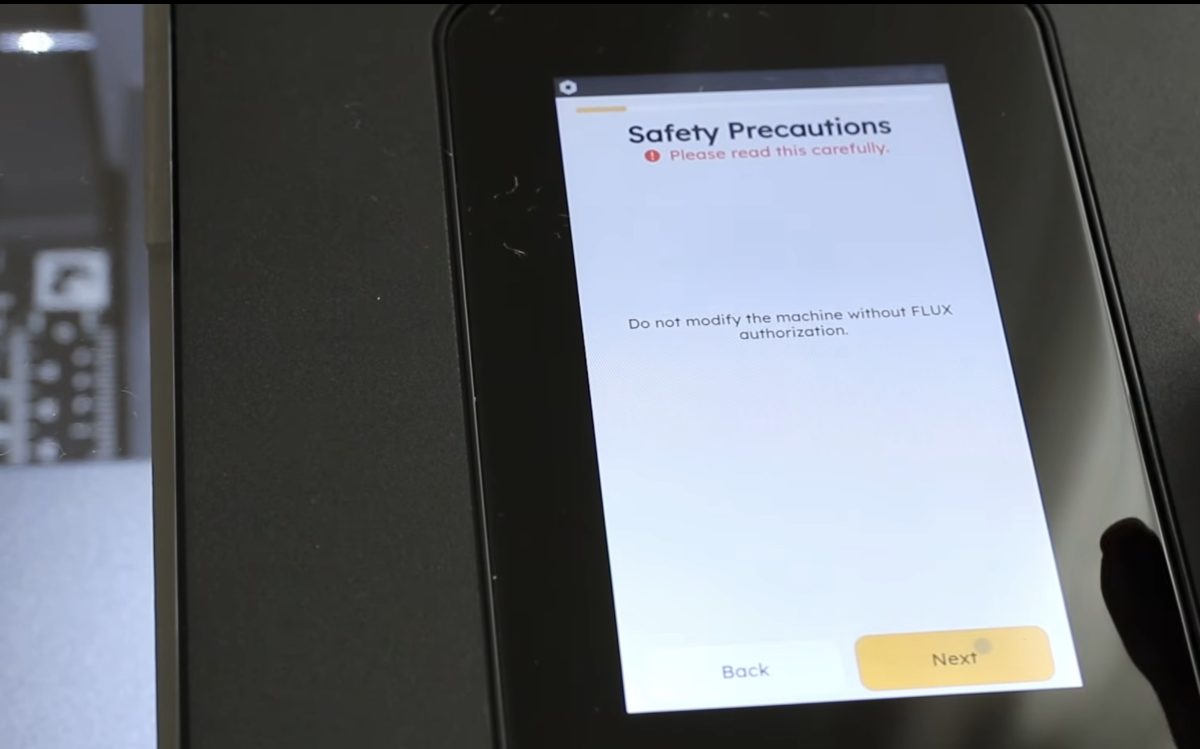
Download Beam Studio to your computer; it's the software you'll use to run the beamo II.
See more and buy the FLUX beamo II here!
Additional beamo II Accessories
If you order just the beamo II, that is everything that will be included. There are other accessories that you can purchase as an add-on.
- I already mentioned the infrared laser head you can use for engraving metal.
- There is also a rotary accessory for engraving tumblers.
- If you want to engrave thicker items like boxes or use the rotary accessory, you will need the extension base. The extension base raises the whole machine. With the honeycomb tray installed, the depth of material you can put in the beamo II is about 7mm. If you remove the honeycomb tray, that depth increases to about 30mm. When you add the extension base, the depth goes up to about 155mm.
- You can also purchase an auto feeder that will allow the beamo II to handle materials up to 1,000 mm long. That means you can go even longer than the size of the bed with the beamo II.
In this first review, I am going to make projects that can be made using the beamo II without any accessories that need to be purchased separately.
Project 1. Cut and Engrave Wood
The first project I'm going to make today is a set of Halloween coasters, and I'm going to both cut and engrave wood to make them.
- Place the 12×12 sheet of wood into the beamo II. I really like to use the honeycomb trays for projects like this, so I'm happy the beamo II comes with one.
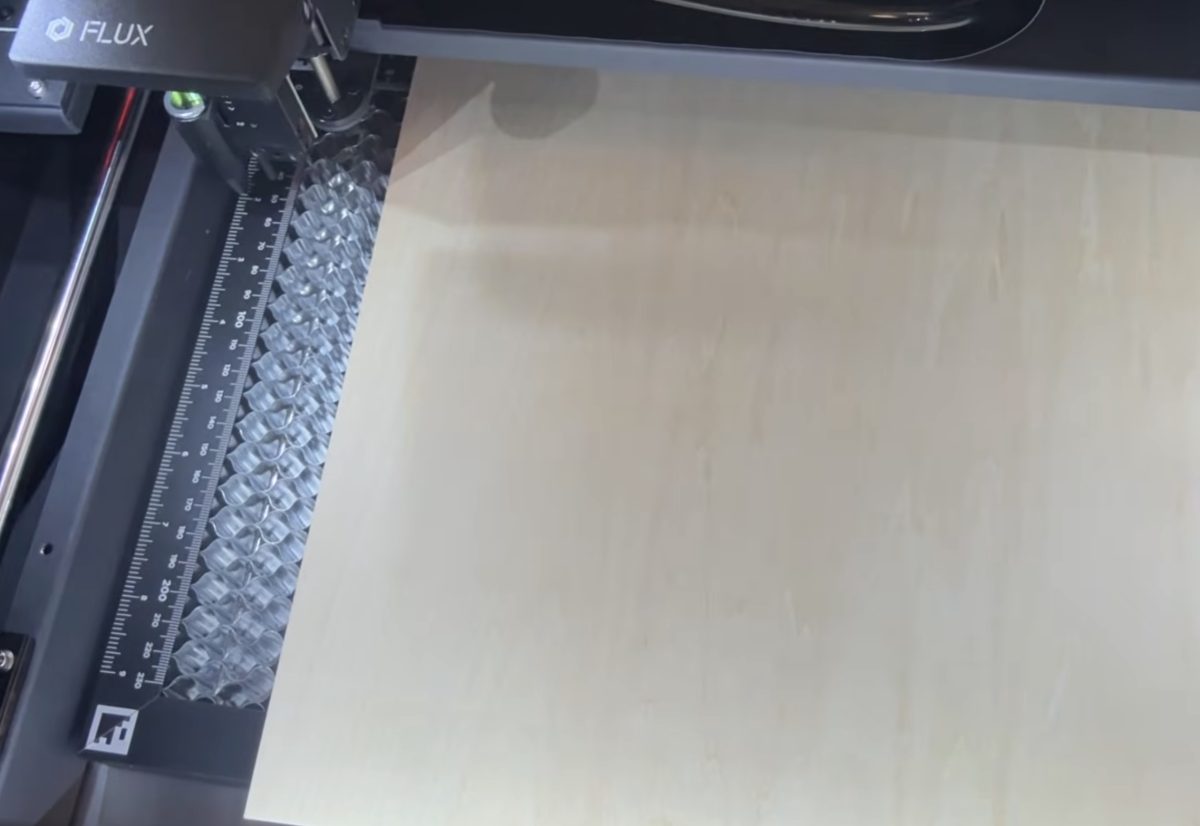
- Move the laser head over the material and press down on the autofocus to autofocus the laser automatically.
- Open Beam Studio and import the image you want to use. My image is only the engraved layer, so I'll add the cut design next.
- Add a new layer and select a shape to match the design. I used both a circle and a square for my coasters.
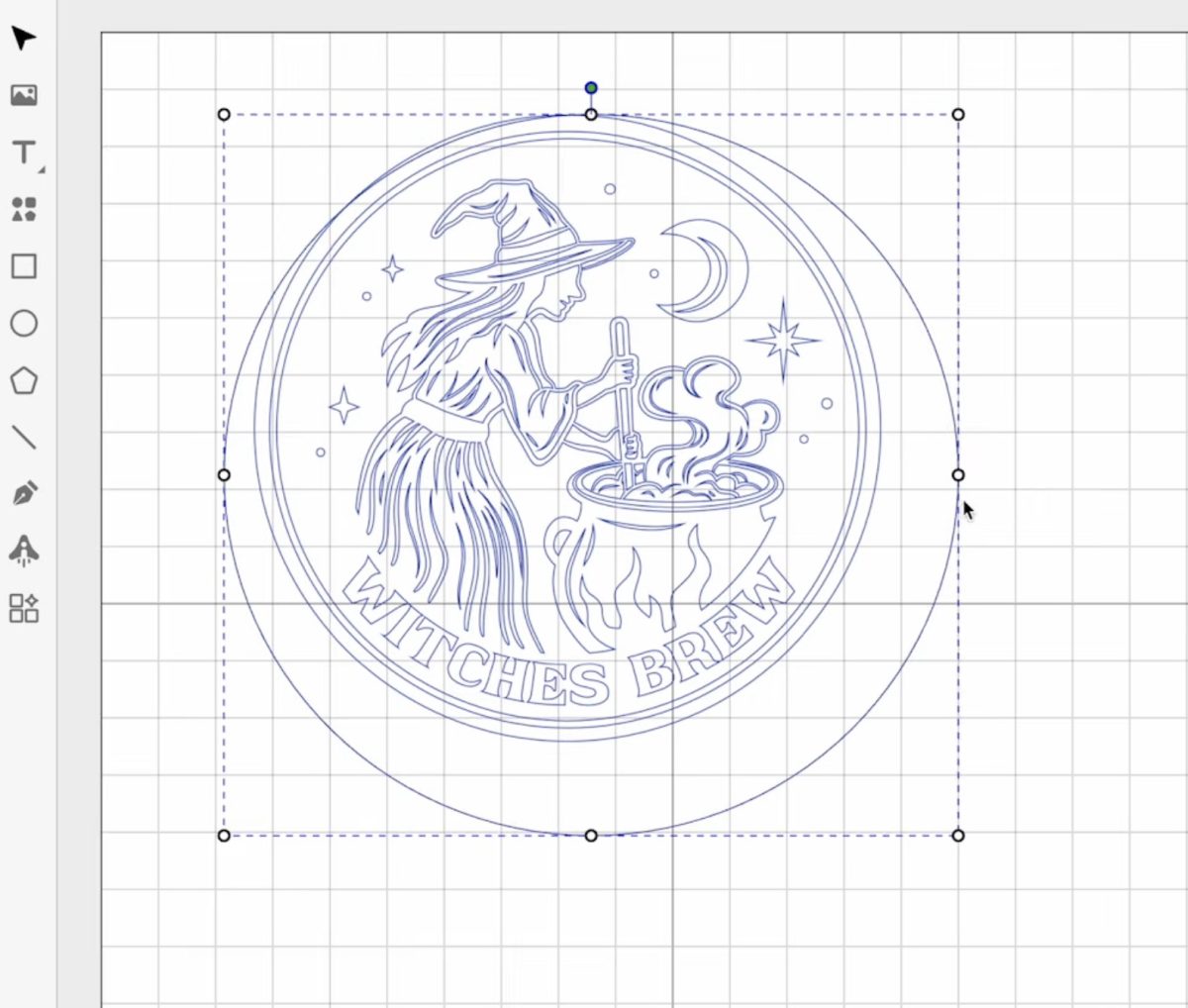
- Make sure the outer layer is set to cut, not engrave.
- Resize everything so it fits on the material you have loaded into the laser.
- Change the material setting so it matches the wood you have in the laser. When you choose your material, it will adjust the settings for you.
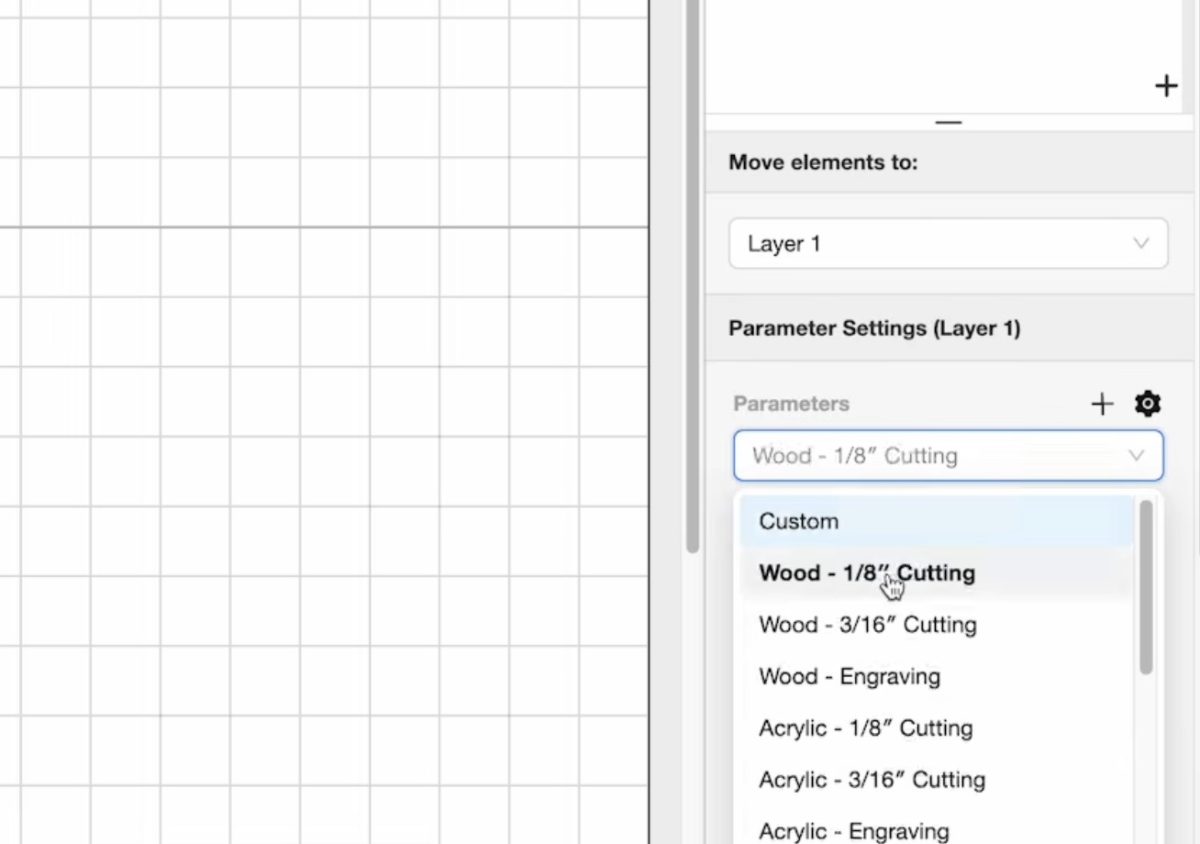
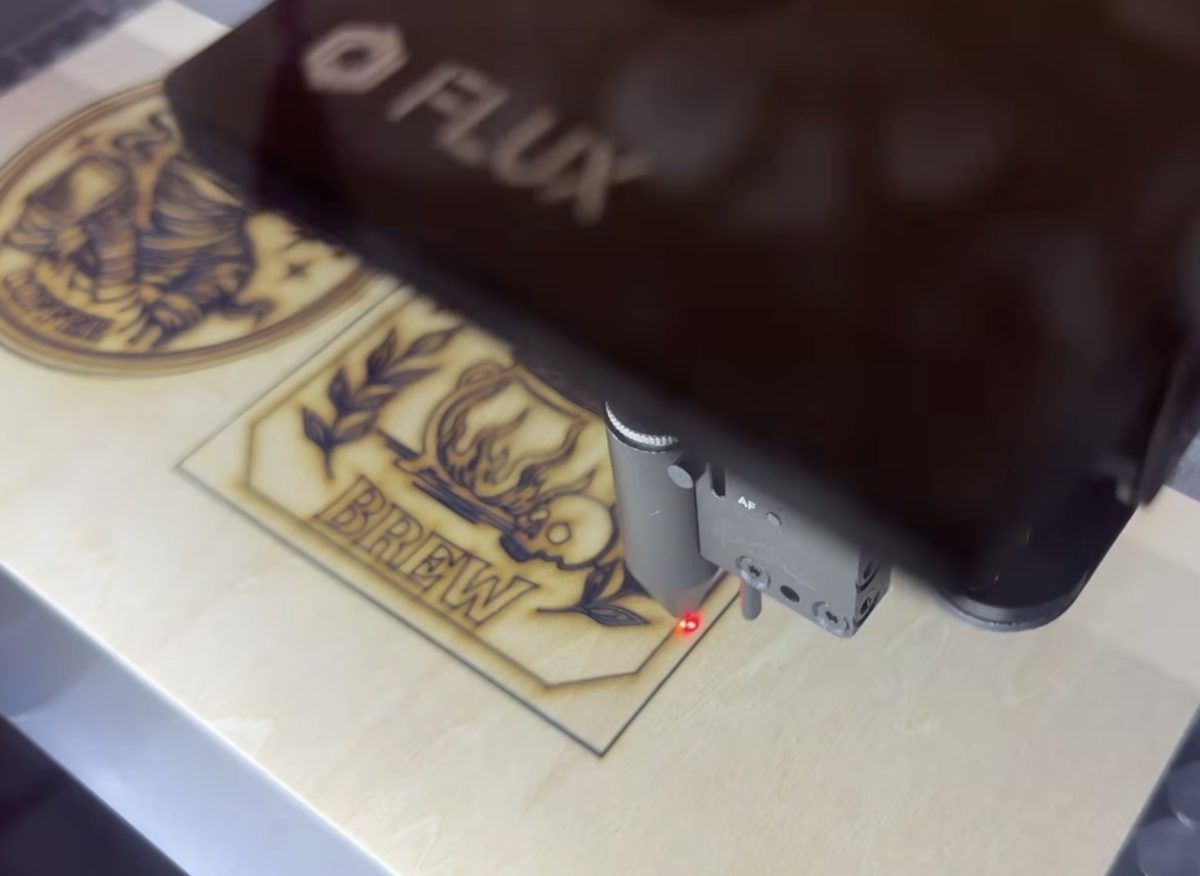
- Use the Framing tool to ensure the beamo II is going to cut and engrave the material.
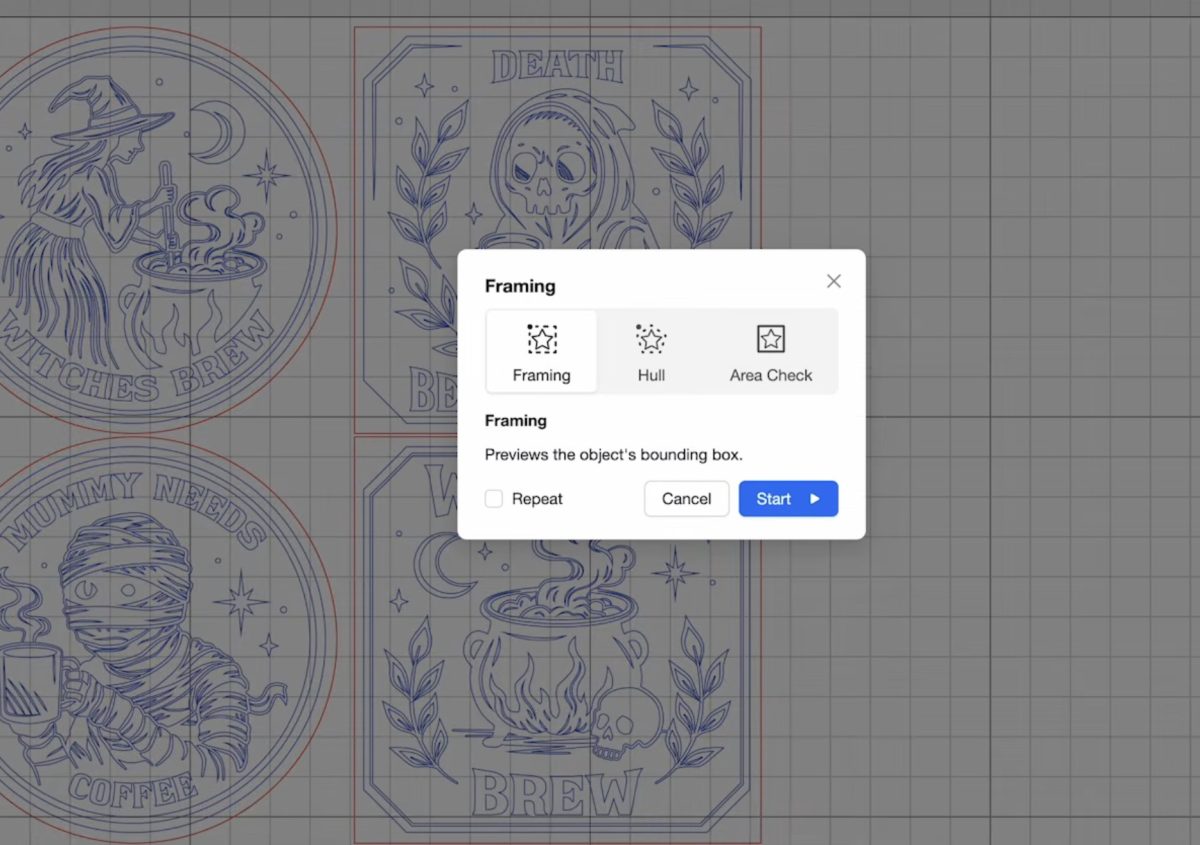
- If the red light goes off the material at all, adjust the design and do the framing again.
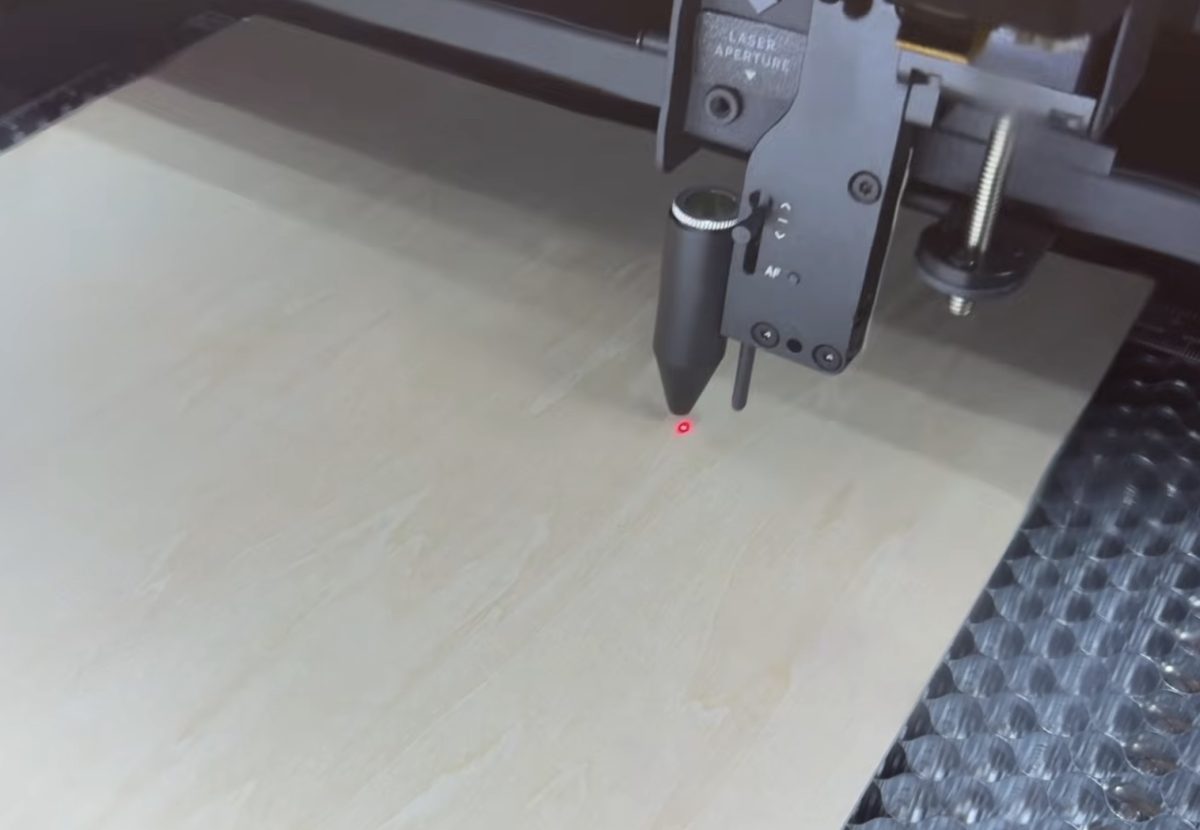
- Click Process and then the start button on the laser, and your beamo II will engrave first and then cut the design.
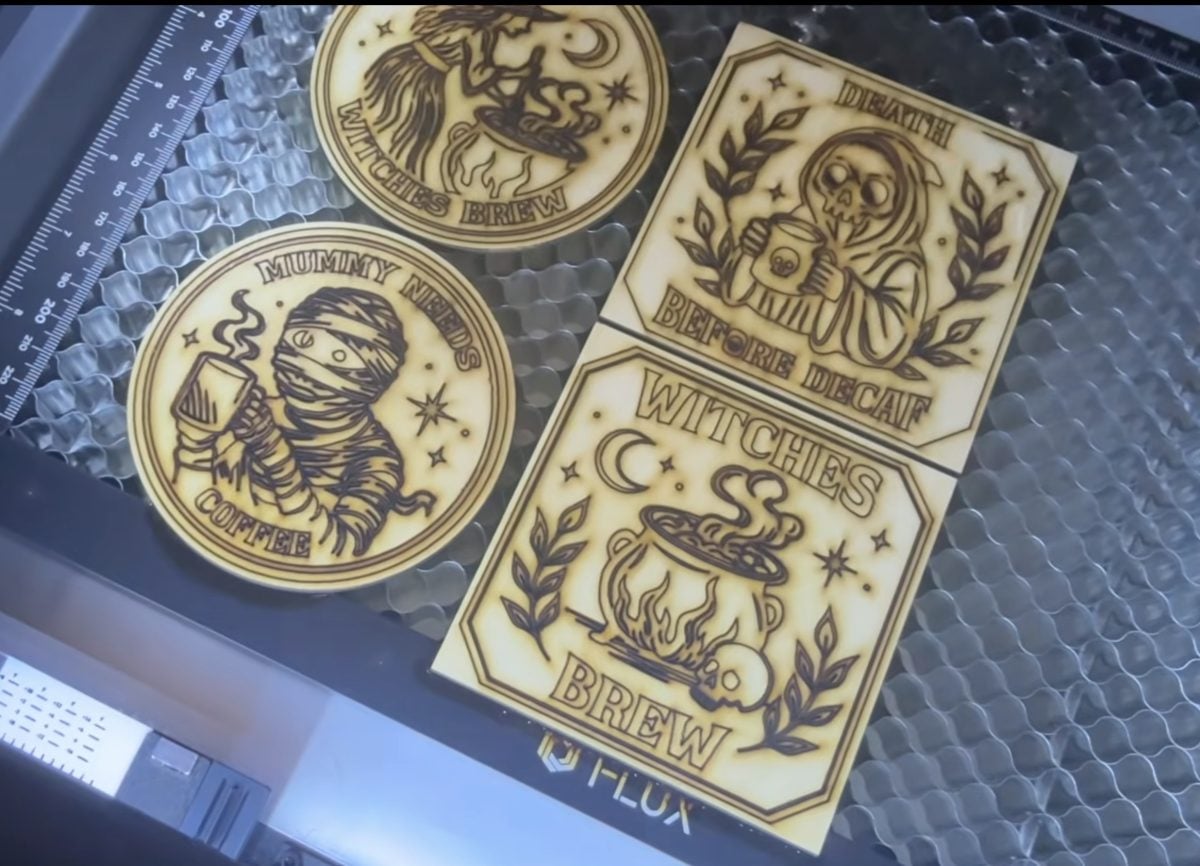
- When the laser is done, open the lid and remove the coasters.
- Clean the char marks with something like a magic eraser.
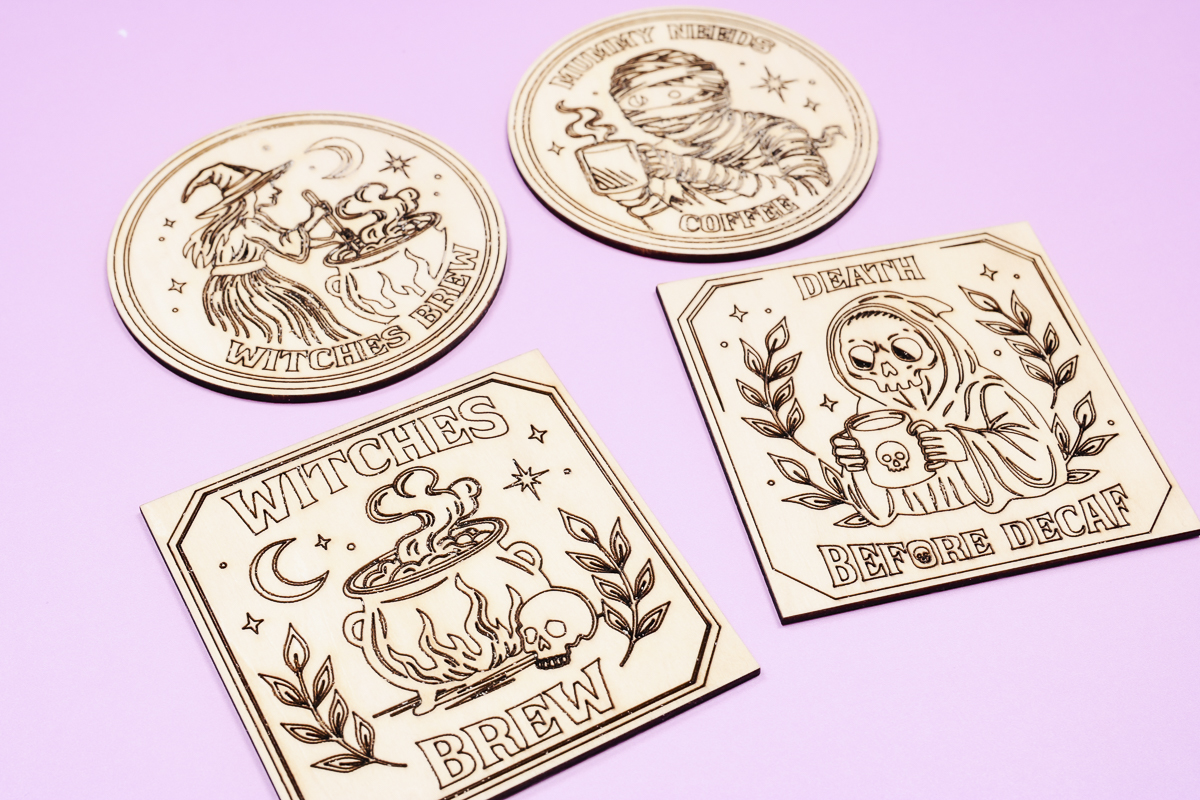
- Sit back and enjoy your new coasters.
See more and buy the FLUX beamo II here!
Project 2. Thick Leather Journals
For my next project I wanted to use something thicker so I could see how the beamo II did with thicker materials.
I have this dual-tone leather journal, and it's thick enough that I can't engrave it with the honeycomb tray in the laser.
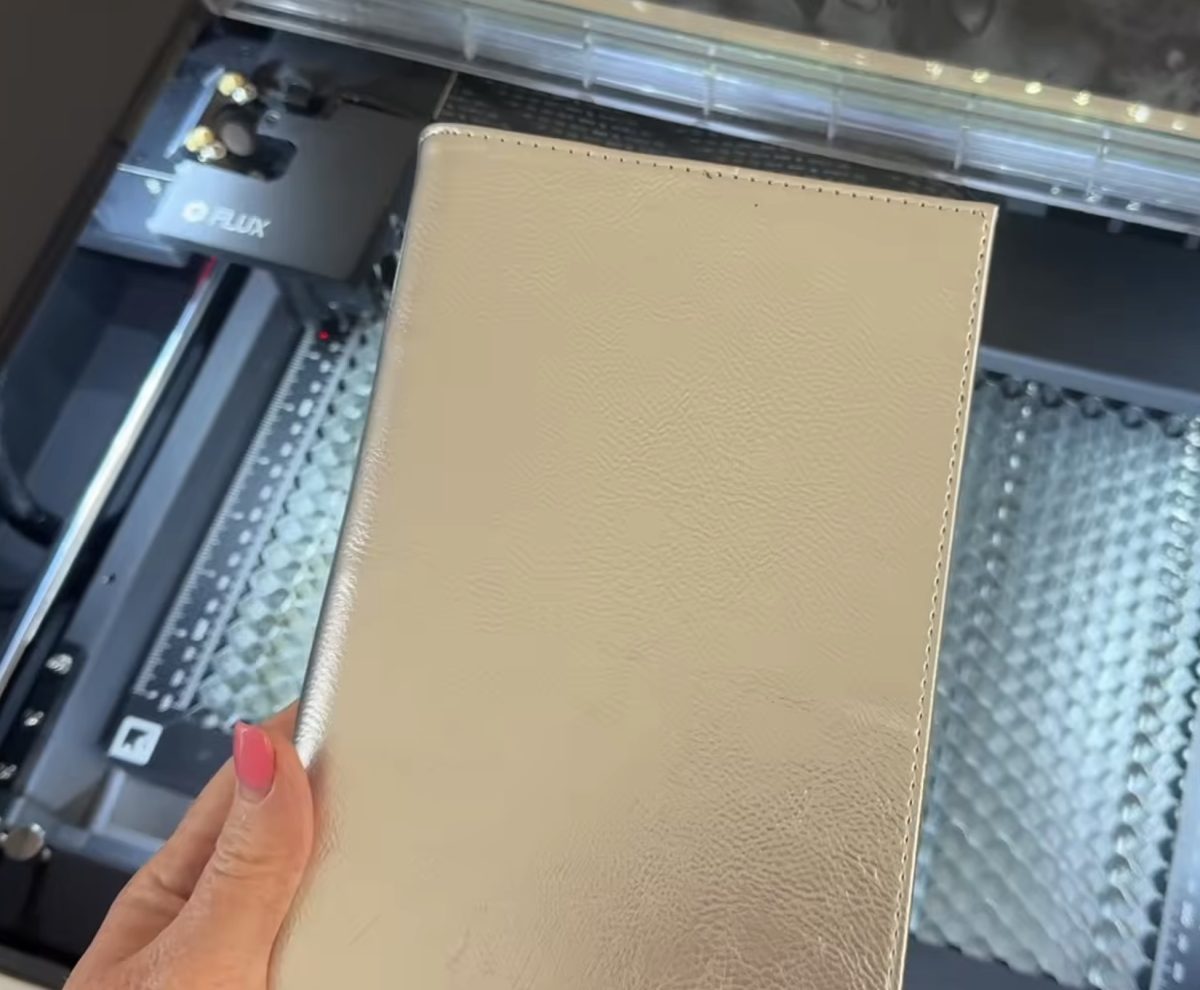
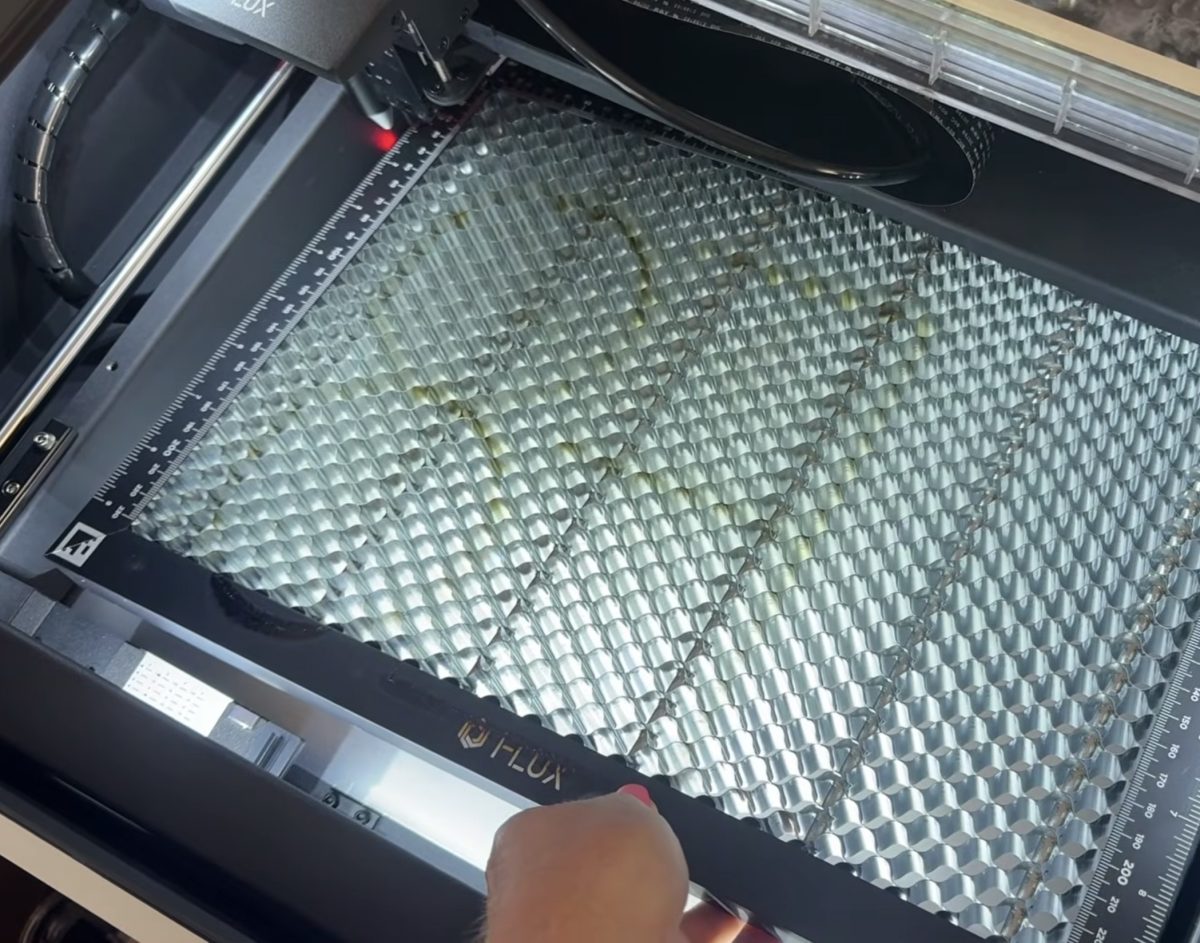
To remove the honeycomb tray, slide the laser head out of the way so you don't hit it, and lift the honeycomb tray out of the laser.
Place the journal inside the machine, right on the base. Because I'm only engraving, I don't have to worry about it cutting through to the base of the laser.
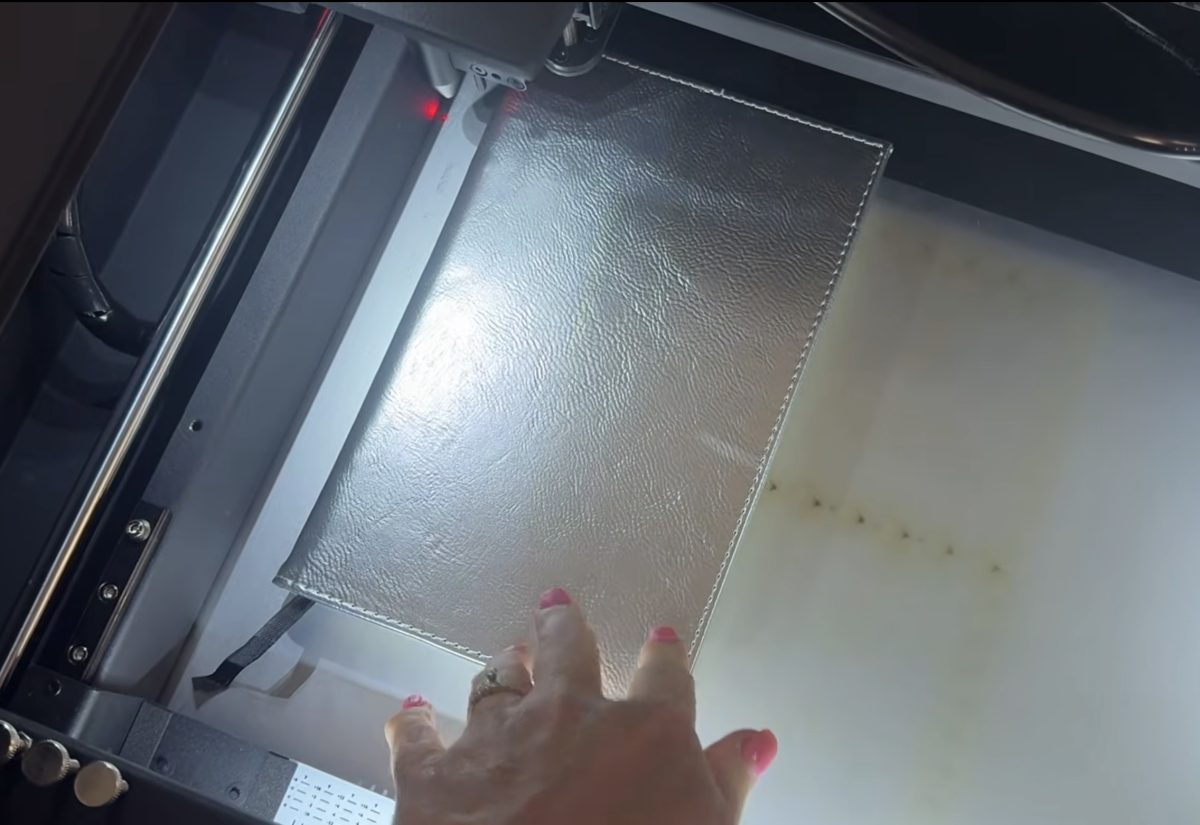
Repeat the autofocus process and upload the design in Beam Studio.
Since the journal is smaller than the whole bed of the laser, to ensure my design is sized correctly, I took a photo of the bed of the laser and used that image to resize and locate my design exactly where I wanted it.
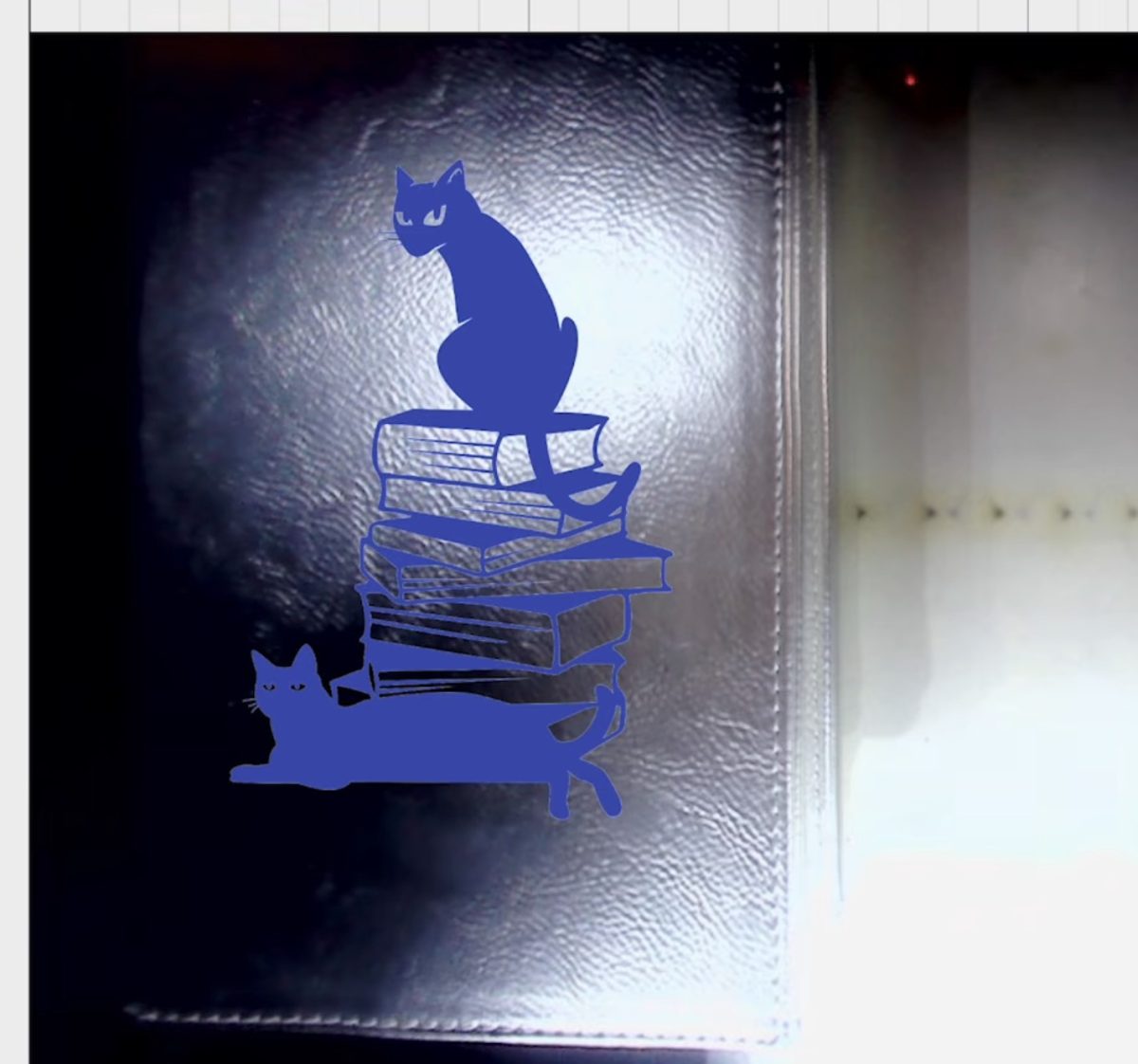
Choose the material you're using, and it will automatically adjust the settings for you. Because this is a dual-tone journal, I did increase the power a little bit to make sure the entire top layer is removed.
I did framing to double-check the placement and then sent the file to the beamo II.
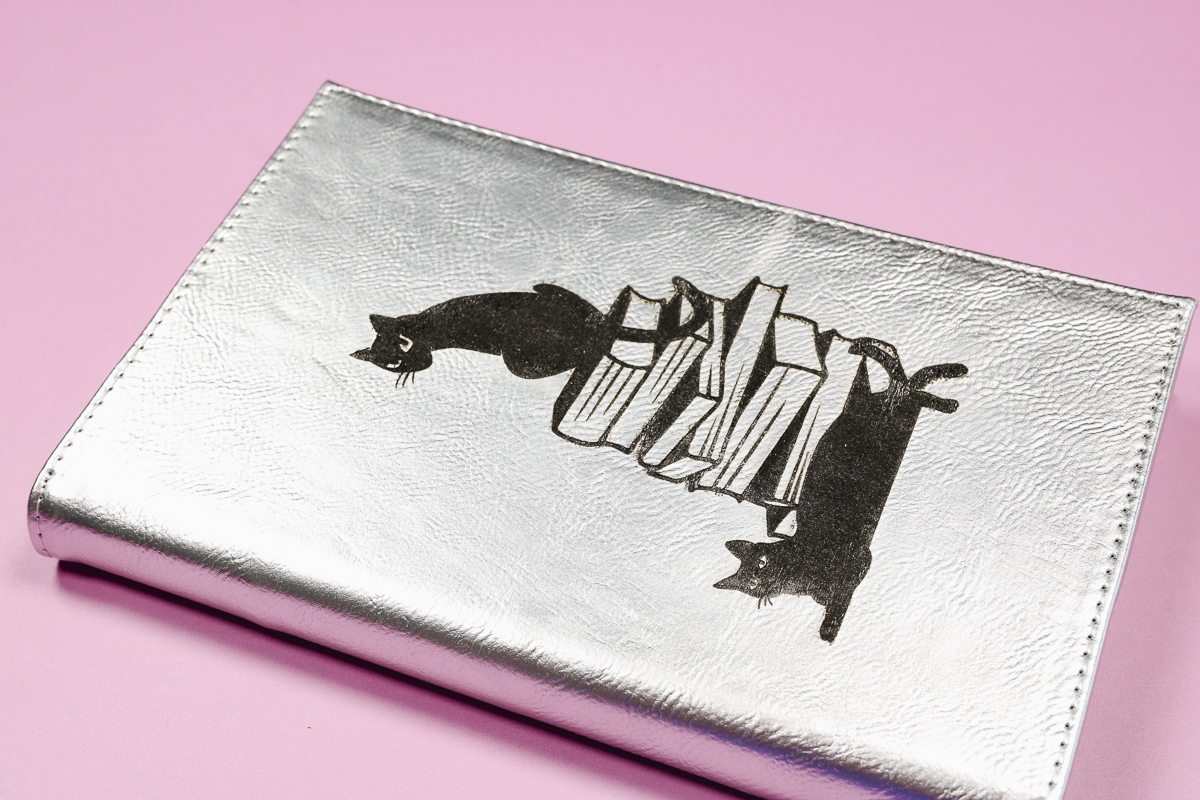
When the laser was finished, I removed the journal from the laser, and it looks really good. It will need to be cleaned with a magic eraser or something like that.
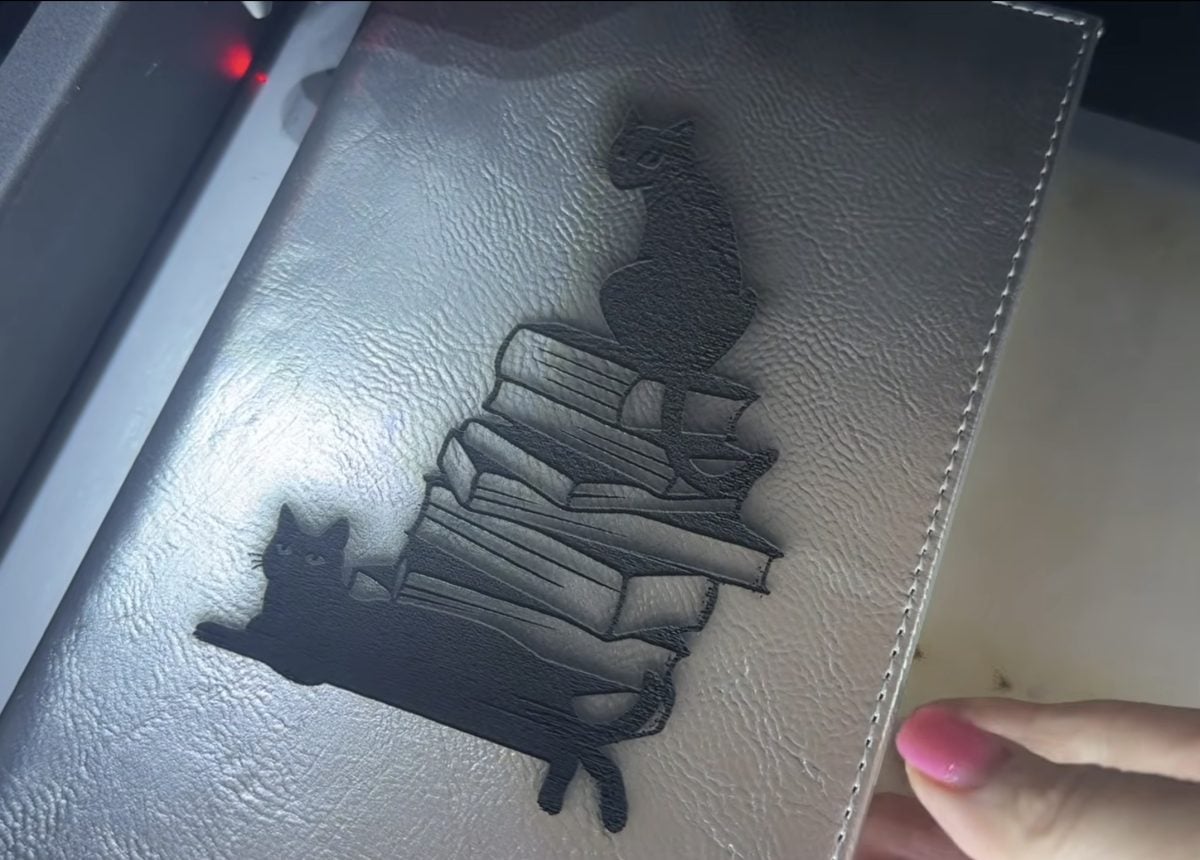
I love these dual-color blanks from MakerFlo. You can choose from a variety of color combinations, and as you can see, the colors really pop when they're engraved.
See more and buy the FLUX beamo II here!
Project 3. Engraving Clear Acrylic
Now, we're ready to move on to the material most people are excited about: clear acrylic. Since diode lasers can't cut or engrave clear acrylic, I get a lot of questions about the best way to make projects with clear acrylic.
For this project, I'm using a blank that has already been cut. I'm going to engrave a design onto this clear acrylic piece. You can also cut clear acrylic with the beamo II.
Place the honeycomb tray back inside the laser and set the clear acrylic on the tray.
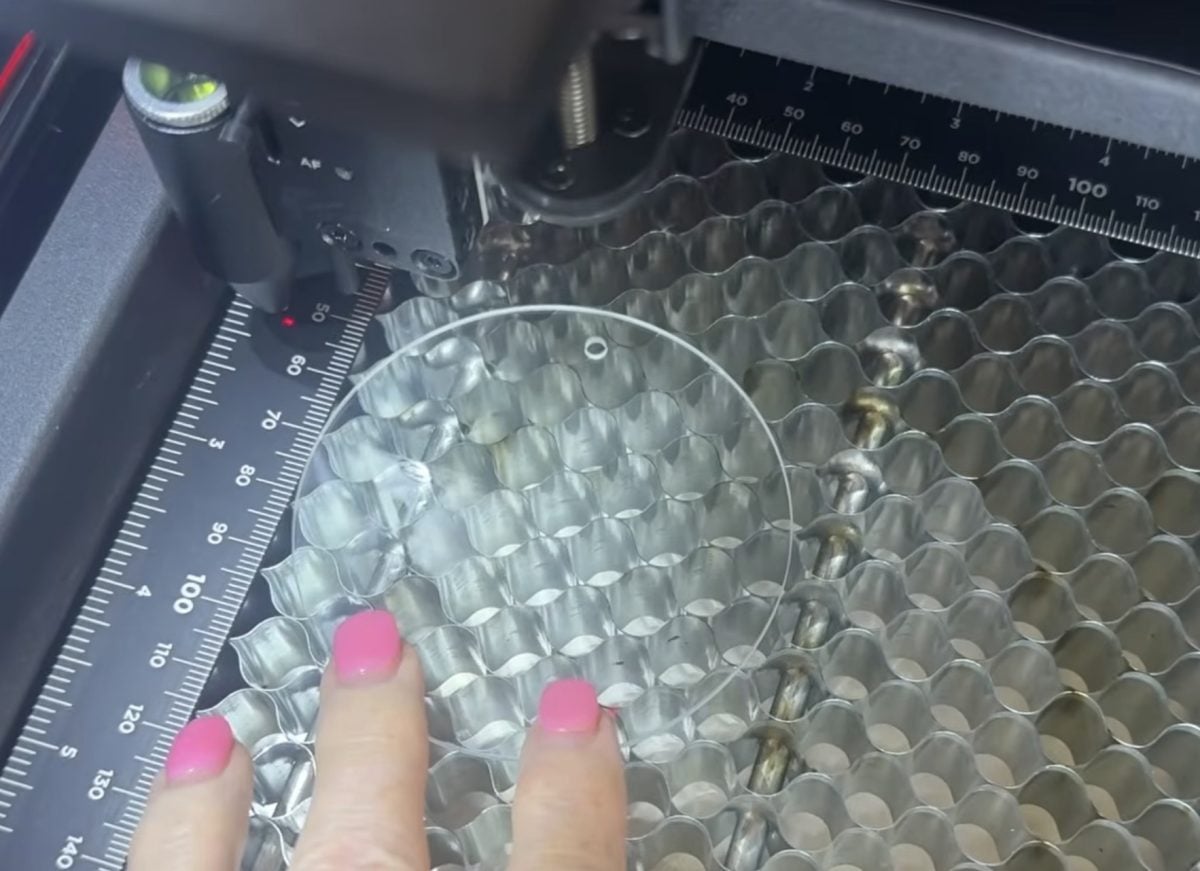
Autofocus the laser on the material and we're ready to go.
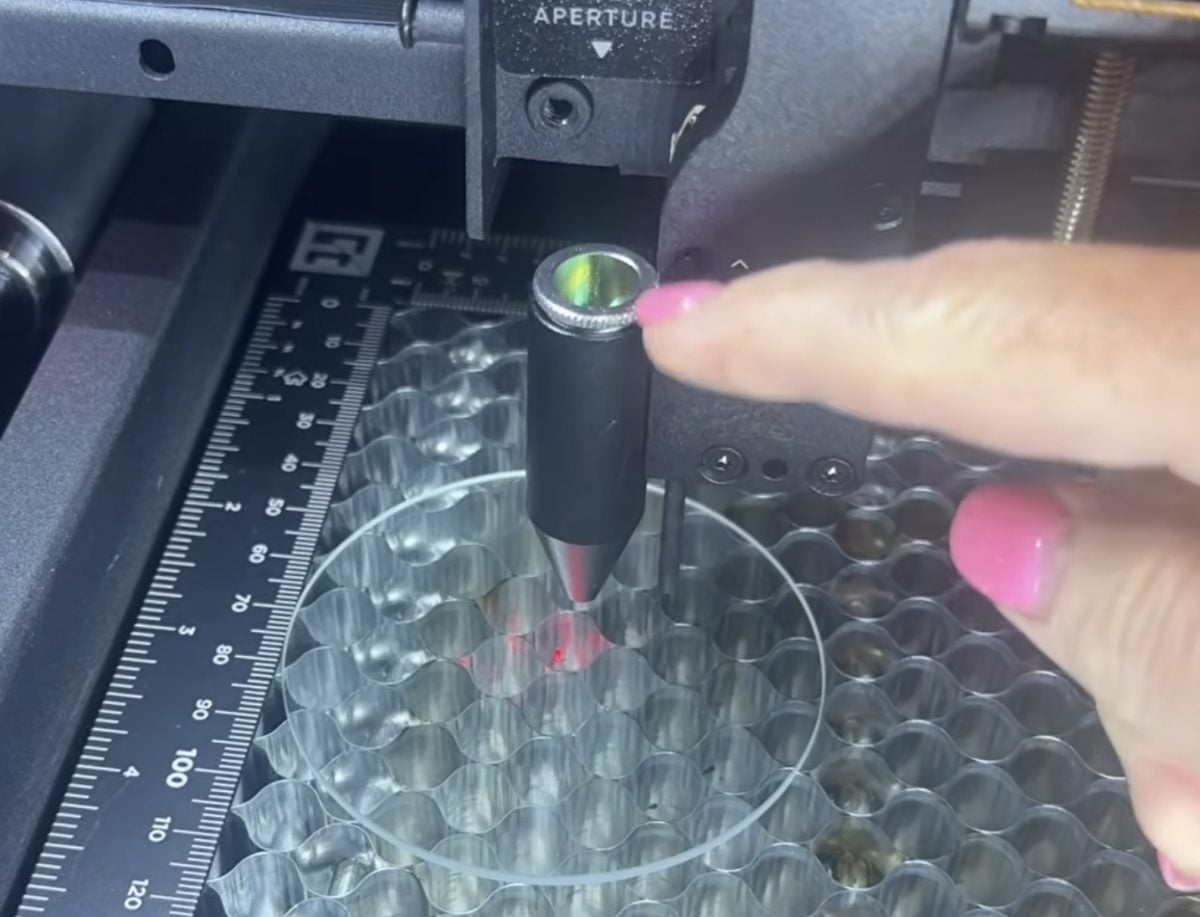
I'm using the text tool in Beam Studio to add a monogram to this acrylic ornament. I chose a font that I liked, centered it on the ornament, and chose the correct setting for my material.
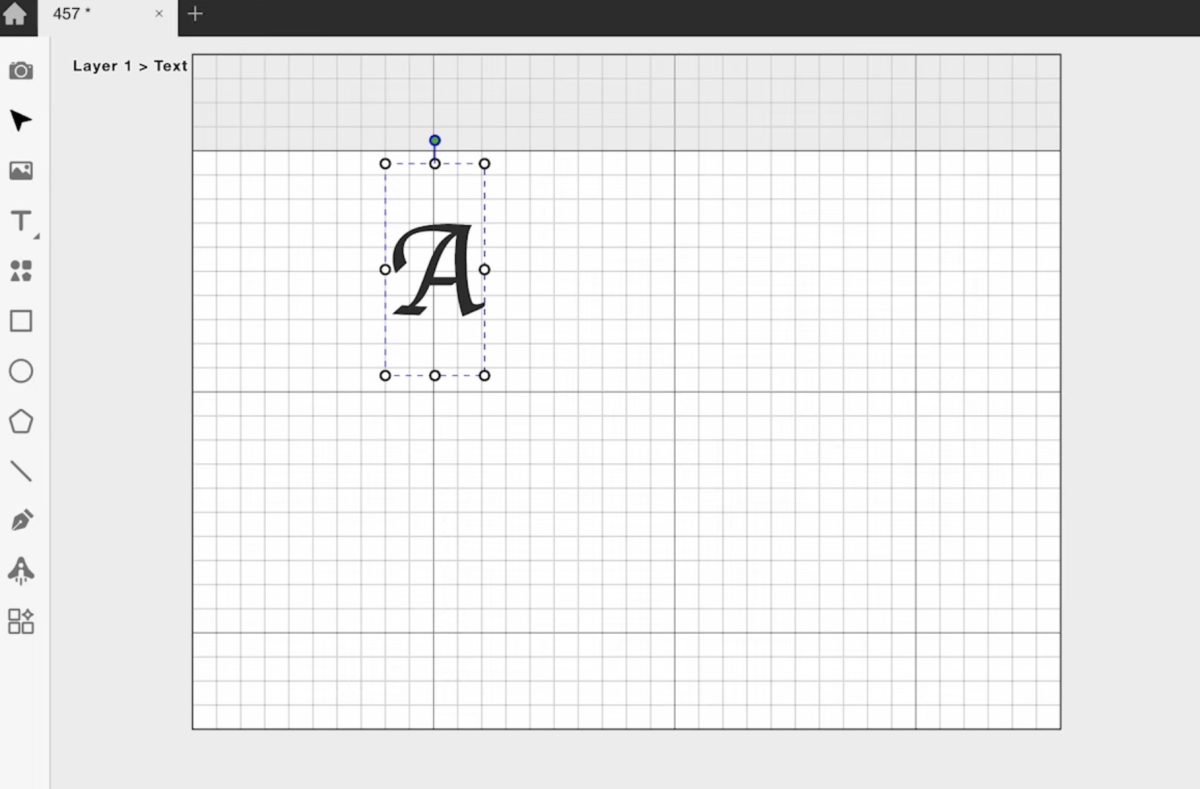
Send the design to the laser and press Start.
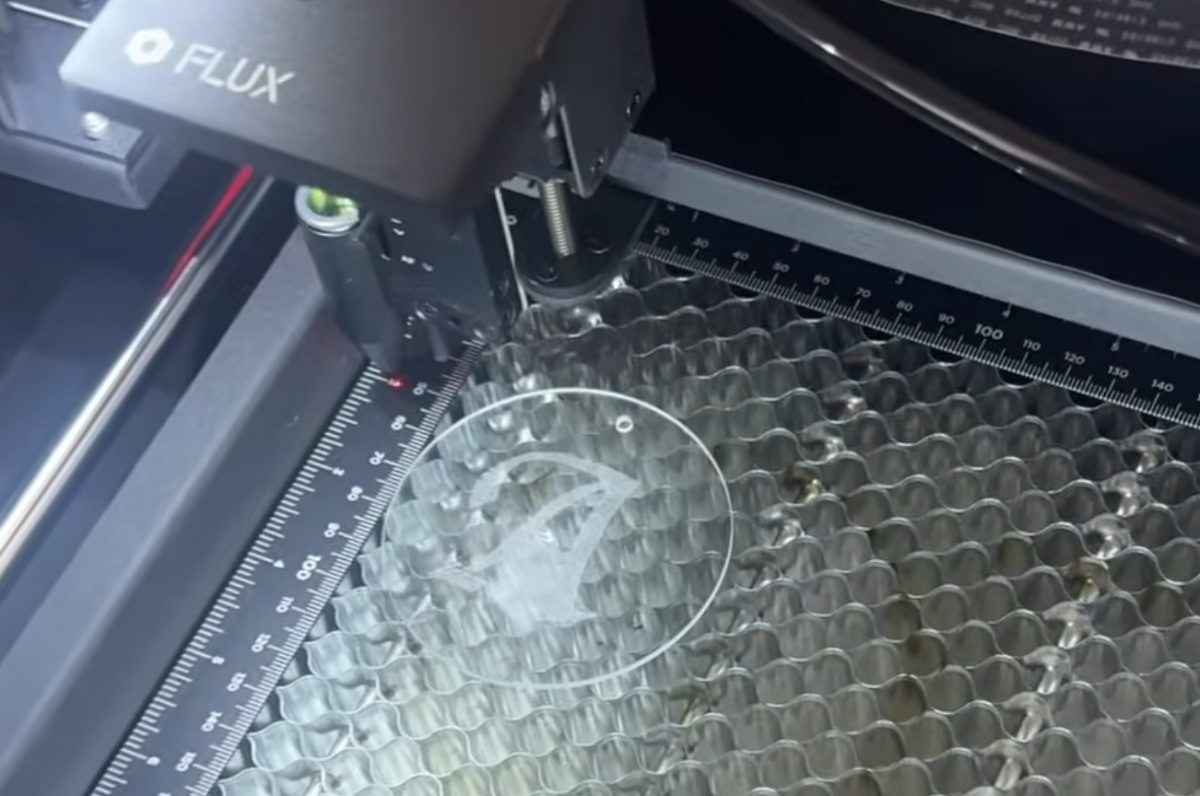
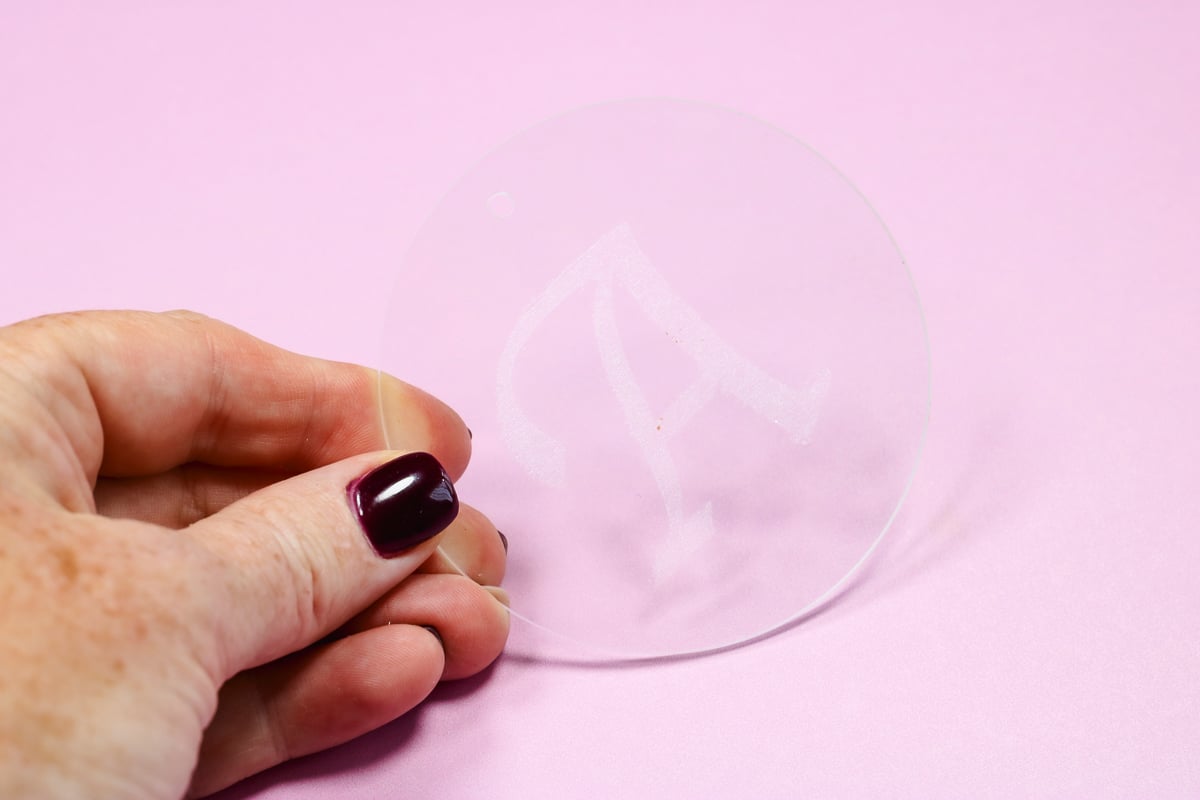
When it's done, remove the acrylic from the laser and clean it off. I am really impressed with how well the beamo II can engrave clear acrylic. This ornament turned out amazing.
See more and buy the FLUX beamo II here!
Project 4. Colored Acrylic Cake Topper
For my last project, I am using Bloom Cast Acrylic from FLUX. It comes in a variety of colors, and I think it's so beautiful. It's a really fun material because you can cut one layer, and it still looks amazing because of the detail in the acrylic.
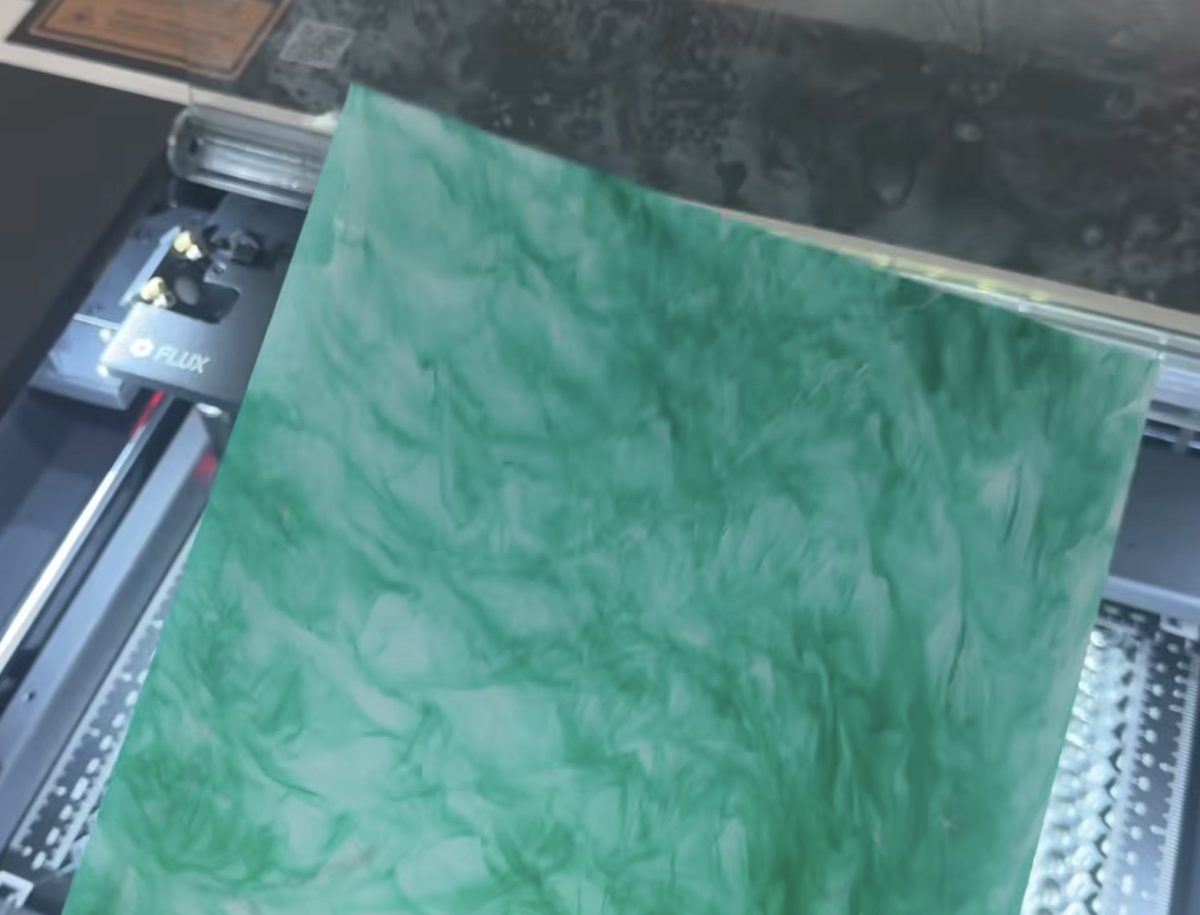
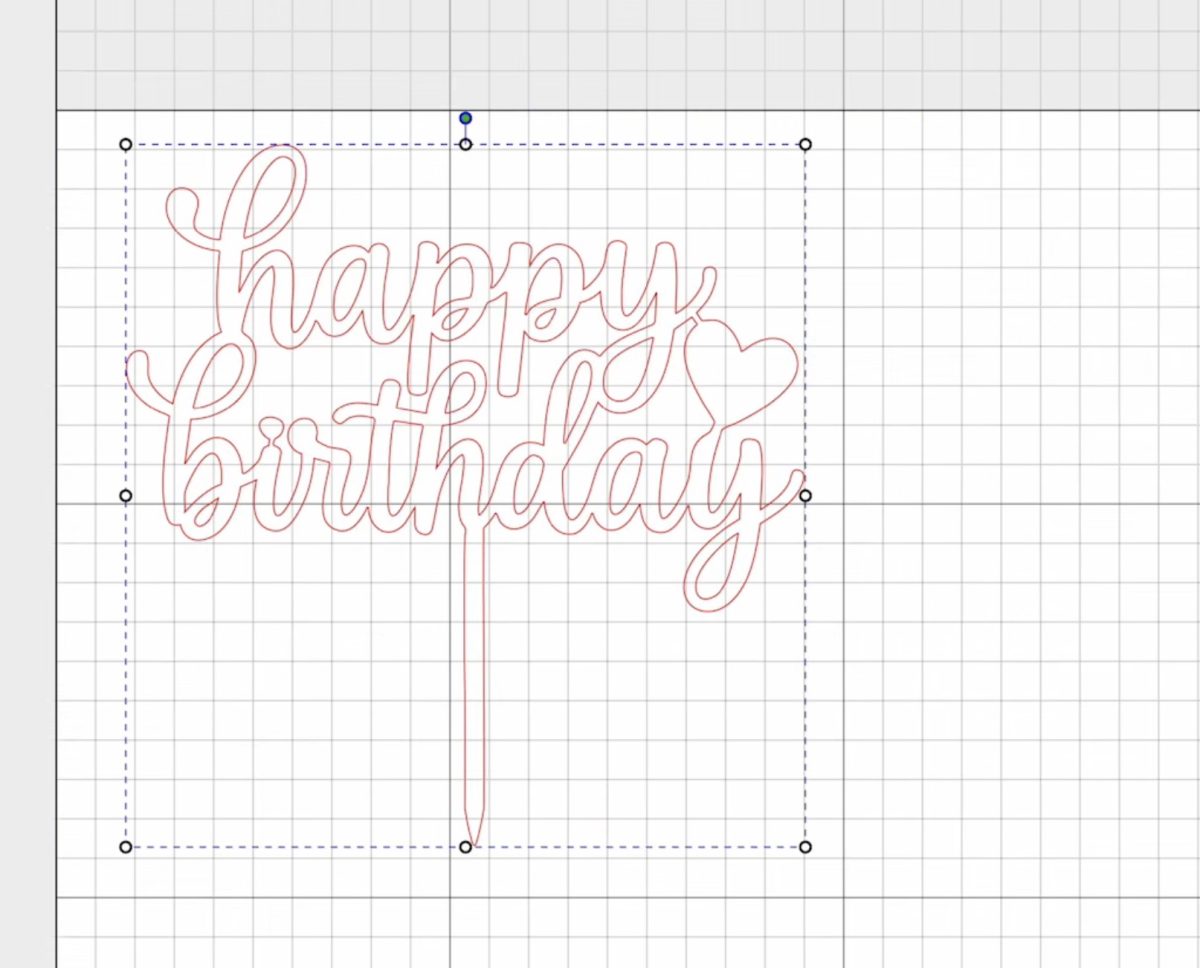
In Beam Studio, upload your design and resize it to work with your acrylic piece and the cake you want to put it on.
Autofocus the laser head for the acrylic you're using.
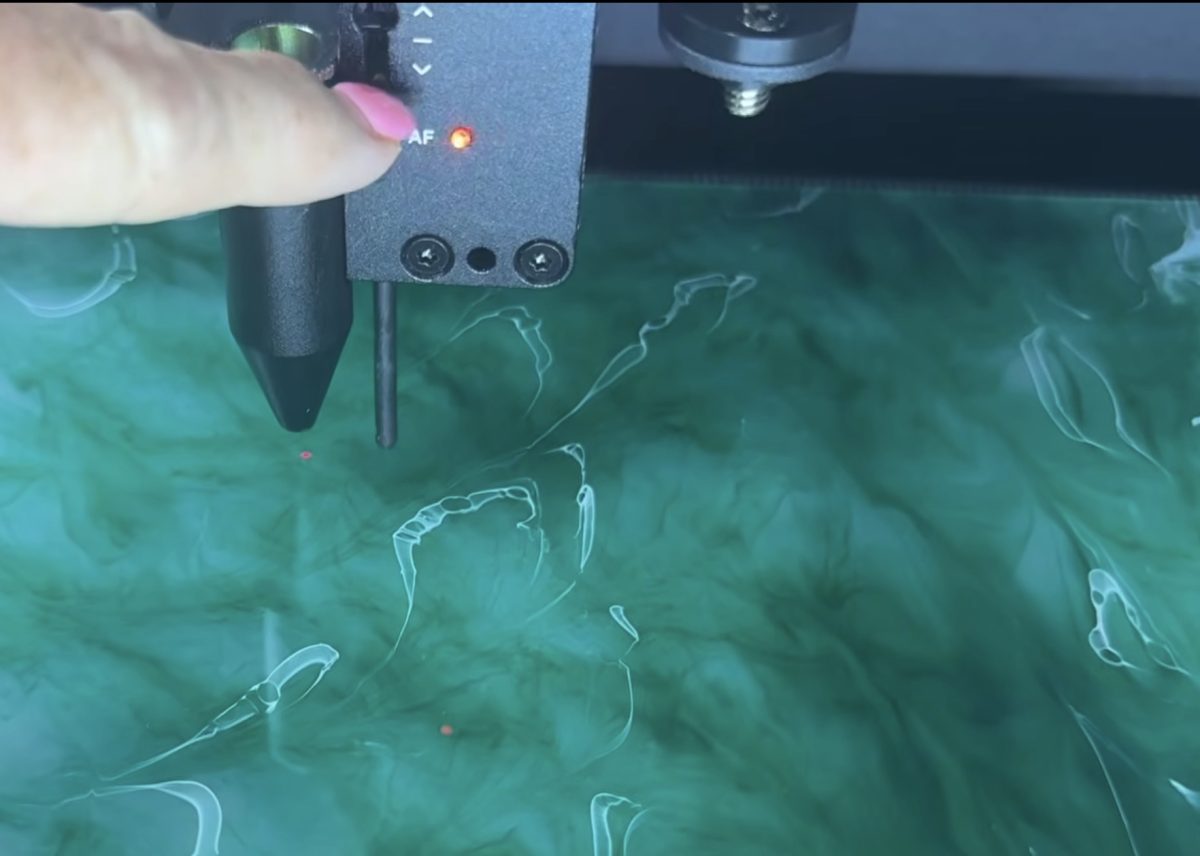
Since I wanted mine to be as large as possible on the acrylic so it would look good on a full-sized cake, I used the framing feature to make sure all of the cut lines are on the acrylic.
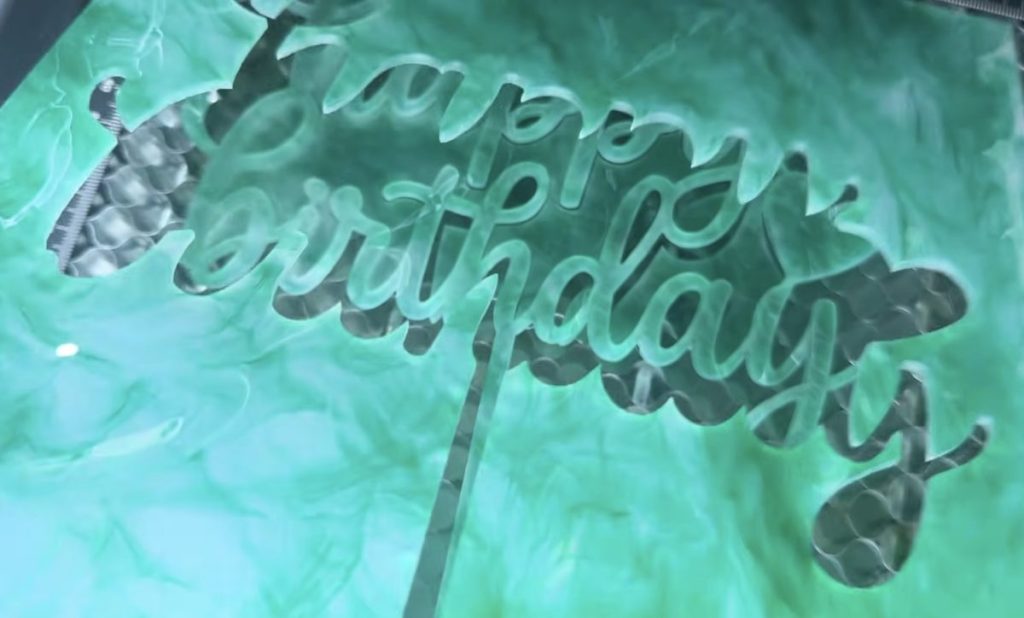
Repeat the same process for cutting this acrylic. Choose the right material, send the design to the laser, and press Start.
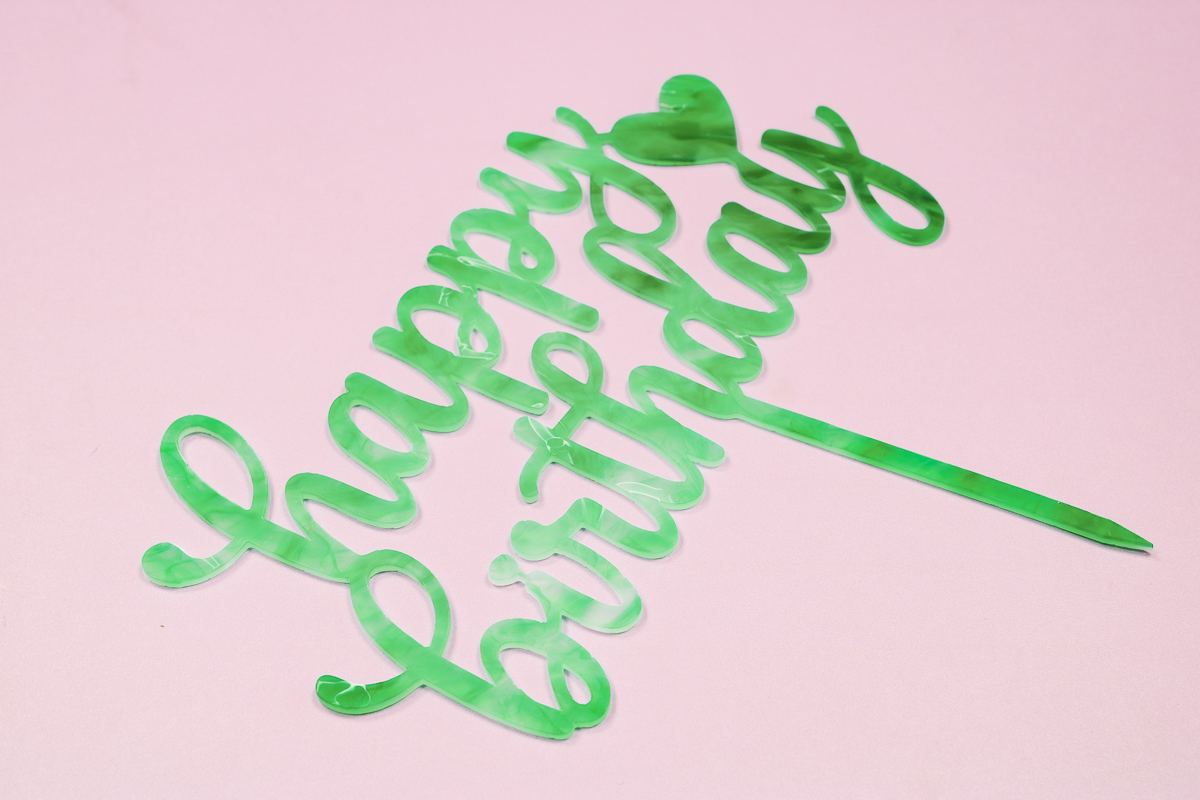
Once it's done cutting, your cake topper is complete. Remove it from the laser, wipe it down, and look at how beautiful that Bloom cast acrylic is.
I think having a collection of these cake toppers would be really fun to have. They'd make decorating birthday cakes look impressive, and it's easy for you.
See more and buy the FLUX beamo II here!
Is the FLUX beamo II Right for You?
If you've been looking for a smaller laser that works with many materials, including clear acrylic and glass, the FLUX beamo II might be exactly what you've been looking for.
Are you new to lasers and feeling intimidated, like you don't know where to start? The beamo II is easy to use, and I think it's a great beginner laser for those who know they want to make projects with clear acrylic and glass.
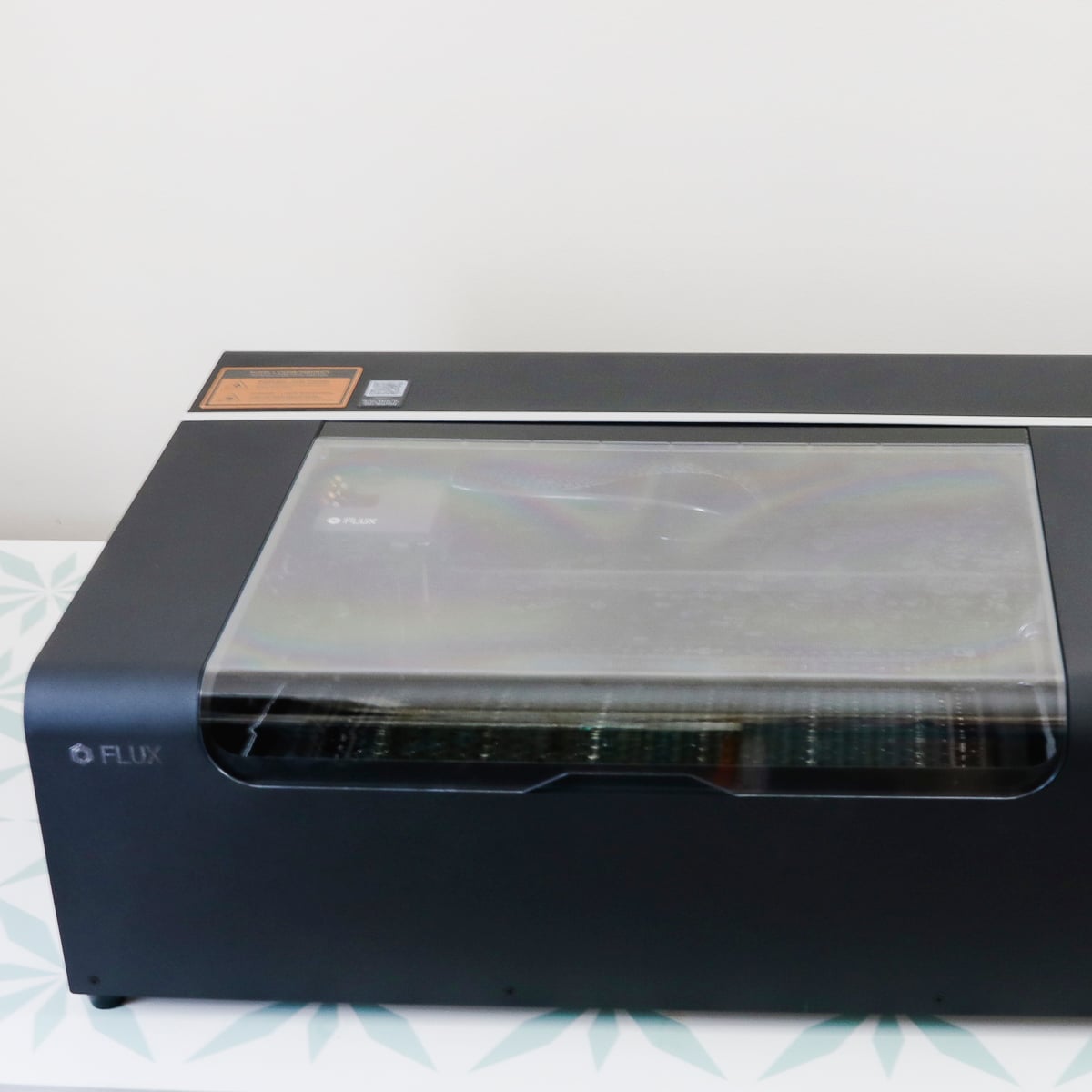
A lot of CO2 lasers are very large and expensive, and starting with one of those can feel overwhelming. FLUX beamo is the only one I'd recommend for beginners because of its smaller size and ease of use.
The FLUX beamo II may not be the right laser for you if you want to make large projects. The size of the bed does restrict what you can make on the bed itself. If you want to purchase the auto-feed, it will allow you to make larger projects, but it is an additional purchase. Make sure to check the size restraints with the auto-feed accessory.
If you're brand new to laser crafting and have no idea where you want to start or what you want to make, the FLUX beamo II may be more than you need. While the beamo II is smaller in size than other CO2 lasers, it is a hefty machine. It's not one that will be easy to move around when you don't need it, and it's not one I would recommend for someone wanting to do laser projects on the go, at events, and stuff.
See more and buy the FLUX beamo II here!
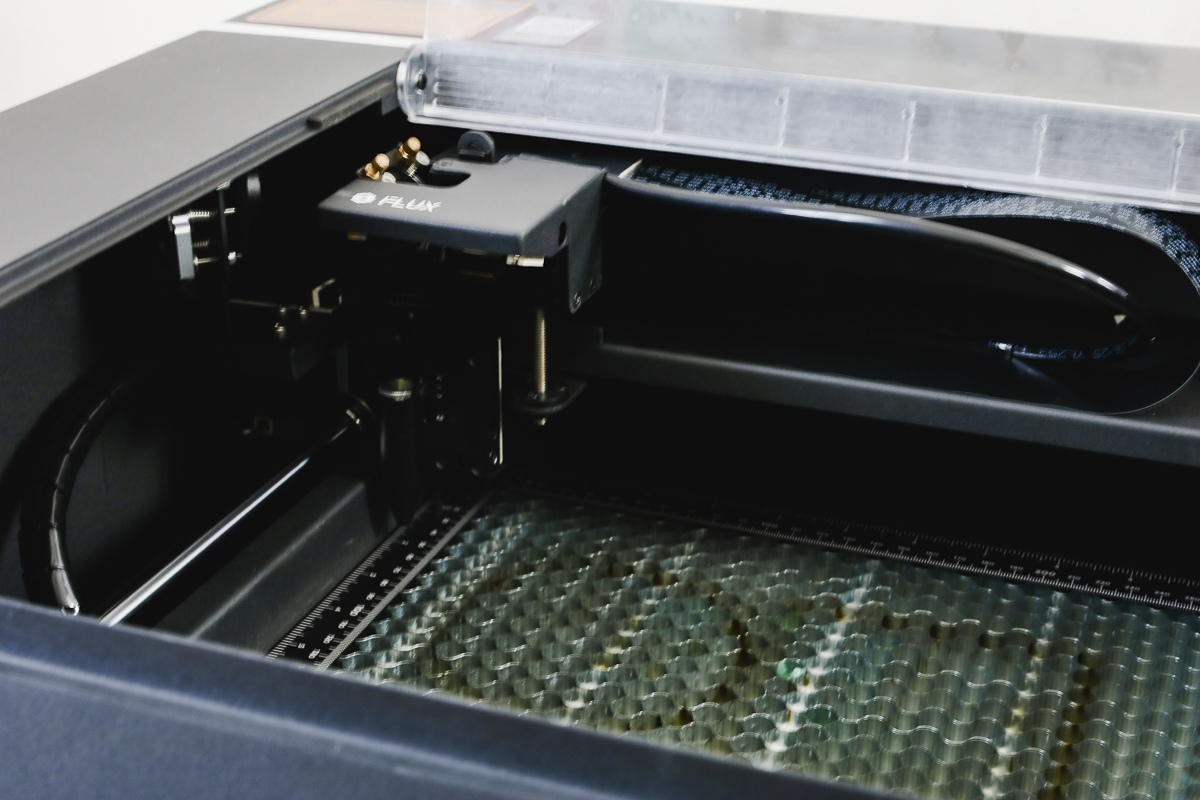
I hope I've answered any questions you have about the FLUX beamo II. If you have additional questions, leave them in the comments, and I'll be happy to answer them for you.
If you want to know more about what beamo II can do, I have another review coming where I'll put the additional accessories to the test using the rotary tool and that infrared laser head, so stay tuned.