

Are you ready to add a personal touch to your projects? If you love monograms, you’ll be excited to hear about the Cricut Monogram Maker in Design Space! This fantastic new tool is perfect for helping you create beautiful, customized designs. Keep reading to find out all the details about the Monogram Maker and how it can elevate your crafting! Just a heads up—it's currently available exclusively to Cricut Access members, so you'll need a paid subscription to get started.
Looking for the best monogram fonts? Check out my full post with some of my favorite options.

Cricut Monogram Maker
Have you ever struggled to know which fonts to use to create the perfect monogram? Cricut Monogram Maker takes out all the guesswork for perfect monograms every time. You can watch me explore Cricut Monogram Maker in Design Space. Just click play on the video below.
Do you need Cricut Access for this feature?
To use the Monogram Maker, you will need to have Cricut Access. You can explore the Monogram Maker and try it out in Design Space, but when you click “Make,” you'll receive a notification informing you that a paid subscription is required to access this feature, as it is exclusive to Cricut Access members.
If you've been on the fence about Cricut Access, this may be another reason to try out a subscription. Read more about it here!
Cricut Monogram Maker Features
Watching the video above is the best way to see all the different Cricut Monogram Maker features. If you can't watch it, I'll walk you through it here.
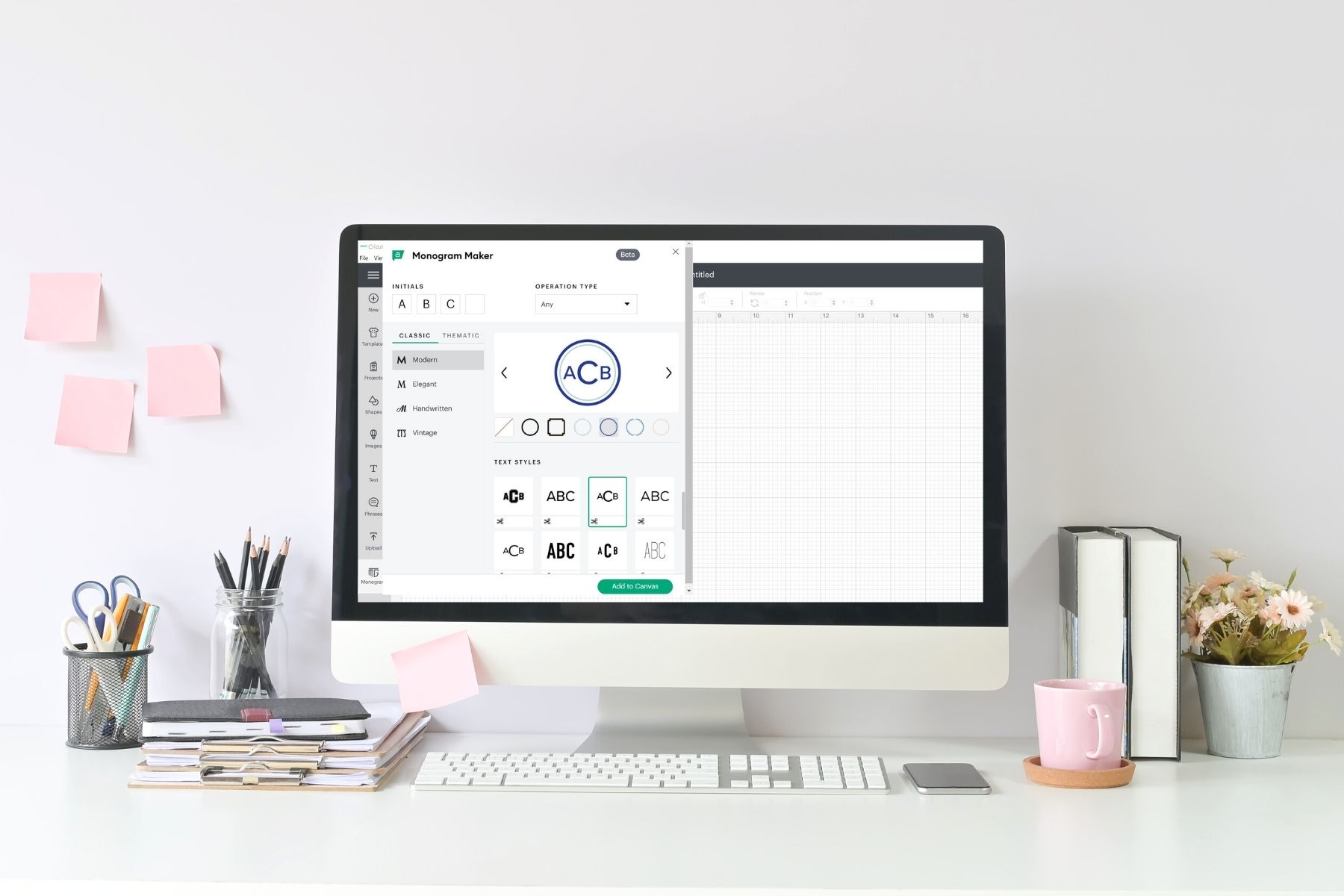
When you open Design Space in the desktop app, you'll see the Monogram icon on the left. Click that icon, and it will open the Monogram Maker. As long as you are using the desktop version of Cricut Design Space, Monogram Maker will work with your Cricut Explore, Cricut Maker, Venture, and Cricut Joy models. Please note that this is only available in the desktop version of Cricut Design Space at this time.
There are tons of different things you can do with the Monogram Maker, so let's jump in and look around.
Monogram Layout
One of the first things I noticed is that the monogram layout isn't always correct. Traditionally, a monogram consists of the first initial, the last initial, and the middle initial. The last initial in the center is usually larger than the other two letters. In the Monogram Maker, you put your initials into the upper left, and the software will set up the monograms for you. The layout will adjust depending on the version you select.
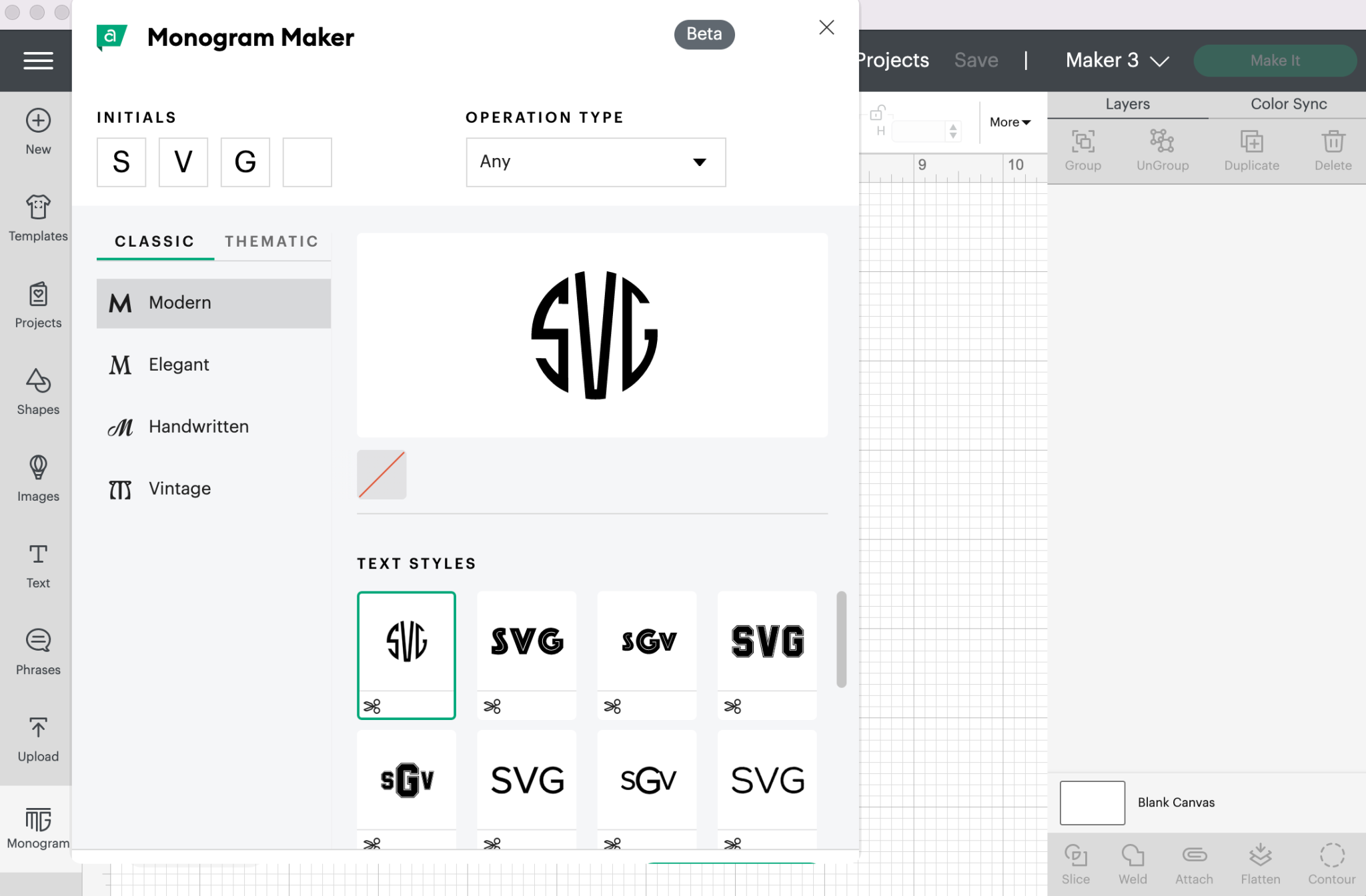
Sometimes the layout is correct, and sometimes it is first initial, middle initial, and then last initial. I guess maybe that is how some people like it, but I don't feel like it's right. Now that you know, you can adjust the layout of your initials as needed.
As you click through the other monogram types, like the sports under thematic, some of them have just one initial. Again, depending on which initial you want to use, you may need to change the layout of your initials.
Different Monogram Styles
There are so many different monogram styles, fonts, and frames in the Cricut Monogram Maker. You can choose from a variety of classic styles and frames, or you can choose different themes. Some fonts are more elegant and others are simpler. You can experiment with different fonts and frames to find the combinations you like best.
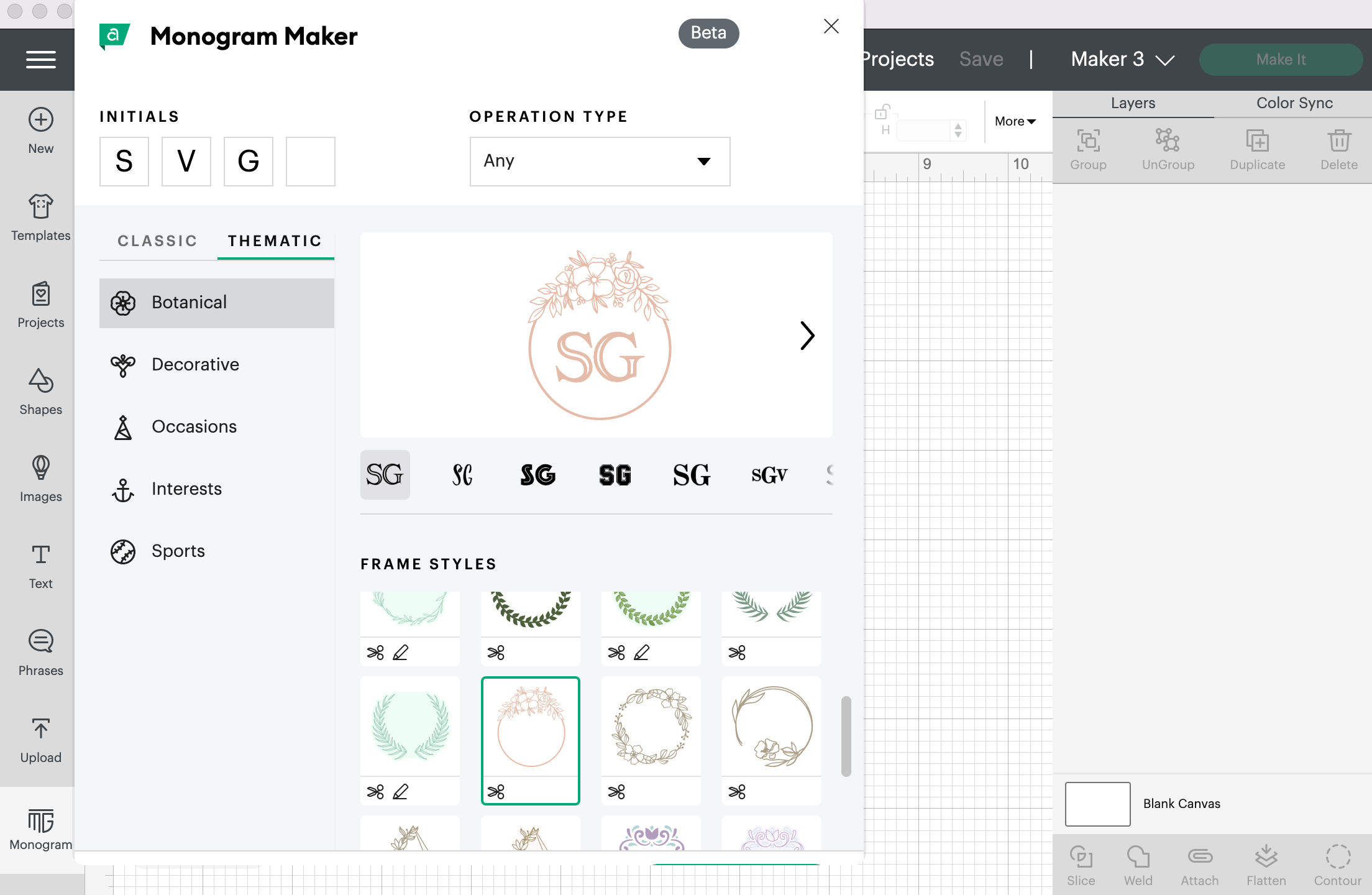
Design Space has everything from botanical themes with beautiful floral accents to themes for all different occasions like graduation and different holidays/seasons. The best way to see all of them is to play around with the Monogram Maker. I've found that my initials look great in some fonts and not nearly as great with other fonts.
Sorting by Operation Type
Another exciting feature of the Cricut Monogram Maker is the option to sort the monograms by operation type. Right there at the top of the Monogram Maker, you can choose between seeing all the monogram types, cut + draw monogram designs, or cut-only designs.
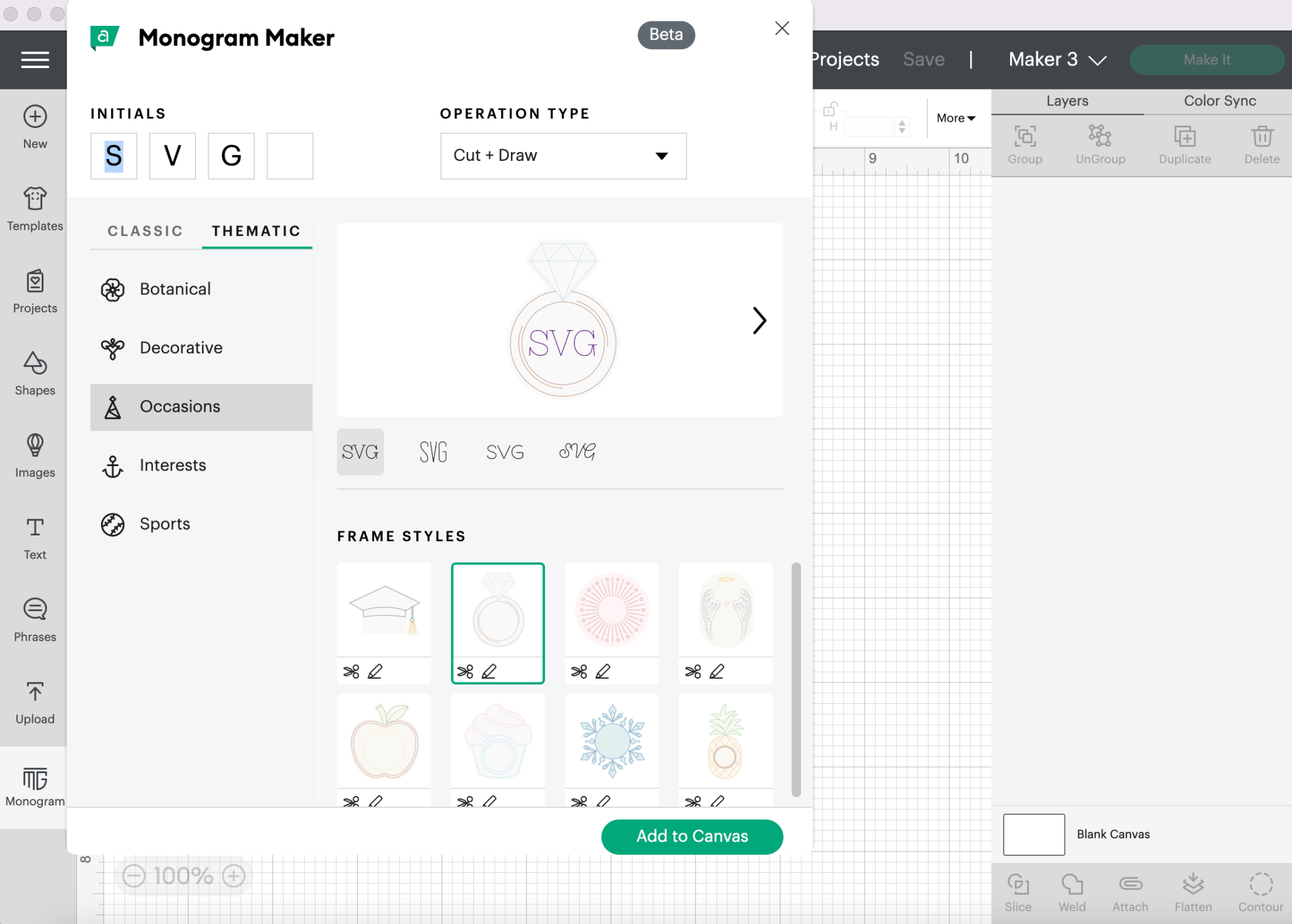
I love that even this change gives you more options. For instance, if I'm looking at the occasions monograms, the cut-only engagement ring is very different than the cut + draw engagement ring. I've had a lot of fun just clicking through all the different designs and operation types.
Adding Monograms to the Canvas
Now that we've explored a bit, let's make a monogram with the Cricut Monogram Maker. First, I'm going to select the monogram I want to use.
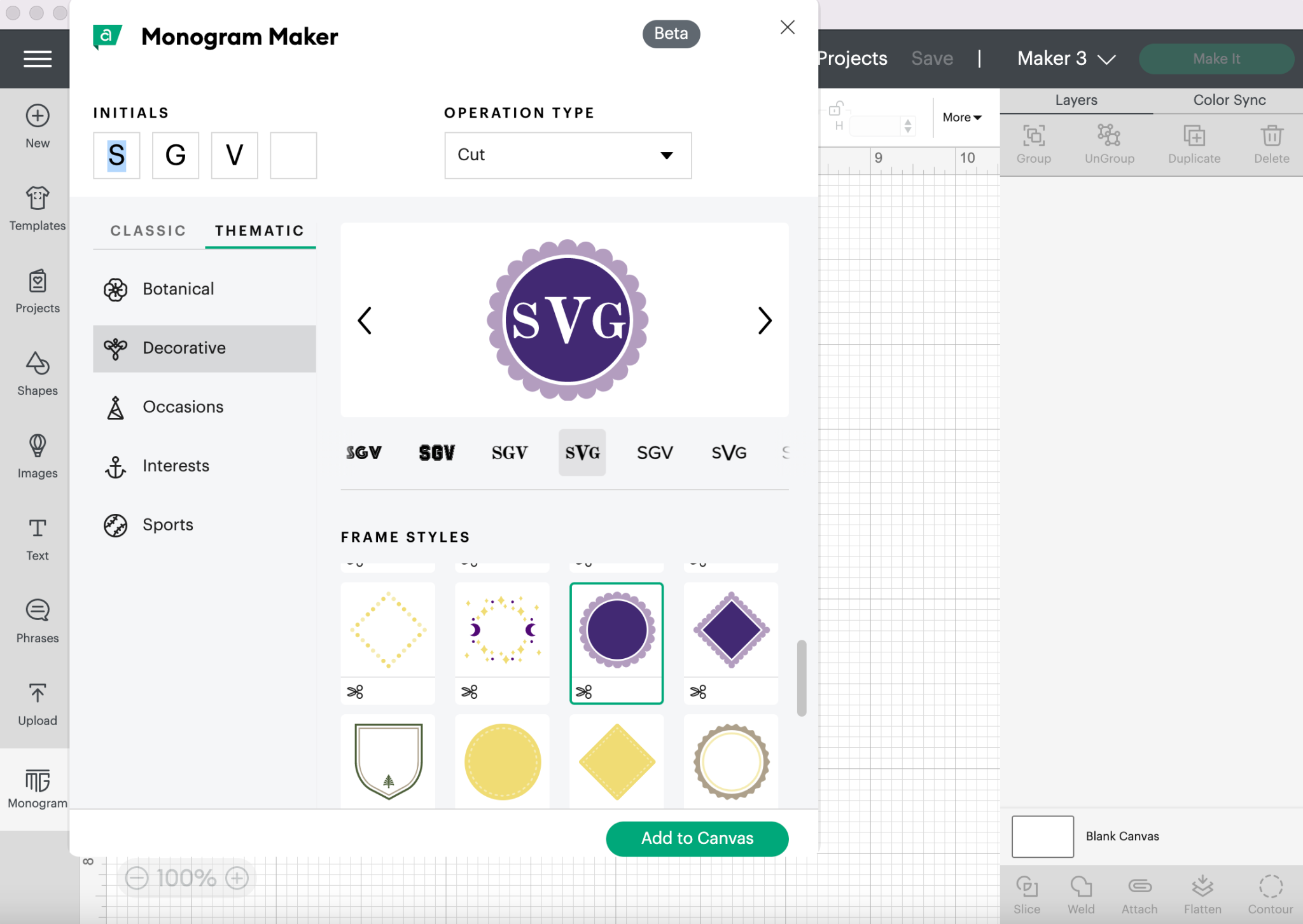
Once I have set up my monogram in the Monogram Maker, I can click “Add to Canvas” at the bottom, and my monogram image will appear on my Design Space canvas.
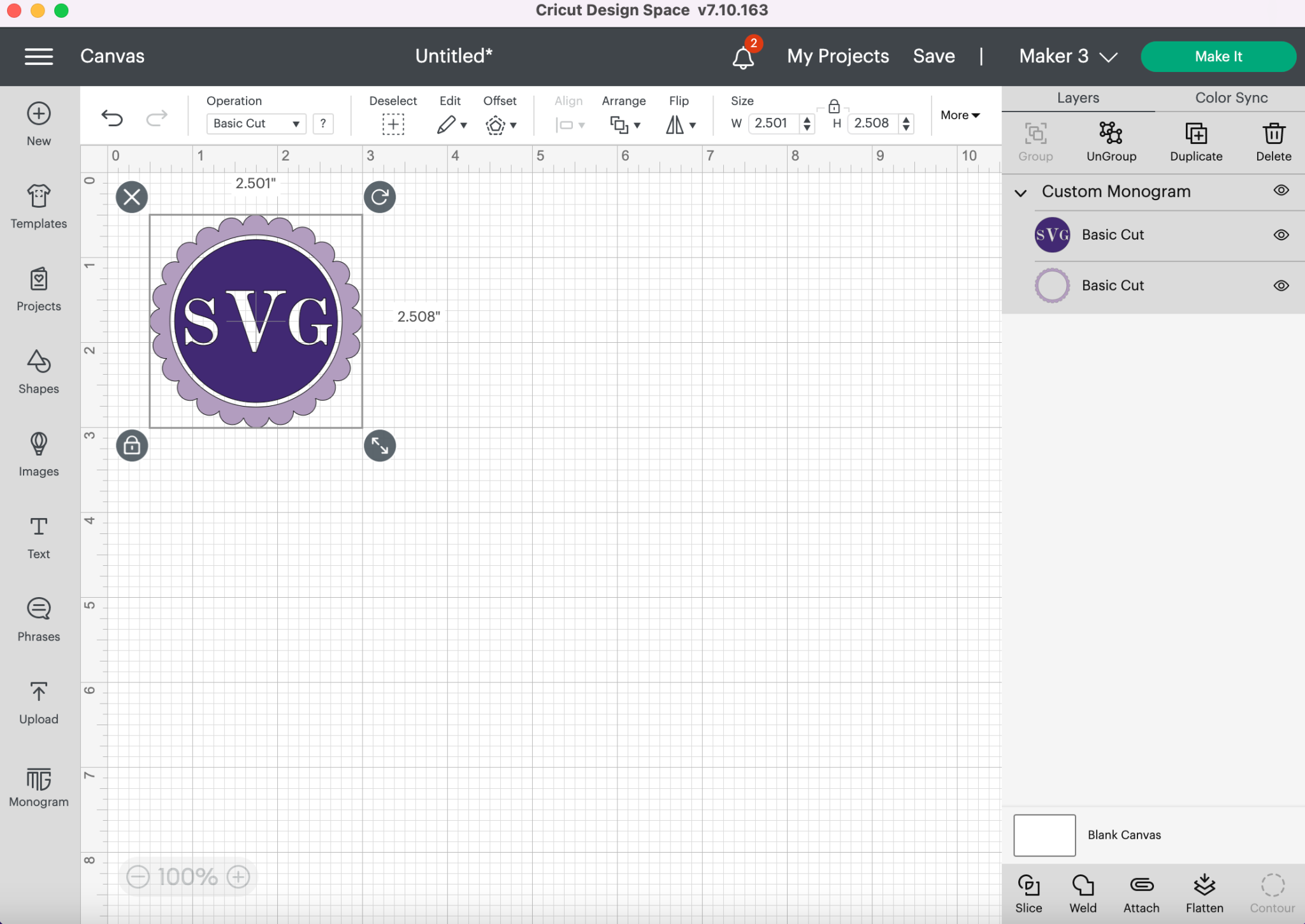
From here, the process is very similar to using any image in Design Space. You can see that there is an option to resize the monogram image, allowing you to adjust its size to fit your blank. In the Layers panel, you can see that it is currently set to cut two pieces because I have two different colors. To have it cut all in one piece, select the layers and click Attach.
Cutting the Monogram
Once you have everything set up exactly as you want, click “Make” in the upper right corner. From there, you need to select if you're cutting on a mat, matless, or on the card mat. Your options will depend on which machine you're using.
Then, simply follow the directions for the material you are using for your project. If you're using HTV or Infusible Ink, please note that you should mirror your image. When you're using the card mat, you'll be prompted to move your star wheels to the center for the Maker or Explore series. There are other specific instructions for various materials, so be sure to follow all best practices.
Final Thoughts on Cricut Monogram Maker
Monogram Maker is a feature in Design Space and is currently listed as “Beta,” which means it is still under development and may not be available to everyone. If you don't see it as an option in your Design Space, give it time.
The main issue I noticed is the one I mentioned above: the initials are not consistently laid out correctly. Keeping an eye on the layout is important right now so you can make adjustments to the initial boxes as needed. It really depends on the look you want, but when people are looking at a monogram, especially if the letter in the center is larger, they are going to expect that letter in the center to be for your last name.
That was the only thing I found unusual when using the Cricut Monogram Maker. That was the only minor glitch I noticed, but it is easy to adjust to correct the issue. Otherwise, I really liked the monogram maker.
Do You Need the Monogram Maker?
In the past, I've downloaded monogram fonts to make my own monograms. Design Space also has a collection of monogram fonts and images you can use. If you don't want to mess with finding fonts and figuring out the layout in the Monogram Maker, you can always just make your own right in Design Space.
The Cricut Monogram Maker is not a necessity. We've all been monogramming items for years without the Monogram Maker. It can be done, it just takes more time than using the Monogram Maker.
If you make things to sell, the Monogram Maker could be a huge timesaver. It's a quick and easy way to make monograms in a wide variety of styles. Anything that is in the Monogram Maker should fall under the Cricut Angel Policy, meaning you can make and sell items using those fonts and images. You can read more about that on the Cricut website.
Ready to create something special with the Monogram Maker? If you try this new feature, I would love to hear your thoughts in the comments. If you have any questions about the Monogram Maker, I'll be happy to help!












My “add to canvis ” button doesnt work (turn green). What am i doing wrong?
Do you have Cricut Access?
I have a subscription. I have signed out and back in and still no green access option.
If you’re not seeing your subscription I would reach out to Cricut so they can see what is going on.
I’ve also updated the firmware with no success. My subscription shows active until 2/23