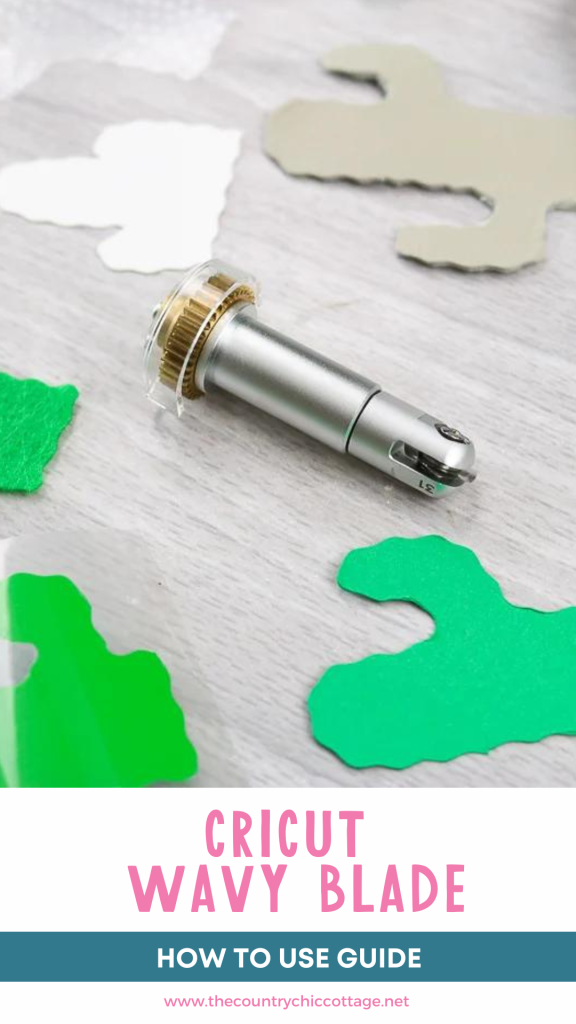
Next in our series is how to use the Cricut wavy blade. We have already covered the fine deboss tip and the engraving tip. If you want to make some wavy cuts, the wavy tip might just be for you. How do you use this tip, and what materials does it work on? We cover everything below so you have the details when planning your projects. Remember that the Cricut wavy tool is only for the Cricut Maker. You can see my tests with it below. Psst…be sure to subscribe to our YouTube channel so you don’t miss any of the videos!
Cricut Wavy Blade Video
Want to see this tool in action instead of reading about it? Just watch the video below! You can also see how to make those wavy lines in Cricut Design Space by watching the video below.
Can't watch the video or missed some of the information? You can also read about the materials and results below.
What Is The Cricut Wavy Blade?
Now, you can add wavy edges to any design right in your Cricut Maker. You can buy the entire tool here, or if you already have a QuickSwap Housing, you can purchase just the tip.
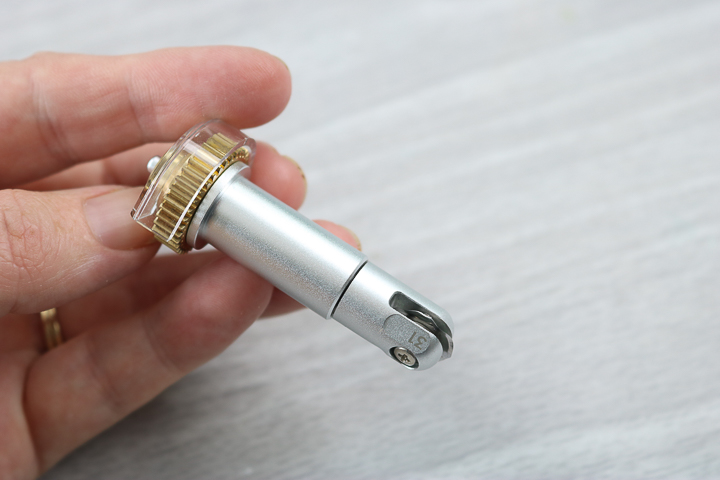
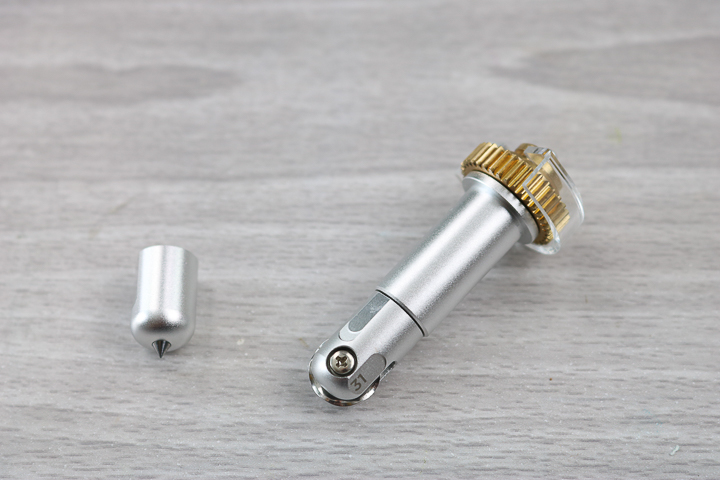
The wavy blade also has a protective cover. You can see that in the image below. It just pulls off to reveal the blade for use.
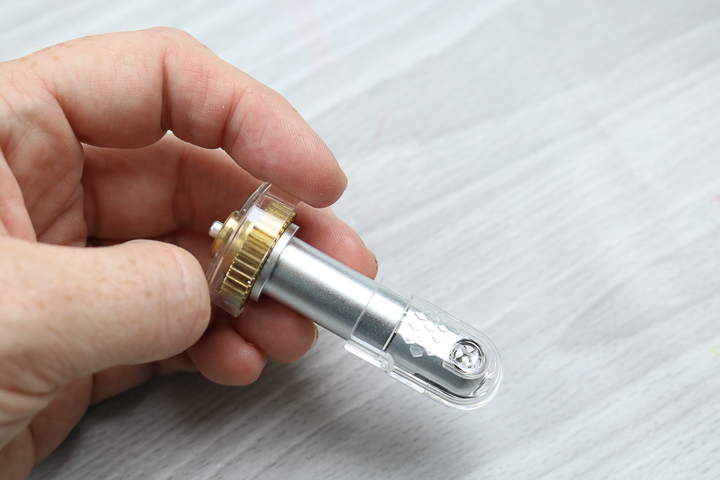
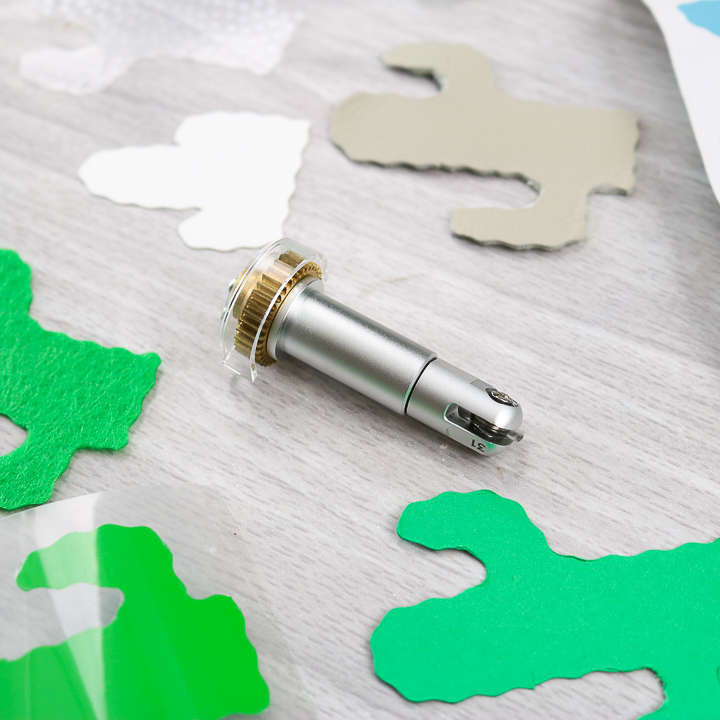
The blade's wavy edges are visible in the image below. The blade itself is similar to a rotary blade, but this one is wavy rather than straight.
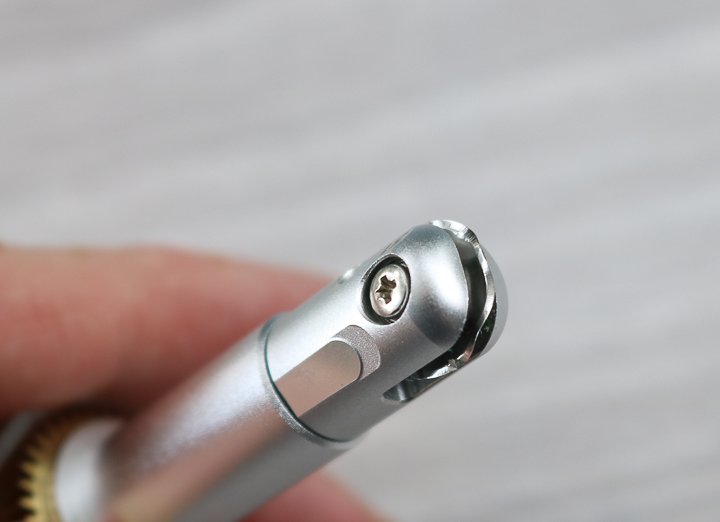
This tool is another addition to the line of tools that work with the QuickSwap Housing. That means you only need one housing and can use multiple tips with it. The Cricut wavy tip has a 31 on it, as shown in the image below. Want to see how the QuickSwap housing works? Then check out my short Instagram video!
What Cricut Machines Work With The Cricut Wavy Blade?
The Cricut Wavy Blade is compatible only with the Cricut Maker, Maker 3, and Maker 4.
If you are new to the Cricut Maker series and want to learn more, check out the blog posts below!
- Cricut Maker: The Ultimate Guide
- Cricut Maker 3: Everything You Need to Know
- Cricut Maker 4: Your Complete Guide
Putting The Cricut Wavy Tool In the Cricut Maker
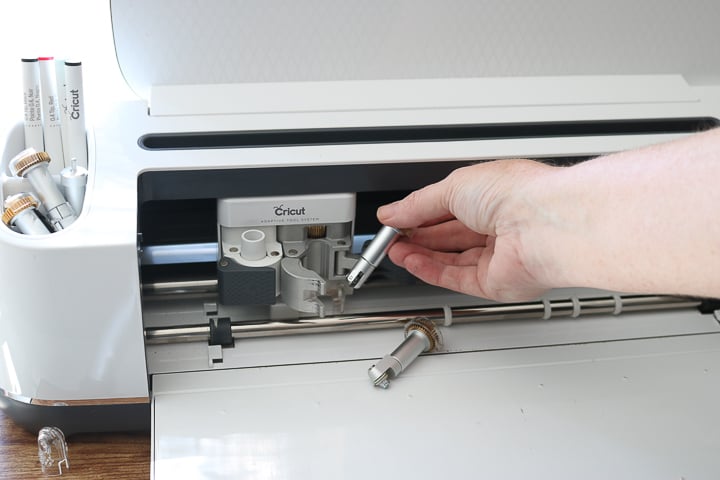
The wavy blade will go into the cutting tool side of your machine.
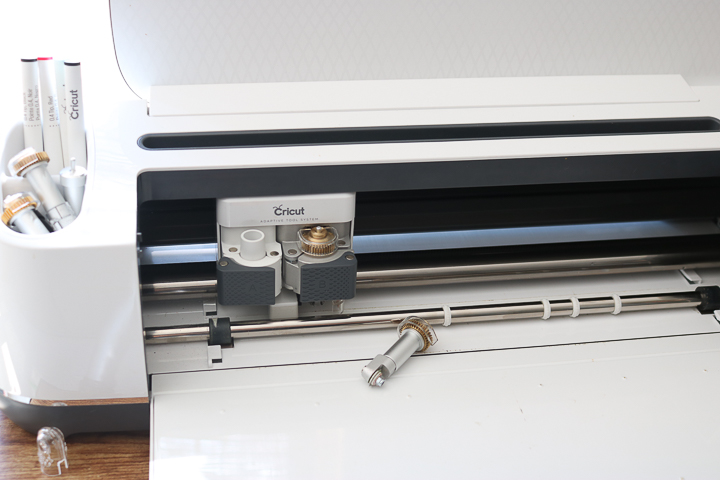
You can remove the inserted blade and replace it with the Cricut wavy blade in your machine. Your computer or mobile device will prompt you to add the correct blade at the right time if you are making multiple types of cuts in one project.
Designs That Work With The Cricut Maker Wavy Tool
This blade is similar to a rotary blade, meaning it doesn't perform well with curves smaller than 3/4 inch. The tighter the curve, the more it can dig into your cutting mat and potentially damage your material. In the tests below, I’ll be evaluating both large and small curves to illustrate what might happen to your materials. Additionally, keep in mind that cutting small curves can damage your cutting mat and reduce its lifespan.
What Materials Work With The Wavy Tool From Cricut?
The official list of materials that work with this blade is as follows:
- Acetate (foil and regular)
- Adhesive Foil, Matte
- Adhesive-Backed Glittered Cardstock
- Cardstock
- Construction Paper
- Copy Paper
- Cotton (bonded and not bonded)
- Craft Foam
- Crepe Paper – Fine and Extra Fine
- Duct Tape Sheet
- Iron-On (all types)
- Faux Leather (Paper Thin)
- Felt (all types)
- Flannel
- Fleece/Plush
- Foil Embossed Paper
- Foil Holographic Kraft Board – Neon
- Fusible Fabric
- Genuine Leather
- Glittered Cardstock
- Heavy Cardstock – 100 lb.
- Heavy Watercolor Paper – 140 lb.
- Kraft Board
- Kraft Cardstock
- Light Cardstock – 60 lb. (163 gsm)
- Light Chipboard – 0.37 mm
- Linen
- Medium Cardstock – 80 lb. (216 gsm)
- Metallic Poster Board
- Pearl Paper
- Photo Paper
- Polyester
- Polypropylene Fluted Sheet
- Poster Board (regular and foil)
- Printable Fabric
- Printable Vinyl
- Shimmer Paper
- Sparkle Paper
- Sticker Paper
- Tooling Leather 2-3 oz. (0.8 mm)
- True Brushed Paper
- Vellum
- Vinyl (all types)
- Washi Sheet
We are going to test a few of these materials to see what the Cricut wavy blade can do!
Cardstock
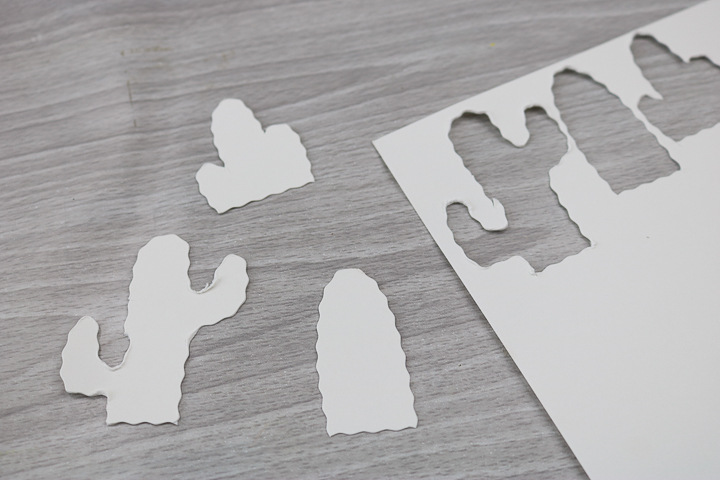
First up is just regular cardstock. I am cutting three cacti shapes for each of these materials. The one in the middle would be the recommended sizes but the ones on the sides have tighter curves than are recommended. This should give you an idea of what will happen when you cut your project with the Cricut wavy blade.
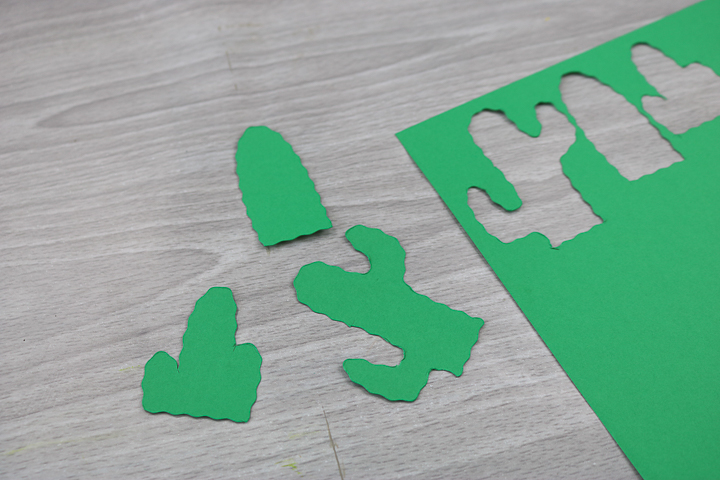
The tight curves not only dug into my mat but also pushed the material up in those areas. On the particular cactus below, you can also see where the wavy tip stopped and started. The waves do not exactly match at the start and stop points. On the other cacti, the machine started and stopped at a corner, but this one did not.
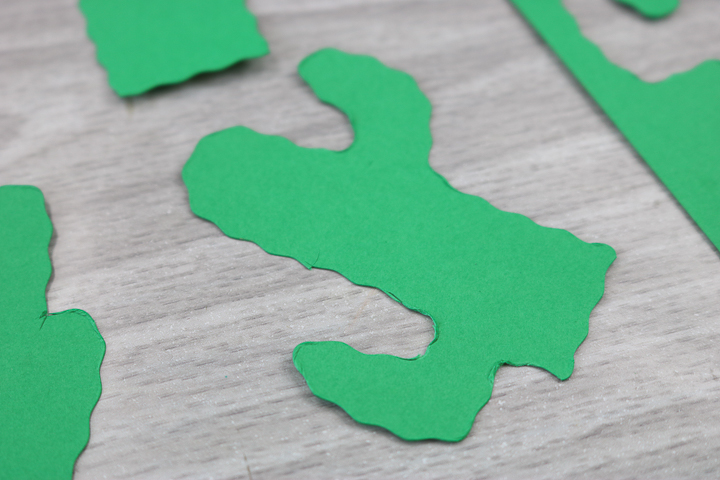
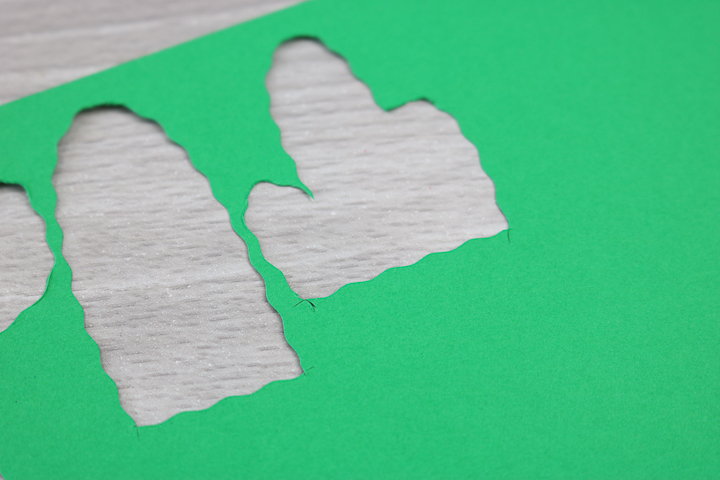
I also wanted to point out that if you wanted to use the other piece of this instead of the cacti themselves, there are imperfections in the corner where the Cricut wavy tool extends slightly past the line when cutting.
Kraft Board
Next up, I went a little thicker with a Kraft board. The results were almost identical, but the distortion on the curves was more pronounced.
Vinyl
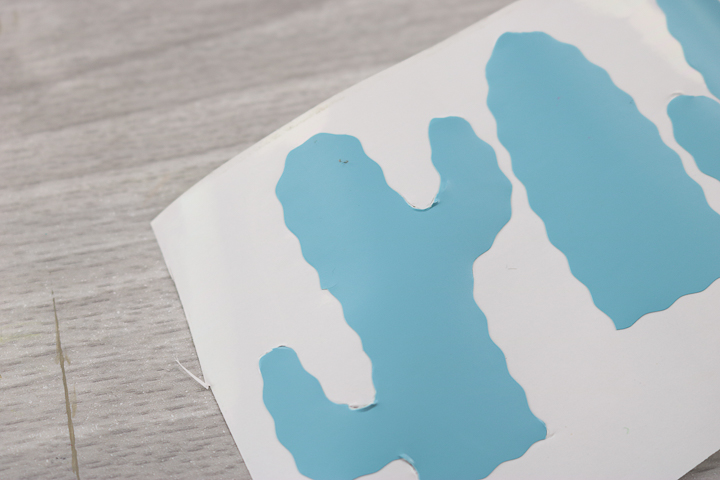
Adhesive vinyl was up next. Again, there is pushing up anywhere I went smaller than 3/4″ on the curves.
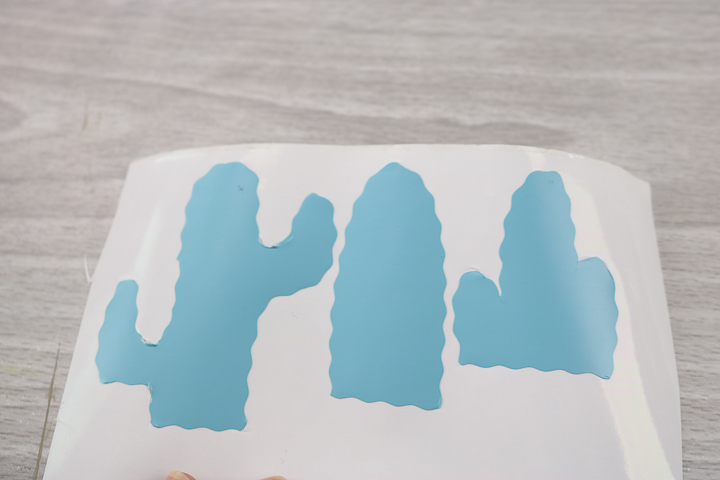
You could also really see that place where the two cutting lines met at the end of the cactus.
Heat Transfer Vinyl (Iron-on)
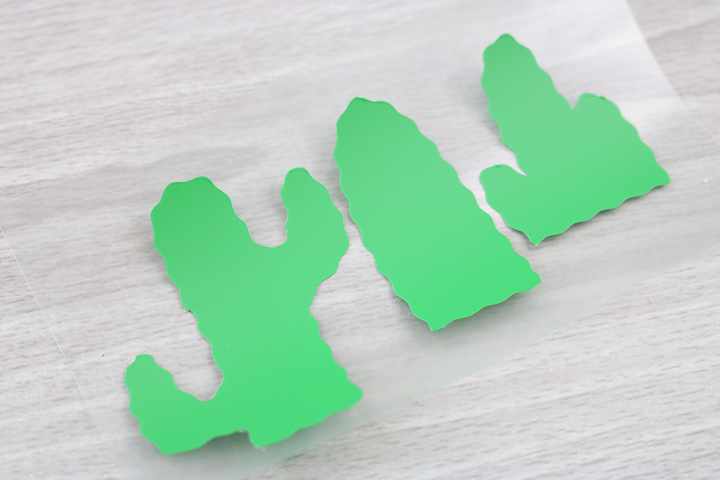
This actually did really well! I was impressed with the cut overall, and the imperfections were less noticeable.
Acetate
The Cricut wavy tip will also cut acetate. The cuts were a little shallow, and I had to push out the pieces, but otherwise, they were pretty good.
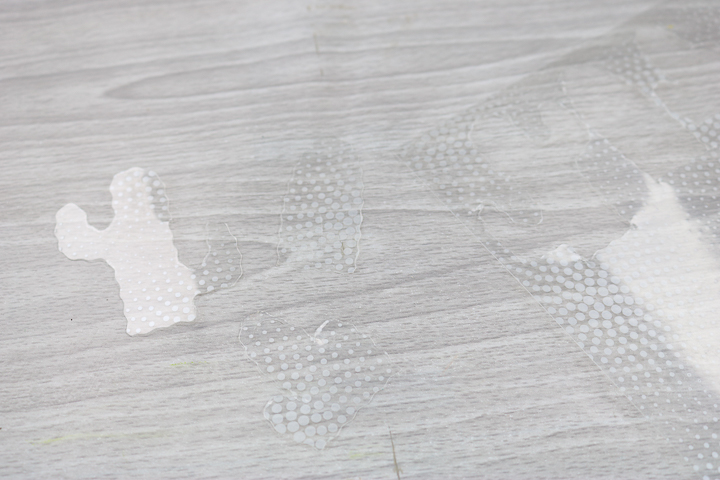
Cotton Fabric
The wavy blade performs a bit like pinking shears on fabric. The dips from the Cricut wavy blade are not as deep as those from regular pinking shears; however, the cuts were fairly good.
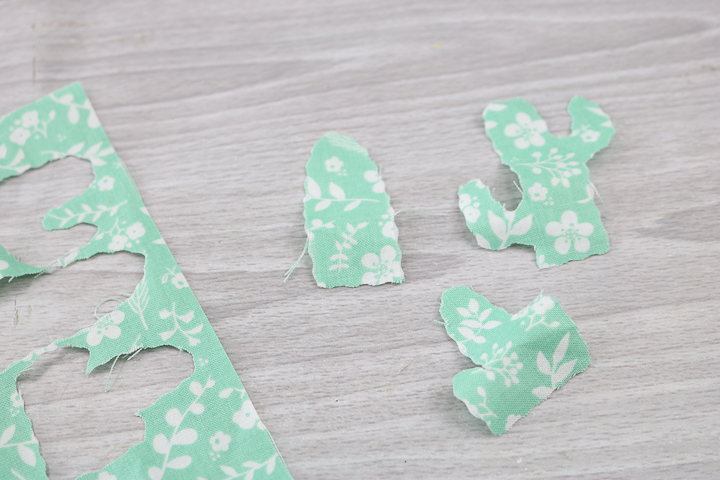
Felt
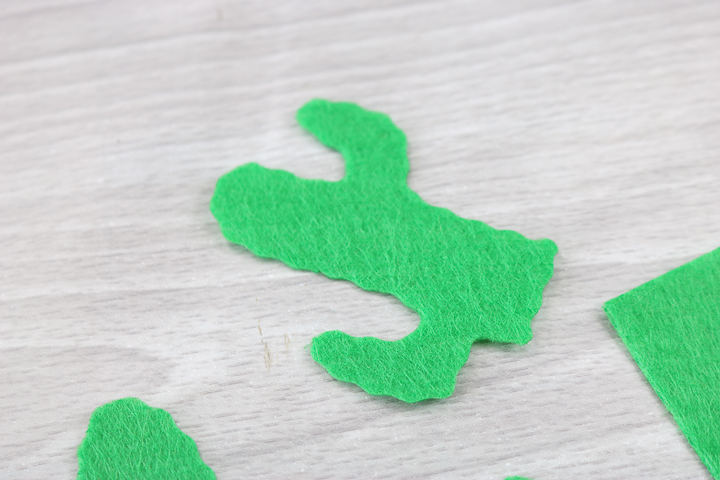
This was my favorite material to cut with the Cricut wavy tool! I loved how these pieces turned out. It really makes me want to use these cute cacti on a project!
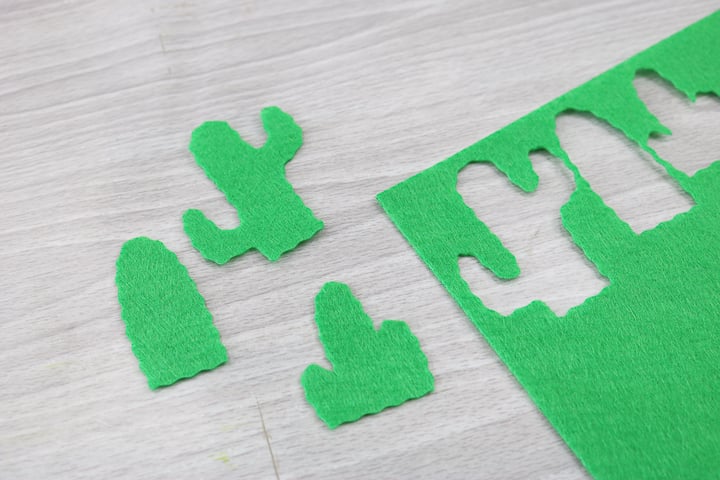
You could barely tell where the cuts met or where the issues were. Felt is definitely the best material I tried in these experiments. In fact, you can see a felt project using the wavy blade here.
Genuine Leather
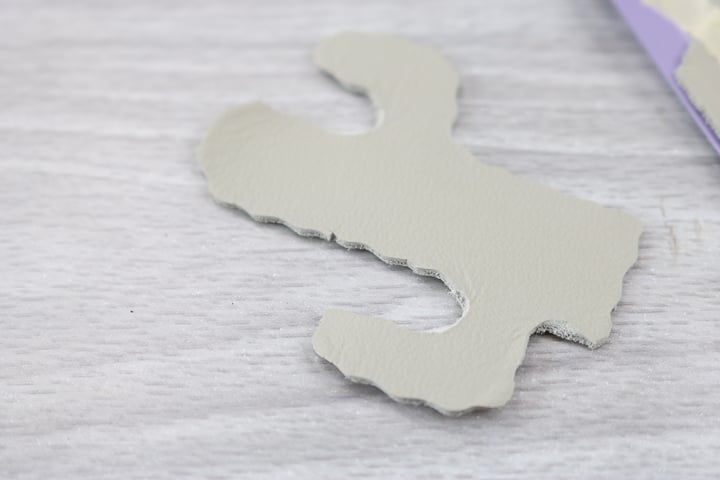
So, why not try the Cricut wavy tip on a thick material? Leather it is! The first cactus cut fairly well, but when cutting the second, the blade actually got stuck. So, I would say, use very simple shapes if you are going to cut leather with this Cricut Maker blade.
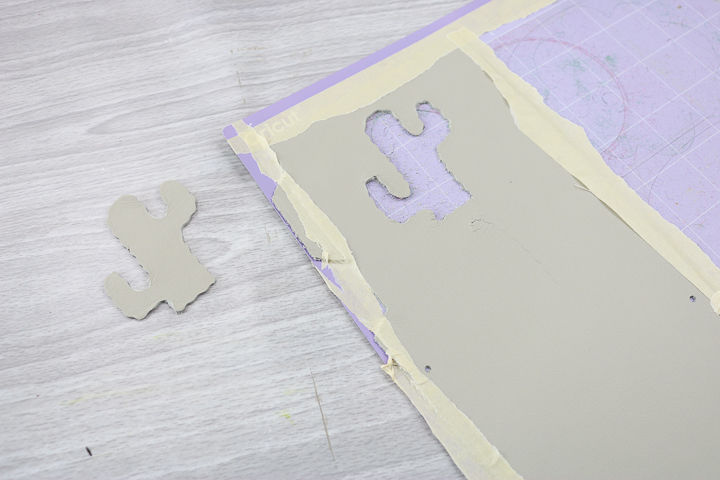
The cuts on the material are pretty good, but you can see the start and stop points, as well as some distortion on the tight turns.
Do you need the Cricut Maker Wavy Blade?
The bottom line is, do you really need this blade?
It is a fun addition to the Cricut tools, but it is not required. The results are unimpressive on most materials. It would be fun for a felt project or even as an iron-on accent. However, if you don't want to invest any more money in your Cricut Maker, you can definitely live without the Cricut wavy tool.
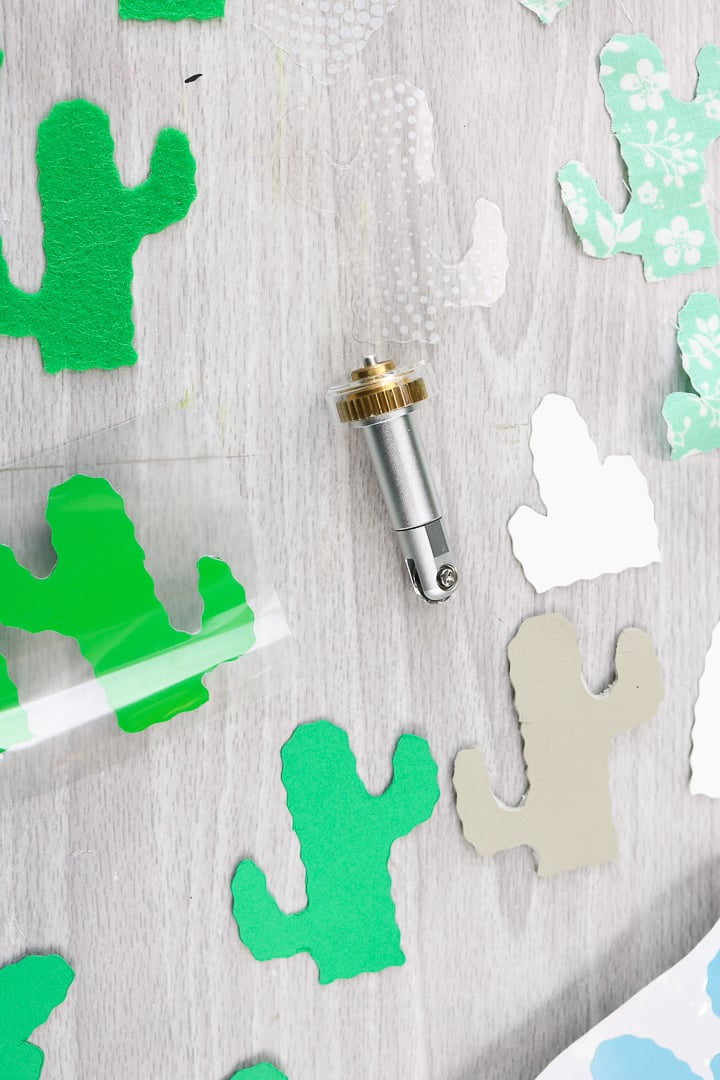
So, tell me, will you be trying the Cricut wavy blade for yourself? I would love it if you joined our Facebook group and shared some of your projects. I need some inspiration for this blade!
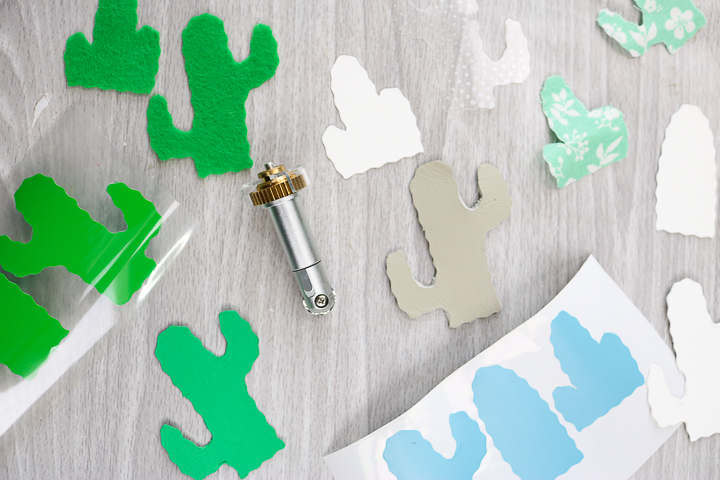
For now, I will just dream of a cute felt cactus craft with wavy edges. Don't you think the wavy edges add something to the cactus? It is definitely a fun way to add a decorative element with very little effort.
Cricut Wavy Blade Recap
I know I just threw a ton of information at you about the Cricut Wavy Blade. So, below are the 4 most important things to take away from this post.
- The Cricut Wavy Blade will only work with the Cricut Maker line of machines.
- This blade is similar to the rotary blade in that it will not do well with curves smaller than 3/4″. The smaller the curve, the deeper it will dig into your mat and possibly mess up your material.
- The Cricut Wavy Blade can be used with over 40 different materials.
- Felt is definitely the best material I've tried with the Cricut Wavy Blade.
- Do you really need this blade? It is a fun addition to the Cricut tools, but it is not required. The results are unimpressive on most materials. It would be fun for a felt project or even as an iron-on accent.
6 More Cricut Blade Resources
If you love this post on the Cricut Wavy Blade and want to learn more about how to use Cricut's different blades, check out the resources below!
- The Ultimate Guide to Cricut Blades for Every Machine
- How To Change Cricut Blades
- How to Use the Cricut Perforation Blade (with video)
- Cricut Maker Rotary Blade: What Materials Can It Cut?
- Cricut Knife Blade and Cutting Thick Materials with the Cricut Maker
- When to Replace Blades on Your Cricut