

One of the most frequently asked questions I receive is, “What Cricut accessories do I need?” If you're just getting started with Cricut, this is the post for you!
Whether you're a new Cricut owner or looking to buy one, keep reading; even if you've had your machine for a while, you may find something on this list you need to add to your craft room!
Trying to decide which Cricut machine is right for you? This post may help you choose.
What Cricut Accessories Come with the Machine?
First, what do you receive in the package? What's included varies by machine, so I have outlined the details below. This is what comes in a standard package when you purchase the machine. You will receive more if you purchase yours as part of a bundle.
Want to compare machines? Here's our comparison!
- Cricut Explore Air 2: Cricut Explore Air 2 machine, Premium Fine-Point Blade + Housing, Black Fine Point Pen, LightGrip Machine Mat 12 in x 12 in
- Cricut Explore 3: Cricut Explore 3 machine, Fine-Point Blade + Housing, Fine-Point Pen
- Cricut Explore 4: Cricut Explore 4 machine, 12×12 LightGrip mat, a Fine-Point Blade and housing, a Fine Point Pen, a mini weeder tool
- Cricut Joy: Cricut Joy Machine, Joy Fine-Point Blade + Housing, Joy Fine-Point Pen, Joy StandardGrip Mat 4.5″ x 6.5″
- Cricut Joy Xtra: Cricut Joy Xtra machine, Premium Fine-Point Blade + Housing, Cricut Joy™ Fine Point Pen, Cricut Mini Weeder
- Cricut Maker: Cricut Maker machine, Premium Fine-Point Blade + Housing
- Cricut Maker 3: Cricut Maker 3 machine, Premium Fine-Point Blade + Housing
- Cricut Maker 4: Cricut Maker 4 machine, 12×12 LightGrip mat, a Fine-Point Blade and housing, a Fine Point Pen, a mini weeder tool
- Cricut Venture: Cricut Venture professional cutting machine, Performance Fine-Point Blade, Cutoff Tool, Roll Supports, Cleaning Tools, Mat Support Extension
What Cricut Accessories Should I Purchase to Get Started?
Now that you know what comes with your machine, what else will you need when you start using your Cricut? Here are my top ten recommendations!
You can watch me break down all of my Cricut accessory recommendations in the video below:
1. Cricut Machine Training
My number one must-have Cricut accessory is a training guide to help you use your Cricut machine.
When you open your Cricut box, you may be surprised to see that there is no manual included. This means you will need to look elsewhere to learn how to use your machine effectively. Cricut offers training resources you can use, but I also recommend finding the right training for your needs.
Since you're already here, you are in the right place for Cricut tutorials. Be sure to check out my YouTube videos as well. You can watch my entire Cricut Basics YouTube playlist to learn all about your cutting machine.
I also offer a free Cricut class and a Cricut book you can purchase if you prefer something tangible and easy to reference.
I really cannot stress enough that the most important thing you do when purchasing a Cricut machine is to get training. While you can dive in and learn as you go, you'll likely not get the most out of your Cricut machine. Take the time to really learn your machine and all it can do.
2. Cricut Mats
My next Cricut accessory must-have is Cricut mats. My most-used mat is the blue LightGrip mat; I always have extras on hand.
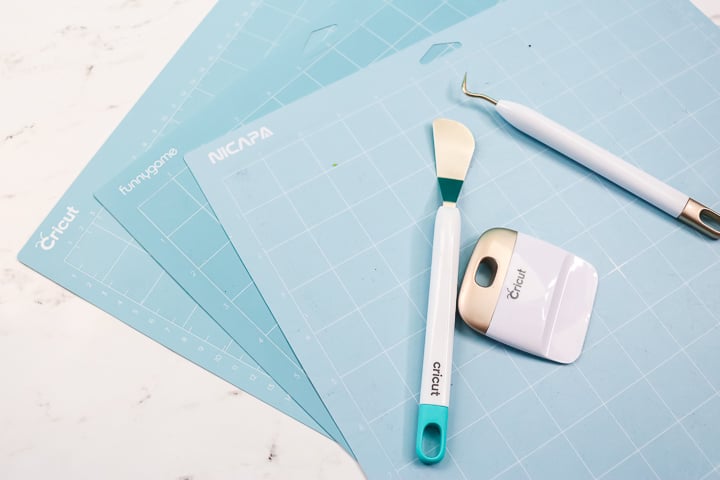
There are currently five different types of mats for Cricut machines. Do you need them all? How many do you need? First, let's review the types of mats and their applications.
- LightGrip: Thin paper and vinyl. (Comes in sizes for the Maker, Explore, and Joy models.)
- StandardGrip: Thicker cardstocks, iron-on, and vinyl. (Comes in sizes for the Maker, Explore, and Joy models.)
- StrongGrip: Chipboard, really thick cardstock, poster board, and wood. (No sizes for Joy models.)
- FabricGrip: Fabric of all types and crepe paper. (No sizes for Joy models.)
- Cricut Card Mat: Comes in a single size for Cricut Joy, Joy Xtra, and a 2×2 Card Mat for Maker and Explore machines
How Many Mats Do You Need?
How many mats do you need? That really depends on how often you plan to use your machine. For me, the mats are the first thing that wears out. I like to keep a few spares of the mats I use most often. They are definitely a must-have for Cricut accessories.
Did you know that you can clean your mats? Learn how here!
Remember that mats for the Maker and Explore machines are available in 12 x 12 and 12 x 24 sizes. Mats for the Joy are available in 4.5 x 6.5 and 4.5 x 12 sizes, and mats for the Joy Xtra are 8.5 x 12 inches. The Cricut Venture uses both 12 x 24 and 28 x 24 mats. If you plan to take on larger projects, consider stocking up on larger mats.
PROTIP: The stronger mats will lose their stickiness over time and essentially become the lighter-grip versions. So, if possible, start with a stronger grip, then transition to lighter materials as they wear. This will extend the overall life and save you some money!
3. Blades
Blades come in at number three on my list of must-have Cricut accessories. There is nothing worse than being in the middle of a project and getting rough cuts that require you to stop and go to the store to get new blades.
The following are all the blades available for any of the machines. Refer to the notes to see which machines they are compatible with and what materials they work with. My recommendation is to replace your blade once you notice your cuts are no longer crisp. I recommend keeping a spare on hand for your most frequently used blades.
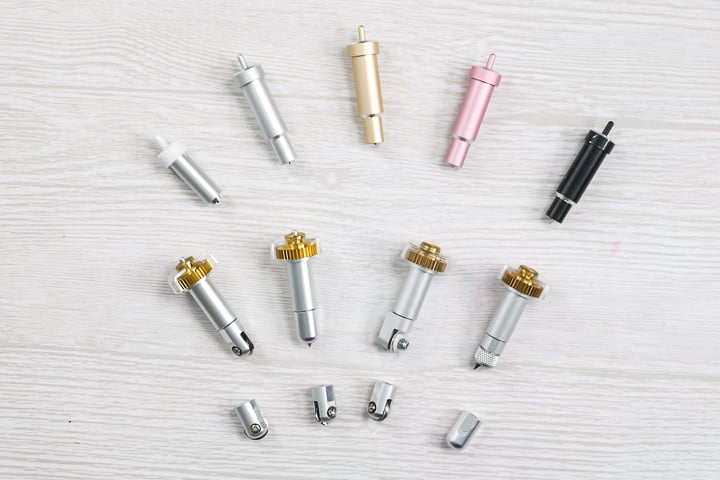
Different Cricut Blades
- Fine Point Blade: Great for paper, vinyl, and more. Your machine includes the housing and blade, so buying blade replacements is the best option. Remember, the housing for the Joy is different from that for the Maker/Explore machines.
- Premium Fine Point Blade: A superior version of the one above, designed to last longer. Purchase it with the housing the first time, then buy replacement blades. NOT FOR JOY.
- Bonded Fabric Blade and Housing: Bonded fabric can be cut with a fine-point blade, but it's best to keep the blade for fabric separate from the one used for paper, etc. This color-coded option makes that easy. NOT FOR JOY.
- Deep Cut Blade and Housing: You will want this for cutting thicker materials, such as foam and chipboard. Again, it is color-coded to prevent mix-ups. NOT FOR JOY.
- Foil Transfer Tool: This tool is designed to apply foil to your designs by using pressure. You can read more about this tool and how to useit here.
- Rotary Blade Kit: The Maker machines are currently the only machines compatible with the rotary blade. This kit is designed to replace yours once it becomes worn or chipped. Housing is ONLY for the rotary blade. NOTE: These last a long time, so you may want to wait to order one rather than keep the kit on hand.
- Knife Blade: Only for the Maker machines. This blade cuts through thick materials, including wood, acrylic, and many more. Housing is ONLY for this knife blade.
- Scoring Wheel: (single and double): Only for the Maker machines. Score various materials with a QuickSwap housing to use both tips with one. Want to score with the Explore Air 2? Try the scoring stylus instead.
- Engraving Tip: For Maker machines only. Works with the QuickSwap housing and engraves a wide variety of materials.
- Deboss Tip: For Maker machines only. This tip allows you to add indentation to materials, and it works with the QuickSwap housing.
- Perforation Tip: For use with Maker machines only. Create perforated and tear lines in minutes with this blade, which works with the QuickSwap housing.
- Wavy Blade: Exclusive to Maker machines. Want to cut wavy lines? Add this tip to your QuickSwap housing.
The blades and mats are obviously the most critical Cricut accessories, but there are other tools that you may not be aware of, listed below.
4. Computer/Tablet/Phone
Maybe this should be listed above mats and blades, but coming in at number four is a computer, tablet, or phone to run Design Space and your Cricut machine.
You can use a computer, phone, or tablet. Any device that can connect to the internet. Please note that features available in the mobile app will be more limited than those on a computer. To use all features, you will need a computer, but Design Space is not compatible with Chromebooks.
Here is some helpful information on choosing a laptop for your Cricut machine.
5. Designs
Coming in at number five is designs. There are many designs in Cricut Design Space. You can look there and even find free designs in Design Space.
There are also websites that offer free files for use with your Cricut machine.
6. Cricut Tool Sets and Brayer
Next up, we have tools. I highly recommend the Cricut Tool Sets. They have so many tools that are really handy to have in your craft room
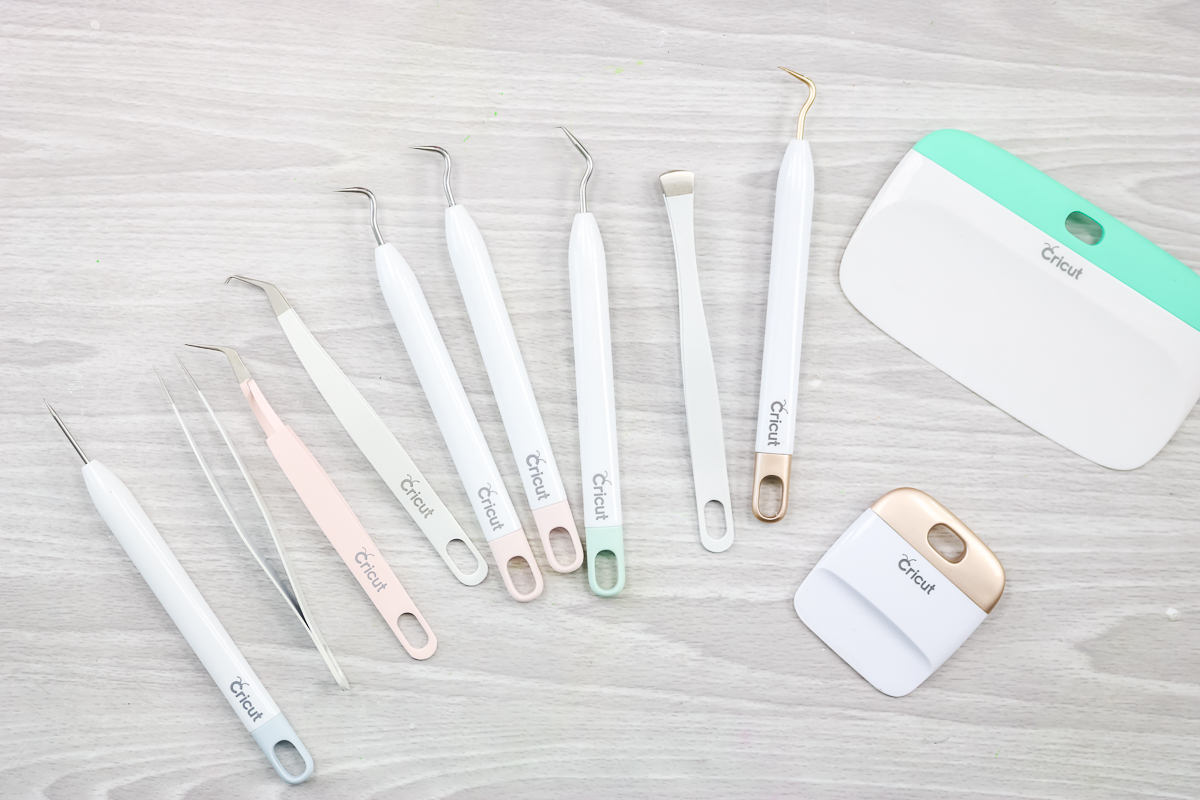
- The Essential Tool Set: Includes a wide range of tools, including some I really love. The tweezers are perfect for lifting things from your mat. Especially critical to keep your mats as clean as possible. The scoring stylus is included in this package, along with a basic vinyl weeding tool. The spatula in this set is one of my faves. Lifting things from the mat is easier with this tool. The small scissors and paper cutter are nice, but you may already have similar tools that you love.
- Basic Tool Set: Basically everything above in the essential toolset, minus the paper cutter and scoring stylus. This is also a more affordable option.
- Weeding Tool Set: A must for anyone working with vinyl. Seriously, these will save your sanity. It includes weeding tools with pointed tips and tweezers.
Do I Need a Brayer??
A tool that deserves its own mention is a Brayer. I strongly believe every Cricut user should have a brayer on hand. A brayer allows you to press your material down, like a small rolling pin, and firmly adhere it to the mat.
NOTE: Most of these come in sets, which offer the best value if you plan to purchase multiple tools. However, most tools are also sold individually, allowing you to buy only what you need.
7. Materials
Materials are up next on my must-have Cricut accessories list. I recommend starting with simple materials when you're learning how to use your Cricut machine.
Simple materials include adhesive vinyl, Iron-on or HTV (heat transfer vinyl), and paper. You'll also want a simple design to begin with; a more complex project may discourage you from the start. Here are three beginner projects that are great for those just starting.
8. Heat Source
Number 8 on my Cricut accessory must-have list is a heat source! This is a requirement if you plan to use HTV or Infusible Ink with your Cricut machine.
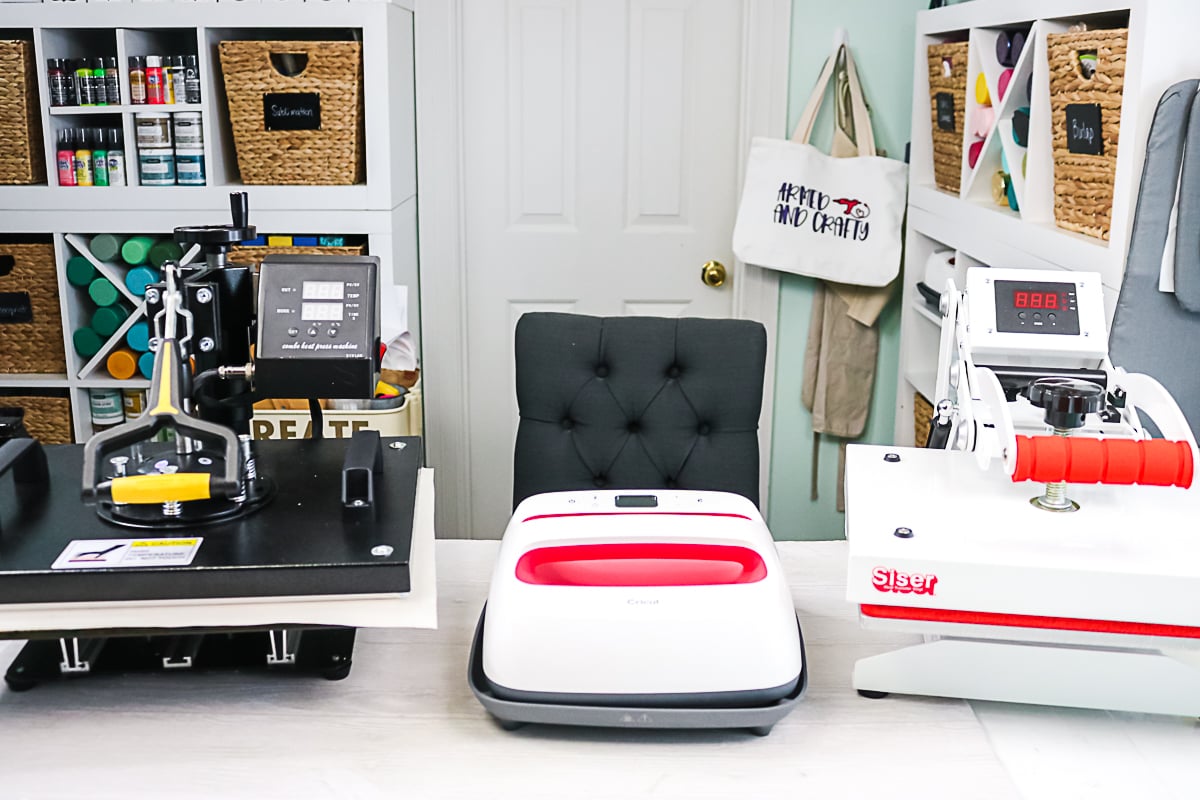
If you're using Iron-on (HTV), that heat source could be your household iron, an EasyPress, or a full-size heat press. There are many options, and you don't have to start at the top.
If you want to use Infusible Ink, you'll need a higher-temperature heat source, such as an EasyPress or a heat press.
If you're using an EasyPress, consider purchasing an EasyPress Mat as well.
These accessories are only needed if you plan to use Iron-On (HTV) and/or Infusible Ink. If you want to get started with HTV, your home iron is a great place to start. If you find you want to make more projects easier, it may be time to upgrade your heat source.
9. Printer
Number nine is a printer. Because many people enjoy using the Print Then Cut feature with their Cricut machine. Not everyone will need a printer, and not every craft will require one either, but there are many fun things you can create with your Cricut machine and a printer.
If you don't have a printer yet, you can wait. Start bymaking other projects, learn to use your machine, and when it's time to create a Print Then Cut project, explore the different printable materials and my post on the best printers to use with your Cricut machine.
10. Cricut Pens
My number 10 must-have for new Cricut crafters is pens. Your Cricut machine can cut, but it can also write, and it's really fun to draw with your Cricut machine. You can draw on paper; they offer writeable vinyl; and you can draw on vinyl to make labels.
There are numerous options for using pens with your Cricut machine.
This may not be something you want to get into at first, but I recommend trying it. Some Cricut machines come with a pen so that you can start with that pen. If you enjoy using that feature in Design Space, I recommend purchasing a small pack of Cricut pens and seeing how often you use them before investing in a full set.
A variety of pens are available on the Cricut website. Pens marked “Cricut Joy” are the only ones that are compatible with the Cricut Joy. All the other pens will work with the Maker or Explore models.
One of the best features of the Cricut Maker machines is their ability to cut fabric. No bonding is required! To complement this, Cricut has introduced a washable fabric pen compatible with Maker machines. These are essential if you are cutting patterns on the Maker and want to mark your pieces.
Bonus Cricut Accessory Must-Have
Now that we have covered my 10 must-have Cricut accessories, let's look at one more thing you may want to add to your list, and that is a Cricut Access subscription.
Design Space is the software that powers your Cricut machine. It's where you'll create your designs, and you can use it 100% for free.
There are no monthly fees required. You can upload your own images and use fonts from your computer without using Design Space. Design Space also includes free designs, images, shapes, and fonts you can use.
Do I need Cricut Access?
That said, many people appreciate the Cricut Access subscription. It's convenient and easy to use, and it includes access to an extensive library of designs, images, and fonts for a monthly fee. Also included with those designs is the Cricut Angel Policy, which permits commercial use of the images.
I highly recommend that a Cricut beginner try it. You usually get a free trial of Cricut Access when you buy a new Cricut machine, try it out, see how much you use it, and if you find yourself using a lot of the Access subscription files.
Do you use it enough to justify the monthly cost? If so, continue to use it; you can cancel it at any time. This post may help you decide if Cricut Access is right for you.
New to Cricut? Download our free beginner's guide here!
I hope this provides a clearer overall understanding of the Cricut accessories available. Be sure to pick up a few from their website or on your next trip to the craft store. After all, you want to be prepared for any crafting emergency! Please leave any questions you have below, and I will be happy to help.











Cricut seems to be a great machine. If I understand well the info provided, the only images you can actually use for projects are those provided by the Cricult website. My concern is that I am French and would imagine that nothing on this Cricut site would be French, is this correct? If so, then this machine would not be a plus for me in my crafting. Thanks.
You can actually upload any image into the software and use the fonts on your computer. So no issues there!
What is a cartridge? I was reading through the above which mentioned cartridge and do not know what that is.
The older Cricut machines took a cartridge that would supply their images. Some people still have those and want to use them.
Hi Angie – Newbie question… I would like to pimp up my Nike Swoosh – with pick glitter iron on.. I can’t get swoosh to line up perfectly. I copied & upload image, edited the back ground then uploaded image to canvas. My image is not perfect fit .. How can I fix , Please. PS love you vidoes
That is probably going to be really hard to do. You might try measuring the swoosh and then resizing it in Design Space.