

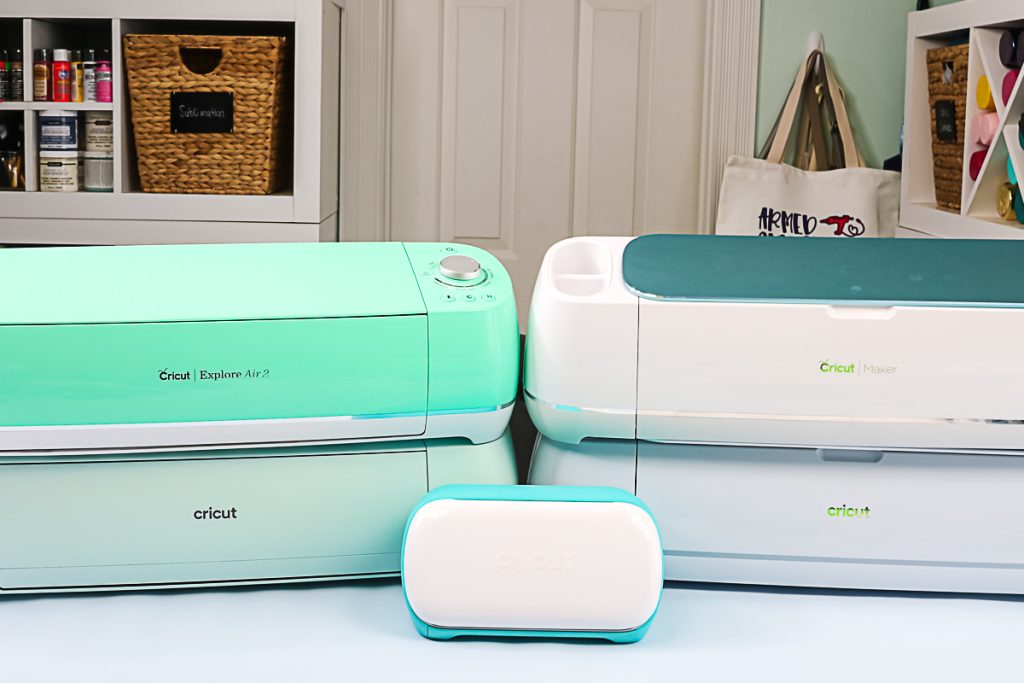
How do you use a Cricut machine? This is hands down one of the most common questions I get. When you’re brand new to Cricut, there’s a lot to learn, and it can be hard to know where to start. That’s why I’ve created a complete beginner's guide to using a Cricut cutting machine. Whether you have a Cricut Maker, Explore, Venture, or one of the Joy machines, this post will walk you through the basics step by step. With our tutorial videos and downloadable beginner’s guide, you’ll be using Cricut Design Space with confidence in no time!
How to Use a Cricut
Let’s start from the very beginning — after all, everyone starts somewhere! If you’re brand new and wondering what a Cricut machine is and how it works, I’ve got a post that breaks it all down for you. And if you’ve already decided to jump in and are ready to start Cricut crafting, you’re in the right place. Keep reading for step-by-step guidance on using your new Cricut machine and getting started with confidence.
Where to start?
First of all, where do you start? You have this great new machine and have no idea what to do!
- Click here for a step-by-step guide to setting up your machine. It will walk you through the simple steps.
- Make the sample project that comes with every new machine. All the materials are in your box, and the software will guide you through the process. This is a great way to get familiar with the machine and Cricut Design Space. You can follow along with our video here.
- Download our beginner's guide. This handy reference will answer many of your questions and get you started with creating right away.
- Kick off your learning with our one-hour Cricut crash course.
- Sign up for my 7-day free Cricut class here. It will finish the process of getting to know your machine so that you will be ready to tackle that Cricut project of your dreams.
Want to learn more?
Now that you are hooked on this amazing machine, I am sure you want to learn more. If you can't wait and want to binge-watch some videos now, I have a big list for you below. Or, you can also wait for each of these to come up in the free 7-day Cricut class instead! These are all from a video series that will answer all of those nagging questions for you. Just click on each link below to watch the videos. We are adding more all of the time, so be sure to subscribe to our YouTube channel here so you don't miss any of them.
YouTube Playlists
Other Helpful Videos
- Uploading Images to Cricut Design Space
- Text Options in Cricut Design Space
- Curving Text with Your Cricut
- The Print Then Cut Feature
- Using Shapes to Design in Cricut Design Space
- Changing the Grid in Cricut Design Space
- Custom Materials in Cricut Design Space
- Tips for Using Cursive Fonts
- Using the Slice Tool in Cricut Design Space
- Adding Score Lines in Cricut Design Space
- Cricut Scoring Wheel versus Scoring Stylus
- What is Cricut Access?
- Contour Feature in Cricut Design Space
- Using Templates in Cricut Design Space
- The Cricut Knife Blade
- The Cricut EasyPress
- What Materials Can You Cut with the Cricut Maker
- How to Cut Burlap with the Cricut Maker
Projects for Your Machine
Learning to use your Cricut machine has never been easier. Perhaps you are feeling more confident now that you have more information. It is time to make a project! Explore these projects you can make with your machine. Pick a few to try and get crafty today. After all, you have a Cricut! Your crafting just became a whole lot easier and more fun. You can get professional results with just a few clicks.
Looking for beginner ideas that won't intimidate you? Try making a paper banner or even an iron-on shirt.
Accessories for Your Machine
If learning how to use a Cricut machine is the first question I get, the second is always about which Cricut accessories you actually need. With so many tools and add-ons available, it’s easy to wonder which ones are essential and which are just nice to have. In this post, I’m breaking down the most important Cricut accessories to get you started, along with what you can skip for now. Click through for our complete Cricut accessories guide and make sure you have exactly what you need to craft with confidence.
Please don't go out and purchase every little thing from the Cricut website! Most likely, you will only use a few key accessories, and you don't want to waste your money!
Purchasing a Machine
Perhaps you landed here and haven't purchased your machine yet. Have no fear! We have everything you need to know to purchase the correct machine for your crafting needs. Just click here for our comparison guide between the Cricut Maker and Cricut Explore. You can also see our comparison between the Cricut Explore and Cricut Joy. From there, you should be able to make an informed decision on what you need. We also have this helpful guide on which machine is right for you. Don't forget that you can get a discount when purchasing by subscribing to Cricut Access.
Now that you know how to use a Cricut machine, what will you make? We would love for you to upload your projects to our Facebook group and show off your creations! Do you still have questions? Ask them below, and we will make a video to answer them!











Your Cricut video tutorials are so easy to follow and are a tremendous help to me! I have used Silhouette Studio for years and recently purchased a Cricut and am learning how to use the design space step by step. I’m in love with their print and cut because honestly I can’t cut a square out by hand without it ending up crooked. I’ve signed up for your newsletters and am following you on YouTube. Thank you so much for sharing your tips and tricks. You are a lifesaver! 🙂
How do you make stencils
I have some more information on making stencils here: https://www.thecountrychiccottage.net/cricut-maker-cut/
I have never worked with vinyl. I don’t even know how to load it on my cricut. Is there a tutorial with step by step instructions?
Try this Debbie: https://heyletsmakestuff.com/how-to-use-cricut-iron-on-vinyl/
Hi, I’m a complete beginner. Id like to make some word art for framing, using the pen tool. I’d like the words centered on A4 card, but the text keeps defaulting back to the left hand corner. I’m sure it’s something simple, I’d be grateful for some help. Thank you
Make a rectangle the size of your card. Center your text. Choose both the rectangle and the text and attach. Then click make it. On that screen, pick the rectangle, click the three dots, and click hide selected if you don’t want the card to cut.
Hi Angie, may I ask you what I can do to stop my own line drawings after being converted into an SVG file , draws double lines PLEASE? I would really appreciate it if you can help. Thank you. Ann
Can you email me a photo of your image? An SVG file is always going to create a cut path so it will create a line to both sides of your drawn image.
Why does my Cricut Maker cut above the vinyl so much of the time? This is so frustrating as I’m afraid every time I want to make something! I’ve tried placing my vinyl high on my mat, changing my loading time to just when I’m ready to hit go, verifying my material setting -please save my hair!
Have you checked to see if Design Space needs to be updated or if there is a firmware update for your machine?
Can I use contact paper for the top of stickers to make them more waterproof or what do I use??
Yes, people have used that but I think there are better options now. If you search “sticker” on my site I have a handful of different videos specifically on stickers that you may find helpful 🙂