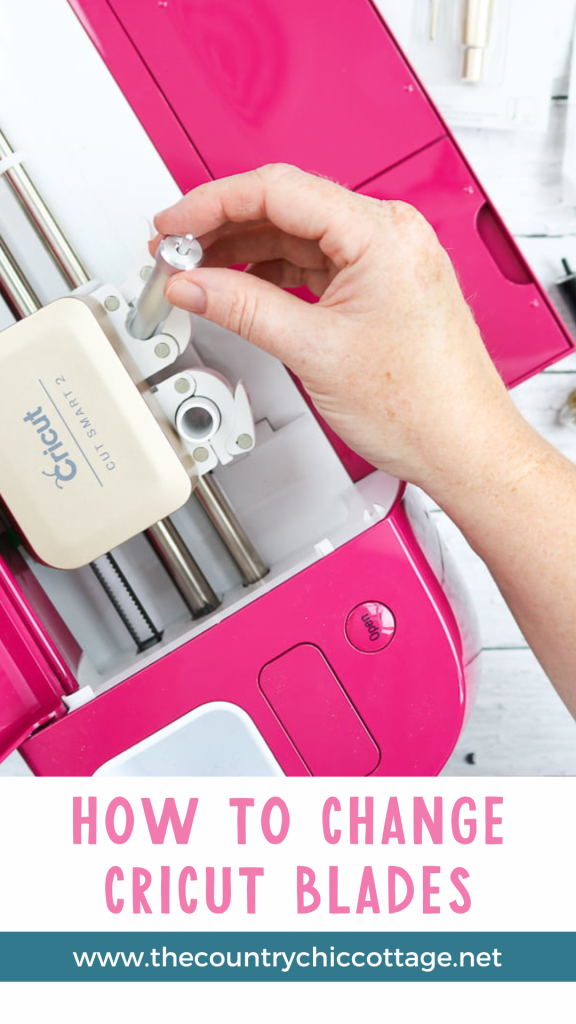
What happens when your Cricut blades get dull and don't make clean cuts anymore? You need to change them. Here's my full tutorial on how to easily change Cricut blades (including a video) to guide you through the process!
My Cricut machines are among my favorite crafting tools because they enable me to accomplish so much more than I could on my own. I have TONS of Cricut posts on the site covering a range of topics from crafting projects to Cricut ‘how-to's to help you.
And today, I have another important “how-to” for you.
We have talked about when to replace the blades on your Cricut, but now we're sharing all the information you need on how to change Cricut blades. From changing the blade in the housing to putting a new blade in your machine, we have you covered!
FYI, this tutorial includes information for both the Cricut Maker machines and the Cricut Explore machines, but changing the blades in your Cricut Joy, Joy Xtra, and Venture is the same.
To keep your machine operating at peak performance, ensure that your blades are fresh for optimal cutting results.
Note: If you have a Cricut machine, you may also want to check out some of our other guides, including Beginner’s Guide to Cricut Design Space, Cricut Accessories, and Cricut Monogram Maker.
How To Change Cricut Blades
When it comes to your Cricut machine, dull blades don’t mean you have to replace the entire device. The good news is that it’s easy to fix the issue by simply changing the blades! If you’re unsure how to do this, don’t worry—I’m here to help you.
How To Change Blades In Cricut Machines Video Tutorial
Since I know it's sometimes easier to follow along visually, I've compiled all the information about changing Cricut blades into one video for you. Just watch it below!
Note: In this video, I cover changing the blades in the housings as well as changing the blades in your machine (for the Maker and Explore Air 2).
Changing Cricut Blades In The Housing
If you prefer to follow along with written instructions, I've provided them as well.
Here is information on how to change Cricut blades for each type of blade. Simply select the type of blade you need to replace below.
NOTE: Use caution when changing any of these blades to prevent injury, as they are sharp.
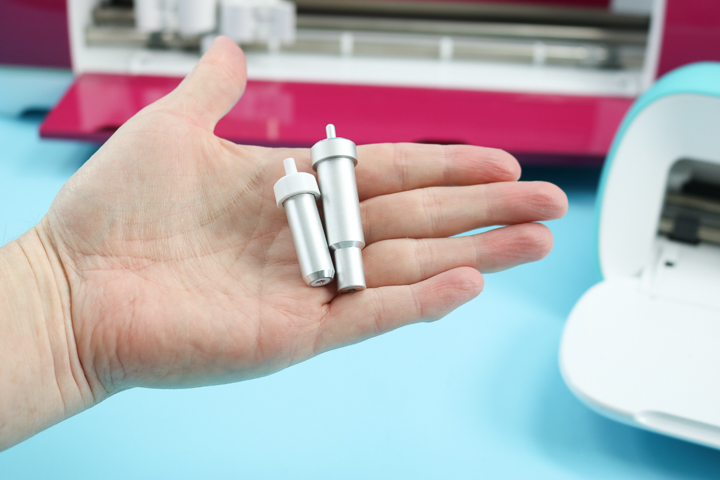
Premium Fine Point Blade
This will be available in either silver or gold housing, and since you can purchase separate replacement blades for this one, there is no need to buy an entire kit again.
To change the blade, just press the plunger down on the top and hold. The blade will eject from the bottom. Remove the protective cover from your new blade and insert it into the hole in the bottom. It will snap into place. Release the plunger, and you are done!
WARNING: The fine-point blades with a grey plastic cap are mislabeled and should not be used. Contact customer service or return them to the store.
Bonded Fabric Blade
This is the premium fine point blade, shown above in pink housing, so you can easily distinguish it. You can change the blade using the same process as you would for the premium fine-point blade.
Deep Point Blade
This is a deeper blade in black housing. You will want to ensure that you get the refills that say “deep point.” Change this blade using the same steps as the two Cricut blades above.
Rotary Blade
There is currently no replacement housing available for this blade, so please keep yours.
You can purchase a blade replacement kit that includes everything needed to change the blade, such as a protective cover for both the old and new blades, as well as a small screwdriver.
There are instructions in the kit, or you can watch me change one in the video above. Please note that the rotary blade is only compatible with Cricut Maker models.
Knife Blade
The knife blade replacement also comes as a kit. You will need a special tool to loosen the cover and access the blade. It also comes with instructions, but you can also refer to the video above if you need a visual aid.
Scoring Wheel
To switch from the single to the double wheel, press the plunger at the top. The wheel on the housing will release, and you can put on the alternate wheel.
Changing Cricut Blades In Your Machine
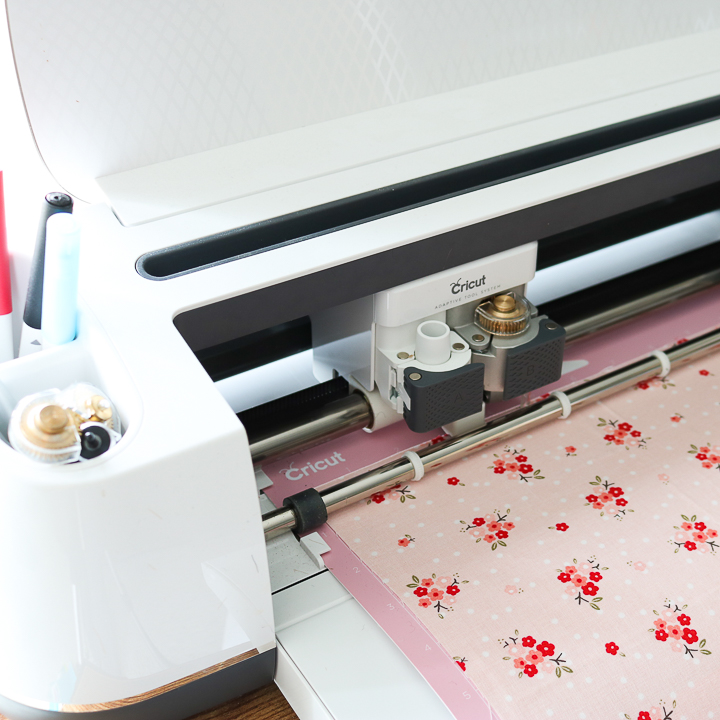
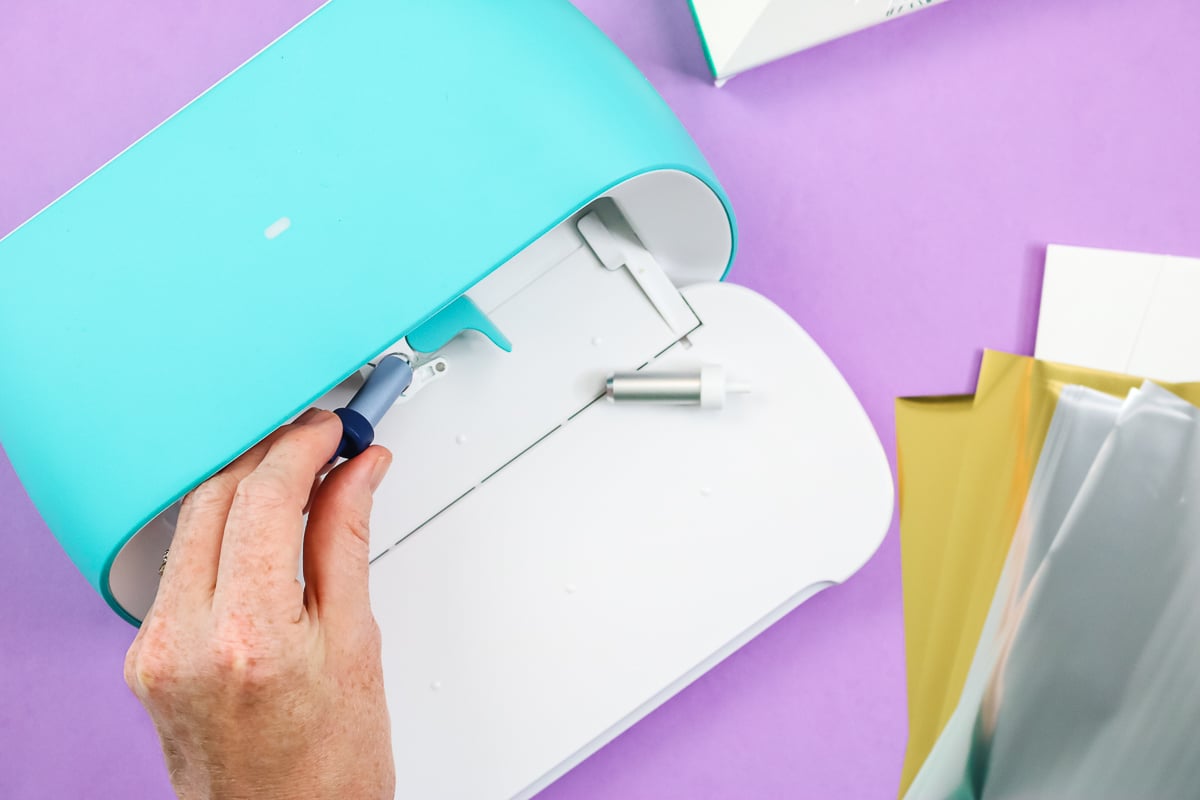
Now that you know how to change Cricut blades in the housing, how do you change them in your machine? The process is really simple! Simply open the clamp and insert your new blade.
The only tricky part is ensuring it is seated correctly before closing the clamp.
The Cricut Maker actually checks the blade before cutting, but the Explore Air does not. If you find your blade is not even reaching the paper when trying to cut, chances are your blade isn't installed correctly. Remove it and try again!
Note: For the blades specific to the Cricut Maker, ensure the opening in the cover at the top is facing the back when inserting. This ensures that the gears line up when you are cutting.
Otherwise, changing these blades is similar to changing the standard blades on your machine. You can watch my video above to see me change the blades in both machines.
Changing Blades in the Cricut Joy and Joy Xtra
For the Cricut Joy and Joy Xtra, after replacing the blade in the blade housing, open the clamp and insert the housing. I don't think it could be easier!
FAQs
Here are a couple of questions that I see readers ask about changing the blades in their Cricut machines. If you have a question, please check to see if I’ve already answered it below. Don’t see your question? Leave it for me in the comments!
How do I know if my Cricut needs a new blade?
You want cuts from your Cricut machine to be clean and crisp. Once you start noticing a change or see jagged or frayed edges, it's time to change the blade.
How often should Cricut blades be changed?
This will vary depending on the material you use and how often you use your machine. A good basic rule of thumb with average use is to change the blade roughly every two months. If you use your cutting machine frequently, you may need to change the blades around the six-week mark.
I hope you found these basics on changing Cricut blades for your Cricut machine helpful!
More Cricut Help And Inspiration
For more information, check out our post on when to change the blades on your Cricut. And definitely subscribe to our YouTube channel because we have tons of great Cricut videos to help you master your machine.
We also have 50 Cricut How-To Videos to Master Your Machine, which you may find helpful.